

















 Shop
Shop
How to Unformat a Hard Drive and Recover Files Safely
Category: PC Data Recovery

4 mins read
You cannot literally undo a hard-drive format, but you may be able to recover files that the format made inaccessible. Stop using the drive immediately, connect it as a secondary disk, scan it from another drive, preview recoverable files, and save the results somewhere else. Success depends on the format type, storage technology, and whether new data has overwritten the old sectors.


Do This First
Disconnect the formatted drive or stop using the computer if it is the system disk. Do not reinstall Windows, create partitions, run CHKDSK, initialize the disk, or save recovered files back to it. Every write can replace data that is still recoverable.
In this article:
- Part 1: Check the Recovery Chances
- Part 2: Prepare the Drive Safely
- Part 3: Restore from a Backup
- Part 4: Recover with Windows File Recovery
- Part 5: Scan with D-Back for PC
- Part 6: Know When to Use a Lab
- Part 7: FAQs
Can You Unformat a Hard Drive?
Formatting creates a new file-system structure. Recovery software does not reverse that operation; it searches the formatted volume for surviving file-system records and file signatures. The less the drive has been used since formatting, the better the chance of finding intact files.
| Situation | Typical outlook | Next action |
|---|---|---|
| Quick-formatted HDD, no new writes | Often the strongest software-recovery case | Scan from another disk immediately |
| Full format or secure erase | Much lower; overwritten sectors cannot be restored | Check backups and assess value |
| Quick-formatted SSD with TRIM | Often poor because discarded blocks may be cleared | Stop power and seek expert advice for critical data |
| Drive clicks, disappears, or reports wrong capacity | Possible physical or firmware failure | Do not keep scanning; use a recovery lab |
| New files written after format | Partially recoverable at best | Stop now and recover to another drive |
If the drive was merely formatted by mistake and remains healthy, follow this broader guide to recover data from a formatted hard drive.
For removable storage, compare the steps for a formatted external hard drive. If the formatted volume is also the Windows startup disk, use a separate working computer and follow the precautions for recovering data from an unbootable hard drive.
Step 1: Prepare the Formatted Drive Without Overwriting It
- Stop every application using the drive.
- If it is external, safely disconnect it. If it was the system drive, shut down the computer.
- Use another computer or boot drive for recovery software.
- Connect a separate destination disk with enough free space for recovered files.
- Open Disk Management only to identify the correct physical disk, capacity, and partition state.
- Do not initialize, repartition, convert, or format the source disk when Windows prompts you.
- For irreplaceable data, consider making a sector-by-sector image before scanning.
Microsoft's Disk Management guide explains how Windows displays disks and volumes. In this recovery workflow, use it for identification only.

Never Recover to the Source Drive
A recovered file written back to the formatted disk may overwrite another missing file. Choose a different internal drive, an external drive, or a network destination.
Method 1: Restore the Files from an Existing Backup
A verified backup is safer than scanning the formatted drive. Check these locations before attempting repairs:
- OneDrive, Google Drive, Dropbox, or another synchronized account.
- Windows File History or Backup and Restore.
- A system-image or disk-cloning archive.
- NAS snapshots and organizational backup systems.
- Copies on another computer, phone, camera card, or external drive.
Restore to a working disk and open representative documents, photos, videos, and archives. A file name alone does not prove that its contents are intact.
Method 2: Use Windows File Recovery
Windows File Recovery is Microsoft's command-line tool for recovering files from local storage. The source and destination must be different drives.
- Install Windows File Recovery from the Microsoft Store on a working Windows drive.
- Connect the formatted source drive and a separate destination drive.
- Open Windows Terminal or Command Prompt as administrator.
- Run a targeted recovery for the file types or folders you need.
- Review the automatically created recovery folder on the destination drive.
For example, if the formatted source is E: and the destination is F:, a broad signature-based scan for common photo formats can use:
winfr E: F: /extensive /n *.jpg /n *.jpeg /n *.pngRead Microsoft's current Windows File Recovery documentation before running the command because syntax and recommended modes can change. Do not swap the source and destination letters.
Method 3: Recover a Formatted Drive with D-Back for PC
iMyFone D-Back for Windows provides a visual workflow for scanning formatted hard drives, external disks, memory cards, and USB drives. Install it on a different disk from the one being recovered.

Useful for Formatted-Drive Recovery:
- Scan internal and external storage from a visual interface.
- Filter results by path and file type.
- Preview supported files before recovery.
- Save selected files to a different drive.
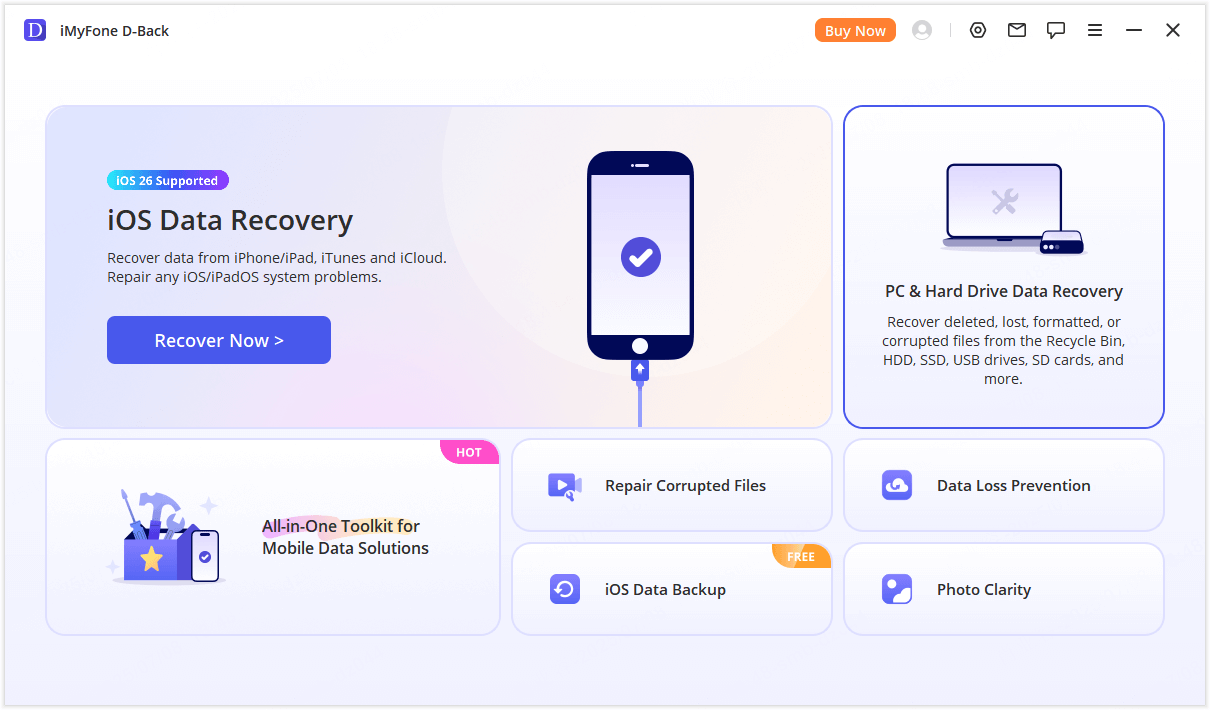
Step 1: Launch D-Back from a healthy drive and choose PC & Hard Drive Data Recovery.
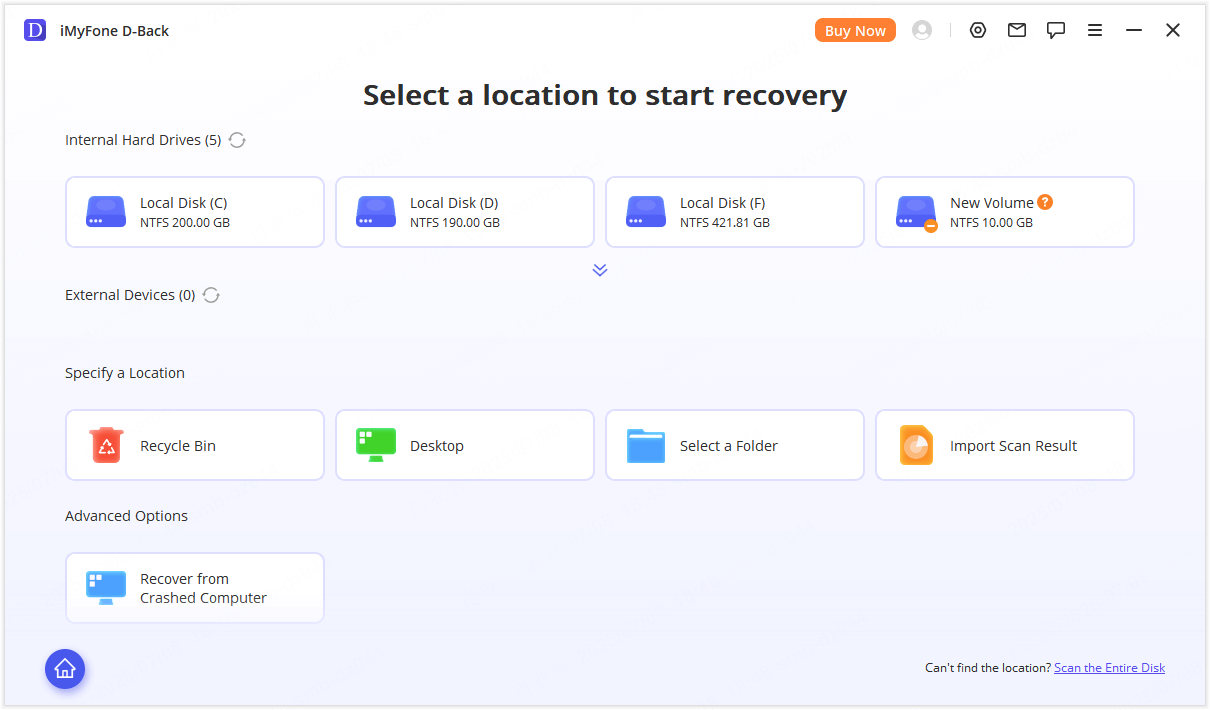
Step 2: Identify the formatted partition by its capacity and previous location, then start the scan. If the old partition is absent, use the entire-disk scan option.
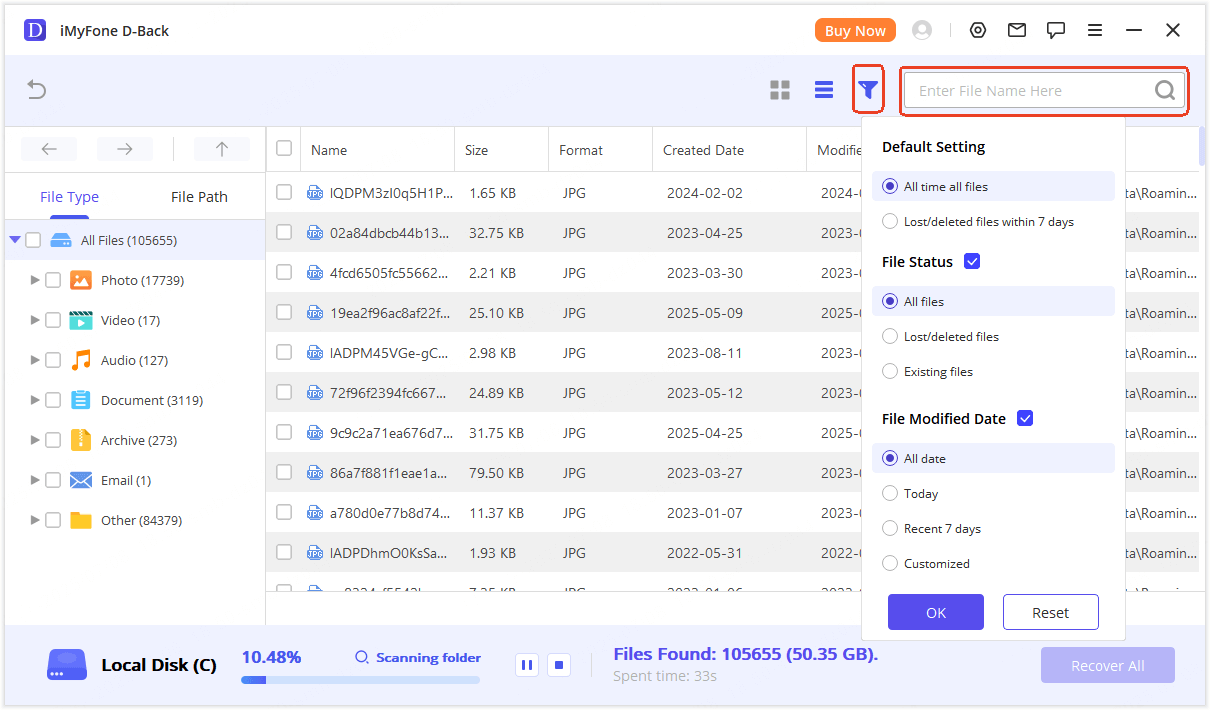
Step 3: Let the scan continue while filtering by file type or path. Preview important items instead of relying only on names.
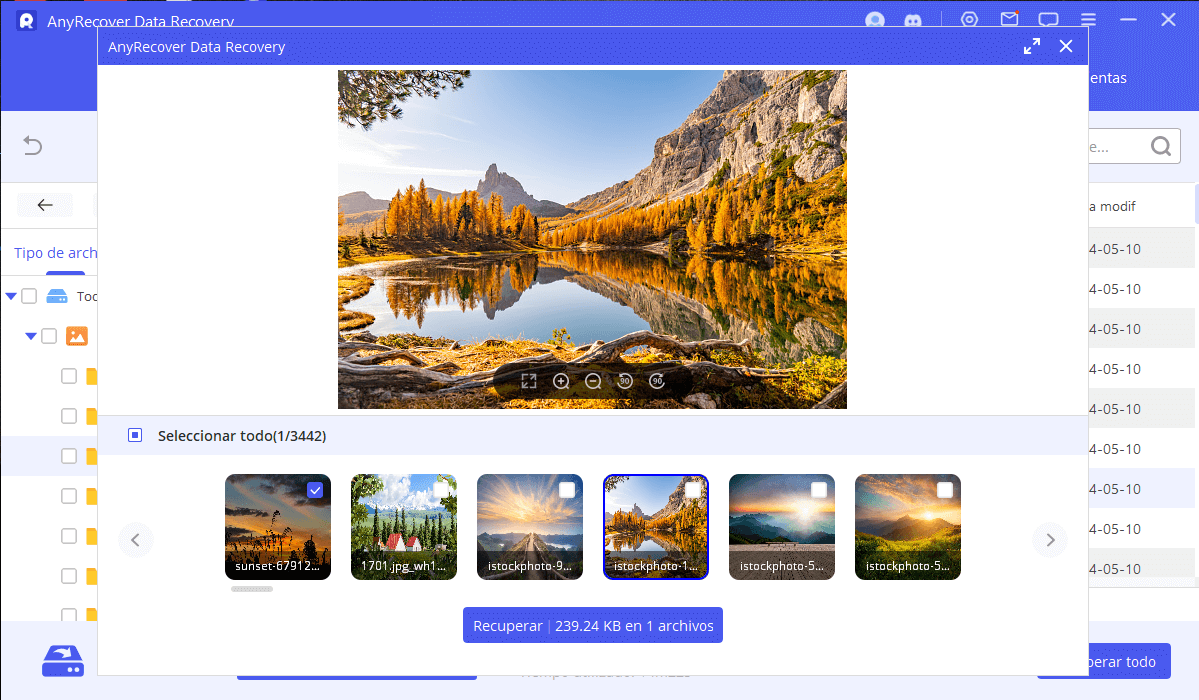
Step 4: Select the intact files and recover them to a different physical drive.
After recovery, compare counts, open samples from every important file type, and retain the source drive unchanged until the result is verified.
When Software Recovery Is the Wrong Choice
Stop DIY attempts and contact a reputable data-recovery laboratory when the drive clicks, grinds, repeatedly disconnects, is not detected with the correct capacity, smells burned, suffered liquid or impact damage, or contains uniquely valuable data. Repeated power cycles and full scans can worsen a mechanical failure.
Do not open a hard drive outside a proper clean environment. Also avoid CHKDSK on the only copy of a damaged file system: it is a repair tool, not a file-recovery tool, and can change metadata while trying to make the volume consistent.
FAQs about Unformatting a Hard Drive
Can a fully formatted hard drive be recovered?
A modern Windows full format writes across the volume and greatly reduces recovery prospects. If sectors were overwritten, software cannot reconstruct their previous contents. Check backups and obtain a professional assessment when the data is critical.
Can I recover a quick-formatted SSD?
Sometimes, but SSD TRIM and garbage collection can clear discarded blocks even without obvious new user files. Stop using and powering the SSD as soon as possible. The outlook is generally less favorable than for a quick-formatted magnetic hard drive.
Will System Restore undo a hard-drive format?
No. System Restore is designed mainly for Windows system files, registry settings, and drivers. It is not a general backup of personal files and cannot reverse a format.
Should I format the drive again so Windows can read it?
No, not before recovery. Another format writes new file-system structures and can reduce the data still available. Recover and verify important files first; only then should you recreate and test the volume.
Conclusion
To “unformat” a hard drive, preserve it, restore from backup when possible, or scan it without writing to it. Recover every selected file to another disk and verify the results. For a guided scan and preview workflow, D-Back for Windows can inspect a healthy but formatted drive while leaving the destination choice under your control.


(Click to rate this post)
Generally rated 5 (256 participated)

Rated successfully!

You have already rated this article, please do not repeat scoring!