

















 Shop
Shop


Beta option still will not appear after enrollment checks? Fixppo can guide a firmware update path without making you hunt for compatible IPSW files manually.
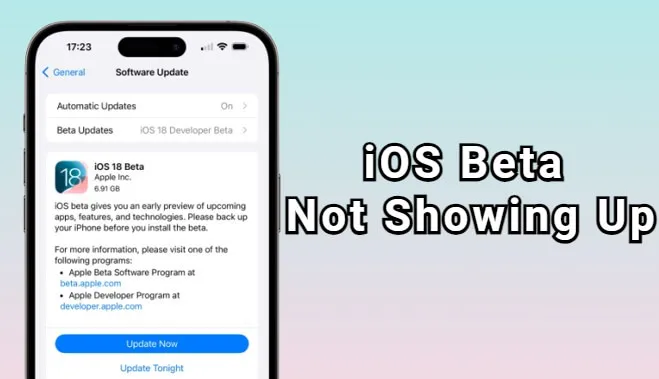
Trying the latest iOS beta before its official release is exciting, but it's doubly frustrating when the iOS beta update isn't showing up on your iPhone. It can make you feel like you're out of the loop. Usually, though, the reason is less mysterious: eligibility, timing, Apple Account, network access, or the current iOS version.
This guide focuses on iOS 27 beta visibility, but the same checks help with developer beta, public beta, and other beta update options.
In this article:
- Why Isn't Your iOS 27 Beta Showing Up?
- Developer Beta vs Public Beta: What's the Difference?
- How to Fix iOS 27 Beta Not Showing on iPhone
- Check iPhone compatibility
- Use the right Apple Account
- Turn on Beta Updates
- Update to the latest public iOS first
- Check Wi-Fi, VPN, and Apple servers
- Install iOS beta with Fixppo

- Force restart and reset network settings
- Use a computer update route
- FAQs About iOS Beta Visibility
- Conclusion

Quick answer
If iOS 27 beta is not showing up, check compatibility, beta release timing, Apple Account enrollment, the Beta Updates menu, Wi-Fi/VPN settings, and whether your iPhone needs the latest public update first. Use a firmware update tool only after those basics are cleared.
Why Isn't Your iOS 27 Beta Showing Up?
When your iPhone does not show a beta update, it usually comes down to access rather than a single Settings glitch. Apple beta builds depend on device support, Apple Account enrollment, release timing, and update-server access. Here are the possible reasons for the beta update not showing on iPhone:
- Device is not eligible: If the iPhone cannot run that iOS version, the beta will not appear.
- Beta is not released: A developer beta and public beta do not always appear at the same time.
- Wrong Apple Account: The Apple Account signed into the iPhone may not be the one enrolled for beta access.
- Beta Updates is hidden: The menu may not show until the iPhone is on a supported iOS version and signed into the right account.
- Network blocks update checks: VPN, proxy, DNS filtering, or unstable Wi-Fi can stop Software Update from reaching Apple servers.
If your bigger question is how to join the beta program from scratch, start with how to get iOS beta. If you already installed a beta and now want out, read how to remove iOS beta before downgrading or erasing anything.
Developer Beta vs Public Beta: What's the Difference?
Do not panic if your friend sees a beta that you do not. Developer betas usually appear for developer access first, while public betas depend on Apple Beta Software Program availability. For example, iOS 27 developer beta was released in June, 2026, followed by the public beta in mid-July.
| Beta option | Who should see it | Why it may not appear | What to check |
|---|---|---|---|
| Developer Beta | Apple developer access | Wrong Apple Account or device not eligible | Developer sign-in and Beta Updates menu |
| Public Beta | Apple Beta Software Program members | Public beta not available yet | beta.apple.com enrollment |
| No beta option | Device/account not recognized for beta | Outdated iOS, network block, or account mismatch | Update public iOS, switch account, retry network |
Back up before beta. Beta software can behave unpredictably. If this is your main iPhone, back up first and think twice before installing a build you may need to remove later.
How to Fix iOS 27 Beta Not Showing on iPhone
Work through these checks in order. Most people do not need all of them; the right fix depends on where your iPhone stops seeing the beta.
1 Check iPhone Compatibility
First, make sure your iPhone supports the iOS version you want. If the device is not eligible, the beta will not show in Software Update no matter how many times you refresh.
Open Apple's iOS preview or support pages and compare your model with the supported-device list. If you are using an older iPhone, this step saves you from chasing settings that cannot make the update appear.

2 Use the Right Apple Account
The beta option is tied to the Apple Account on the device. If you enrolled on the web with one account but your iPhone uses another account for Software Update, the beta may not appear.
Step 1: Go to Settings and tap your name.
Step 2: Confirm the Apple Account matches the one you used for Apple Developer or Apple Beta Software Program.
Step 3: Return to Settings > General > Software Update and check again.
3 Turn on Beta Updates
If your account is eligible, open Settings > General > Software Update > Beta Updates. Select the beta channel that matches your enrollment, then go back one screen and wait for Software Update to refresh.
If you do not see Beta Updates at all, update to the latest public iOS version first, restart the iPhone, and check whether the menu appears after your account syncs.

4 Update to the Latest Public iOS First
If your iPhone is behind on public updates, it may not show the beta channel correctly. Install the latest public iOS update, then return to Software Update and check the beta menu again.
Step 1: Back up your iPhone.
Step 2: Go to Settings > General > Software Update.
Step 3: Install the latest public update available for your device.
Step 4: Restart, then check Beta Updates again.
5 Check Wi-Fi, VPN, and Apple Servers
Software Update needs to reach Apple servers. If your iPhone says it cannot check for updates, switch Wi-Fi networks, turn off VPN/proxy temporarily, and retry after a short wait. A slow or filtered network can make the beta look unavailable even when your account is fine.
Note
If you see the public update but not the beta, the issue is more likely account, release timing, or beta-menu eligibility. If Software Update cannot check anything, troubleshoot network access first.
6 Install iOS Beta with Fixppo
If the iOS beta update still does not appear after you finish the checks above, the problem may come from a deeper iOS update service glitch. In this case, iMyFone Fixppo is a practical next step.
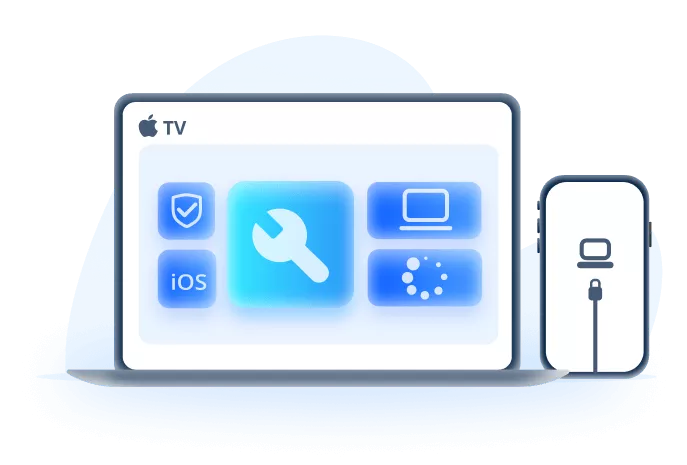
Fixppo can help repair iOS system issues that block beta updates from showing up, downloading, or installing correctly. Instead of manually searching for firmware or jumping straight to iTunes/Finder restore, Fixppo detects your device, downloads the matching iOS firmware, and guides you through the repair process step by step.
Why Fixppo can help after beta checks:
- Guides iOS upgrade or downgrade without jailbreaking or manually guessing the firmware file.
- Downloads matching firmware automatically to reduce IPSW compatibility errors and failed manual installs.
- Repairs update, restore, downgrade, and activation failures with step-by-step guidance when you are not technical.
- Lets you back up and restore iPhone data before risky repair, reset, or system update actions.
- Repairs 150+ iOS/iPadOS/tvOS system problems, including frozen update, Apple logo, boot loop, and recovery mode issues.
Step 1: Open Fixppo and connect your iPhone to the computer.
Step 2: Choose iOS Upgrade/Downgrade.
Step 3: Let Fixppo detect your device and show available matching firmware.
Step 4: Download the firmware and follow the guided update process.

7 Force Restart and Reset Network Settings
If the beta menu appeared before but disappeared, try a quick refresh. Force restart your iPhone, then check Software Update again. If update checks still fail, reset network settings.
Force restart: Press and release Volume Up, press and release Volume Down, then hold the Side button until the Apple logo appears.
Reset network: Go to Settings > General > Transfer or Reset iPhone > Reset > Reset Network Settings.

8 Use a Computer Update Route
If your iPhone cannot check for any update over the air, connect it to a computer and try updating through Finder, the Apple Devices app, or iTunes. Choose Update before Restore, because Restore can erase current data.
Step 1: Back up the iPhone if you can.
Step 2: Connect it to a trusted computer.
Step 3: Select the iPhone and choose Check for Update or Update.
FAQs About iOS Beta Visibility
1 Why isn't iOS 27 showing up?
It may not be available for your device, beta channel, Apple Account, or release timing yet. Check compatibility, enrollment, Beta Updates, and network access before assuming the iPhone has a system fault.
2 Why is iOS 27 public beta not showing up?
The public beta may not be available at the same time as the developer beta, or your Apple Account may not be enrolled in Apple Beta Software Program. Sign in at beta.apple.com, enroll the device, then check Beta Updates again.
3 Can I install iOS 27 beta on my main iPhone?
You can, but it is not the calmest choice if you depend on that iPhone every day. Back up first, expect bugs, and know how you would remove the beta if banking apps, battery life, or daily features become a problem.
Conclusion
When iOS beta is not showing up, the fix usually starts with access, not repair. Check whether your iPhone supports the build, whether the iOS 27 public beta is actually available, whether the right Apple Account is enrolled, and whether Beta Updates appears in Settings. If the beta update not showing on iPhone issue continues after those checks, then it makes sense to refresh network settings, update the current public iOS version, or use a guided firmware workflow with clear backup and compatibility checks.


Melvin Cooper has over 10 years of experience in the technology industry and is an expert at providing tips and handy solutions to Apple and Android users. Dedicated to helping millions of users improve their experience with mobile devices, he has maintained an impressive record of solving problems.
-
Fix iPhone Stuck on Update Requested [iOS 27 Supported]
iPhone stuck on update requested? Learn why it happens and discover 8 proven solutions to get your iOS update back on normal without data loss.
3 mins read -
[2025 New] How to Stop iOS 17/18/26 Update in Progress?
How to stop iOS 17/18/26 update in progress when you feel like staying in the current iOS version? Here's how to do it via 4 methods.
3 mins read -
5 Ways for iOS 26 Beta Download [Developer & Public Beta]
How to get iOS 26 beta? Whether you want to download iOS 26 developer or public beta, you can find the suitable methods with our guide. 5 Ways here!
3 mins read -
17 Important Facebook Statistics You Should Know in 2025
Do you want to know some up-to-date Facebook statistics? We break down 17 must-know Facebook stats about demographics, engagement rate and more.
3 mins read -
[2026 Full Guide] All About iOS Update Issues and Solutions
Have you encountered different problems during or after iOS update? This article focuses on all iOS update issues and solutions. Hope you can learn from it.
5 mins read -
[Full Guide] 50+ iOS 18 Bugs and Fixes You Should Know 2025
What are some known iOS 18 bugs? Read on this article to learn everything about iOS 18 bugs and fixes.
5 mins read
Was this page helpful?
Thanks for your rating
Rated successfully!
You have already rated this article, please do not repeat scoring!