

















 Shop
Shop


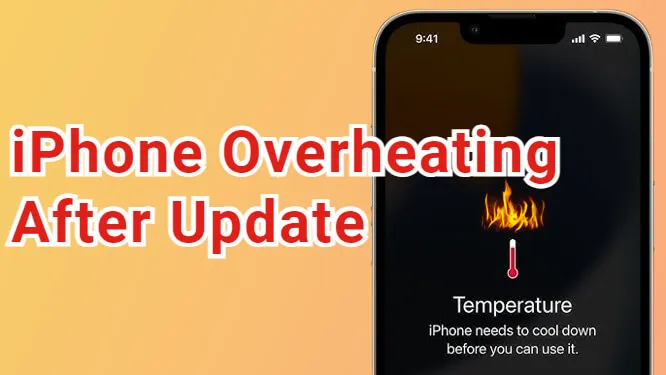
If your iPhone overheats after an iOS 27 update, it may be normal for a short time. The phone has to reindex photos, rebuild search data, sync iCloud content, update apps, and settle background tasks. But if the iPhone stays hot for hours, drains battery quickly, dims the screen, freezes, or restarts, you need to take actions to fix it.
This guide starts with safe cooling and battery checks, then moves to app cleanup, force restart, iOS system repair, reset, and restore. The goal is not to panic over every warm phone, but to stop persistent overheating before it damages battery health or interrupts daily use.

Quick answer
A warm iPhone during the first few hours after an update can be normal. If the iPhone keeps overheating, remove the case, stop heavy apps, update apps, check battery usage, force restart, and repair iOS if the overheating came with freezes, boot loops, update failure, or system crashes.
In this article:
- Why Is My iPhone Getting Hot After Update?
- How to Fix iPhone Overheating After Update
- Cool Down Your iPhone Physically
- Improve Battery Performance
- Update All Apps
- Uninstall Problematic Apps
- Force Restart
- Repair iOS with Fixppo

- Reset All Settings
- Restore with Finder, Apple Devices, or iTunes
- Wait for a Newer Update
- FAQs
- Conclusion
Why Is My iPhone Getting Hot After Update?
After an iOS update, the iPhone may run background tasks that temporarily use more CPU, storage, network, and battery. This is why a device can feel warm even when you are not gaming or recording video.
- Normal post-update indexing: Photos, Spotlight, Siri suggestions, and app data may rebuild for several hours.
- App updates: Many apps update or recompile data after a new iOS version.
- iCloud sync: Photos, Messages, backups, and files may sync heavily after restart.
- Battery-heavy apps: Social, navigation, camera, and game apps can run hot after permission or background changes.
- Update failure or system bug: Overheating with freezing, restart loops, black screen, or Apple logo usually needs repair.
- Hardware or charging issue: Swollen battery, liquid damage, bad charger, or heat during charging is not solved by iOS repair.
How to Fix iPhone Overheating After Update
1 Cool Down Your iPhone Physically
Remove the case, stop charging, move the iPhone out of direct sunlight, and close camera, navigation, game, and video apps. Do not put the iPhone in a refrigerator; sudden moisture and temperature change can damage it.
If the iPhone shows a temperature warning, let it cool before attempting repair, update, or restore.
2 Improve Battery Performance
Open Settings > Battery and check which apps are using the most power. If one app jumps unusually after the update, close it, update it, or reinstall it. Also check Battery Health. A degraded battery can heat up more easily under update load.
- Reduce Screen Brightness:
- Clear All Ongoing Apps:
- Turn Off Background App Refresh:
- Manage Automatic Downloads:
- Disable Location Services:
Lower the screen brightness helps to maintain the battery's health, leading to less heat generation and help to keep your iPhone cooler.
Too many apps running in the background at the same time can use excessive resources, close them all can greatly stop iPhone from overheating.
This feature is designed to automatically refresh the apps' content when on Wi-Fi or cellular in the background, turning it off can preserve battery life. Go to Settings > General > Background App Refresh to turn it off or adjust it.
When this feature is on, your device will automatically install any apps purchases on other devices. Go to Settings > App Store > Automatic Downloads tab, toggle off the buttons to avoid unnecessary battery loss.
GPS and location tracking services will consume a lot of power whether you're using the device or not. Go to Settings > Privacy & Security > Location Services to completely or partially disable this feature..
3 Update All iPhone Apps
Outdated apps can misbehave after iOS changes. Open the App Store, update all apps, then restart the iPhone. Pay attention to navigation, camera, social media, and game apps because they often use background services.

4 Uninstall Problematic Apps
If one app keeps the iPhone hot even after updating, uninstall it for a test. You can reinstall it later if the heat stops. This is a better diagnostic step than resetting the whole phone too early.
5 Perform a Force Restart
A force restart can stop a stuck background process after an update. On iPhone 8 or later, press Volume Up, press Volume Down, then hold the Side button until the Apple logo appears.

- To force restart iPhone 6 or older models:
- To force restart iPhone 7/7 plus models:
- To force restart iPhone 8/X/11/12/13/14/15/16/17 models:
Press and hold the Home + Power buttons together and wait until the Apple logo screen appears.
Press and hold the Volume Down + Power button at the same time, release the buttons when you can see the Apple logo.
Press the Volume Up, then the Volume Down button, and finally press and hold the Power button. Release it the time the Apple logo screen shows up.
6 Repair iOS with Fixppo
If you want to end this iPhone overheating situation as soon as possible, iMyFone Fixppo is a great option. Fixppo can fix iOS glitches that appear during the iOS update process without data loss. In 4 simple steps, you can continue watching YouTube videos or playing games with no worries.
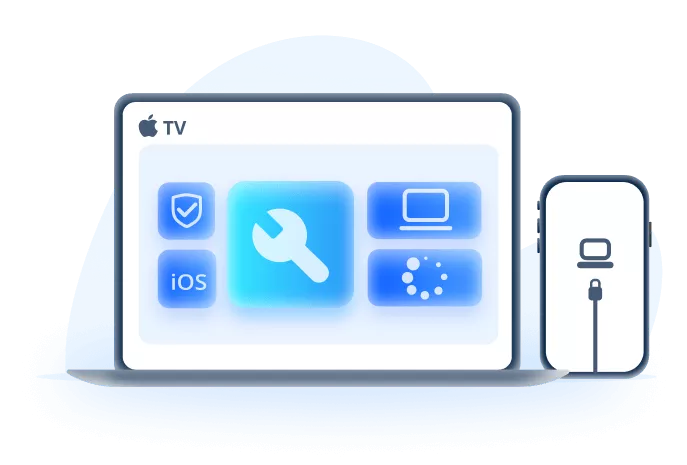
Fix iPhone Overheating After Update
- Repair update-related iOS issues: Useful when overheating comes with freezing, restart loops, or failed update screens.
- Keep all your data safe: Fixes your iPhone overheating after iOS update issue without losing data.
- Firmware workflow: Detects the device and downloads suitable firmware for repair.
- Do No Harm to Battery: Only addresses iOS 27 overheating after the update issue. Doesn't affect iPhone's battery health.
- Broader iOS repair: Helps with Apple logo loop, recovery mode, black screen, update failure symptoms, and 150+ iOS issues.
Step 1. Choose Apple System Repair in Fixppo.

Step 2. Select Standard Mode and connect the iPhone.

Step 3. Download the firmware package and start repair.
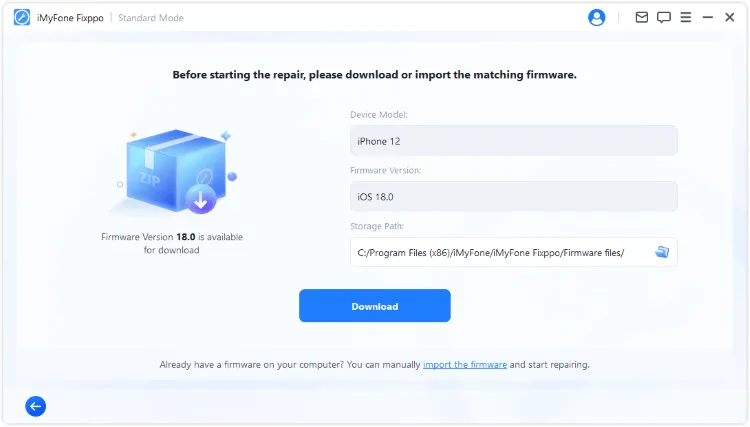
Step 4: Click the Start Standard Repair button to begin repairing.
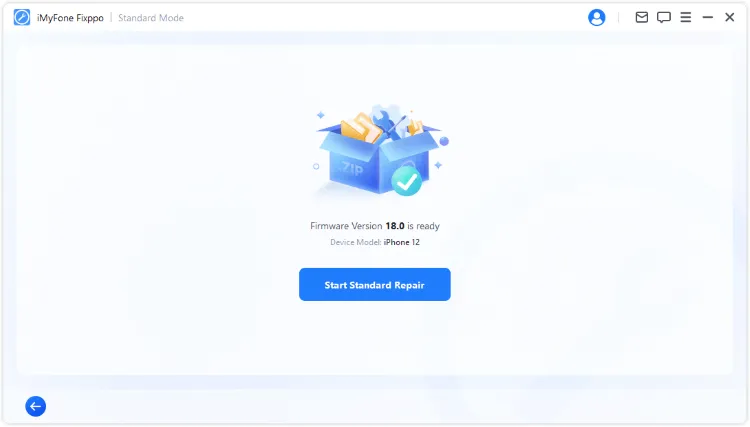
When it's done, your iPhone will reboot, with the iOS 27 overheating issue fixed.

7 Reset All iPhone Settings
Reset settings when overheating seems tied to network, background activity, display, or system preferences. This does not erase photos or apps, but it resets Wi-Fi, privacy, and system settings.

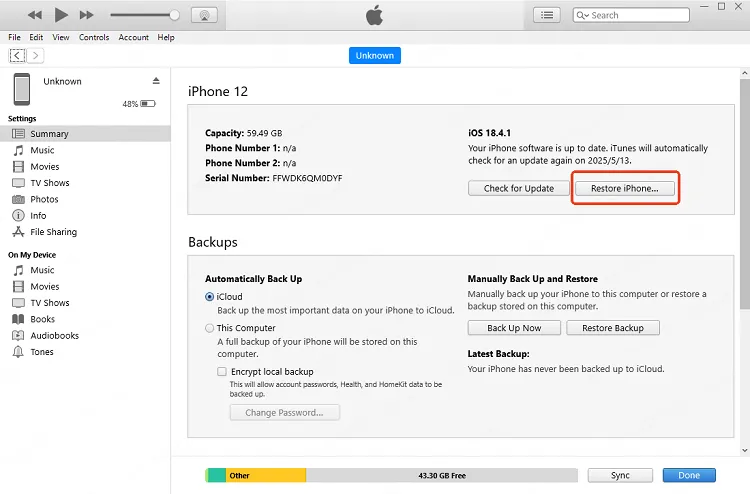
8 Restore with Finder, Apple Devices, or iTunes
Restore only after backing up and trying safer steps. A restore can erase the iPhone. Use Finder, Apple Devices, or iTunes depending on your computer.

9 Wait for a Newer Update
If the iPhone is warm only during the first day after updating and gradually improves, waiting may be the right answer. Install the next iOS update when Apple releases one, especially if release notes mention performance, battery, or stability fixes.
FAQs
How long is overheating normal after an iOS update?
A few hours of warmth can be normal. Persistent heat, rapid battery drain, freezing, or restart loops are not normal.
Can iOS 27 cause overheating?
An iOS update can trigger indexing and background work, and beta builds may be less stable. Do not describe it as a confirmed widespread issue unless Apple or repeated evidence confirms that pattern.
When is overheating a hardware issue?
Heat during charging, battery swelling, liquid damage, burning smell, or shutdowns under light use need inspection by Apple or a repair provider.
Conclusion
iPhone overheating after update is often temporary, but persistent heat needs a structured check. Cool the device, review battery and apps, force restart, try iMyFone Fixppo when iOS update failure or system corruption is involved, and reserve reset or restore for cases that do not improve.


Melvin Cooper has over 10 years of experience in the technology industry and is an expert at providing tips and handy solutions to Apple and Android users. Dedicated to helping millions of users improve their experience with mobile devices, he has maintained an impressive record of solving problems.
-
Fix iPhone Stuck on Update Requested [iOS 27 Supported]
iPhone stuck on update requested? Learn why it happens and discover 8 proven solutions to get your iOS update back on normal without data loss.
3 mins read -
[2025 New] How to Stop iOS 17/18/26 Update in Progress?
How to stop iOS 17/18/26 update in progress when you feel like staying in the current iOS version? Here's how to do it via 4 methods.
3 mins read -
5 Ways for iOS 26 Beta Download [Developer & Public Beta]
How to get iOS 26 beta? Whether you want to download iOS 26 developer or public beta, you can find the suitable methods with our guide. 5 Ways here!
3 mins read -
17 Important Facebook Statistics You Should Know in 2025
Do you want to know some up-to-date Facebook statistics? We break down 17 must-know Facebook stats about demographics, engagement rate and more.
3 mins read -
[2025 Full Guide] All About iOS Update Issues and Solutions
Have you encountered different problems during or after iOS update? This article focuses on all iOS update issues and solutions. Hope you can learn from it.
5 mins read -
[Full Guide] 50+ iOS 18 Bugs and Fixes You Should Know 2025
What are some known iOS 18 bugs? Read on this article to learn everything about iOS 18 bugs and fixes.
5 mins read
Was this page helpful?
Thanks for your rating
Rated successfully!
You have already rated this article, please do not repeat scoring!