

















 Shop
Shop


Stuck on "Verifying Update" for too long? Fixppo repairs iOS update issues that leave your iPhone frozen, helping you finish the update with just one click.
If your iPhone is stuck on verifying update, I know how uneasy that feels: the update has downloaded, the screen looks official, and yet nothing moves. The fix depends on one detail you should check before touching anything risky.
Start by asking whether your screen still responds. If you can open Settings, stay with the lower-risk checks first. If your iPhone screen is stuck, black, locked, or looping back after restart, move to the frozen-device fixes before Recovery Mode or DFU restore.


Quick answer
If the verifying screen has been there only a few minutes, keep the iPhone on power and Wi-Fi. If it sits for 20-30 minutes, check network access, storage, VPN/proxy settings, Apple server reachability, and the downloaded update file. If touch no longer works, force restart first, then try a computer update or guided system repair before erase-based restore.
In this article:
- Why Is My iPhone Stuck on Verifying Update?
- Quick Check: Verifying or Frozen?
- Fix iPhone Update Stuck on Verifying While It Still Responds
- Check Wi-Fi, power, VPN, and Apple servers
- Lock and wake your iPhone
- Delete and re-download the update
- Reset network settings
- Fix iPhone Update Stuck on Verifying While It Is Frozen
- Repair with Fixppo

- Force restart iPhone
- Update with Finder, Apple Devices, or iTunes
- Use Recovery Mode
- Use DFU restore last
- FAQs About Verifying Update
- Conclusion
Why Is My iPhone Stuck on Verifying Update?
The verifying update screen appears after your iPhone gets an iOS update package and checks whether the file is complete, compatible, and allowed to install. When that check cannot finish, your iPhone update gets stuck before installation begins.
- Network or server access: Weak Wi-Fi, blocked Apple update servers, VPN/proxy settings, or temporary server problems can stop verification.
- Storage or power pressure: Apple recommends a compatible device, power, internet, and enough free storage before updating.
- Damaged update file: If the update package is incomplete, deleting and downloading it again can help.
- Frozen update screen: The screen may look like it is verifying, while the device has actually stopped responding.
- Major-update delay: Large updates such as iOS 27 can take longer around busy release windows. If you are testing beta software, back up first and avoid using it on a device you cannot afford to troubleshoot.
If your update is stuck at another stage, these guides may fit better: iPhone stuck on preparing update, iOS update paused, how to stop an iOS update, and iOS update issues and solutions.
Quick Check: Verifying or Frozen?
| What you see | What it usually means | Best first move | Data risk |
|---|---|---|---|
| Verifying for a few minutes | The update may still be checking normally. | Keep it on power and Wi-Fi. | Low |
| Verifying for 20-30 minutes | Network, storage, server access, or update file may be blocking it. | Check Wi-Fi, VPN/proxy, storage, then re-download the update. | Low |
| Touch does not respond | The iPhone may be frozen beyond a normal delay. | Force restart, then try a computer update. | Low to medium |
| Black screen, Apple logo loop, or Recovery Mode | The update may have failed during restart or firmware installation. | Try iOS system repair before erase-based restore. | Medium to high |

Note
Wait before you interrupt. If the Apple logo progress bar is moving, even slowly, keep the iPhone connected to power. Interrupting an active install can make recovery harder.
Fix iPhone Update Stuck on Verifying While It Still Responds
Use these fixes when you can still unlock the iPhone, open Settings, or leave the verifying screen. They target the common low-risk causes first.
1 Check Wi-Fi, Power, VPN, and Apple Servers
Verification needs access to Apple's update server. Connect to stable Wi-Fi, keep the iPhone plugged in, and pause other large file transfers. If you use a VPN, proxy, DNS filter, or security profile, turn it off temporarily and try again.
If you see messages such as "Unable to Check for Update," "Unable to Download," or "not connected to the internet," try another Wi-Fi network. If the same error returns on multiple networks, the update file itself may need a clean download.
2 Lock and Wake Your iPhone
If the screen still responds, press the Side button to lock your iPhone, wait a few seconds, then wake and unlock it again. This can refresh a stuck Software Update screen without forcing a restart. If the wheel still does not move, continue with the update-file check.
3 Delete and Re-download the Update
A damaged package can make the iPhone update stuck on verifying again and again. If Settings still opens, remove the downloaded file and start fresh.
Step 1: Go to Settings > General > iPhone Storage.
Step 2: Find the iOS update file, tap it, then tap Delete Update.

Step 3: Restart your iPhone.
Step 4: Return to Settings > General > Software Update and download the update again.
If your iPhone is stuck on the lock screen and you cannot reach Settings, move to the frozen-device methods below.
4 Reset Network Settings
If changing Wi-Fi does not help, reset network settings to clear saved Wi-Fi, cellular, VPN, and DNS settings that may be blocking verification. This does not erase your photos or apps, but you will need to reconnect to Wi-Fi afterward.
Step 1: Go to Settings > General > Transfer or Reset iPhone > Reset > Reset Network Settings.
Step 2: Enter your passcode and confirm.

Fix iPhone Update Stuck on Verifying While It Is Frozen
If the iPhone no longer responds, you cannot delete the update from Settings, or the screen goes black after trying to verify or install iOS 27, work through these options in order. Start with the lowest-risk step and leave erase-based restore for last.
1 Repair iPhone Stuck on Verifying Update with Fixppo
If you want the most straightforward solution without guessing, iMyFone Fixppo is the first solution I recommend trying. It is designed to repair iOS system problems such as update stuck, frozen screen, and failed firmware installation without forcing you to erase the device first.
Instead of jumping straight to iTunes/Finder Restore or DFU mode, Fixppo gives you a guided repair path with Standard Mode, which aims to fix iOS update issues while reducing the risk of data loss.
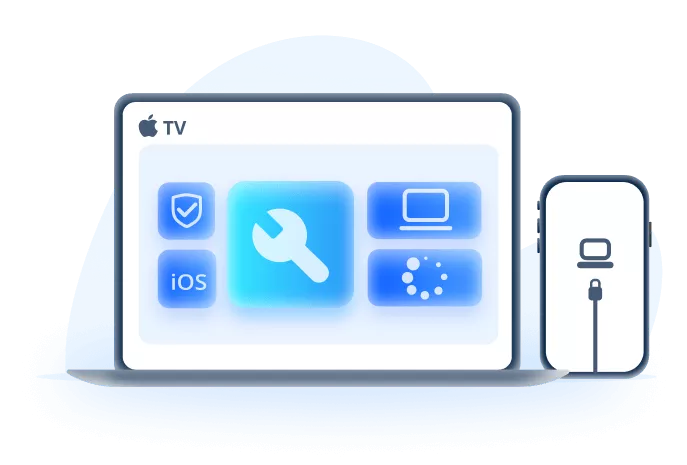
Why Fixppo fits this verifying update problem:
- Repairs 150+ iOS/iPadOS/tvOS system problems with with simple, step-by-step guidance.
- Downloads matching firmware automatically to reduce IPSW compatibility mistakes and failed manual installs.
- Easily downgrade your iOS or remove iOS beta if you regret updating. No jailbreak needed.
- Includes tools for backup, restore, device reset, iOS repair, firmware install, and recovery mode.
- iOS 27 supported.
Step 1: Install and open Fixppo on your computer, connect the iPhone, and click Start Repair.

Step 2: Choose Standard Mode when you want to try repair before erase-based options.

Step 3: Let Fixppo detect the device and download matching firmware.
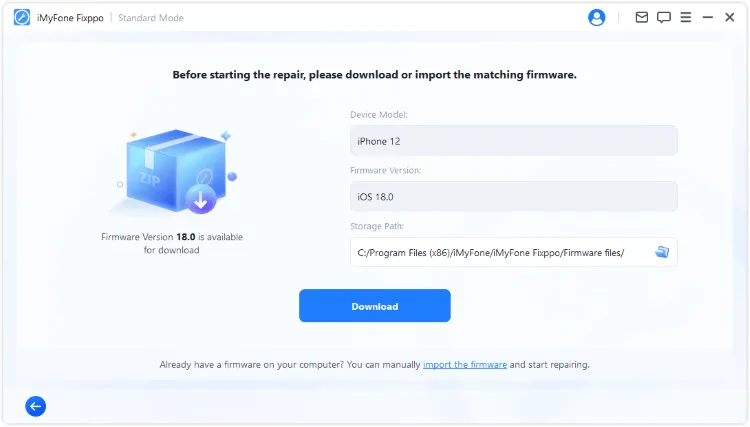
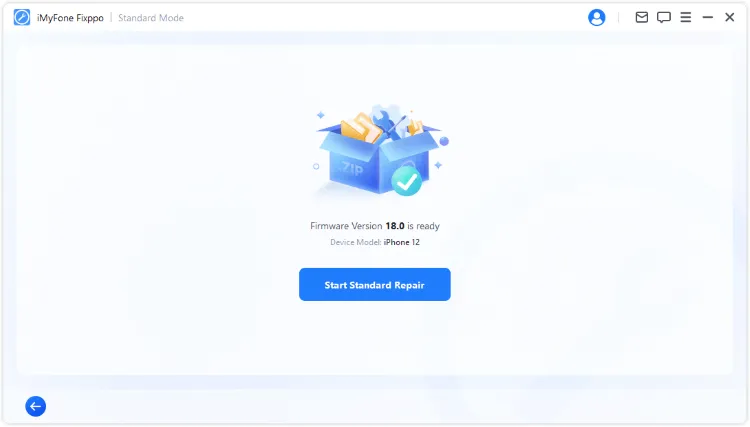
Step 4: Start the repair and keep the iPhone connected until the process finishes.
For a broader update-failure map, you can also read what to do when iPhone crashes during update.
2 Use Recovery Mode If iPhone Cannot Update Normally
Recovery Mode can help when the iPhone cannot be updated normally or the computer only recognizes it after recovery steps. When the computer offers both options, choose Update first. Restore may erase the device.
Step 1: Connect the iPhone to your computer.
Step 2: Use the force-restart buttons for your model, but keep holding until the Recovery Mode screen appears.
Step 3: In Finder, Apple Devices, or iTunes, choose Update if it appears.
3 Force Restart iPhone
A force restart is the first move when the verifying screen freezes and touch stops responding. It does not erase data, but it can interrupt a frozen screen and let the iPhone boot normally.
- iPhone 8 or later: Quickly press and release Volume Up, quickly press and release Volume Down, then hold the Side button until the Apple logo appears.
- iPhone 7/7 Plus: Hold Volume Down + Side until the Apple logo appears.
- iPhone 6s/SE 1st generation or earlier: Hold Home + Side or Home + Top until the Apple logo appears.

4 Update with Finder, Apple Devices, or iTunes
If the iPhone restarts but the update still fails, use a computer. Try Finder on macOS Catalina or later, the Apple Devices app on newer Windows PCs, or iTunes on older Windows PCs and older Macs. Choose Update when available because it attempts to reinstall iOS without erasing the device.
Note
Update and Restore are not the same. Choose Update first. Restore can erase current data, so treat it as a later option after backup checks.
Step 1: Open Finder, Apple Devices, or iTunes and connect your iPhone with a USB cable.
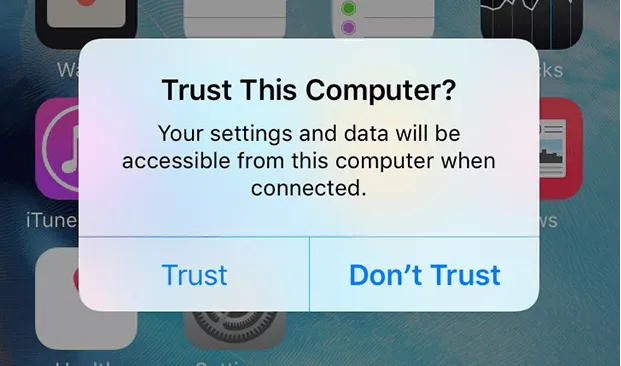
Step 2: If the iPhone is usable, unlock it and tap Trust.
Step 3: Select the iPhone, then choose Check for Update or Update.
Step 4: Keep the iPhone connected until the update completes.
5 Use DFU Restore Only as a Last Option
DFU restore is the deepest restore path. It can be useful when Recovery Mode does not work, but it can erase the device and is easy to mistime. Use it only after you have checked backup status and tried lower-risk methods.
Note
Backup first whenever possible. If you can still reach Settings or a trusted computer recognizes the iPhone, back up before any restore, reset, or beta-system repair attempt.
FAQs About Verifying Update
1 How long does it take to verify update on iPhone?
A few minutes is normal, especially for a large update. If your iPhone stays on verifying update for 20-30 minutes with no visible change, the problem is more likely network access, server reachability, storage, or a damaged update file.
2 Can I cancel verifying update without erasing iPhone?
If the iPhone still responds, delete the update from iPhone Storage and restart. If it is frozen, try force restart first. Avoid Restore or DFU until you understand the data risk.
3 Why does iPhone verify update again after restart?
The update file may still be saved, or the iPhone may be retrying the same failed update process. Delete and re-download the update if Settings opens. If it loops or goes black, move to a computer update or repair workflow.
Conclusion
When your iPhone is stuck on verifying update, do not jump straight to the harshest fix. First decide whether the screen still responds, then check Wi-Fi, power, storage, VPN/proxy settings, and the update file. If your iPhone screen is stuck or the iPhone update stuck on verifying keeps returning after restart, move carefully through force restart, computer Update, and guided system repair before Restore or DFU. That order gives you the best chance to fix the problem without creating a bigger one.


Melvin Cooper has over 10 years of experience in the technology industry and is an expert at providing tips and handy solutions to Apple and Android users. Dedicated to helping millions of users improve their experience with mobile devices, he has maintained an impressive record of solving problems.
-
Fix iPhone Stuck on Update Requested [iOS 27 Supported]
iPhone stuck on update requested? Learn why it happens and discover 8 proven solutions to get your iOS update back on normal without data loss.
3 mins read -
[2025 New] How to Stop iOS 17/18/26 Update in Progress?
How to stop iOS 17/18/26 update in progress when you feel like staying in the current iOS version? Here's how to do it via 4 methods.
3 mins read -
5 Ways for iOS 26 Beta Download [Developer & Public Beta]
How to get iOS 26 beta? Whether you want to download iOS 26 developer or public beta, you can find the suitable methods with our guide. 5 Ways here!
3 mins read -
17 Important Facebook Statistics You Should Know in 2025
Do you want to know some up-to-date Facebook statistics? We break down 17 must-know Facebook stats about demographics, engagement rate and more.
3 mins read -
[2026 Full Guide] All About iOS Update Issues and Solutions
Have you encountered different problems during or after iOS update? This article focuses on all iOS update issues and solutions. Hope you can learn from it.
5 mins read -
[Full Guide] 50+ iOS 18 Bugs and Fixes You Should Know 2025
What are some known iOS 18 bugs? Read on this article to learn everything about iOS 18 bugs and fixes.
5 mins read
Was this page helpful?
Thanks for your rating
Rated successfully!
You have already rated this article, please do not repeat scoring!