

















 Shop
Shop


Apps broken after an iOS update? Fixppo repairs underlying system glitches that can cause app freezing, crashes, and loading problems, helping your iPhone and apps work normally again.
An iOS update is supposed to improve your iPhone, so it is especially frustrating when Instagram freezes, TikTok stays on a loading screen, WhatsApp closes, Safari will not load, or several unrelated apps suddenly stop working. The good news is that these symptoms do not all point to the same cause.
If you have apps not working on iPhone after update, you've come to the right place. This guide will walk you through why your apps stop working and how to fix it.

In this article:
- Why Are Apps Not Working on iPhone After an Update?
- How to Fix iPhone Apps Not Working After Update
- Why Are My iPhone Apps Dark or Black After Update?
- Fix Specific Apps Not Loading or Working After iPhone Update
- Fix Multiple Apps and iOS Problems With iMyFone Fixppo

- FAQ About iPhone Apps Not Working After Update
- Conclusion
Why Are Apps Not Working on iPhone After an Update?
The update itself may not be the direct cause. A major iOS release can expose an outdated app, trigger background indexing, require more temporary storage, or make an existing network filter more noticeable. Other common causes include damaged app data, App Store authentication, or an outage on the app developer's side.
After the iOS 26.6 and iOS 27 update, many early birds share the same experience: their apps failing to open or load after the update, including Instagram, TikTok, and WhatsApp. However, the affected apps, devices, and successful fixes vary.

Not every app is ready for the latest iOS. Fixppo helps you downgrade iOS when compatibility issues persist, so you can return to a more stable everyday experience.
How to Fix iPhone Apps Not Working After Update
The table below is a shortcut to the detailed fixes in this guide. Choose the row closest to what you see, then try every method in order.
| What You See | Likely Direction | Go to These Fixes |
|---|---|---|
| Only one app fails | App version, app data, account, or service issue | Update the app, reinstall it, or contact its developer |
| Several third-party apps fail | Network, storage, App Store account, or iOS issue | Test the network, check storage, and refresh Media & Purchases |
| Apple apps and third-party apps fail | Broader iOS or device problem | Restart, update iOS, then assess system repair |
| Icons only look dark or black | Home Screen appearance setting | Go to icon appearance settings |
| Safari, Instagram, TikTok, or WhatsApp alone fails | App-specific setting or service issue | Go to the app-specific checks |
| Apps fail with crashes, restart loops, or a failed update | Possible persistent iOS fault | Go to system diagnosis and Fixppo |
1 Close and Reopen the App
If an app freezes on screen, open the App Switcher, swipe up on its preview to force close it, and relaunch it to try again.
While this clears temporary session freezes, frequent crashes after a restart typically indicate that the app isn't fully optimized for your current iOS version. Head to the App Store to check for available app updates.
2 Restart Your iPhone
A restart reloads iOS services that apps share. Turn the iPhone off normally, wait briefly, and turn it back on. Use a force restart only if the screen or phone is unresponsive; it is not necessary every time an individual app closes.

3 Test Wi-Fi, Cellular Data, and VPN
Switch from Wi-Fi to cellular data, or try another trusted Wi-Fi network. In Settings > Cellular, confirm the affected app is allowed to use mobile data.
Temporarily test without a personal VPN, custom DNS, or security filter, because these can block app connections after a configuration change. Do not remove workplace security controls without authorization.
4 Update Every Affected App
Open the App Store, tap your profile picture, and install available app updates. After a major iOS change, the actual compatibility fix may come from the app developer rather than Apple. If several apps are pending, update all of the affected ones and test again.

5 Check iPhone Storage
Go to Settings > General > iPhone Storage. Very low free space can prevent apps from downloading updates, creating caches, or opening reliably. Review Apple's recommendations and remove or offload content you no longer need. There is no single free-space number that guarantees every app will work.

6 Check Screen Time and App Restrictions
Use this method when an app is dimmed, missing, blocked, or shows a restriction message. Check Settings > Screen Time for App Limits, Downtime, and Content & Privacy Restrictions.

Note that a restriction is different from a crash: changing it does not help with an app that opens and immediately closes.
7 Offload or Delete and Reinstall the App
In Settings > General > iPhone Storage, select the app. Offload App removes the app but retains its documents and data; reinstalling can replace damaged program files. Delete App can remove local data. Before deleting WhatsApp, an authenticator, banking app, or any app with important local content, confirm your login access and app-specific backup.

8 Sign Out of Media & Purchases, Then Sign Back In
Some community users report that refreshing the App Store account helped when clusters of third-party apps would not open. In Settings, tap your name, open Media & Purchases, sign out, restart, and sign back in.

9 Reset All Settings
If several apps still behave incorrectly, go to Settings > General > Transfer or Reset iPhone > Reset > Reset All Settings. This does not erase personal photos or messages, but it resets system preferences such as network, privacy, keyboard, and Apple Pay settings. Be prepared to configure them again.

10 Install the Latest iOS Update
Check Settings > General > Software Update for a newer stable patch. Apple may correct an OS-level issue while app developers update their own compatibility.
If you are testing an iOS beta, document the affected app, exact action, and result in Feedback Assistant instead of assuming every app developer can correct a beta-level system fault.
12 Repair a Persistent iOS System Problem
If app updates, network tests, storage checks, restrictions, and app-specific fixes do not help, look for broader evidence: Settings or Apple apps also crash, the phone freezes or restarts, or the iOS update failed.
Those symptoms suggest that repairing the common iOS layer may be more relevant than reinstalling every app separately. See the Fixppo section for the system-repair option and its limits.
Why Are My iPhone Apps Dark or Black After Update?
If your iPhone apps are dark after update, first check whether the apps still open. Dark, tinted, clear, or black-looking Home Screen icons can be an appearance choice rather than a malfunction.

Touch and hold an empty area of the Home Screen, tap Edit, then Customize. Choose Automatic, Dark, Light, Clear, or Tinted, depending on the options available on your iOS version.

If the icon looks normal but the app opens to a black screen, that is an app-loading problem. Return to close and reopen, network testing, app updates, and reinstallation.
Fix Specific Apps Not Loading or Working After iPhone Update
After trying the shared methods that match your symptoms, use the following checks for the affected app. They focus on settings and failure points that are not identical across every app.
1 Safari Not Working on iPhone After Update
If Safari is not working on iPhone after update, test another network and temporarily disable a personal VPN. Restart the iPhone, then go to Settings > Apps > Safari and clear History and Website Data if pages still fail.

Be aware that this removes browsing data from the device and, where syncing applies, other signed-in devices. Also confirm JavaScript is enabled under Advanced. If one site alone fails, the site may be unavailable; Private Relay or network restrictions can also affect access.

2 No Instagram Sound or Audio After iPhone Update
For no sound on Instagram after iPhone update, first tap the video to confirm it is not muted, raise media volume, and check whether audio is being sent to Bluetooth headphones, a car, or AirPlay. Test another Instagram video and another app to separate a single post from an iPhone-wide output problem.
If Instagram audio is not working after iPhone update only while recording, check Settings > Privacy & Security > Microphone. Microphone permission does not control ordinary video playback. Update Instagram and log out before deleting it so you know the account credentials. If Instagram alone remains affected, report the issue to Meta.

3 TikTok Not Working After iPhone Update
When TikTok is not working after iPhone update, check TikTok's service status, switch networks, test without a personal VPN, and install its latest update. If the app opens, clear its cache from TikTok's own settings. Reinstall only after confirming login access.

4 WhatsApp Not Working After iPhone Update
If WhatsApp is not working after iPhone update, also check its service status and App Store update first.

Switch between Wi-Fi and cellular data, confirm WhatsApp has cellular permission, and verify that the iPhone has usable storage. Before deleting WhatsApp, complete and verify a chat backup and confirm access to the phone number or account needed to sign back in.
Fix Multiple Apps and iOS Problems With iMyFone Fixppo
When unrelated apps and native iPhone functions fail together, the issue may not be with each app separately. It may come from iOS itself. After the official app, storage, network, VPN, and restriction checks fail, can address supported system problems before you move directly to a full erase-based restore.
When the problem persists even after you have done all the checks above, iMyFone Fixppo is worth trying before you jump straight to a full restore. It is designed to repair supported iOS system problems that can appear after an update, especially when your iPhone starts showing multiple issues at once.
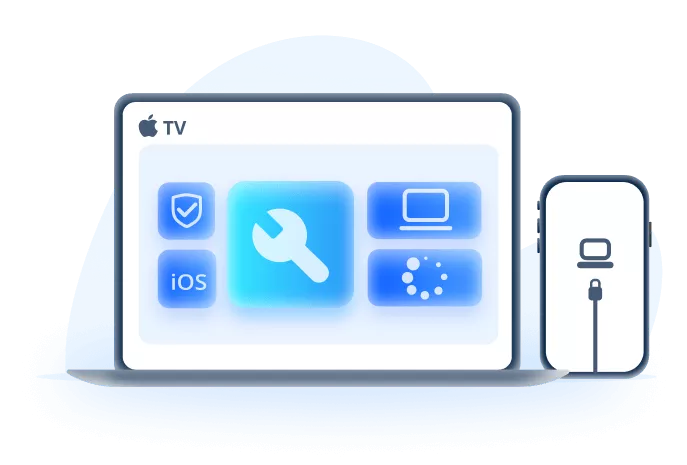
Why Fixppo Fits Wider Post-Update Problems:
- Fixes deeper iOS glitches: Fixppo helps repair system-level errors that basic app fixes may not touch, including crash, freeze, refuse to open, or get stuck loading after an update.
- Supports iOS downgrade: Lets you roll back from a problematic iOS version to an available signed version without iTunes/Finder.
- Helps with wider iPhone problems: Useful when black screen, white screen, and recovery mode issues occur.
- Your data safety comes first: Lets you repair many iOS problems without erasing your iPhone.
- Auto-matches firmware: Detects your device and downloads compatible firmware, so you do not need to choose an IPSW manually.
Step 1: Download and install Fixppo to your computer, launch it and click the Start Repair button.

Step 2: Connect your iPhone to the computer using a USB cable, then choose Standard Mode, which can fix this annoying iOS update paused issue without data loss.

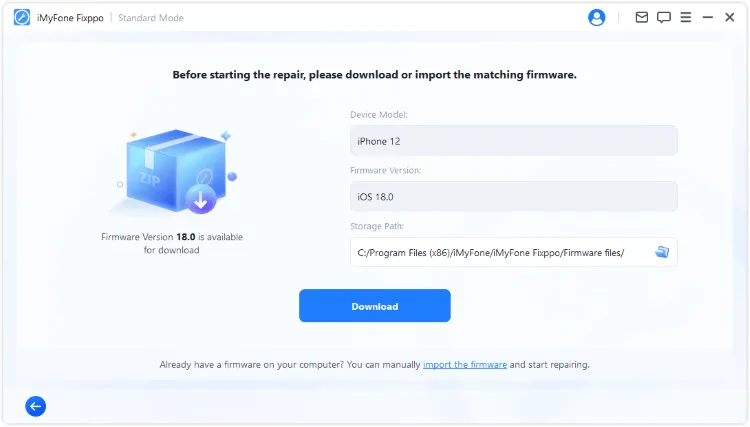
Step 3: When Fixppo detects your device and shows the available iOS firmware for downloading, click the Download button get the firmware file.
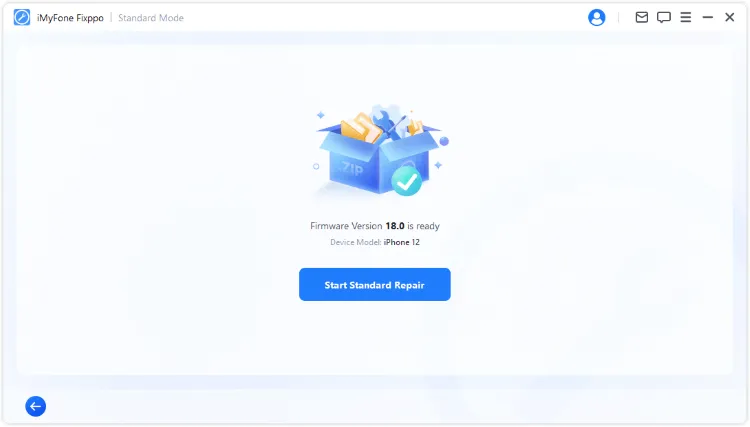
Step 4: After downloading the firmware, click the Start Standard Repair and Fixppo will begin to fix the iOS 26 update paused problem.
FAQ About iPhone Apps Not Working After Update
1 Why won't my iPhone apps open after an update?
An app may be outdated, its local data may be damaged, or a network, storage, restriction, authentication, or iOS issue may be involved. Start by identifying whether one app or many apps fail.
2 Why are only third-party apps crashing while Apple apps work?
This pattern more often points to third-party compatibility, App Store authentication, a VPN or filter, or app-specific data. Update the affected apps before treating it as a system-wide failure.
3 Why are my apps black after the iPhone update?
If only the icons changed, open Home Screen customization and select Automatic or Light. If an app opens to a black screen, troubleshoot loading, network access, updates, and app data instead.
4 Will deleting an app erase its data?
It can. Offloading generally keeps documents and data, while deletion may remove local content. Confirm cloud or app-specific backups and account access before deleting an important app.
5 Why do apps work on Wi-Fi but not cellular data?
The app may not have cellular permission, the mobile connection may be weak, or a carrier, VPN, DNS, or data-saving setting may interfere. Check Settings > Cellular and test another location.
6 Should I factory reset my iPhone when apps keep crashing?
Not as the first response. Use app, network, storage, restriction, update, and support options first. Back up before any erase-based restore, and consider Apple Support when the phone itself is unstable.
7 How long should post-update background activity take?
There is no reliable universal duration because it depends on the update, device, storage, photo library, and network. Reassess when problems persist, worsen, or include repeated crashes, overheating, or restarts rather than waiting indefinitely.
Conclusion
When apps are not working on iPhone after update, diagnose the scope before choosing the fix. One failing app usually belongs on the update, reinstall, service-status, or developer path. Dark icons belong in Home Screen customization, while network-specific failures call for cellular, Wi-Fi, VPN, and DNS checks.
If many unrelated apps and native iPhone functions fail together, back up and investigate iOS itself. Fixppo is an option for persistent system-level instability, while Apple Support remains the right escalation for hardware concerns, critical access problems, or symptoms that continue after system repair.


Melvin Cooper has over 10 years of experience in the technology industry and is an expert at providing tips and handy solutions to Apple and Android users. Dedicated to helping millions of users improve their experience with mobile devices, he has maintained an impressive record of solving problems.
-
iPhone Not Charging After iOS 27 Update? 10 Fixes [2026]
iPhone not charging after update? Diagnose charger, temperature, port, and iOS issues, then learn when Fixppo or Apple service is the right next step.
7 mins read -
How to Get iOS Beta on iPhone in 2026 (Full Guide)
Learn how to get iOS beta, install iOS 27 public or developer beta, remove it safely, and fix stuck beta update issues.
12 mins read -
Fix iPhone Stuck on Update Requested [iOS 27 Supported]
iPhone stuck on update requested? Learn why it happens and discover 8 proven solutions to get your iOS update back on normal without data loss.
3 mins read -
[2026 New] How to Stop iOS 27/26/18 Update in Progress?
How to stop iOS 27/26/18 update in progress when you feel like staying in the current iOS version? Here's how to do it via 4 methods.
3 mins read -
5 Ways for iOS 26 Beta Download [Developer & Public Beta]
How to get iOS 26 beta? Whether you want to download iOS 26 developer or public beta, you can find the suitable methods with our guide. 5 Ways here!
3 mins read -
17 Important Facebook Statistics You Should Know in 2026
Do you want to know some up-to-date Facebook statistics? We break down 17 must-know Facebook stats about demographics, engagement rate and more.
3 mins read
Was this page helpful?
Thanks for your rating
Rated successfully!
You have already rated this article, please do not repeat scoring!