

















 Shop
Shop


Charging stopped after an iOS update and your iPhone is also frozen? Fixppo offers a quick solution for persistent system issues.
Your iPhone charged normally yesterday. Then you installed an iOS update, connected the same cable, and nothing happened. Or the charging symbol appeared while the battery percentage barely moved.
It is easy to blame the update immediately, but timing alone does not prove that the new iOS is the culprit. If your iPhone is not charging after update, check out this guide to find the fix just for you.

In this article:

Why Is My iPhone Not Charging After an Update?
An iOS update can change what the phone is doing for a while. During this iOS 27 update, many users report that they have encountered charging issues.
Apple explains that update-related tasks may continue in the background and affect battery life and thermal performance. During the iOS 27 beta cycle, background indexing was also observed after installing newer builds. That can make an iPhone warmer and reduce its effective charging speed temporarily.
The cause usually falls into one of these groups:
- Temperature protection: charging can slow or stop when the iPhone is too hot or too cold.
- Charging controls: Optimized Battery Charging or a user-set Charge Limit can stop charging near 80%.
- Insufficient power: low-wattage adapters, shared ports, hubs, car USB ports, and some wireless chargers can charge slowly.
- Accessory or port trouble: a damaged cable, incompatible charger, debris, or a worn port can prevent a stable connection.
- Battery wear: an aging battery may need service, especially when Battery Health displays a warning.
- System instability: a failed update can sometimes appear alongside freezing, restart loops, Recovery Mode, or other iOS failures.
How to Fix iPhone Won't Charge After iOS 27 Update
Use this table as a shortcut to the 10 methods below. Find the symptom that matches your iPhone, then try the corresponding methods.
| What You See | Likely Direction | Start With These Methods |
|---|---|---|
| No charging icon | Power source, cable, port, or detection issue | Try a direct wall outlet and known-good accessories |
| Charging icon appears, but the percentage does not rise | Low input power, heavy use, heat, or background activity | Lock the screen and check Settings > Battery |
| Charging stops at 80% | Charge Limit, Optimized Battery Charging, or heat | Read the Battery screen and let the phone cool |
| Wired charging fails, but wireless charging works | Cable, adapter, or charging-port issue | Inspect and test the wired charging path |
| Charging problem plus freezing or restart loops | Possible iOS system fault | Back up if possible, then consider guided system repair |
1 Read the Battery Status
Open Settings > Battery. Look for Charging On Hold, Slow Charger, Incompatible Charger, a charge-time estimate, or an Ongoing iOS Update insight.
Also open Battery Health and check whether the phone recommends service. This screen prevents wasted effort: a temperature warning needs cooling, while an incompatible-charger warning needs a different accessory.

2 Let the iPhone Cool Down
A major update, background indexing, gaming, video, navigation, or wireless charging can raise the device temperature. Lock the screen, stop demanding apps, move the phone away from direct sunlight, and remove a heat-trapping case if needed.
Apple says charging resumes when the battery returns to a normal temperature. Do not cool the phone in a refrigerator or with moisture.

3 Use a Wall Outlet
Connect the iPhone directly to a wall power adapter and leave it alone for 30 minutes. Remove USB hubs, display adapters, pass-through accessories, and other equipment between the phone and charger. A computer, vehicle port, or multi-port adapter may divide or limit available power, making the phone look as if it is not charging while the screen is on.
4 Test the Charger and Cable
Check the cable and adapter for cuts, bent pins, heat damage, or looseness. Then test a known-good compatible cable, power adapter, and outlet.
Do not keep using a damaged accessory. If several chargers work with another device but none work with this iPhone, the problem is more likely at the phone or port.
5 Inspect the Charging Port
Use good light to inspect the port. Compact lint can stop the connector from seating fully, causing the charging icon to appear and disappear.
Remove only visible debris with care, following Apple guidance; do not insert metal tools or pour liquid into the port. A loose, burned, corroded, or impact-damaged port needs professional inspection.
6 Restart the iPhone
A normal restart can clear a temporary accessory-detection or interface glitch. If the iPhone is frozen or only shows the low-battery icon, use the correct force-restart combination for your model.
For iPhone 8 and later, quickly press Volume Up, quickly press Volume Down, then hold the Side button until the Apple logo appears. After restarting, reconnect the charger and wait.

7 Compare Wired and Wireless Charging
This quick comparison narrows the fault. If MagSafe or Qi charging works but every wired setup fails, focus on the cable, adapter, and port. If wired charging works but wireless charging does not, remove the case, realign the phone, and test a compatible wireless charger.
If neither method works, continue with system and battery checks.
8 Install the Latest iOS Patch
If Apple has released a later iOS 27 build or public patch, it may include fixes beyond the version you installed. Update only when the iPhone has sufficient power and a stable Wi-Fi connection.
If charging is unreliable, avoid starting another update at critically low battery; connect to dependable power first.
9 Reset All Settings
When the charger is detected but the behavior remains inconsistent, go to Settings > General > Transfer or Reset iPhone > Reset > Reset All Settings. This does not erase photos, messages, or apps, but it resets system preferences such as network, privacy, keyboard, and Apple Pay settings. Use it after the simpler checks, not as the first reaction.

10 Choose Repair or Service
Choose iOS repair when charging trouble started with an incomplete update and the iPhone also freezes, restarts, stays in Recovery Mode, or fails to finish an update or restore. Choose Apple or an authorized service provider when multiple known-good chargers fail, Battery Health shows Service, or there are signs of liquid, impact, swelling, burning, abnormal heat, or port damage. Stop using a damaged or dangerously hot device.
How to Fix iPhone Charging Slowly After Update
If your iPhone is charging slowly after update, measure before assuming. Note the battery percentage, connect to a compatible charger, lock the screen, and check again after 30 minutes. Testing while gaming, streaming video, using navigation, or keeping the display bright measures power consumption and charging at the same time, so the result can look much worse.

Apple's Battery screen can show a Slow Charger message when a higher-power charger could improve the experience. With recent iOS versions, it may also show an Incompatible Charger message when a connected charger is not delivering usable power. Neither message automatically means the iPhone is broken.
| Slow-Charging Cause | What to Check | Practical Fix |
|---|---|---|
| Post-update activity | Ongoing iOS Update insight, warmth, heavy background use | Leave the phone locked on dependable power and recheck later |
| Low-output charger | Slow Charger message or a low-wattage adapter | Use a compatible USB-C Power Delivery setup where supported |
| Shared or indirect power | Hub, car port, computer, or multi-port adapter | Connect directly to a wall adapter |
| Heat | Charging On Hold or a warm device | Stop heavy use and move the phone to a normal-temperature area |
| Accessory limit | Connected accessory or low-power wireless charger | Disconnect extras or test another certified charger |
Having More Update Issues? Fix Them All with Fixppo
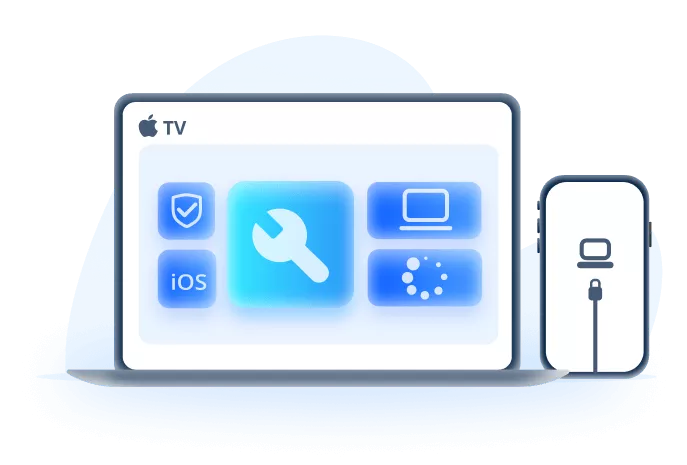
If the cable, adapter, outlet, port, temperature, charging controls, and battery health do not explain the issue, look at the rest of the phone. Charging trouble paired with a frozen screen, restart loop, failed update, or Recovery Mode points more strongly to an iOS system problem. In that situation, iMyFone Fixppo is what you need. It's an expert that fix all kinds of iOS issues.
Why Fixppo Fits This Problem:
- Easily downgrade to the previous iOS build if you regret updating.
- Fix failed update, frozen screen, black screen, white screen, restart loop, or Recovery Mode without erasing your data.
- Downloads matching firmware automatically to reduce manual IPSW compatibility mistakes.
- Fix iPhone, iPad, and Apple TV system errors without data loss.
- Includes backup and restore tools for use before riskier repair, reset, or update actions when the device permits it.
1 Connect and Choose Standard Mode
Install Fixppo, connect the device to the computer, and choose Start Repair. Choose Standard Mode first. This is the sensible starting point when the issue appears system-related and you want to avoid an erase-based restore.

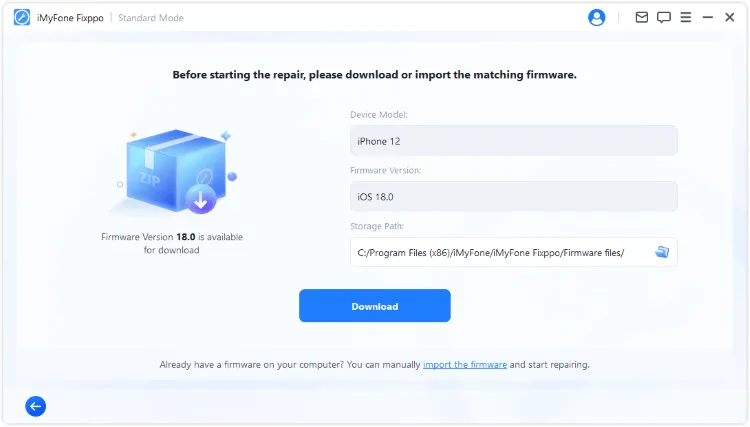
2 Download the Matched Firmware
Confirm the detected device information, then let Fixppo find and download a matching firmware package. Check the displayed model and version before continuing rather than guessing which IPSW file to use.
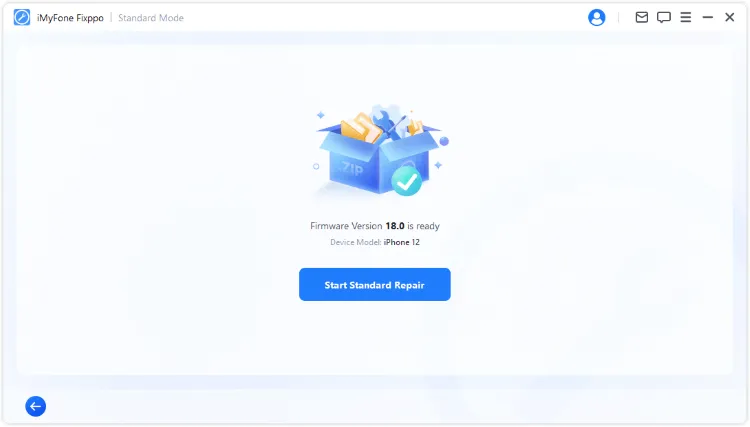
3 Start Repair and Retest Charging
Start the guided repair and keep the iPhone connected until the process finishes. After the phone restarts, test it with a known-good charger. Fixppo cannot repair a damaged cable, port, adapter, battery, or temperature condition; if the physical signs remain, arrange hardware service.
FAQ About iPhone Charging Problems After Update
1 Why is my iPhone not charging after the iOS update?
The update may be finishing background tasks or making the phone warm enough to limit charging. The cause can also be unrelated hardware: a weak charger, damaged cable, dirty port, or worn battery. Check Settings > Battery before assigning the cause.
2 Can an iOS update damage my charger or charging port?
A software update does not physically break a cable or port. It can change accessory detection or expose a problem that was already developing. Test known-good accessories and inspect the port before treating the timing as proof.
3 Why does the charging icon show but the percentage not increase?
The phone may be receiving less power than it is consuming. Lock the screen, stop demanding apps, use direct wall power, and check for Slow Charger, Charging On Hold, or ongoing-update information.
4 Why is my iPhone charging slowly after the iOS 27 update?
Post-update indexing, heat, active apps, a low-output charger, or shared power can reduce the effective rate. Test for 30 minutes with the screen locked and a compatible charger. Persistent slow charging can also indicate accessory, port, or battery wear.
5 Why does my iPhone stop charging at 80%?
Check for Optimized Battery Charging, a Charge Limit on supported models, or a temperature-related pause. The Battery screen usually explains the hold and may offer an option to resume charging.
6 Will a force restart fix the charging problem?
It can clear a frozen system or temporary detection glitch, but it will not repair a damaged accessory, port, or battery. Use a normal restart first when the screen still responds.
7 Should I reset or restore my iPhone?
Try Reset All Settings only after power, temperature, cable, port, and restart checks. A full restore can erase the device, so back up first. When the phone is unstable after an update, a guided Standard Mode repair may be worth trying before an erase-based restore.
Conclusion
If your iPhone is not charging after update, start with the Battery screen and the physical charging path. A clear temperature, charger, charge-limit, port, or battery warning should determine the next action. The fact that the symptom appeared after iOS 27 does not automatically make it a software fault.
When the charger works but the iPhone also freezes, restarts, fails an update, or enters Recovery Mode, Fixppo offers a guided system-repair path to try after backup. When there is port damage, swelling, abnormal heat, or failure with several known-good chargers, stop troubleshooting software and seek hardware service.


Melvin Cooper has over 10 years of experience in the technology industry and is an expert at providing tips and handy solutions to Apple and Android users. Dedicated to helping millions of users improve their experience with mobile devices, he has maintained an impressive record of solving problems.
-
Fix iPhone Stuck on Update Requested [iOS 27 Supported]
iPhone stuck on update requested? Learn why it happens and discover 8 proven solutions to get your iOS update back on normal without data loss.
3 mins read -
[2025 New] How to Stop iOS 17/18/26 Update in Progress?
How to stop iOS 17/18/26 update in progress when you feel like staying in the current iOS version? Here's how to do it via 4 methods.
3 mins read -
5 Ways for iOS 26 Beta Download [Developer & Public Beta]
How to get iOS 26 beta? Whether you want to download iOS 26 developer or public beta, you can find the suitable methods with our guide. 5 Ways here!
3 mins read -
17 Important Facebook Statistics You Should Know in 2025
Do you want to know some up-to-date Facebook statistics? We break down 17 must-know Facebook stats about demographics, engagement rate and more.
3 mins read -
[2026 Full Guide] All About iOS Update Issues and Solutions
Have you encountered different problems during or after iOS update? This article focuses on all iOS update issues and solutions. Hope you can learn from it.
5 mins read -
[Full Guide] 50+ iOS 18 Bugs and Fixes You Should Know 2025
What are some known iOS 18 bugs? Read on this article to learn everything about iOS 18 bugs and fixes.
5 mins read
Was this page helpful?
Thanks for your rating
Rated successfully!
You have already rated this article, please do not repeat scoring!