

















 Shop
Shop


Error 4013 keeps sending your iPhone back to recovery mode? Fixppo can address different iOS update and restore failures in one app.
Finder says it is preparing your iPhone. The progress bar moves, stops, and then your phone drops straight back to the Connect to Computer screen. A moment later, you see it: the iPhone could not be restored, error 4013. That message feels alarmingly final, especially when your photos, messages, or authentication apps are not backed up.
I know the instinct is to click Restore again and hope the sixth attempt is somehow the charming one. Pause there. In this guide, I will help you understand what iPhone error 4013 and 4014 mean, protect your data, and work through the safest fixes before you agree to erase anything.


Quick Answer
Apple says errors 4013 and 4014 on iPhone can appear when the iPhone disconnects during an update or restore, or when the computer cannot tell it to restore. Update your computer software, force restart the iPhone, reconnect it by USB, and choose Update before Restore.
In this article:
- What Does iPhone Error 4013 and 4014 Mean?
- Before You Fix Error 4013 or 4014, Protect Your Data
- Quick Diagnosis: Connection, Computer, or iPhone?
- How to Fix iPhone 4013 or 4014 Error
- When Restore Is Necessary and What It Erases
- Repeated Error 4013 or 4014? You Needs Hardware Service
- FAQs About iPhone Restore Error 4013 and 4014
- Conclusion
What Do iPhone Errors 4013 and 4014 Mean?
Error 4013 or 4014 appears on your computer when an iPhone update or restore cannot finish. You may see The iPhone could not be restored. An unknown error occurred (4013), or the same message ending in 4014. The phone may also sit on the Apple logo, restart repeatedly, or return to the recovery screen.

Apple groups errors 4013 and 4014 together. It says they can appear when the device disconnects during an update or restore, or when the computer cannot instruct the device to restore. In plain English, the phone and computer did not complete the recovery conversation.
That does not point to one guaranteed cause. The USB cable, port, computer software, interrupted iOS state, or a device-side fault may be involved.
- On a current Mac: You manage the iPhone in Finder.
- On a current Windows PC: You use the Apple Devices app.
- On an older supported system: You may still use iTunes.
Now that the message is less mysterious, the next decision matters more than the code itself: whether you can try to preserve the data or are ready for a complete erase.
Before You Fix Error 4013 or 4014, Protect Your Data
If your iPhone can still reach the Home Screen, back it up before doing anything more aggressive. If it is already trapped in recovery mode, take a breath and check exactly which option the computer is offering. Update and Restore are not interchangeable buttons.
| Option | What It Does | Data Impact | When to Use It |
|---|---|---|---|
| Update | Reinstalls iOS | Attempts to retain personal data | Choose this first when both options appear |
| Restore | Erases the iPhone and installs iOS | Deletes the current data on the device | Use after Update fails or the phone returns to recovery mode, preferably with a backup |
Apple's dedicated instructions for these errors say to choose Update, not Restore, when both choices appear. Update attempts to reinstall the software while keeping your personal data. It may not succeed, but it is the right first choice when your files matter.
A recent r/applehelp discussion captures the real stakes: the iPhone owner was less worried about the handset than about unbacked-up family photos and access to an authenticator app. If that sounds familiar, do not treat Restore as a harmless retry.
Quick Diagnosis: Is the Problem the Connection, Computer, or iPhone?
With the data decision clear, you can stop retrying at random and work out which part of the restore path deserves attention first.
I would change one variable at a time. Swapping the cable, port, computer, and software all at once may get lucky, but it tells you almost nothing about what fixed the problem (or why it came back).
| What Happens | Area to Check First | Next Action |
|---|---|---|
| Error appears once and the iPhone reconnects normally | Temporary software or connection interruption | Update the computer software, force restart, and choose Update |
| The connection changes when the cable moves | Cable, connector, USB port, or adapter | Stop using that connection and test a known-good direct path |
| Error repeats on one computer | Computer software, USB stack, port, or security software | Update the software and try another computer |
| Error repeats with reliable cables and updated computers | Device-side connection or hardware | Stop guessing components and request |
This quick check is not a remote hardware diagnosis. It simply gives you a sensible starting point. From here, work through the fixes from lower-risk actions toward recovery and erase-based options.
How to Fix iPhone 4013 or 4014 Error
The methods below form an escalation path. Start with the option that matches what you have already tested, but do not skip the data warning just because the phone is being stubborn.
1 Fix iPhone 4013/4014 Error With a Professional Repair Tool
When error 4013 survives several update attempts, repeating the same fixes rarely feels promising, while Apple’s Restore option erases the iPhone. That is why I would try iMyFone Fixppo first.
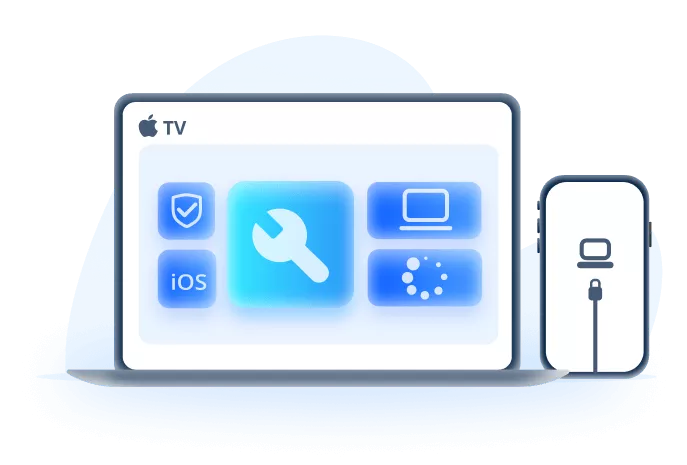
Fixppo is an iOS system repair tool for failed updates, restore errors, recovery-mode loops, and similar system problems. It automatically matches the firmware your device needs, removing the guesswork of manual IPSW installation.
Its Standard Mode attempts to reinstall and repair iOS while retaining your data, giving you a less destructive option before Restore.
Why Fixppo Fits a Persistent 4013/4014 Error
- Targets iOS faults behind failed updates and restores.
- Covers 150+ iOS, iPadOS, and tvOS system problems, including recovery-mode, Apple-logo, and restart loops.
- Lets you try Standard Mode before moving to an erase-based restore.
- Matches available firmware to the detected device automatically.
- Includes backup and restore tools before riskier system actions.
- Supports current iOS 27 repair cases on iPhone 6-17.
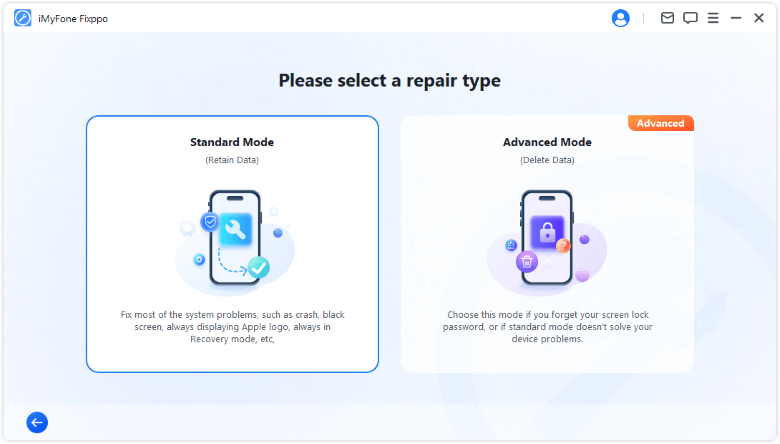
Step 1: Choose Standard Mode and Connect Your iPhone
Launch Fixppo, open Apple System Repair, and choose Standard Mode. Connect your iPhone with a reliable USB data cable. If Fixppo cannot detect it, follow the on-screen instructions to place the device in Recovery Mode or DFU Mode.
Step 2: Download the Matching Firmware
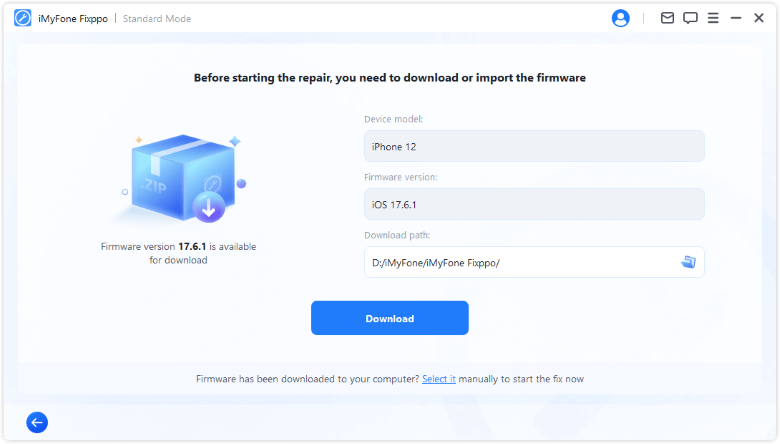
Fixppo will identify the iPhone model and display the available firmware versions. Select the appropriate version, choose a download location if needed, and click Download. Keep the computer connected to a stable network while the firmware package downloads.
Step 3: Start Standard Repair
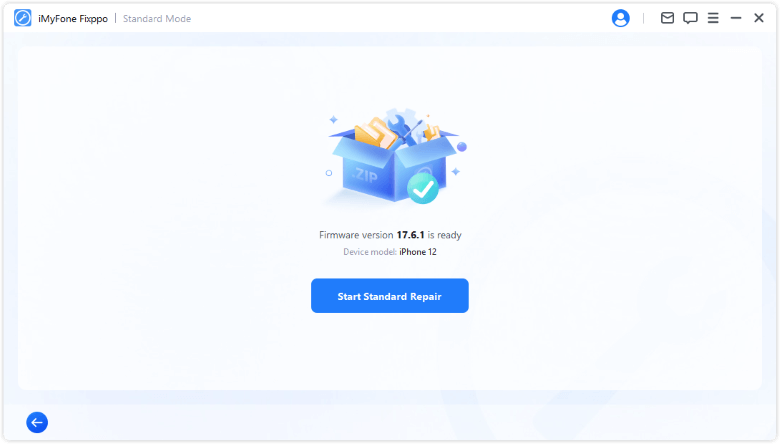
After the firmware is ready, click Start Standard Repair. Do not use or unplug the iPhone during the process. The device should restart automatically when the repair finishes; then check whether it starts normally without returning error 4013 or 4014.
2 Update Your Mac, PC, and Apple Device Software
If you would rather stay with Apple's manual path first, or Fixppo cannot detect the phone, begin by making sure the computer itself is ready for the job.
An old restore environment can fail before the iPhone has a fair chance to recover. Apple tells you to install current computer software before retrying error 4013 or 4014.
- Mac: Install available macOS updates, restart the Mac, and use Finder on current macOS versions.
- Windows: Install Windows updates and update the Apple Devices app from Microsoft Store.
- Older supported systems: Update iTunes to its latest available version.
- After restarting: Check for updates once more before reconnecting the iPhone.
Once the computer is current, restart the iPhone itself. This clears a temporary software state without erasing your content.
3 Force Restart Your iPhone
Apple includes a force restart in its dedicated 4013/4014 instructions. The button sequence depends on the model:
- iPhone 8 or later, including iPhone SE (2nd generation or later): Quickly press Volume Up, quickly press Volume Down, then hold the Side button until the Apple logo appears.
- iPhone 7 or iPhone 7 Plus: Hold the Side button and Volume Down button together until the Apple logo appears.
- iPhone 6s or earlier, including iPhone SE (1st generation): Hold the Home button and Side or Top button together until the Apple logo appears.

If the iPhone restarts normally, back it up while you can. If it returns to the recovery screen, reconnect it and pay close attention to the next choice on the computer.
4 Reconnect the iPhone and Choose Update First
Connect the iPhone directly to the computer with a reliable USB cable. Open Finder, Apple Devices, or iTunes, locate the device, and choose Update when Update and Restore appear together. Keep the iPhone connected while the software downloads and installs.

This is the key data-preserving step in Apple's 4013/4014 guidance. If Update succeeds but the iPhone starts in recovery mode again, Apple then directs you to repeat the process and choose Restore. We will cover that erase decision separately below.
5 Check the USB Cable, Port, Connector, and Hub
Error 4013 is often discussed as an “iTunes error,” but the physical USB path deserves equal attention. Your iPhone is communicating with the computer through the cable during this process; toggling the phone's Wi-Fi is not Apple's standard fix for this error.
- Disconnect and firmly reseat the cable before trying again.
- Inspect the cable and iPhone connector for visible damage or debris. Do not insert a pin or other metal object.
- Try another known-good, data-capable Apple or certified cable; a charge-only cable is not enough.
- Switch to another built-in USB port on the computer.
- Connect directly instead of using a keyboard port, unstable hub, dock, or adapter.
If the connection drops whenever the cable moves, stop retrying with that setup. If the same error returns with a stable cable and port, the computer is the next clean variable to test.
6 Try Another Updated Computer
Apple recommends trying another computer when the error continues. Make sure that second Mac or PC is updated, then use a reliable cable and a direct USB port. A different computer also gives you a fresh USB stack and device-management environment.
If error 4013 or 4014 returns at the same point across multiple reliable cables and updated computers, a device-side connection or hardware problem becomes more plausible. That still does not tell you which component has failed.
If the phone remains on the Connect to Computer screen, recovery mode is the next controlled route. This time, the cable stays exactly where it is.
7 Use Recovery Mode Without Disconnecting the Cable
Use recovery mode when the iPhone will not start normally, the computer says it is in recovery mode, or the Connect to Computer screen remains visible. Update the Mac or PC first, open Finder or Apple Devices, connect the iPhone, and keep it connected.
- iPhone 8 or later: Quickly press Volume Up, quickly press Volume Down, then hold the Side button until the Connect to Computer screen appears. Do not release at the Apple logo.
- iPhone 7 or iPhone 7 Plus: Hold the Side and Volume Down buttons until the Connect to Computer screen appears.
- iPhone 6s or earlier: Hold the Home and Side or Top buttons until the Connect to Computer screen appears.
- On the computer: Locate the iPhone and choose Update first if it has not already been attempted successfully.

Note
Never unplug the cable after Update or Restore begins. Disconnecting it can interrupt communication and trigger the same class of failure you are trying to fix.
If Update has failed and recovery mode still returns, Restore may be the remaining Apple software option. Go into it knowing exactly what it removes.
When Restore Is Necessary and What It Erases
If the software download takes more than 15 minutes and the iPhone leaves the recovery screen, let the download finish. Then enter recovery mode again and continue. Apple's current recovery instructions use this same sequence.
Restore becomes reasonable after Update cannot recover the iPhone or the device keeps returning to recovery mode. It reinstalls iOS, but it also erases the current content and settings on the phone. Afterward, you set up the iPhone again and can recover data from an existing backup.
If your backup is current, that tradeoff may be straightforward. If there is no backup and the data is irreplaceable, I would stop before authorizing Restore and explain the data priority to Apple or a qualified provider. Repeating an erase-based operation will not make unbacked-up data safer.
Restore also cannot repair a broken connector or board-level fault. When the same failure survives the software, cable, port, and computer checks, it is time to move from home troubleshooting to diagnosis.
Worried about losing data with Restore? Fixppo repairs iOS system issues without erasing your iPhone in Standard Mode, giving you a safer step to try before a full restore.
Repeated Error 4013 or 4014? You Needs Hardware Service
A persistent error across updated computers and reliable USB connections can point toward a device-side problem. Tell the technician about any drop, liquid exposure, damaged connector, sudden boot loop, or previous repair. That history is more useful than guessing a chip from the error number.
To be clear, error 4013 or 4014 does not identify a failed U2 charging IC. The old advice to open the phone and replace that chip from a generic video should not be followed. Board-level diagnosis requires the right tools, measurements, and experience.
Contact Apple Support or a qualified repair provider if the error continues. Before approving another Restore or a hardware replacement, tell them whether the phone contains data that exists nowhere else.
FAQs About iPhone Restore Error 4013 and 4014
1 Does Error 4013 Always Mean Hardware Failure?
No. An unstable USB connection, outdated computer software, interrupted update state, or device hardware can be involved. Failure across multiple reliable cables and updated computers makes a device-side problem more plausible, but it does not identify a component.
2 Can I Fix iPhone Error 4013 Without Losing Data?
Sometimes. When Finder, Apple Devices, or iTunes offers Update or Restore, choose Update first. Update attempts to reinstall iOS while retaining your data. Restore erases the phone, and no repair mode can guarantee data preservation in every case.
3 What Causes iPhone Error 4013?
Possible causes include a disrupted USB connection, cable or port trouble, outdated computer software, an interrupted iOS update/restore state, or device-side hardware. Apple does not identify weak iPhone Wi-Fi as the main cause; the phone communicates with the computer over USB during the restore.
4 What Is the Difference Between iPhone Error 4013 and 4014?
Apple groups 4013 and 4014 together and recommends the same troubleshooting sequence. There is no reliable basis for assigning each code to a different internal iPhone component.
5 Should I Replace the U2 Charging IC for Error 4013?
No, not because of the error code alone. Error 4013 does not diagnose a U2 chip failure. Do not open the phone or replace a board-level component based on a generic tutorial; use a qualified diagnostic service.
Conclusion
The iPhone can not be restored error 4013 looks dramatic, but the order of your decisions matters more than another blind Restore attempt. Protect what you can, update the computer software, force restart the phone, use a reliable direct USB connection, and choose Update first. If the error returns, test another cable, port, and updated computer.
When the connection checks pass but iOS still cannot complete the process, Fixppo gives you a system-repair option to consider before an erase-based restore. If 4013 or 4014 persists across multiple setups, stop guessing at internal components and seek qualified service. Most importantly, make the value of any unbacked-up data clear before anyone erases or replaces the device.


Melvin Cooper has over 10 years of experience in the technology industry and is an expert at providing tips and handy solutions to Apple and Android users. Dedicated to helping millions of users improve their experience with mobile devices, he has maintained an impressive record of solving problems.
-
iPhone Not Charging After iOS 27 Update? 10 Fixes [2026]
iPhone not charging after update? Diagnose charger, temperature, port, and iOS issues, then learn when Fixppo or Apple service is the right next step.
7 mins read -
How to Get iOS Beta on iPhone in 2026 (Full Guide)
Learn how to get iOS beta, install iOS 27 public or developer beta, remove it safely, and fix stuck beta update issues.
12 mins read -
Fix iPhone Stuck on Update Requested [iOS 27 Supported]
iPhone stuck on update requested? Learn why it happens and discover 8 proven solutions to get your iOS update back on normal without data loss.
3 mins read -
[2026 New] How to Stop iOS 27/26/18 Update in Progress?
How to stop iOS 27/26/18 update in progress when you feel like staying in the current iOS version? Here's how to do it via 4 methods.
3 mins read -
5 Ways for iOS 26 Beta Download [Developer & Public Beta]
How to get iOS 26 beta? Whether you want to download iOS 26 developer or public beta, you can find the suitable methods with our guide. 5 Ways here!
3 mins read -
17 Important Facebook Statistics You Should Know in 2026
Do you want to know some up-to-date Facebook statistics? We break down 17 must-know Facebook stats about demographics, engagement rate and more.
3 mins read
Was this page helpful?
Thanks for your rating
Rated successfully!
You have already rated this article, please do not repeat scoring!