

















 Shop
Shop


In this article:
- Introduction: The Gap Between "Almost" and "Actually" Hands-Free
- The 3 Levels of Hands-Free Control
- 6 Situations Where You Truly Can't Touch Your Phone
- 5 Methods to Control Android Hands-Free (Ranked)

- How to Set Up True Hands-Free Control (5 Steps)
- Privacy & Safety Checklist
- Troubleshooting Common Problems
- FAQ
- Conclusion: Demand Zero Touch
Introduction: The Gap Between "Almost" and "Actually" Hands-Free
You're driving. An urgent WhatsApp comes in. You say, "Hey Google, reply I'm 10 minutes away and share my location."
Google reads the message. Then it stops. It cannot open WhatsApp, type the text, attach your live location, and hit send. You still have to touch the screen.
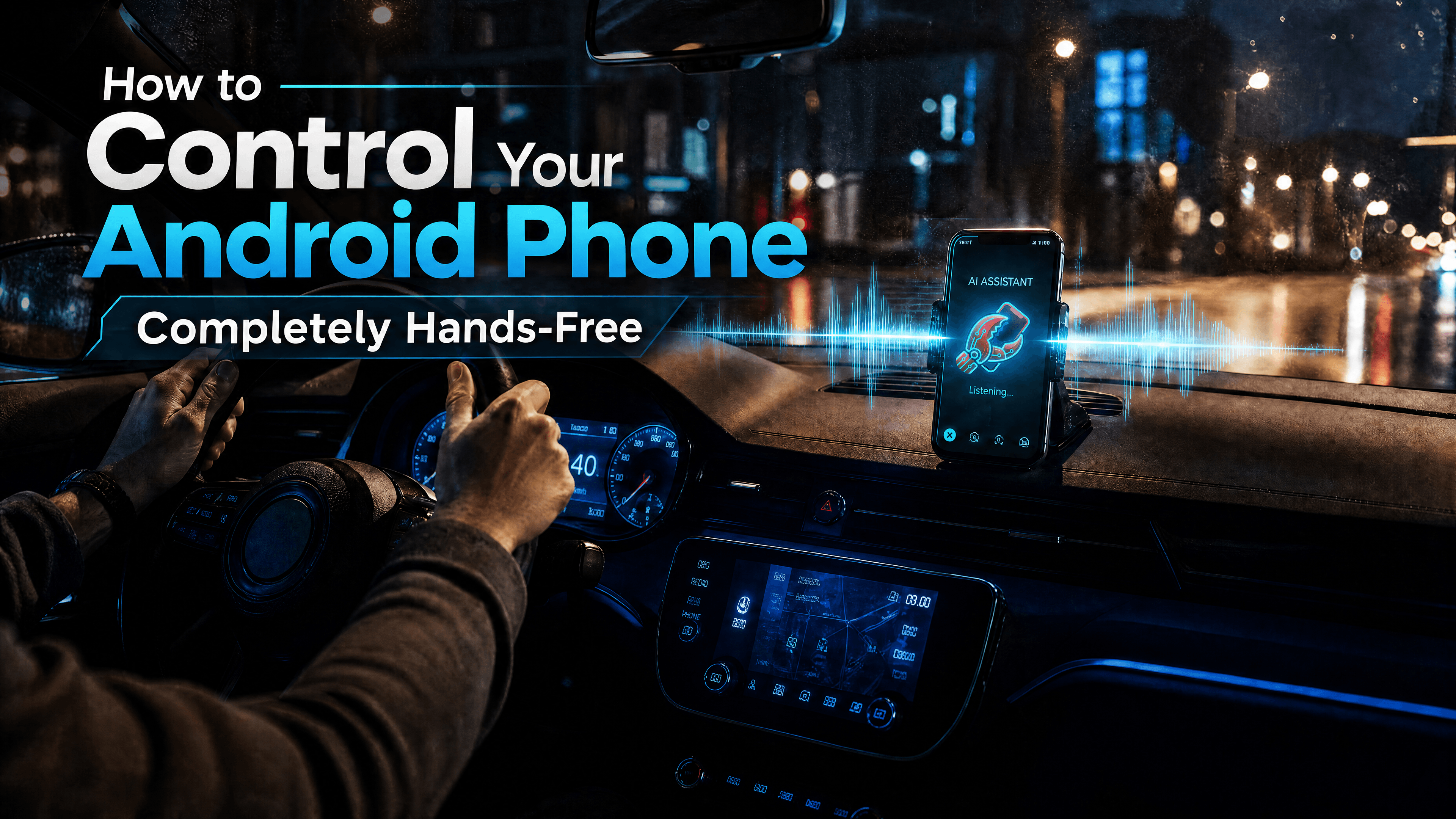
This is the gap between almost hands-free and completely hands-free. Most guides teach you "Call Mom" or "Set a timer." This one teaches you how to control your Android phone hands free for real—across apps, with zero touch, whether you're driving, cooking, or visually impaired.
The 3 Levels of Hands-Free Control
Not all voice tools are equal. Every solution falls into one of three levels:
Level 1: Voice Queries (Information Only) — Google Assistant, Siri, Bixby. They answer questions and set alarms, but cannot execute actions inside apps. They don't book flights or forward Telegram messages.
Level 2: Simulated Taps (UI Automation) — Tasker, Voice Access. They simulate screen taps via Accessibility Services. Fragile: one app update breaks the flow. Slow, unreliable for cross-app tasks.
Level 3: System-Level API Control (True Automation) — Calls Android APIs directly. Executes cross-app workflows (search → compare → book → pay → remind) from a single sentence. Works at distance, learns habits, survives app updates.
If you want to use your Android phone without touching the screen for anything beyond basics, you need Level 3.
6 Situations Where You Truly Can't Touch Your Phone
Hands free phone control for Android isn't a luxury here—it's essential:
- Driving — Laws ban handheld use. You need to send ETAs and reroute without looking at glass.
- Cooking — Hands covered in flour or raw meat. Timers need adjusting, recipes need scrolling.
- Holding a baby — One arm occupied, the other supporting. Urgent messages can't wait for a free hand.
- Running / Working out — Sweaty screen, earbuds in. Decline calls and auto-reply by voice alone.
- Visual impairment — Screen readers navigate; you need a system that executes actions inside apps by voice.
- Dirty / wet hands — Contractors, mechanics, gardeners need specs and calls without touching glass.
5 Methods to Control Android Hands-Free (Ranked)
1 Google Assistant
Best for: Power users with time to maintain scripts.
Nearly unlimited customization, but steep learning curve. Simulated taps break when UIs change. No natural language—you memorize exact phrases. Verdict: Powerful but fragile. Not practical for everyday reliability.
2 AI Phone Agents (System-Level Control)
Best for: True zero-touch, cross-app automation.
This is where FoneClaw operates—at Level 3. It is not a chatbot or voice assistant. It is an AI agent that controls your phone directly via system APIs.
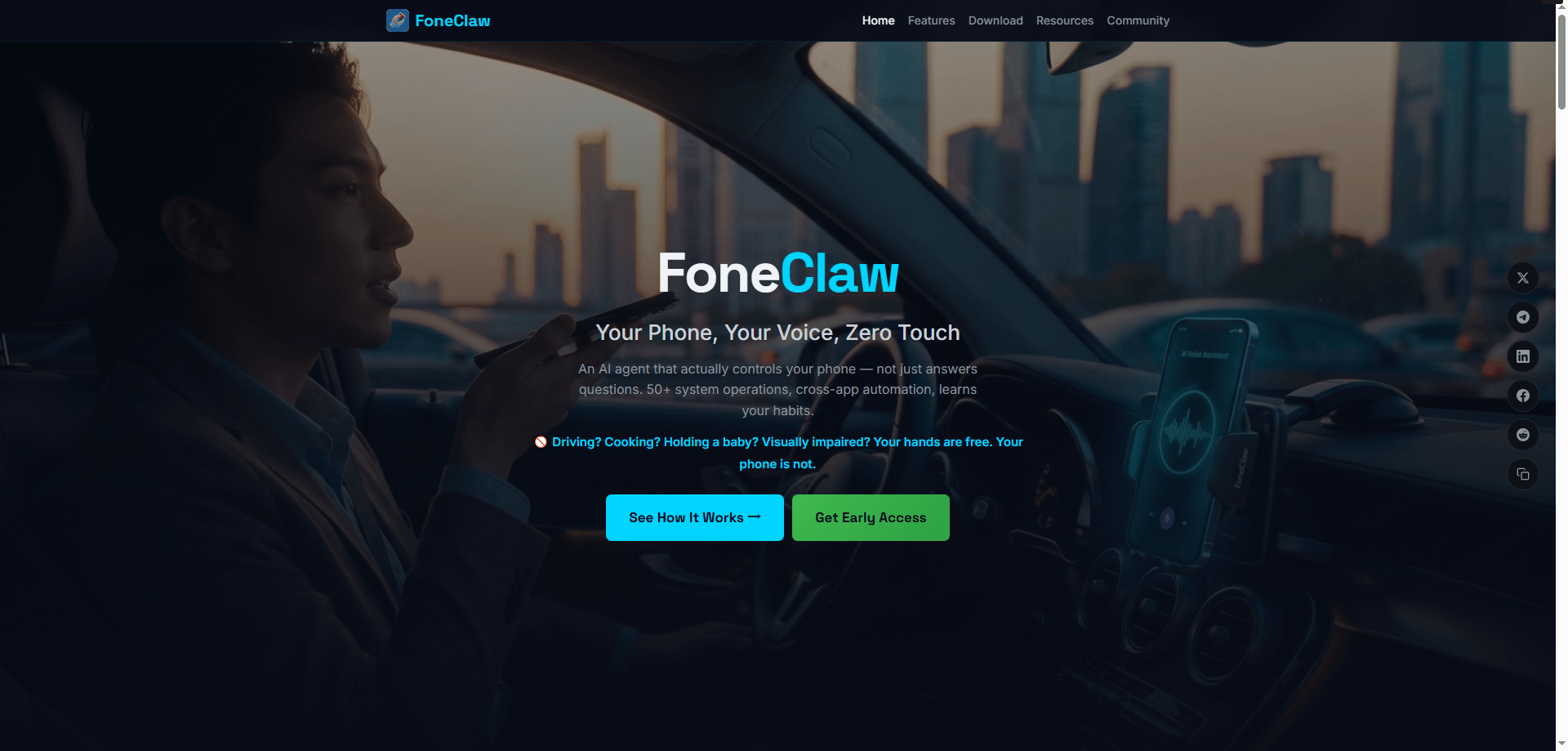
What it does differently:
- 50+ system operations by voice — Calls, messages, settings, file management, any installed app. Works at 3-5 meters with automatic noise cancellation. Wake-word detection >95%.
- One sentence, full workflow — "Book the earliest flight from NYC to LA tomorrow" triggers search, compare, book, pay, and set reminder automatically. Intent accuracy >90%, multi-step completion >80%.
- Remote control via Telegram or WhatsApp — Check battery, read messages, take photos, share location, or run any command from any device, anywhere. No built-in assistant offers this.
- Learns your habits — Remembers your alarm, favorite DoorDash order, commute route. Builds a preference model and optimizes over time.
- Privacy by design — Voice profile and contacts stay on-device. Cloud processing deletes instantly after use. Sensitive actions require confirmation. Say "Stop" anytime. Set spending limits and app whitelists.
Pricing: Core features (calls, messages, basic apps) free forever. Pro advanced automation $9.99/month. Beta users get 50% off for life.
Verdict: The only method that achieves reliable, deep hands free phone control on Android without compromise.
3 Bluetooth Headsets / Physical Remotes
Best for: Media and calls.
Play/pause, skip tracks, answer calls. Custom earbud gestures help slightly. Verdict: Hardware supplement. Cannot type messages, navigate apps, or run workflows.
4 Macro Apps (Tasker, Automate)
Best for: Power users with time to maintain scripts.
Nearly unlimited customization, but steep learning curve. Simulated taps break when UIs change. No natural language—you memorize exact phrases. Verdict: Powerful but fragile. Not practical for everyday reliability.
5 Switch Control
Best for: Users with limited mobility using adaptive hardware.
External buttons, eye-tracking, sip-and-puff controllers. Verdict: Accessibility essential, but not voice-based hands-free.
How to Set Up True Hands-Free Control (5 Steps)
- Install a system-level agent (e.g., FoneClaw) and grant Accessibility + Microphone + Device Admin permissions. These let the agent act on your behalf—not spy on you.
- Configure your wake word and voice profile. Test range and noise conditions. A real hands-free system wakes reliably from 3-5 meters.
- Link Telegram or WhatsApp for remote access. Text your phone from your laptop: "Send me the last photo and check battery." It replies with both.
- Test a multi-step command. Example: "Send my location to Mom on WhatsApp and set a reminder to call her in 10 minutes." If it completes without your finger touching glass, you have Level 3 control.
- Enable safety guardrails. Require voice confirmation for sensitive actions. Set spending limits. Create an app whitelist. Define a kill-word like "Stop."
Privacy & Safety Checklist
Before trusting any hands-free system with your phone:
- Data storage: Voice profiles and contacts should stay on-device. Cloud processing, if used, must delete data instantly after the task.
- Unauthorized actions: The system should ask "Confirm $400 flight booking?" aloud before executing. You need spending limits, app whitelists, and a verbal kill switch.
- Driving compliance: True hands-free means 100% voice-in, voice-out. If you must tap "Confirm" on glass, it fails the safety test.
Troubleshooting Common Problems
| Problem | Cause | Fix |
|---|---|---|
| Can't hear me in noise | Basic mic, no noise cancellation | Use a system with far-field arrays and auto noise cancellation |
| Opens app but can't finish task | Level 1/2 tool limitation | Switch to system-level API control |
| Want to control from laptop | Assistants are device-bound | Use Telegram/WhatsApp Bot integration |
| Battery drains fast | Always-listening + cloud processing | Choose wake-word-only detection with local processing |
FAQ
1.Can I fully control Android without touching the screen?
Yes—with system-level tools. Standard assistants handle basics. For cross-app workflows (booking, ordering, file management), you need an AI agent calling Android APIs directly.
2.Is there a free hands-free voice control app?
FoneClaw's core features (calls, messages, basic apps) are free forever. Google Assistant is also free but limited. Advanced automation requires Pro ($9.99/month; beta users get 50% off).
3.What's the best hands-free app for driving?
It must pass three tests: far-field wake word (no leaning), noise cancellation, and true cross-app execution without final screen taps. Only system-level agents satisfy all three.
4.How do blind users control phones by voice?
Look for: high-accuracy wake words, full audio feedback, on-device data storage, and the ability to execute actions inside apps—not just read screen content.
5.Is voice control safe for mobile banking?
Only if the system requires verbal confirmation for transactions, enforces spending limits, and stores biometric data on-device. Never use cloud-only assistants for banking.
Conclusion: Demand Zero Touch
Google Assistant handles Level 1. Tasker handles Level 2 if you maintain it. But if you need to control your Android phone completely hands free—driving, cooking, working, living—without touching the screen once, you need a Level 3 AI agent.
The technology exists. The only question is whether you'll settle for "almost" hands-free, or demand zero touch.
Ready to stop touching your phone? Join the FoneClaw beta. Core features are free forever. Beta users lock in 50% off Pro for life.


With 7+ years of experience in the Android space, Michael Watson is an expert in mobile device management, specializing in Android unlocking, troubleshooting, and data recovery. As a dedicated member of the iMyFone editorial team, he creates insightful, user-friendly guides and tutorials to help users tackle common Android issues.
-
How to Fix Odin Stuck on “File Analysis”
If you are stuck on 'file analysis' on the Odin, this article will help you to fix it.
3 mins read -
How to Fix Odin Flash Write Failure
If you have encountered the 'Flash Write Failure' error when using Odin, this article will help you to fix the problem.
0 mins read -
Complete (Write) Operation Failed in Odin? Here Is the Fix
Have you met the problem that complete write operation failed? This article will provide you solutions for you to fix it.
4 mins read -
7 Tips to Fix Odin Not Detecting Phone
Are you using Odin flash tool to flash your Samsung phone but it is not recognized by Odin? Here are 7 tips to fix Odin not detecting phone.
4 mins read -
How to Flash Android Phone using PC Software
This article will offer a detailed guide on how to flash an Android phone using PC software. 3 programs are introduced here.
6 mins read -
[Free Download] Top 3 Samsung Flash Tools in 2022
There are the top 3 Samsung flash tools for you, so you are able to find the best one according to your situation. Check more details about them right now!
4 mins read
Was this page helpful?
Thanks for your rating
Rated successfully!
You have already rated this article, please do not repeat scoring!