

















 Shop
Shop


You can update iPhone without iTunes in several modern ways. In 2026, the main options are Settings on the iPhone, Finder on Mac, the Apple Devices app on Windows, or a guided repair/update tool when an iOS 27 update will not finish.
This guide explains how to update iPhone on computer without iTunes, when an IPSW file makes sense, and what to try when the iOS 27 update gets stuck during download, preparing, verifying, or installation.

Quick answer
To update iPhone without iTunes, use Settings > General > Software Update first. If you need to know how to update iPhone from computer or how to update iPhone on computer without iTunes, use Finder on Mac, Apple Devices on Windows, or iMyFone Fixppo when the update process is stuck. Back up before using computer update, repair, IPSW, or restore paths.

In this article:

How to Update iPhone on Computer Without iTunes
If the iPhone cannot complete iOS 27 from Settings, a computer update is the next step. Mac users should use Finder, Windows users can use the Apple Devices app where available, and older setups may still use iTunes.
iMyFone Fixppo is a strong fit when the normal update path is already failing. It gives a guided firmware workflow with iOS Upgrade/Downgrade, Standard Mode repair, recovery mode tools, and built-in backup/restore for people who do not want to handle IPSW files manually.
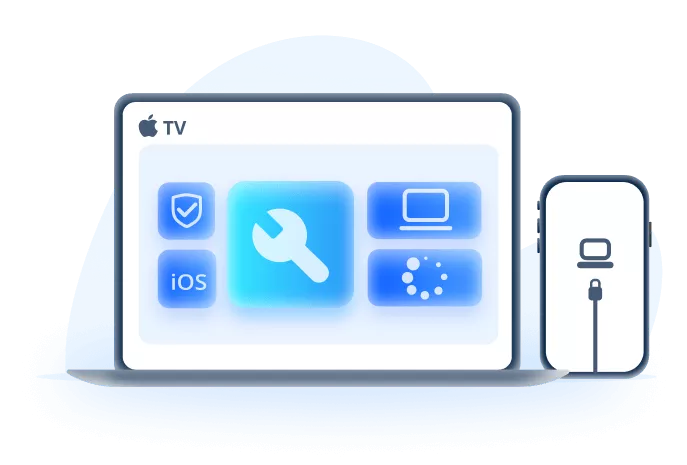
iPhone iOS 27 Update Tool: When Fixppo Helps
- Update iPhone on a computer without relying on an old iTunes-only workflow.
- Useful when iOS 27 is stuck on Update Requested, Preparing Update, Verifying Update, recovery mode, or an update restart loop.
- Guides firmware download and update steps for many supported iPhone models and recent iOS versions.
- Useful for failed-update troubleshooting, recovery mode, Apple logo loops, and update restart loops.
- Includes backup/restore support so update and repair workflows stay in one program.
You can follow to see how to update iPhone on computer without iTunes via Fixppo.
Step 1: Download and install Fixppo on your computer. Then, open it to choose iOS Upgrade/Downgrade from the interface.

Step 2: Next, connect your iPhone with a USB cable, then choose the Upgrade iOS.

Step 3: Fixppo will automatically recognize your device. Once you can see the available firmware versions, click Download to get one.

Step 4: After the firmware is ready, click Start Upgrade iOS. Wait a few minutes while the software installs the iOS on your iPhone.

Once the upgrade is complete, your iPhone will reboot with the latest version of iOS installed. If you want to update iPhone without iTunes, Fixppo offers a convenient way. Try it if needed!

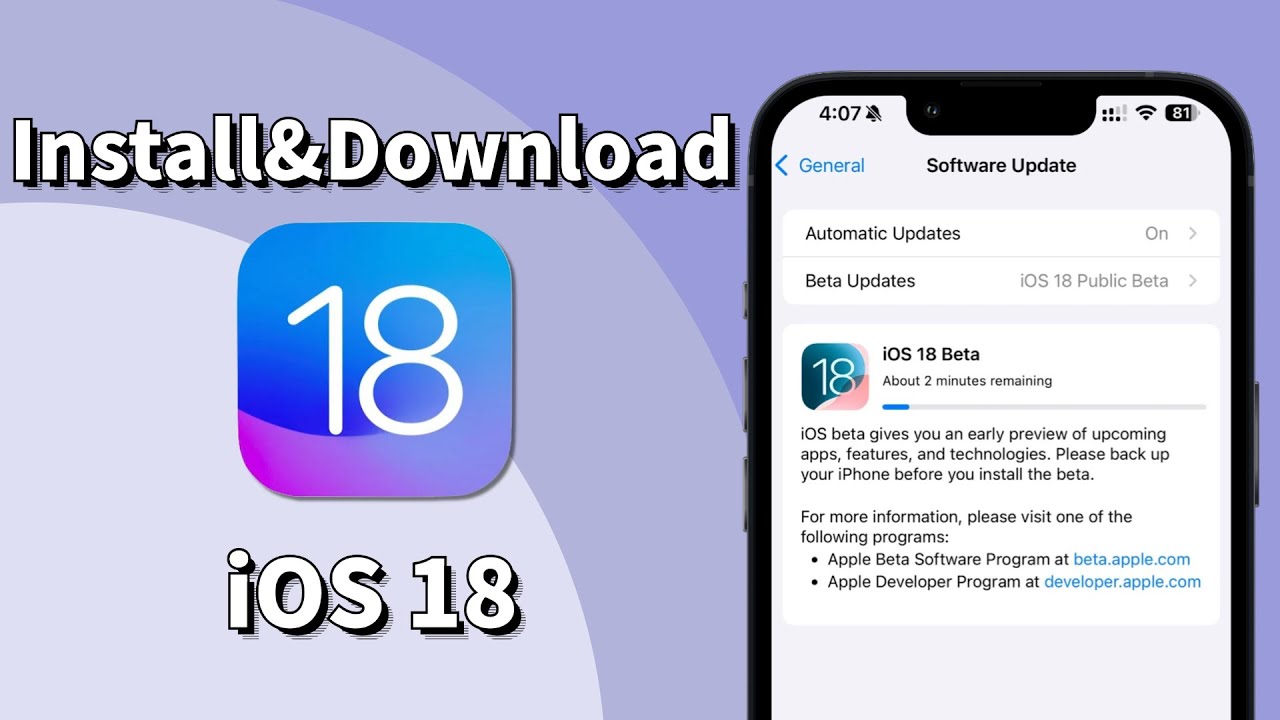
You can watch the video to install iOS without iTunes via simple clicks:
How to Update iPhone Without iTunes Over Wi-Fi
Over-the-air update is still the cleanest way to update iOS without iTunes. Use it when the iPhone works normally, Wi-Fi is stable, battery is above 50 percent or charging, and there is enough free storage for iOS 27.
If Software Update stays on Update Requested, Preparing Update, or Verifying Update for a long time, delete the update file if it appears in iPhone Storage, restart, and retry on stable Wi-Fi before moving to a computer.
- Make sure your iPhone is connected to a stable Wi-Fi network.
- Ensure the battery is at least 50% charged or keep the iPhone plugged in during the update.
- Check if there is enough free storage space on your device for the update.
- Turn off Low Power Mode if it's enabled, as it might prevent the update.
Step 1: Open the Settings app, click on General > Software Update.
Step 2: Wait for iPhone to check for the iOS update, then click Download and Install > Update Now to make an update.
Step 3: Wait patiently for the update to complete. It's suggested not to use the device during the process.

Update iOS Without iTunes Using IPSW Files
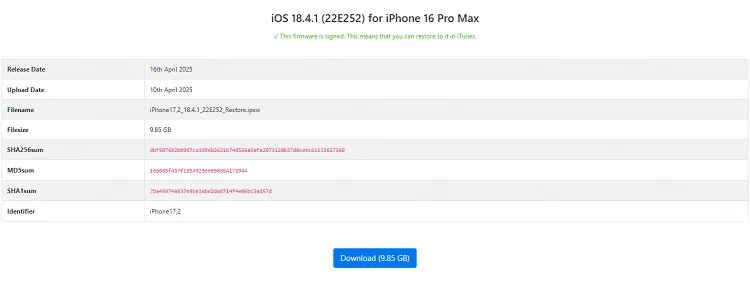
An IPSW file is useful only when the firmware is signed for your exact iPhone model. Downloading the wrong or unsigned file wastes time and may push you into restore instead of update.
For iOS 27, use IPSW carefully: back up first, choose Update rather than Restore when possible, and remember that this method still normally requires Finder, Apple Devices, or iTunes to apply the file.

Step 2: Find the signed IPSW file then download it to your computer.
Step 3: Launch iTunes on your computer and connect your device to it.
Step 4: When iTunes recognize your device, press the Option key for Mac users or Shift key for Windows users, then click the Check for Update at the same time.

Step 5: From the window, choose the IPSW file you just downloaded and open it. Later, wait for iTunes to use the downloaded IPSW file to update your iPhone's system.
FAQs
How do I update iPhone without iTunes?
Use Settings for a normal update. On a computer, use Finder on Mac, Apple Devices on Windows, or a guided update tool if the update is stuck.
How do I update iPhone on computer without iTunes?
Connect the iPhone, open Finder or Apple Devices, choose the device, and select Update. If the update fails repeatedly, use a repair workflow before erase-based restore.
Can I update iOS without iTunes using IPSW?
Yes, but only with signed firmware for the exact model, and you still need Finder, Apple Devices, or iTunes to install it.
Conclusion
For updating your iPhone to iOS 27, do not frame iTunes as the only computer path. Use Settings first, Finder or Apple Devices when a computer is needed, IPSW only when the file is signed, and Fixppo when the update has become a stuck or failed-install problem.


Melvin Cooper has over 10 years of experience in the technology industry and is an expert at providing tips and handy solutions to Apple and Android users. Dedicated to helping millions of users improve their experience with mobile devices, he has maintained an impressive record of solving problems.
-
Fix iPhone Stuck on Update Requested [iOS 27 Supported]
iPhone stuck on update requested? Learn why it happens and discover 8 proven solutions to get your iOS update back on normal without data loss.
3 mins read -
[2025 New] How to Stop iOS 17/18/26 Update in Progress?
How to stop iOS 17/18/26 update in progress when you feel like staying in the current iOS version? Here's how to do it via 4 methods.
3 mins read -
5 Ways for iOS 26 Beta Download [Developer & Public Beta]
How to get iOS 26 beta? Whether you want to download iOS 26 developer or public beta, you can find the suitable methods with our guide. 5 Ways here!
3 mins read -
17 Important Facebook Statistics You Should Know in 2025
Do you want to know some up-to-date Facebook statistics? We break down 17 must-know Facebook stats about demographics, engagement rate and more.
3 mins read -
[2025 Full Guide] All About iOS Update Issues and Solutions
Have you encountered different problems during or after iOS update? This article focuses on all iOS update issues and solutions. Hope you can learn from it.
5 mins read -
[Full Guide] 50+ iOS 18 Bugs and Fixes You Should Know 2025
What are some known iOS 18 bugs? Read on this article to learn everything about iOS 18 bugs and fixes.
5 mins read
Was this page helpful?
Thanks for your rating
Rated successfully!
You have already rated this article, please do not repeat scoring!