
















 Shop
Shop


If you can't reset your iPhone with factory settings, the erase process is being blocked by something specific. On iOS 27, the wording may look newer, but the reset rules are the same: the iPhone must verify your account, communicate with Apple services, and complete the erase process without crashing.
This guide explains why the factory reset fails, how to fix the reset path, and when to use system repair before you try a full restore. If the iPhone is locked or you forgot the passcode, treat that as a lockout problem rather than a normal Settings reset.

Quick answer
If your iPhone cannot factory reset, check network, Apple Account password, Find My, Screen Time restrictions, and iOS update status first. If the iPhone freezes, loops, or fails during erase, repair the iOS system before trying an erase-based restore.
In this article:
- Why Can't I Reset My iPhone?
- Best Way to Fix iPhone Won't Factory Reset

- 6 Other Ways to Fix iPhone Won't Reset
- Perform a Force Restart
- Ensure Stable Network Connection
- Update iOS Software
- Disable Find My iPhone
- Sign Out of Apple Account
- Restore with Finder, Apple Devices, or iTunes
- Correct Steps to Factory Reset iPhone via Settings
- FAQs
Why Can't I Reset My iPhone?
Factory reset is not just a local delete button. The iPhone may need to confirm Find My status, Apple Account credentials, network connection, Screen Time restrictions, and system health before it can erase all content and settings.
- Find My is still enabled: The iPhone may ask for Apple Account verification before erase.
- Apple Account sign-in is failing: Wrong password, account recovery, or verification issues can block reset.
- Screen Time or device management restrictions: Family, school, work, or MDM settings can hide or disable erase options.
- Weak network: Reset may fail when Apple verification cannot complete.
- iOS system instability: A failed iOS update, storage crash, boot loop, or Settings app freeze can stop the erase process.
- Passcode lockout: If you cannot unlock the iPhone, Settings reset is not available.
| Reset method | iMyFone Fixppo |
iPhone Settings |
|---|---|---|
| Best for | Reset failure caused by iOS crash, frozen Settings, update failure, recovery mode, or system damage | Unlocked iPhone that can open Settings and verify Apple Account normally |
| Data result | Help with data backup to avoid data loss | Erase All Content and Settings removes current device data |
| When to use | When normal reset keeps failing or the device cannot complete erase | When the iPhone is healthy, unlocked, and connected to network |
Watch video guide to factory reset iPhone without passcode:
Best Way to Fix iPhone Won't Factory Reset
If the erase process fails because the iPhone freezes, restarts, gets stuck, or cannot complete a system step, iMyFone Fixppo is a better route than repeatedly tapping Erase All Content and Settings. It can repair iOS first or guide a reset workflow when the system is too unstable for a normal Settings reset.

Key Features for iPhone Reset Failure:
- Repair before erase: Fix iOS issues that stop Settings, reset, update, or restore from working.
- Guided reset workflow: Useful when the iPhone refuses to erase normally or gets stuck during reset.
- Firmware download: Detects the device and downloads suitable firmware during repair.
- Recent iOS support: Helps with iOS update-related reset failures on supported devices.
- Clear risk path: Lets you choose the repair/reset mode based on whether data preservation or full erase matters.
Step 1. Launch Fixppo and choose the repair/reset route that matches your device state.

Step 2. Choose the reset or repair option, then connect the iPhone to the computer.

Step 3. Download the firmware package shown for the device.

Step 4. Start the reset or repair process and keep the device connected until it completes.


6 Other Ways to Fix iPhone Won't Reset
1 Perform a Force Restart
Use this when Settings freezes, the erase screen is stuck, or the iPhone does not respond after tapping reset. A force restart can clear a temporary system hang without erasing anything.

2 Ensure Stable Network Connection
Find My and Apple Account checks need network access. Switch Wi-Fi, disable VPN temporarily, or use a stable cellular connection before trying reset again.

3 Update iOS Software
If reset fails because Settings crashes or the device behaves oddly after an iOS update, install the newest available update first. Do this only when the iPhone has enough battery and storage.

4 Disable Find My iPhone
Open Settings > your name > Find My and turn off Find My iPhone if you are preparing the device for sale, trade-in, or full erase. You may need your Apple Account password.

5 Sign Out of Apple Account
If Apple Account verification keeps blocking reset, sign out first when you still know the password. If the account is in recovery or locked, resolve that before erasing the device.
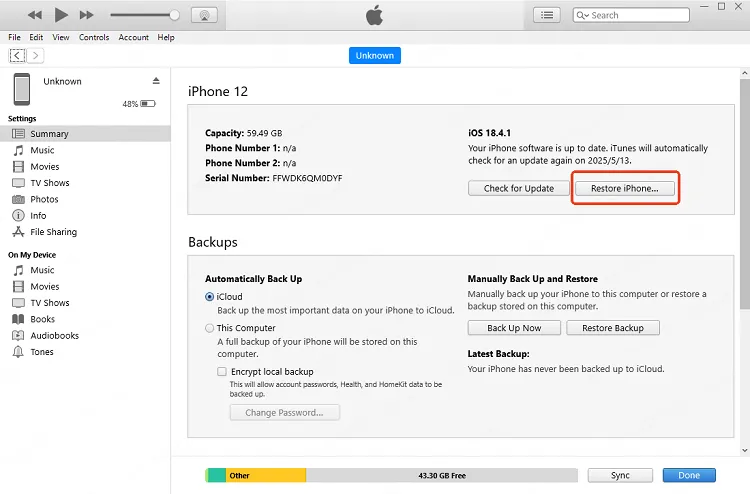
6 Restore with Finder, Apple Devices, or iTunes
Use a computer restore when Settings reset is unavailable or fails repeatedly. This can erase the device, so back up first if possible. On newer systems, use Finder or Apple Devices; on older Windows/macOS, use iTunes.


Factory Reset iPhone Automatically
When iTunes fail to detect your iPhone, you're unable to reset it by iTunes restore. To save you time and trouble, Fixppo can help to reset the iPhone with ease.
Correct Steps to Factory Reset iPhone via Settings
If the iPhone is unlocked and healthy, use the official Settings route: go to Settings > General > Transfer or Reset iPhone > Erase All Content and Settings. Confirm the passcode, Apple Account, and backup prompts before erasing.

FAQs
Why is Erase All Content and Settings greyed out?
Screen Time, MDM, school/work profiles, or incomplete Apple Account verification can disable erase options.
Does factory reset remove iOS 27?
No. A factory reset erases content and settings but normally keeps the installed iOS version. Downgrading requires a separate signed-firmware restore path.
Can I factory reset without Apple Account password?
If Find My is enabled, Apple Account verification may be required. This protects the device from unauthorized erasing and activation.
Conclusion
When an iPhone will not factory reset, identify what is blocking the erase: account verification, Find My, restrictions, network, or iOS instability. Use Settings when the iPhone is healthy, Fixppo when system problems stop the reset, and computer restore only when you accept the erase risk.


Melvin Cooper has over 10 years of experience in the technology industry and is an expert at providing tips and handy solutions to Apple and Android users. Dedicated to helping millions of users improve their experience with mobile devices, he has maintained an impressive record of solving problems.
-
iPhone Not Charging After iOS 27 Update? 10 Fixes [2026]
iPhone not charging after update? Diagnose charger, temperature, port, and iOS issues, then learn when Fixppo or Apple service is the right next step.
7 mins read -
How to Get iOS Beta on iPhone in 2026 (Full Guide)
Learn how to get iOS beta, install iOS 27 public or developer beta, remove it safely, and fix stuck beta update issues.
12 mins read -
Fix iPhone Stuck on Update Requested [iOS 27 Supported]
iPhone stuck on update requested? Learn why it happens and discover 8 proven solutions to get your iOS update back on normal without data loss.
3 mins read -
[2026 New] How to Stop iOS 27/26/18 Update in Progress?
How to stop iOS 27/26/18 update in progress when you feel like staying in the current iOS version? Here's how to do it via 4 methods.
3 mins read -
5 Ways for iOS 26 Beta Download [Developer & Public Beta]
How to get iOS 26 beta? Whether you want to download iOS 26 developer or public beta, you can find the suitable methods with our guide. 5 Ways here!
3 mins read -
17 Important Facebook Statistics You Should Know in 2026
Do you want to know some up-to-date Facebook statistics? We break down 17 must-know Facebook stats about demographics, engagement rate and more.
3 mins read
Was this page helpful?
Thanks for your rating
Rated successfully!
You have already rated this article, please do not repeat scoring!