

















 Shop
Shop


Unlock with iMyFone LockWiper
Forgotten passcode keeping your iPad out of reach? LockWiper guides you through removing the screen lock and resetting your device. Download it to get started!
You pull an old iPad out of a drawer, charge it, and try the passcode you’re sure you used. A few guesses later: iPad is disabled connect to iTunes. You plug it in, and the computer asks for that same forgotten code. Frustrating? Absolutely.
I’d first check whether you can wait and enter the correct code, or use a recently changed passcode. Otherwise, you’ll need to erase the iPad. We’ll walk through the options, including LockWiper, Apple Devices on Windows, and Finder on newer Macs. Despite the message, you may never need to open iTunes.

In this article:

What Does “iPad Is Disabled Connect to iTunes” Mean?
Your iPad has blocked access after repeated incorrect passcode attempts. The next move depends on the message underneath “iPad is disabled.”
- “Try again in 1 minute” or another countdown: wait until the timer finishes, then enter the correct passcode.
- “Connect to iTunes” with no chance to enter a code: move to a reset method below.
- “iPad Unavailable” or “Security Lockout”: newer software uses these messages and may offer an onscreen reset option.


I’d pay attention to the timer and available buttons before reaching for a cable. They tell you whether there’s still a way to regain access while keeping your files.
Before You Reset: Check Whether You Can Keep Your Data
Photos, notes, half-finished projects: check the possibilities below before clearing any of them. Both let you regain access without erasing the iPad.
1 Wait for the Timer If You Know the Passcode
If your screen says “iPad is disabled try again in 1 minute,” let that minute pass. Enter the code only when you’re confident it’s right. More guesses can mean a longer wait, so I’d put the iPad down rather than cycle through every familiar birthday.
Already seeing “connect to iTunes” with no countdown or keypad? Skip ahead to the reset options.
2 Try Your Previous Passcode After a Recent Change
On iPadOS 17 or later, you can use your previous passcode within 72 hours of changing it, provided it hasn’t been expired early. Tap Forgot Passcode? → Enter Previous Passcode, enter the old code, and follow the instructions to choose a new one.

The Forgot Passcode? button requires a network connection, an Apple Account signed in, and Find My enabled. This option is worth checking among your iPad passcode recovery options if the new code is the one you’ve forgotten.

Before You Erase
Check for an existing iCloud or computer backup. A disabled iPad may block access needed to make a new one. After resetting, you can restore a saved backup during setup; an encrypted computer backup requires its backup password.
How to Fix “iPad Is Disabled Connect to iTunes”
If those options don’t fit, a reset gives you a fresh start. Here’s what you’ll need for each route. Choose one based on the computer and account details you have available.
| Method | What You Need | Data Loss |
|---|---|---|
| iMyFone LockWiper | Windows PC or Mac, USB data cable, and internet |  |
| Finder / Apple Devices / iTunes | Computer, USB data cable, internet, and recovery mode | |
| Lock-screen reset | Reset button, Find My already enabled, active internet, and Apple Account password | |
| iCloud Find Devices | Find My already enabled and account access; iPad must come online to erase | |
1 Unlock Your Disabled iPad with iMyFone LockWiper
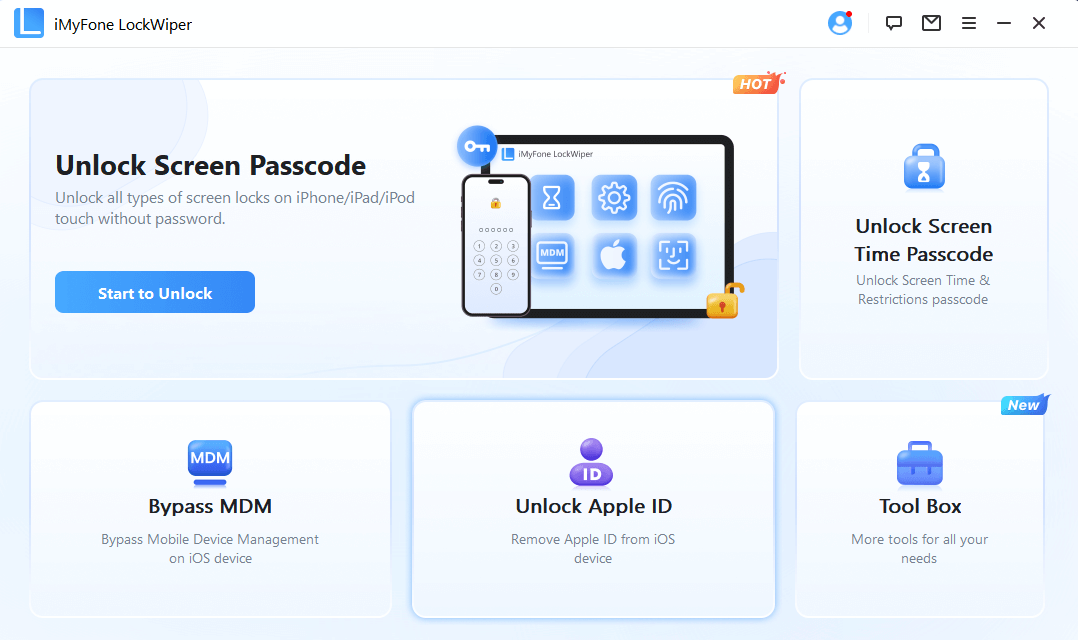
Staring at a disabled screen is frustrating enough without figuring out which computer menu to open. iMyFone LockWiper is a desktop unlocking tool that walks you through removing your iPad’s forgotten screen passcode and resetting it.
Its Unlock Screen Passcode mode guides you through the whole process, from connecting, downloading the firmware, and unlocking. Supporting iOS 27, Mac, and Windows, it's suitable for most people.
Note
Screen-passcode removal erases the iPad. If Activation Lock remains enabled, you’ll need the linked Apple Account credentials or an Apple-supported removal option to finish setup. If you’ve also forgotten that password, review how to reset an iPad without the iCloud password before starting.

Get Back Into Your iPad with LockWiper
- Forgotten passcode removal: Start fresh without remembering your old screen code.
- Disabled iPad reset: Clear the lockout and set up your iPad again.
- Guided recovery: Follow onscreen instructions to connect your locked device.
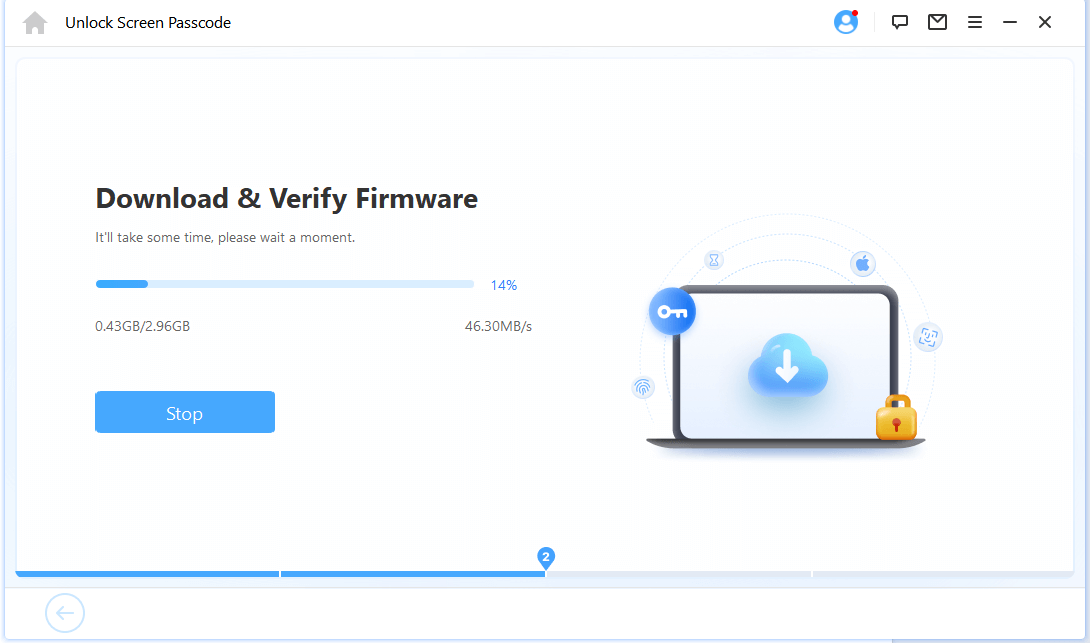
- Built-in firmware download: Download and verify the package inside LockWiper.
- No iTunes navigation: Complete the reset through LockWiper’s interface.
- Windows and Mac versions: Use the computer you already have.
- Step 1: Connect your iPad. Install LockWiper, choose Unlock Screen Passcode, and start. Connect your iPad by USB, then follow the recovery-mode instructions for your model.
- Step 2: Download the firmware. Check the detected device details, click Download, and let LockWiper download and verify the package.
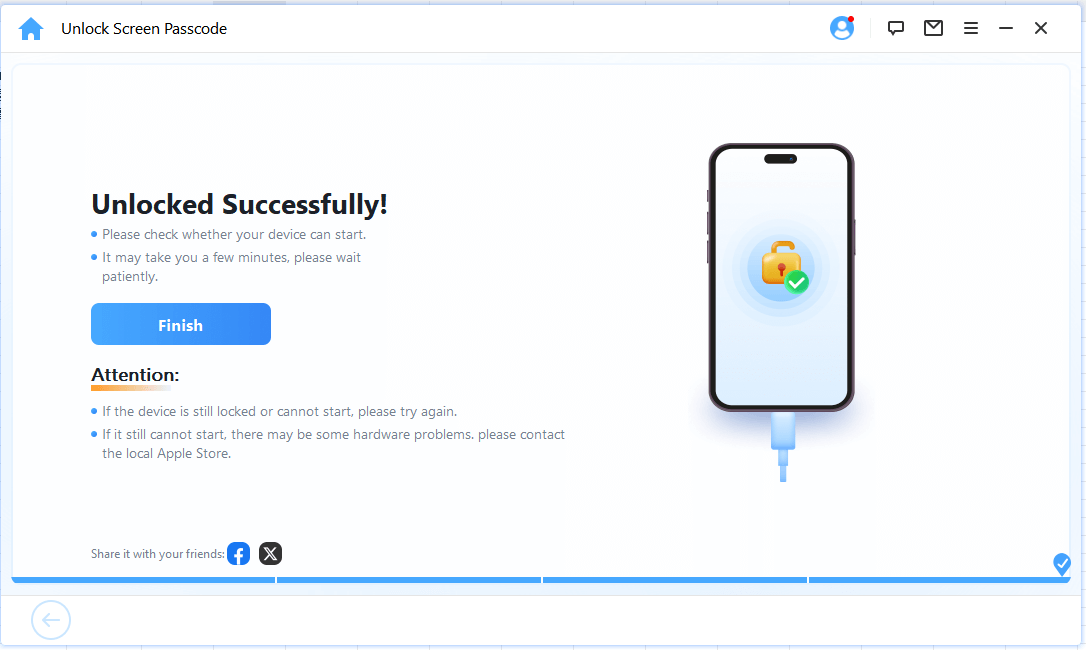
- Step 3: Confirm and unlock. Keep the cable connected, and wait until removal finishes before setting up your iPad.
iMyFone LockWiper
Ready to work through it? Download LockWiper and start unlocking!
2 Restore Your iPad with Finder, Apple Devices, or iTunes
Prefer Apple’s built-in tools? Use Apple Devices on Windows or Finder on macOS Catalina or later. iTunes covers older Macs and Windows setups without Apple Devices. Recovery mode lets the computer restore a locked iPad.
- Step 1: Turn it off. Disconnect the iPad. Without a Home button, hold the top button and either volume button until the power slider appears; with a Home button, hold the top button. Slide to power off and wait a minute.
- Step 2: Connect and enter recovery mode. Plug it into the computer. Without a Home button, quickly press and release the volume button nearest the top button, then the farthest one, then hold the top button. With a Home button, hold Home and the top or side button together. Keep holding past the Apple logo until the computer-and-cable screen appears.
- Step 3: Restore. Select the iPad in your computer app and choose Restore. Let it finish, then follow setup on the iPad. See the iPad recovery instructions for the button sequence.


Download Taking a While?
If the download takes over 15 minutes and your iPad leaves recovery mode, let the download finish, then enter recovery mode again. If the computer never detects it, try the connection checks below.
For more reset options, see how to factory reset a locked iPad.
3 Erase Your iPad from the Lock Screen
No computer nearby? Check the bottom of your iPad’s screen. A reset button can save you the trip to borrow one.
What You Need
This route needs iPadOS 15.2 or later, Find My enabled before the lockout, an active Wi-Fi or cellular connection, and your Apple Account password. An older “connect to iTunes” screen may have no reset button.
On iPadOS 17 or later, follow these onscreen reset steps:
- Step 1: Tap Forgot Passcode?, then Start iPad Reset.
- Step 2: Enter your Apple Account password to sign out.
- Step 3: Tap Erase iPad and wait for the reset.

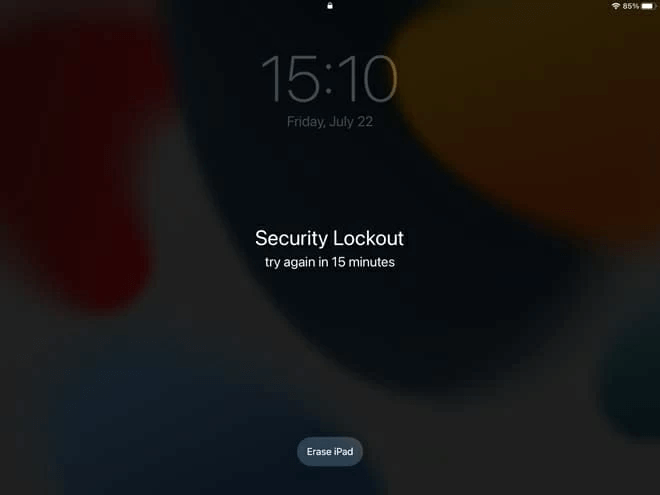
On iPadOS 15.2–16, tap Erase iPad instead, confirm, and enter your Apple Account password to complete the erase. The screenshot below shows that older interface.
4 Erase Your iPad with iCloud Find Devices
If the reset button is missing but Find My was already enabled, you can send an erase request from another phone, tablet, or computer.
- Step 1: Open iCloud Find Devices and sign in to the Apple Account linked to the iPad.
- Step 2: Select your iPad from the device list. Double-check the name if you have several devices.
- Step 3: Choose Erase This Device and complete the confirmation prompts.
An online iPad begins erasing after confirmation. An offline one keeps the request pending until it reconnects. Keep it charged while you wait.
What If Your Disabled iPad Won’t Connect to the Computer?
If your iPad is disabled and won’t connect to iTunes, check the connection before repeating the reset. Normal access can require a passcode or Trust confirmation; recovery-mode detection uses a different route. Once the recovery screen is showing, work through these checks:
- Try a data-capable cable. Charging alone doesn’t confirm a working data connection. Check the connector and port for damage or debris.
- Change USB ports. Connect directly to the computer rather than through a hub.
- Update the computer and Apple app. Restart the computer afterward.
- Allow the accessory on your Mac if that message appears on the computer.
- Try another computer. Write down any restore error code so you can troubleshoot that specific failure.
Still invisible? Follow Apple’s detection checks and service guidance. A damaged port needs attention before any desktop reset tool can communicate with the iPad.
FAQs About a Disabled iPad
Before you choose your next step, here are the short answers to a few situations that can make this feel more complicated than it needs to be.
1 Can I Unlock a Disabled iPad Without a Computer?
Yes, if you can wait and enter the right code, use a recent previous code, or erase through the lock screen or Find Devices. Our unlock an iPad without a computer guide covers those options. Otherwise, borrow a computer or ask Apple for help.
2 Why Does My Computer Ask Me to Unlock or Trust the iPad?
That prompt protects normal access to your iPad’s data. For a disabled iPad you can’t unlock, use recovery mode to start the restore. You can follow that route without first opening Settings or tapping Trust on the locked screen.
3 Will Restarting or Updating My iPad Remove the Passcode?
No. A restart keeps your screen passcode, and choosing Update in recovery mode won’t remove a forgotten code. Choose Restore for a passcode reset. I’d use a restart only as a connection troubleshooting step, rather than keep repeating it hoping the lock will disappear.
4 What If My iPad’s Home or Top Button Is Broken?
Try the lock-screen reset or Find Devices if you meet their requirements. If you need computer recovery but can’t operate the buttons, arrange service through Apple.
Conclusion
“iPad is disabled connect to iTunes” is a frustrating message, but you have a clear next step: check for a way to keep your data, then choose the reset route that fits your setup.
If you want clear onscreen guidance through the reset, start with iMyFone LockWiper. Its guided screen-passcode removal takes you from a locked device to a fresh setup. Download it, connect your iPad, and take the first step toward using it again.
s


Smith Marius is an iOS expert who fixes system bugs, screen mirroring issues, and performance glitches. A Pokémon GO fan, he shares tips on location changer and game optimization, helping players and iOS users get the best experience.
-
[2026] How to Use iforgot.apple.com Unlock Apple ID?
iforgot.apple.com can unlock Apple ID and reset Apple ID password. Let's see how it works to help you regain control of your device.
3 mins read -
How to Use 3uTools MDM Bypass & Its Alternatives [ 2026 ]
How to use 3uTools MDM bypass tool? This article gives a full review of how to bypass MDM with 3uTools and its best alternatives as well.
3 mins read -
What Is iOS 18 iPhone Inactivity Reboot Feature? How Does It Work?
Do you know the feature of iPhone inactivity reboot after 3 days in iOS 18.1? What is it and how does it work? This article tells you all!
2 mins read -
[2026] 4 iPad Unlock Software [Free Way Included]
Looking for solutions to unlock ipad for free? This post introduce 4 ipad unlock software,including the free ipad unlock tool to you. Check it out!
4 mins read -
[2026] What Is iOS Account Manager & How to Remove It
What is iOS Account Manager? Can I remove it? This guide will explain what does iOS Account Manager mean and provide steps for you to remove it with ease.
3 mins read -
How to Fix This Apple ID Is Not Valid or Supported
This guide focuses on explaining and resolving why this apple id is not valid or not supported issues to help you fix Apple ID not working on iPhone problems.
3 mins read
Was this page helpful?
Thanks for your rating
Rated successfully!
You have already rated this article, please do not repeat scoring!