

















 Shop
Shop


iPad trapped in an endless Apple logo loop? Fixppo can repair iPadOS system issues without erasing your data, helping protect important files while getting your iPad working again.
The Apple logo appears, the screen goes dark, and then the logo comes right back. After watching that cycle a few times, it is hard not to worry about the photos, Procreate files, school notes, or work documents sitting inside your iPad.
An iPad boot loop can follow an update, a completely drained battery, a damaged charging path, or a deeper system or hardware problem. I will help you identify the pattern first, then work through the fixes in a sensible order without pretending every spinning Apple logo has the same cause.


Quick Answer
If your iPad keeps restarting at the Apple logo, charge it with reliable accessories for up to one hour, then force restart it. If the loop continues, iMyFone Fixppo can repair most iPadOS startup problems. For Apple’s manual route, choose Update first; use Restore only if Update fails, because Restore erases the iPad.
In this article:
- What Does an iPad Boot Loop Look Like?
- Why Is My iPad Stuck in a Boot Loop?
- How to Get Your iPad Out of Boot Loop
- Charge the iPad and Check the Power Path
- Force Restart the iPad Without a Computer
- Repair a System-Level iPad Boot Loop With Fixppo

- Use Recovery Mode and Choose Update First
- Restore Only After Update Fails
- What If the iPad Boot Loop Won't Update or Restore?
- FAQs About an iPad Boot Loop
- Conclusion
What Does an iPad Boot Loop Look Like?
An iPad boot loop means the iPad repeatedly tries to start but never reaches a usable Lock Screen or Home Screen. The classic version is an iPad boot loop at the Apple logo: the logo appears for a few seconds, disappears, and returns again.

Not every startup failure looks exactly like that, though. Match what you see below before choosing a fix.
| What You See | What It May Point To | Best First Action |
|---|---|---|
| Apple logo repeatedly appears and disappears | Startup, power, system, or hardware failure | Charge, then force restart |
| Apple logo stays frozen with no progress bar | iPadOS cannot complete startup | Force restart; use Recovery Mode Update if needed |
| Connect to Computer screen keeps returning | Recovery Mode loop or failed update/restore | Choose Update before Restore |
An Apple-logo loop alone cannot tell us whether the battery, storage, charging port, system installation, or another part is responsible. What matters next is the context in which it began.
Why Is My iPad Stuck in a Boot Loop?
Most cases fall into a handful of broad groups. I would resist the urge to pick the most dramatic one immediately; the safer approach is to let the timing and surrounding symptoms guide your next move.

- After an update or restore: An interrupted download, incomplete installation, connection failure, or corrupted system state may keep iPadOS from loading.
- After the battery drained: The iPad may begin startup without enough stable power to finish. A worn battery, damaged cable, weak adapter, blocked port, or charging fault may also be involved.
- During an update with little free storage: The system may not have enough working room to prepare and install its files correctly.
- After an unsupported modification: Altered system software can interfere with normal startup and recovery.
- After impact, liquid exposure, or a repair: Battery, connector, storage, or logic-board hardware becomes a more serious possibility.
An iPad boot loop while charging deserves particular attention. If it switches off as soon as you unplug it, alternates between the low-battery symbol and Apple logo, or never gains charge, begin with the power path. If it flashes a red screen, Apple places that symptom in its startup-recovery guidance, but the color itself still does not prove which part failed.
Now for the practical part. We will start with non-erasing checks, move to system repair and Recovery Mode Update, and leave Restore until the data consequence is impossible to miss.
How to Get Your iPad Out of Boot Loop
This part shares five methods that may help you fix the iPad boot loop. Begin with the first method that matches what you have already tried, but do not jump past the data warnings just because the loop is getting on your nerves.
1 Charge the iPad and Check the Power Path
If this is an iPad dead-battery boot loop, a low-battery loop, or a loop that appears only while charging, connect the iPad to a known-good wall adapter with a compatible data-and-charging cable. Apple says an iPad that will not turn on may need to charge for up to one hour.

- Try a working wall outlet rather than a computer USB port.
- Inspect the cable and adapter for bent, frayed, loose, or scorched areas.
- Check the charging port for visible debris without inserting a metal object.
- Leave the iPad connected and undisturbed instead of unplugging it whenever the Apple logo appears.
Please skip improvised tricks such as putting the iPad in a freezer or forcing an unsuitable high-wattage setup. Charging may solve an insufficient-power state, but it cannot repair a failed battery or damaged charging hardware.
2 Force Restart the iPad Without a Computer
After the charging check, a force restart is the main answer to how to fix an iPad boot loop without a computer. It interrupts the failed startup attempt and does not erase the iPad.
- iPad without a Home button: Press and quickly release the volume button closest to the top button. Press and quickly release the other volume button. Then press and hold the top button until the Apple logo appears.
- iPad with a Home button: Press and hold the Home button and top button together until the Apple logo appears.

Do not release early simply because the screen goes dark. If the logo returns and the same loop begins again, repeat attempts are unlikely to add much; the remaining system-repair options normally require a Mac or Windows PC.
3 Repair a System-Level iPad Boot Loop With Fixppo
When charging and a force restart cannot break the loop, the next Apple option often leads toward Recovery Mode and, eventually, an erase-based Restore. That is a rough choice when the iPad contains files you have not backed up.
iMyFone Fixppo is an iOS and iPadOS system repair tool for startup failures such as Apple-logo loops, repeated restarts, failed updates, and recovery-mode loops. It detects the connected iPad and offers matching firmware, so you do not have to hunt for an IPSW package and guess whether it fits your model.
Its Standard Mode attempts to repair and reinstall the system while retaining the data on the device. That makes it a reasonable option to try before Restore when the problem appears software-related.

Why Fixppo Fits an iPad Boot Loop
- Handles Apple-logo, restart, update, and recovery-mode loops.
- Provides Standard Mode before an erase-based Restore.
- Matches available firmware to the detected iPad automatically.
- Supports current iPadOS repair cases on latest iPad model.
- Includes one-click Recovery Mode entry and exit tools.
- Offers backup and restore tools before riskier system actions.
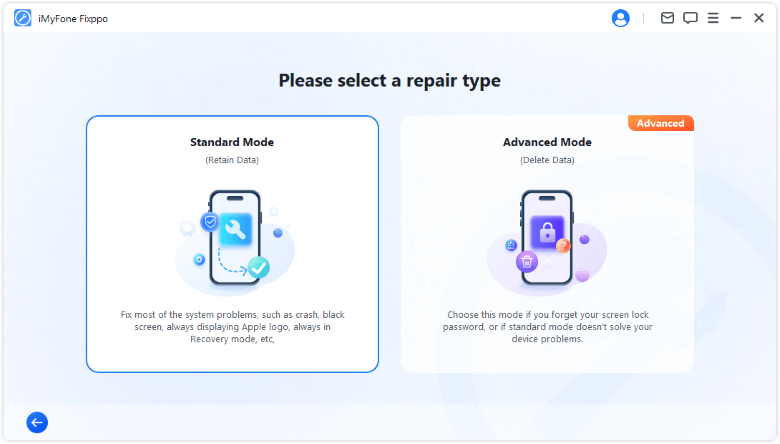
Step 1: Choose Standard Mode and Connect the iPad
Open Fixppo, select Apple System Repair, and choose Standard Mode. Connect the iPad with a reliable USB cable. If it is not detected, follow the on-screen instructions for Recovery Mode or DFU Mode.
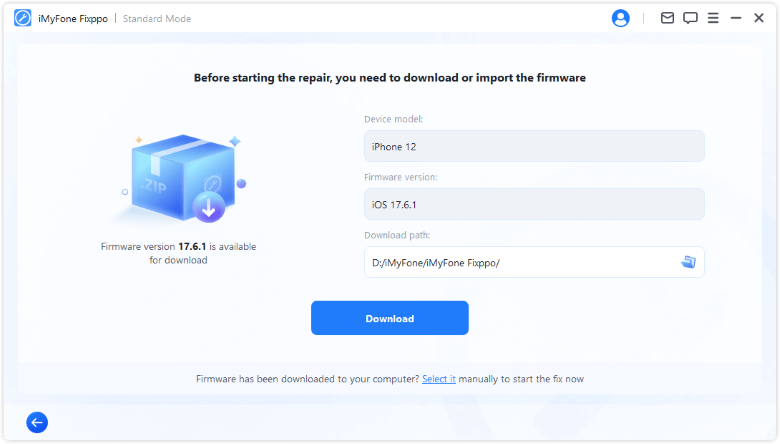
Step 2: Download the Matching Firmware
Fixppo will identify the iPad and display the available firmware versions. Select the appropriate version and click Download. Keep the computer online while the package downloads.
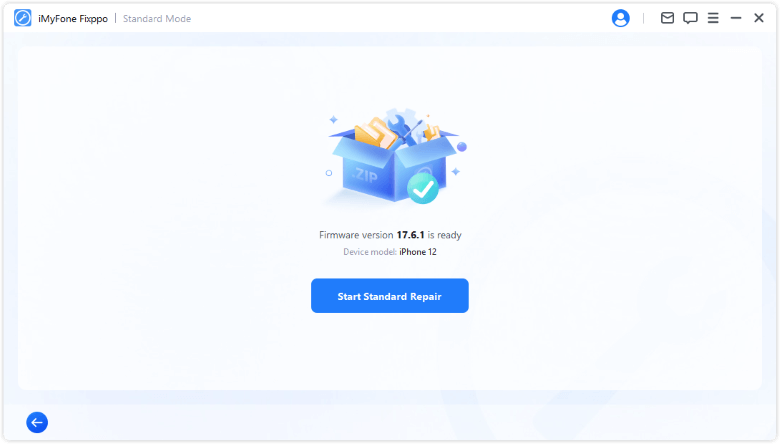
Step 3: Start Standard Repair
Click Start Standard Repair after the firmware is ready. Keep the iPad connected and do not use it during the repair. When it restarts, check whether it can reach the Lock Screen without looping.

4 Use Recovery Mode and Choose Update First
If you prefer Apple's route or system repair does not resolve the loop, connect the iPad to an updated computer. Use Finder on a current Mac, Apple Devices on a current Windows PC, or iTunes only on an older supported setup where it still applies.
- iPad without a Home button: While connected, press and quickly release the volume button closest to the top button, then the other volume button. Hold the top button past the Apple logo until the Recovery Mode screen appears.
- iPad with a Home button: While connected, hold the Home and top buttons. Keep holding until the Recovery Mode screen appears.
When the computer offers Update or Restore, choose Update. Update attempts to reinstall iPadOS without erasing the device. If the download takes more than 15 minutes and the iPad leaves Recovery Mode, let the download finish, then enter Recovery Mode again and repeat the Update attempt.

5 Restore Only After Update Fails
If Update cannot complete or the iPad still will not start, Restore may be the remaining Apple software option. This is not another harmless retry: Restore erases the iPad and installs iPadOS again.
Before You Restore
If the iPad cannot boot, you may be unable to create a new backup. After Restore, you can recover only data contained in an existing backup or already synced separately to iCloud or another service.
Return to Finder or Apple Devices, enter Recovery Mode again, and choose Restore only after you accept that consequence. Do not move automatically to a DFU restore. It is erase-based, requires model-specific timing, and is not part of Apple's standard consumer sequence for this startup problem.
If the iPad is swollen, unusually hot, smells abnormal, has liquid or impact damage, will not charge with known-good accessories, or continues looping after a completed Restore, stop home troubleshooting and arrange qualified service.
Worried about losing data when Recovery Mode leads to Restore? Fixppo can repair iPadOS system issues without erasing your iPad in Standard Mode, giving you a safer option first.
What If the iPad Boot Loop Won't Update or Restore?
When an iPad is stuck in a boot loop and won't restore, repeating the same operation on the same setup can hide a cable, port, computer, or device-side problem. Give the recovery path one clean test before assuming the iPad is beyond repair.
- Update macOS, or install the latest Apple Devices app on Windows.
- Connect the iPad directly to the computer instead of using a USB hub or keyboard port.
- Try a known-good data cable and another USB port.
- Test another updated computer when one is available.
- Write down the exact error code instead of clicking Restore repeatedly.
- If a long download causes Recovery Mode to close, let the download finish before entering the mode again.
Failure across reliable cables and more than one updated computer makes a device-side problem more plausible, but it still does not identify a failed part. Apple says service may be needed when Recovery Mode cannot update or restore the device, or when a required button is broken or stuck.
That stopping rule matters even more after liquid exposure, a recent battery repair, persistent red-screen flashes, charging failure, or a loop that returns after Restore finishes. Tell the service provider if the iPad contains irreplaceable data before authorizing another erase or a replacement.
FAQs About an iPad Boot Loop
1 How Do I Fix an iPad Boot Loop Without a Computer?
Connect it to a reliable wall charger for up to one hour, inspect the charging accessories, and force restart it using the sequence for your model. If it still cannot complete startup, Recovery Mode Update or system repair normally requires a Mac or Windows PC.
2 Can a Dead or Low Battery Cause an iPad Boot Loop?
Low or unstable power can contribute when the iPad has enough energy to begin startup but not finish it. However, an iPad stuck in a boot loop with a low battery may also have a bad cable, adapter, charging port, battery, or system problem, so charging alone is not a diagnosis.
3 Why Is My iPad Boot Looping After an Update?
An interrupted download, incomplete installation, connection failure, or corrupted system state may be involved. Force restart first. If the loop returns, use Recovery Mode and choose Update before considering Restore.
4 Why Is My iPad Boot Looping After a Restore?
A loop after Restore may involve an installation or connection failure, a problem that returns with a backup, or device hardware. Check the cable and computer once, but arrange service if the loop persists after a completed clean Restore.
5 What Does a Red Screen During an iPad Boot Loop Mean?
It means startup failed, but it does not prove that a particular component is damaged. Apple includes red and blue startup screens in its Recovery Mode guidance. Try Update first and seek service if the red screen keeps returning.
6 Will Recovery Mode Erase My iPad?
Entering Recovery Mode does not erase the iPad by itself. Choosing Update attempts to reinstall iPadOS while retaining data. Choosing Restore erases the device.
7 How Do I Fix an iPad Boot Loop With iTunes?
On a current Mac, use Finder. On a current Windows PC, use Apple Devices. iTunes applies only to older supported setups. Whichever interface you use, connect the iPad, enter Recovery Mode, and choose Update first; use Restore only after Update fails and you understand the data loss.
Conclusion
An iPad boot loop feels urgent, but a calm order of operations protects both the device and your data. Start with a reliable charge and the correct force-restart sequence. If the loop survives, try a system-repair route like iMyFone Fixppo or Apple's Recovery Mode Update before agreeing to an erase-based Restore.
Once the iPad fails across known-good cables and updated computers, continues looping after Restore, or shows signs of heat, swelling, charging failure, impact, or liquid damage, stop repeating software fixes. That is the point to explain your data priorities and ask Apple or a qualified provider for a hardware assessment.


Melvin Cooper has over 10 years of experience in the technology industry and is an expert at providing tips and handy solutions to Apple and Android users. Dedicated to helping millions of users improve their experience with mobile devices, he has maintained an impressive record of solving problems.
-
iPhone Not Charging After iOS 27 Update? 10 Fixes [2026]
iPhone not charging after update? Diagnose charger, temperature, port, and iOS issues, then learn when Fixppo or Apple service is the right next step.
7 mins read -
How to Get iOS Beta on iPhone in 2026 (Full Guide)
Learn how to get iOS beta, install iOS 27 public or developer beta, remove it safely, and fix stuck beta update issues.
12 mins read -
Fix iPhone Stuck on Update Requested [iOS 27 Supported]
iPhone stuck on update requested? Learn why it happens and discover 8 proven solutions to get your iOS update back on normal without data loss.
3 mins read -
[2026 New] How to Stop iOS 27/26/18 Update in Progress?
How to stop iOS 27/26/18 update in progress when you feel like staying in the current iOS version? Here's how to do it via 4 methods.
3 mins read -
5 Ways for iOS 26 Beta Download [Developer & Public Beta]
How to get iOS 26 beta? Whether you want to download iOS 26 developer or public beta, you can find the suitable methods with our guide. 5 Ways here!
3 mins read -
17 Important Facebook Statistics You Should Know in 2026
Do you want to know some up-to-date Facebook statistics? We break down 17 must-know Facebook stats about demographics, engagement rate and more.
3 mins read
Was this page helpful?
Thanks for your rating
Rated successfully!
You have already rated this article, please do not repeat scoring!