More time to transfer
1-Year Plan
Auto-renews annually. Cancel anytime.
iPhone 18 WhatsApp & LINE migration
Move supported chats and attachments from Android or an old iPhone with a dedicated transfer, backup, restore, preview, and export workflow.
iPhone 18 launch offer
Use one focused toolkit to manage supported social app data before, during, and after your move to iPhone 18.
More time to transfer
Auto-renews annually. Cancel anytime.
Limited-time offer
Auto-renews monthly. Cancel anytime.
Best long-term value
One-time purchase. No renewal.
Prices are shown in USD and exclude applicable tax. Promotional pricing and availability may change. Monthly and annual plans renew automatically until canceled.
Quick answer
To transfer WhatsApp to iPhone 18, use Quick Start for an iPhone-to-iPhone setup, Move to iOS for a free Android migration during initial setup, or iMyTrans when you need supported WhatsApp or LINE transfer, local backup, preview, export, or more flexibility after setup.
Start here
Select your current situation. Official methods come first when they meet the job; iMyTrans is the focused option for supported social app data.
Use Quick Start for a full-phone setup. Use iMyTrans when WhatsApp or LINE needs its own backup, transfer, restore, preview, or export workflow.
Know your options
The best approach often combines an official full-device move with a separate, verifiable social app backup.

Focused control for your chats
iMyTrans gives supported social app data a dedicated workflow instead of treating it as a small part of a full phone migration.
Trial and license: The free trial can back up WhatsApp and preview backup content. A full license is required to transfer between devices, restore to a phone, or export chats. Product disclosure: iMyTrans is developed by iMyFone, the publisher of this page.

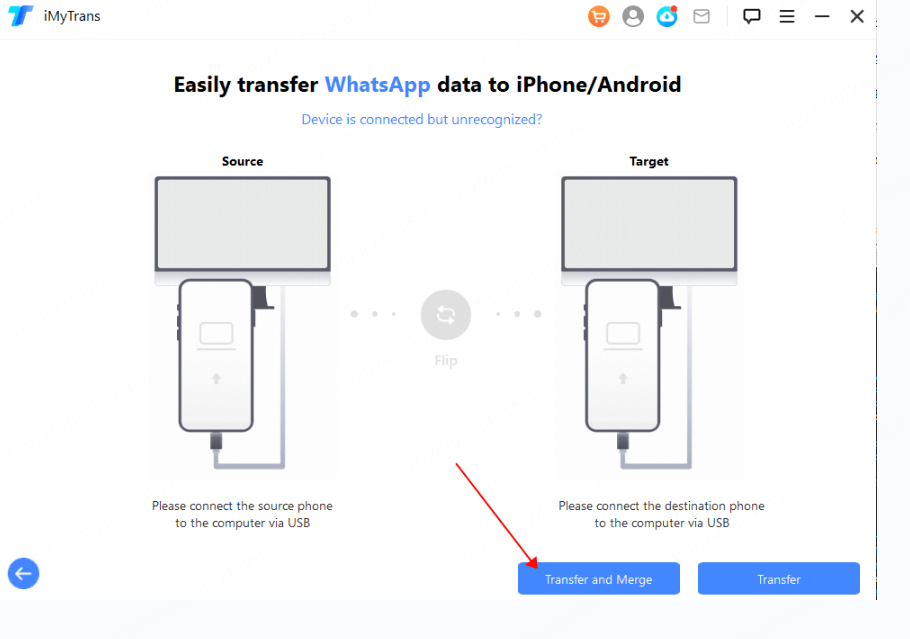
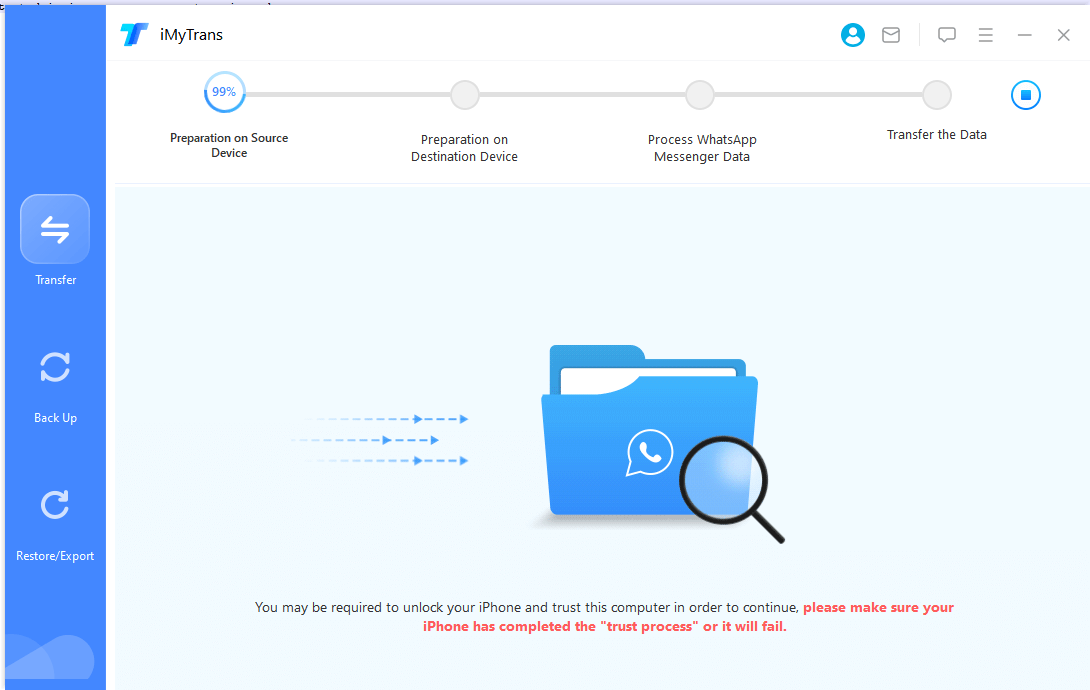
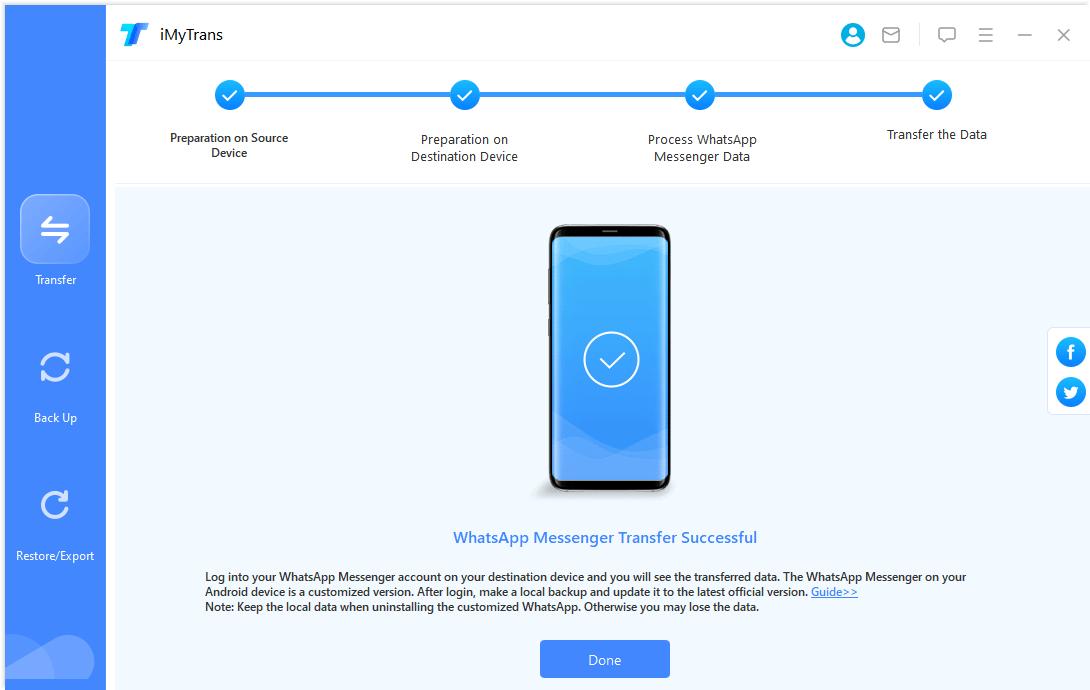
Three-step workflow
The interface guides you through source selection, preparation, transfer, and verification.

Unlock the devices and confirm source and destination before continuing.

Select the app, follow the onscreen steps, and keep both devices connected.

Check chats, dates, media, and documents before erasing the source phone.
Method comparison
Choose by source phone, setup status, and the data you need to move.
| Decision point | iMyTrans | Quick Start | Move to iOS |
|---|---|---|---|
| Best for | WhatsApp/LINE transfer, backup, restore, preview, export | Complete iPhone setup | Free Android-to-iPhone setup migration |
| Source | Supported iPhone or Android | iPhone or iPad | Android |
| Already set up | Supported workflows do not require factory reset | Full migration is designed for setup | Erase and restart, or move items manually |
| WhatsApp Business / LINE | Supported workflows available | Depends on app migration behavior | WhatsApp Business is excluded from the official WhatsApp process |
| Preview/export chats | Available for supported backup content | No | No |
| Computer | Windows or Mac required | Not for wireless transfer | No |
| Limitation | Not full-phone cloning | Both devices are occupied | Setup and compatibility requirements apply |
Choose a full iMyTrans license to transfer chats between devices, restore backups to your phone, and export conversations after previewing them.
30-day money-back guaranteeInstant license deliverySecure payment
Before you retry
Protect the source data first, then fix the failed connection or workflow.
Use an app-specific iMyTrans workflow, or erase only if you intentionally want to restart Apple's setup migration.
Keep it onscreen, disable mobile data on Android, keep both phones powered, and restart both before retrying.
Create a verified destination WhatsApp backup. Do not assume two independent chat histories will merge.
Check storage, verify the source backup, and keep cables connected until media processing finishes.
Unlock it, approve trust prompts, use a direct USB port, and try a certified data cable.
Recovery fallback
If photos, messages, contacts, or other files disappeared during migration or after an iOS 27 update, iMyFone D-Back can scan supported sources and let you preview available data before recovery.
Act quickly: Stop adding new data to the affected iPhone because continued use may overwrite recoverable files. Recovery results depend on the device and data condition.
Scan first and preview the files that may still be recoverable.
Scan & Preview Free Learn more about D-Back →Frequently asked questions
No. iMyTrans focuses on supported WhatsApp, WhatsApp Business, GB WhatsApp, and LINE data. Use Quick Start, iCloud, Finder, or Move to iOS for broader phone content.
iMyTrans provides supported workflows that do not require a factory reset. Back up destination WhatsApp first because the effect on existing destination data varies by workflow.
Yes. It is free for eligible Android-to-iPhone transfers during setup. The official WhatsApp process requires a new or factory-reset iPhone and the same phone number.
iMyTrans lists WhatsApp Business among its supported apps. WhatsApp's official Android-to-iPhone help currently excludes WhatsApp Business from that official process.
Not immediately. Verify important chats, dates, media, and documents on iPhone 18 and keep at least one verified backup first.
Buy the full version to complete supported transfers, restores, and exports, or use the free trial to back up and preview your data first.