

















 Shop
Shop


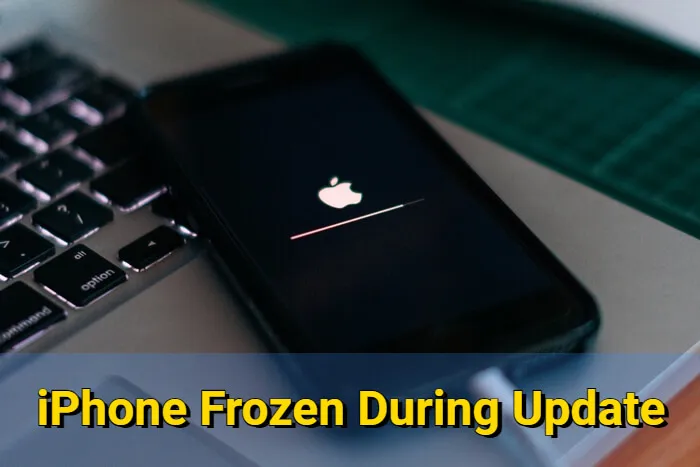
If your iPhone frozen during update screen is still sitting on Preparing Update or Verifying Update, do not keep forcing the same update attempt. The right fix depends on whether the iPhone can still respond, whether a computer can detect it, and whether the iOS 27 update file is damaged.
This guide helps you choose the safest next step for an iOS 27 update frozen problem.

Quick answer
If your iPhone froze while updating to iOS 27, start with a force restart and power/network checks. If the update screen returns, use a computer update or iMyFone Fixppo to repair the iOS update process before choosing recovery mode or DFU restore, because restore-based methods can erase current device data.
In this article:

Why Is My iPhone Stuck on the Update Screen?
An iPhone update can freeze when the device cannot finish downloading, verifying, installing, or restarting from the firmware package. For iOS 27 updates, treat the screen you see as a clue: Preparing Update points to storage or network, Verifying Update often points to server or firmware validation, and a progress-bar freeze usually means the installation was interrupted. Other reasons include:
- Low Battery: If your iPhone doesn't have enough power, the update may freeze before it completes.
- Insufficient Storage: Not having enough free space can lead to iPhone stuck while updating.
- Software Glitches: Minor iOS bugs can make your iPhone stuck in update process.
How to Fix iPhone Frozen During Update
Use the comparison table before you start. It keeps the fast fixes visible, but also shows when you should move from button-based troubleshooting to a repair tool or an erase-based restore.
| Force Restart | iTunes Update | iMyFone Fixppo | Recovery Mode | DFU Mode | |
|---|---|---|---|---|---|
| No Data Loss | ✔️ | Depends | ✔️ | ❌ | ❌ |
| Ease of Use | Very easy | Moderate | Very easy | Moderate | Complex |
| Time Required | 1–2 minutes | 15–30 minutes | 5–10 minutes | 20–40 minutes | 30–60 minutes |
| When Buttons Are Broken | Not Supported | Supported | Supported | Hard to Enter Recovery Mode | Hard to Enter DFU Mode |
| Recommended For | Quick fix | Minor iOS glitches | Users who want guided iOS repair before restore | Deeper system issues | Serious firmware failures |
| Rating Based on User Feedback | ⭐⭐ | ⭐⭐ | ⭐⭐⭐⭐⭐ | ⭐⭐⭐⭐ | ⭐⭐⭐⭐ |
1 Force Restart to Fix iPhone Stuck on Update Screen
A force restart is an effective way to resolve common iPhone issues, whether your screen is not responding, or the system is crashed. It refreshes your device without erasing data, making it an ideal option when your iPhone stuck on update screen and won't move forward.
Here's how to perform a force restart based on your iPhone model.
- For iPhone 5/6/SE to forcet restart: Simultaneously press and hold the Home + Power buttons until the screen turns black. When the Apple logo shows up, release the buttons.
- For iPhone 7/7 Plus to force restart: Press and hold the Power + Volume Down button at the same time. Release the buttons immediately after you see the Apple logo on the screen.
- For iPhone 8/X/XR/11/12/13/14/15/16 to force restart: Press the Volume Up button then the Volume Down button and then press and hold the Power button until the Apple logo shows up.

2 Update iPhone with Apple Devices / Finder / iTunes
If a force restart does not move the update forward, connect the iPhone to a computer and try updating through Apple Devices on Windows, Finder on newer Macs, or iTunes on older systems. This is useful when the iPhone can still be detected and you want to complete the iOS 27 update without jumping straight to a restore.
This method may preserve current data when it uses the update path, but it still depends on device detection, available storage, and whether the firmware can be verified. Keep the iPhone connected until the process finishes.

Note
This method only works when your device can be recognized by iTunes, which requires you to unlock the device and trust the computer. If you've trusted the computer before, this method should work this time.
Step 1: Use a USB cable to connect your iPhone to the computer.
Step 2: Open iTunes if you're on Windows or macOS Mojave and earlier. Open Finder if you're using macOS Catalina or later.
Step 3: If Apple Devices/Finder/iTunes can detect your iPhone, you can see the device's icon, click on it.
Step 4: Click the Check for Update button that shows up in the right side.
Step 5: Follow the on-screen instructions to get the update when it's available. Wait for the update process to complete and your iPhone to restart.

3 Repair iOS 27 Update Frozen with iMyFone Fixppo
When the same update screen returns after a force restart or computer update, the problem is usually deeper than a temporary freeze. The update package may be incomplete, the iOS installation may be damaged, or the device may be trapped between update and recovery states.
At this point, iMyFone Fixppo is a stronger path than repeating Apple Devices/Finder/iTunes attempts. It gives you a guided repair workflow, downloads the matching firmware inside the tool, and is built for iPhone glitches after iOS updates.
Fixppo is also easier for you to act on: the app shows repair progress clearly, so you can move from diagnosis to repairment without leaving the article to decode manual restore steps.
Key Features of iMyFone Fixppo:
- Update-Failure Repair: Repairs iPhone issues after iOS 27 update attempts.
- No Data Loss: Unlike iTunes, it can fix your iPhone without compromising your data or content.
- Easy to Use: Designed with a guided interface, so you do not need to time recovery mode or DFU button steps manually.
- Repair More iOS Problems: Also helps with iPhone won't turn on after iOS update, iPhone stuck on black screen, iOS update paused, and related restore failures.
- Official Download: Use the official installer to avoid risky repair-tool downloads and keep the firmware workflow clean.
- Windows and macOS Support: Available for both Windows and macOS repair workflows.
Follow these steps to repair an iPhone frozen during an iOS 27 update with Fixppo:
Step 1: Click the button below to download and install Fixppo to your Win or Mac, to fix iPhone frozen during update, click the Start Repair button.

Step 2: Connect your iPhone to the computer via a USB cable, then click Standard Mode from the interface.

Step 3: The software will list your device's information and the firmware version that is available, follow the on-screen instruction to get the firmware by clicking the Download button.
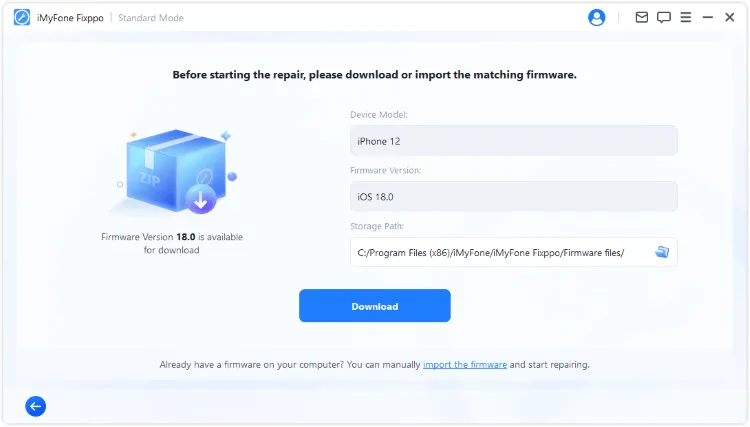
Step 4: After downloading the firmware, click the Start Standard Repair for Fixppo to begin fixing this iPhone freezes during update issue.
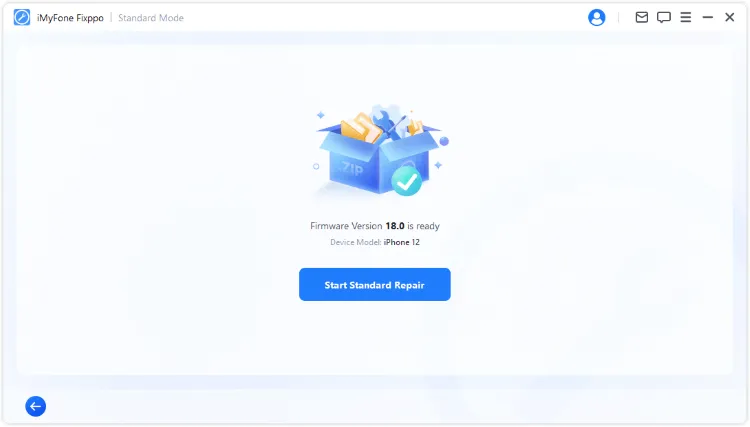
When the process completes, your iPhone should restart automatically. Check whether the update screen is gone, then confirm the iOS version and device status before disconnecting the cable.

4 Fix iPhone Froze During Update via Recovery Mode
If you prefer using the official Apple method, Recovery Mode is another proven way to fix an iPhone frozen during update. This method allows iTunes to recognize your iPhone's problem and install a fresh version of iOS to fix it.
However, unlike Fixppo's Standard Mode, putting your iPhone in recovery mode then restore it using iTunes will erase all data, so be sure to back up if possible before proceeding.
Step 1: Open iTunes, then use a USB cable to connect your frozen iPhone to the computer.
Step 2: Follow the steps below to put your iPhone into recovery mode based on the different iPhone models:
- iPhone 8 or later: Quickly press and release Volume Up, then Volume Down, then press and hold the Side button until the recovery mode screen appears.
- iPhone 7 or 7 Plus: Press and hold Volume Down and Side button together until the recovery mode screen shows up.
- iPhone 6s or earlier: Press and hold Home and Top (or Side) button simultaneously until you see the recovery mode screen.

Step 3: A message will pop up saying there's a problem with your iPhone. Click Restore to refresh the iOS.

Step 4: iTunes will download the software and try to restore your iPhone to its normal state, please wait patiently.
5 Fix iPhone Frozen on Update Screen via DFU Mode
When Recovery Mode isn't enough to fix this iPhone update frozen issue, DFU Mode offers a more thorough reset. Unlike regular restore methods, DFU Mode lets Apple Devices/Finder/iTunes completely reload both the firmware and software on your device.
This can clear out deeper system errors that may be stopping the update. However, since it erases everything on your iPhone, it's important to use this option only if you've backed up your data or if other methods have failed.
Step 1: Open iTunes, then connect your iPhone to the Win/Mac with a USB cable.
Step 2: Put your iPhone into DFU Mode based on your model:
- For iPhone 8 or later: Quickly press and release the Volume Up button, then the Volume Down button. Press and hold the Side button until the screen turns black. Then hold both the Side + Volume Dow buttons for 5 seconds. Release the Side button but keep holding the Volume Down button until your iPhone appears in iTunes.
- For iPhone 7/7 Plus: Hold both the Side + Volume Down buttons for 8 seconds. Then release the Side button but keep holding the Volume Down button until Apple Devices/Finder/iTunes detects your iPhone.
- For iPhone 6s or earlier: Hold both the Home + Side/Top buttons for 8 seconds. Then release the Side/Top button but keep holding the Home button until your iPhone shows up in Apple Devices/Finder/iTunes.

Step 3: If the screen stays black and Apple Devices/Finder/iTunes shows a message saying it has detected a device in recovery mode, you're in DFU Mode.
Step 4: Click Restore when prompted. This will erase your iPhone and install the latest version of iOS.

Step 5: Wait for the process to finish. Once done, you can set up your iPhone as new or restore it from a backup.
FAQs About iPhone Update Stuck
1 How long does it take to update to iOS?
If your iPhone is connected to a stable network, it's fully charged and it has enough storage space, it will take at least 30 minutes to update the iPhone software.
2 Why is my iPhone stuck on the update requested?
If your iPhone stuck on update requested, you should check if your network connection is strong or if you have enough storage. The poor internet connection and the lack of storage can be the main reasons.
3 Why is my iOS update not installing?
If the iOS update not installing, maybe because there is conflict between your device and the iOS firmware. Or, your iPhone doesn't have enough storage to install the iOS update.
Conclusion
That's all about how to fix the iPhone stuck on update screen issue in 5 ways. One of the most recommended solutions is to use iMyFone Fixppo, no matter your iPhone stuck during update or fail to update, Fixppo can save you time and money greatly while effectively solving this problem, come to use it for free!


Melvin Cooper has over 10 years of experience in the technology industry and is an expert at providing tips and handy solutions to Apple and Android users. Dedicated to helping millions of users improve their experience with mobile devices, he has maintained an impressive record of solving problems.
-
Fix iPhone Stuck on Update Requested [iOS 27 Supported]
iPhone stuck on update requested? Learn why it happens and discover 8 proven solutions to get your iOS update back on normal without data loss.
3 mins read -
[2025 New] How to Stop iOS 17/18/26 Update in Progress?
How to stop iOS 17/18/26 update in progress when you feel like staying in the current iOS version? Here's how to do it via 4 methods.
3 mins read -
5 Ways for iOS 26 Beta Download [Developer & Public Beta]
How to get iOS 26 beta? Whether you want to download iOS 26 developer or public beta, you can find the suitable methods with our guide. 5 Ways here!
3 mins read -
17 Important Facebook Statistics You Should Know in 2025
Do you want to know some up-to-date Facebook statistics? We break down 17 must-know Facebook stats about demographics, engagement rate and more.
3 mins read -
[2025 Full Guide] All About iOS Update Issues and Solutions
Have you encountered different problems during or after iOS update? This article focuses on all iOS update issues and solutions. Hope you can learn from it.
5 mins read -
[Full Guide] 50+ iOS 18 Bugs and Fixes You Should Know 2025
What are some known iOS 18 bugs? Read on this article to learn everything about iOS 18 bugs and fixes.
5 mins read
Was this page helpful?
Thanks for your rating
Rated successfully!
You have already rated this article, please do not repeat scoring!