



 Shop
 October 23, 2026
You unlock your iPhone and notice a spinning wheel next to Wi-Fi that won’t go away—even when you’re not using an app. Is something still loading in the background, or has your iPhone got stuck?
Quick answer: Identify the active app, check downloads and restart if needed. Fixppo offers a guided iOS repair route for a loading indicator that remains stuck after those checks.
Move Past a Stuck Loading Wheel. An iPhone loading wheel that never seems to finish can interrupt an otherwise simple task. After checking active downloads, Fixppo gives you a guided route through software repair: connect the device, download compatible firmware and start the repair from your computer.
Contents
6 Tips to Fix iPhone Spinning Wheel Next to Wi-Fi Won't Stop
1. Disable Background App Refresh
A loading indicator can accompany network activity. Temporarily disabling Background App Refresh is a diagnostic test, not proof that background apps are consuming excessive memory. Use Settings > General > Background App Refresh and restore your preference after testing.

2. Force Quit All the Apps
Close the app that appears stuck rather than routinely force-quitting every app. On Face ID models, swipe up and pause, then swipe the app preview up. On Home-button models, double-press Home first.

3. Update to the Latest iOS
The spinning wheel next to Wi-Fi can also occur due to an old iOS in your iPhone. Hence, it is recommended to update your device into the latest iOS version. Go to 'Settings' > 'General' > 'Software Update'. Your device will show you the available updates. Download the new version by following the instructions and update your device.

Is there any way to update iOS without Wi-Fi? Learn more to find out.
4. Stop Automatic Downloads and Updates of the Apps
Many times, automatic downloads and updates tend to work in the background of your iPhone. So, you're more likely to see spinning wheel next to Wi-Fi if any of your updates or downloads are in progress. Moreover, you may continue to see the spinning wheel next to Wi-Fi till the time the download or update is completed.
Check whether an app download is still progressing. To test automatic downloads, find App Store in Settings and review Automatic Downloads; older screenshots may show iTunes & App Stores.

If the apps keeps updating on their own when the new version is released, your iPhone storage will be packed with data and your iPhone will shut down because storage is full.
5. Cut Internet Connection
Temporarily compare Wi-Fi and cellular connectivity. This tests network behavior; disabling Wi-Fi alone may leave cellular data active. Restore the connection after the test.

6. Fix iPhone Spinning Wheel Won't Stop without Data Loss (iPhone 15/16/17 and the installed system version Supported)
A persistent loading indicator does not by itself prove iOS damage. If app and network checks fail, review the supported Fixppo repair workflow.
For such situation, all you need is iMyFone iOS System Recovery which is an expert third-party tool designed to repair numerous iOS issues, such iPhone stuck on recovery mode/Apple logo/white screen/black screen, and other issues like iPhone can't be restored, iPhone keeps turning off, iPhone keyboard not working and so on.
Back up before repair. Standard Mode is designed to retain data; Advanced Mode erases it.
How to fix iPhone wheel keeps spinning issue with iMyFone iOS System Recovery
Step 1 – Download the tool, open it on our computer and plug in your iPhone via USB cable. Choose Standard Mode from the three given modes on the screen.

Step 2 – You now need to look into the steps given on the screen fto put your iPhone into DFU mode or Recovery mode.

Step 3 – Now, you are required to download the latest firmware. For this, you don't have to follow complex steps, just click on Download button and the program will give you the suitable firmware for your device.
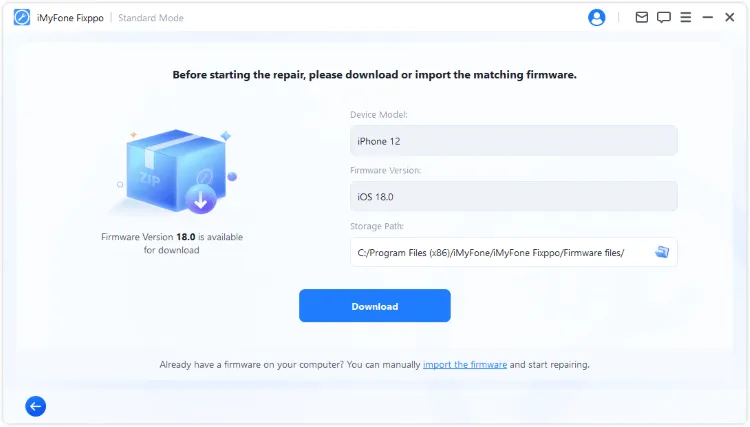
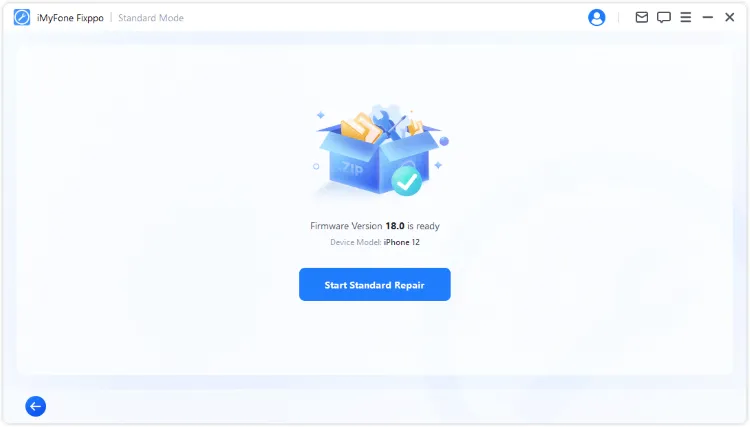
Step 4. Start Standard Repair after the firmware download, keep the phone connected and check the indicator after restart.
Spinning Wheel Next to Wi-Fi on iPhone? 6 Checks
Conclusion
A spinning wheel next to Wi-Fi on iPhone can appear during normal loading, downloads or background activity. Start by checking what is running, close an unresponsive app if necessary and compare your network connections before choosing a repair method. If the indicator remains stuck after those checks and a restart, consider the Fixppo repair workflow for a supported iOS malfunction.
Frequently Asked Questions
Does a spinning wheel always mean damage?
No. It can accompany normal loading or network activity. Check the active operation first.
Should I close every app?
Start with the unresponsive app. Routine force-quitting of all apps is unnecessary.
Will turning off Wi-Fi stop all data?
No. Cellular data may remain available. Use the connection change only as a temporary test.


