

















 Shop
Shop

9 Ways to Fix iPhone Keeps Turning Off [iOS 18/26/27]
Category: iPhone Issues

4 mins read
If your iPhone keeps turning off after updating to iOS 27, do not assume it is only a battery problem. A shutdown loop can come from battery health, overheating, storage pressure, app crashes, firmware damage, or an iOS update that did not finish cleanly.
This guide answers why does my iPhone keep turning off, why your iPhone keeps shutting off with battery left and what to try first when your iPhone turns off every 3 minutes, keeps turning on and off, or powers down by itself after an update.

Quick answer
If your iPhone keeps shutting off with battery left after iOS 27, check Battery Health, temperature, storage, and recent apps first. If the issue began during an iOS update, restore, or firmware attempt and the device keeps turning on and off, try a lower-data-risk iOS system repair path before erase-based restore. If the battery is degraded, swollen, overheats, or the phone powers off under light use, contact Apple or an authorized service provider.
In this article:
- Why Does My iPhone Keep Turning Off?
- Fix iPhone Keeps Turning Off After iOS 27 Update

- 8 Ways to Fix iPhone Keeps Shutting Off
- Check Battery Health First
- Remove or Offload Problem Apps
- Free Up iPhone Storage
- Force Restart Your iPhone
- Update or Reinstall iOS 27
- Restore with Finder, Apple Devices, or iTunes
- Use Recovery Mode Restore
- Check Battery or Hardware Damage
- Prevent iPhone Shutdowns After iOS Updates
- FAQs About iPhone Keeps Turning Off
Why Does My iPhone Keep Turning Off?
When an iPhone keeps turning off, the first job is to separate software symptoms from battery or hardware symptoms. This matters because a system repair may help an iOS 27 shutdown loop, but it will not fix a failing battery, water damage, or a damaged power circuit.
- Battery health is low: If Maximum Capacity is poor or Peak Performance Capability shows a warning, the phone may shut down even when the battery percentage is not at 0%.
- iOS 27 update issue: A failed update, interrupted restore, or firmware conflict can make the iPhone turn off by itself or keep turning on and off.
- Overheating: iPhone may shut down to protect itself when it becomes too hot during charging, gaming, navigation, or updating.
- Storage pressure: Very low storage can cause app crashes, failed updates, and unstable system behavior.
- Problem apps: A recently installed app, VPN, security app, or background-heavy app can trigger repeated crashes.
- Hardware damage: Drops, liquid exposure, battery swelling, or repair history can cause random power-offs that software cannot solve.
Use the table below to choose a safer order. Start with checks that do not erase data, then move to system repair or restore only when the shutdown looks related to iOS rather than battery failure.
| Solution | Best For | Data Risk | Ease of Use | Required Time |
|---|---|---|---|---|
| iOS System Repair Tool |
Shutdown loop after iOS 27 update, restore, or firmware error | No data loss | Easy | 10 - 20 mins |
| Check Battery Health | iPhone shuts off with battery left | No data erase | Easy | 1 - 5 mins |
| Offload Apps | Shutdowns after installing or updating apps | No data erase for offloaded apps | Easy | 5 - 10 mins |
| Free Up Storage | Low storage, failed update, app crashes | Depends on what you delete | Easy | 5 - 20 mins |
| Force Restart | Temporary freeze, black screen, restart loop | No data erase | Medium | 1 - 3 mins |
| Update or Reinstall iOS | Known iOS bug, failed iOS 27 install, update loop | Usually no erase for update; restore can erase | Medium | 30 - 90 mins |
| Finder / Apple Devices / iTunes Restore | Serious system corruption when update cannot finish | Erases current data unless you have a backup | Medium | 1 - 2 hours |
| Recovery Mode Restore | Computer cannot update normally or device cannot boot | May erase current data | Advanced | 1 - 2 hours |
| Apple Battery or Hardware Service | Swollen battery, liquid damage, overheating, power button or logic-board issue | Back up before service when possible | Requires service | Varies |
Fix iPhone Keeps Turning Off After iOS 27 Update
If the shutdown is due to iOS firmware rather than the battery, signs include repeated restarts at the Apple logo, the iPhone turning off every few minutes, or the device shutting down before you can finish Software Update.
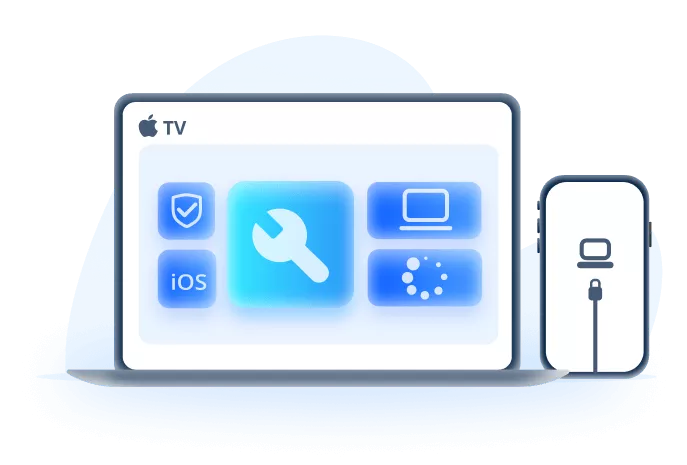
In that situation, iMyFone Fixppo is useful because it gives you a guided iOS repair workflow before you move to erase-based restore. Use Standard Mode first, and back up the iPhone if it stays on long enough.
Fix iPhone Keeps Turning Off After iOS 27 Update:
- Fix 150+ iOS/iPadOS issues, including sudden shutdowns, restart loops, black screen, frozen screen, and failed updates.
- Update, reinstall, or downgrade iOS when your iPhone keeps shutting off before Settings can finish the process.
- Enter or exit Recovery Mode for free, then move to deeper repair only when the shutdown issue needs it.
- Use one toolkit for system repair, iOS upgrade/downgrade, reset, and backup/restore support without jailbreaking.
Steps to fix iPhone keeps shutting down with Fixppo.
Step 1: Install and launch iMyFone Fixppo on your Windows PC or Mac. Connect the iPhone with a reliable USB cable. If the device keeps restarting, keep it connected and let Fixppo detect it.
Step 2: Choose Standard Mode. This is the first repair path to try when the iPhone keeps turning off after an update but you want to avoid erase-based restore.

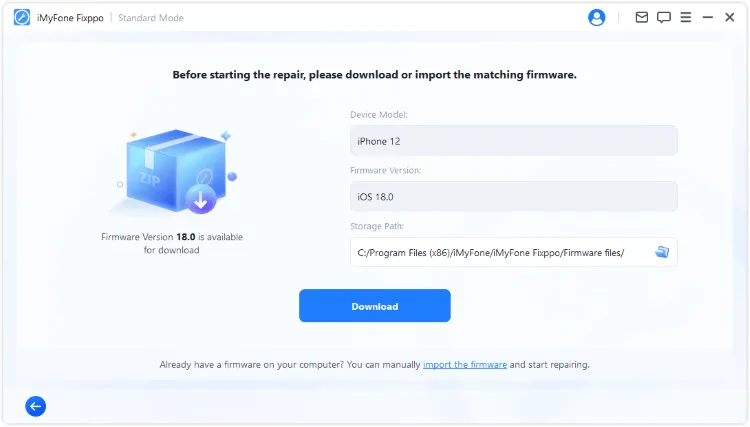
Step 3: Download the firmware package that matches your device. Do not disconnect the iPhone while the firmware is downloading or being verified.
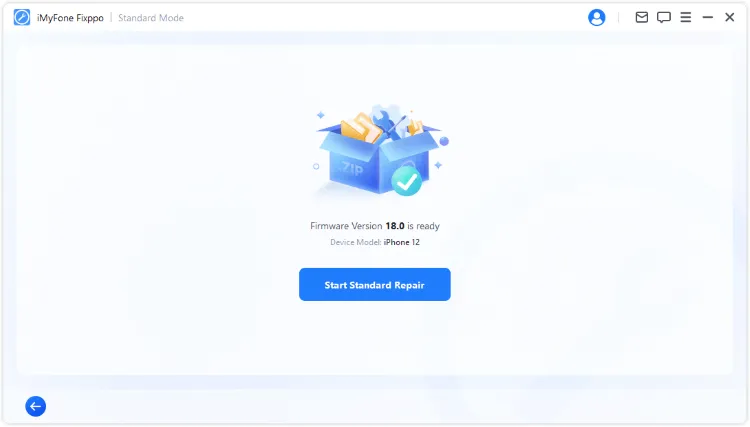
Step 4: Click Start Standard Repair. Keep the iPhone connected until the repair finishes. If the device still powers off after the repair, check battery health and hardware next instead of repeating software fixes.
After the repair, test the iPhone for at least 20 - 30 minutes. Open Settings, charge the device, launch a few common apps, and check whether the iPhone keeps shutting off with battery left.

Video guide: troubleshooting an iPhone that keeps turning off or restarting repeatedly:

8 Ways to Fix iPhone Keeps Shutting Off
Try these fixes in order. The first four checks are best when you are asking, why is my phone turning off by itself iPhone, but the device still powers on long enough to use Settings. The restore methods are for more serious iOS failures and can affect current data.
1 Check Battery Health First
If your iPhone shuts off with 20%, 30%, or even 50% battery left, check the battery before repairing iOS. A degraded battery can no longer deliver peak power reliably, so the iPhone may switch off even when the percentage looks safe.
Go to Settings > Battery > Battery Health & Charging. Look for Maximum Capacity, Peak Performance Capability, and any service message. If iOS says the battery needs service, a software repair will not solve the root cause.
- Likely battery issue: shutdowns happen under load, during cold weather, while using camera/navigation/games, or when the battery percentage drops quickly.
- Likely iOS issue: shutdowns started right after iOS 27 update, the phone loops at the Apple logo, or Settings and apps crash before the device turns off.
- Do not over-calibrate: draining the battery to 0% repeatedly is not a good routine. If you try a full charge cycle once, use it only as a check, not as a permanent fix.

If Battery Health looks normal but your iPhone keeps turning off, continue with app, storage, restart, and iOS repair checks.
2 Remove or Offload Problem Apps
A bad app can make the system unstable, especially after a major iOS update. This is more likely when shutdowns began after installing a new app, enabling a VPN, using a beta app, or updating many apps at once.
Go to Settings > General > iPhone Storage, choose suspicious apps, and tap Offload App. Offloading removes the app but keeps its documents and data if the app is still available later. Also update your remaining apps from the App Store.
If the iPhone keeps turning on and off before you can open Settings, skip to the system repair or restore methods.
3 Free Up iPhone Storage
Low storage can explain why an iPhone keeps shutting off after an update. iOS needs free space for indexing, app updates, caches, and system cleanup. When storage is nearly full, the device may freeze, restart, or turn off during normal use.
Go to Settings > General > iPhone Storage. Delete large videos, unused apps, offline downloads, and duplicate files. For update-related shutdowns, try to leave several GB free before installing or reinstalling iOS 27.


Tips
Low storage can make iOS unstable, especially during updates, app indexing, or background tasks. Keep several GB free before installing iOS 27 or restoring from a backup.
4 Force Restart Your iPhone
A force restart can clear a temporary system freeze without erasing data. Try this when the phone turns off once, gets stuck on a black screen, or keeps turning on and off after an app crash.
For iPhone 8 or later:Quickly press and release Volume Up, quickly press and release Volume Down, then hold the Side button until the Apple logo appears.
For iPhone 7/7 Plus:Press and hold Volume Down and the Side button together until the Apple logo appears.
For iPhone 6s, iPhone 6, or iPhone SE (1st generation):Press and hold the Home button and the Sleep/Wake button until the Apple logo appears.

If the iPhone immediately shuts down again, do not keep forcing restarts again and again. Move to iOS repair if the issue began after an update, or battery service if the device also overheats or loses charge quickly.
5 Update or Reinstall iOS 27
If your iPhone is on an early iOS 27 build, or the shutdown started after an incomplete update, installing the latest available iOS 27 version may fix the system component causing the power-off behavior.
Go to Settings > General > Software Update. Connect to Wi-Fi, keep the iPhone charged, and install the latest available update. If the device cannot stay on long enough to update, use a computer-based update or a system repair tool instead.


Update or Repair iOS When the iPhone Cannot Stay On
If the iPhone shuts down before Software Update can finish, try iMyFone Fixppo for a guided iOS update or system repair path before moving to erase-based restore.
6 Restore with Finder, Apple Devices, or iTunes
When normal update and repair steps fail, a computer restore can reinstall iOS. This is stronger than a simple update, but it can erase the current data on the iPhone. Use it only after you have tried lower-risk checks or after you have a usable backup.
Before restoring, back up the iPhone if it can stay on long enough. A restore replaces the current system and may erase current data.
Step 1: Connect the iPhone to a Mac or Windows PC. Open Finder on macOS, the Apple Devices app on newer Windows setups, or iTunes if that is what your computer uses.
Step 2: Select your iPhone when it appears.
Step 3: Choose Update first if available. If Update fails or the iPhone still keeps switching off, choose Restore iPhone and follow the on-screen prompts.

Step 4: Keep the device connected until the process finishes. After setup, test the iPhone before restoring every app and file, so you can see whether the shutdown was caused by iOS or by restored content.
7 Use Recovery Mode Restore
Use recovery mode if the iPhone cannot boot normally, does not stay on long enough for Finder, Apple Devices, or iTunes to recognize it, or keeps turning off during a normal restore. This is an erase-risk method, so use it carefully.
Step 1: Connect the iPhone to your computer and open Finder, Apple Devices, or iTunes.
Step 2: Put the iPhone into recovery mode:
- For iPhone 8 or later: Quickly press Volume Up, quickly press Volume Down, then hold the Side button until the recovery mode screen appears.
- For iPhone 7/7 Plus: Hold Volume Down and the Side button until the recovery mode screen appears.
- For iPhone 6s, iPhone 6, or iPhone SE (1st generation): Hold the Home button and the Sleep/Wake button until recovery mode appears.

Step 3: When the computer asks whether to Update or Restore, try Update first. If Update fails, use Restore.

8 Check Battery or Hardware Damage
If your iPhone keeps turning off after all software fixes, or if it shuts down with battery left even in safe, light use, the problem may be hardware. Stop software repair attempts if you notice battery swelling, heat near the back of the device, liquid exposure, repeated shutdowns while charging, or shutdowns after a drop.
At that point, contact Apple Support or an authorized repair provider. Ask them to check the battery, charging port, power button, and logic-board power components. Back up the device before service if it can stay on long enough.

Prevent iPhone Shutdowns After iOS Updates
- Keep iOS and important apps updated, especially after installing iOS 27.
- Leave enough storage before major updates. A nearly full iPhone is more likely to freeze, restart, or fail during installation.
- Check Battery Health regularly if your iPhone is older or shuts off with battery left.
- Avoid charging in hot places, gaming while charging, or covering the phone during heavy tasks.
- Remove apps that crash repeatedly after an update.
- Back up before major iOS updates, repairs, or restore attempts.
- Do not ignore liquid exposure, swelling, or repeated overheating. These are service issues, not normal iOS bugs.
FAQs About iPhone Keeps Turning Off
Why does my iPhone keep turning off after iOS 27 update?
It may be caused by a failed update, firmware conflict, low storage, app crashes, overheating, or a weak battery exposed by the update process. Start with Battery Health, storage, and app checks. If the shutdown began during the update and the iPhone keeps turning on and off, try iOS repair before restore.
Why is my iPhone shutting off with battery left?
The most common reason is battery health or peak performance trouble. The battery percentage can still show charge left even when the battery cannot deliver stable power. Check Settings > Battery > Battery Health & Charging. If there is a service warning, software repair is unlikely to fix it.
Why does my iPhone turn off every 3 minutes?
A regular shutdown pattern can point to a system crash loop, overheating, battery failure, or a process that keeps restarting in the background. If it started after iOS 27, try force restart, storage cleanup, and system repair. If the device gets hot or loses charge quickly, check hardware service options.
Why does my iPhone keep switching off even after a force restart?
If the iPhone keeps switching off after a force restart, the cause is probably deeper than a temporary freeze. Check Battery Health, storage, temperature, and recent apps. If the pattern started after iOS 27, treat it as a possible iOS repair issue; if it happens during charging or light use, treat it as a battery or hardware warning.
Is iPhone turning off by itself always an iOS issue?
No. iPhone turning off by itself can be caused by iOS, but it can also come from battery aging, overheating, water damage, a failing power component, or low storage. Software repair makes sense when the shutdown began after update, restore, or firmware trouble. Hardware service makes more sense when the phone heats up, swells, loses charge quickly, or shuts off under light use.
Can Fixppo fix every iPhone that keeps shutting off?
No. Fixppo is for iOS system problems such as update failure, restore error, restart loop, or firmware-related shutdowns. It cannot repair a degraded battery, liquid damage, swollen battery, damaged charging port, or logic-board fault.
Will restoring my iPhone stop it from turning off?
A restore can help when the cause is iOS corruption, but it may erase current data and will not fix hardware damage. Try update, repair, battery checks, and backups before using erase-based restore.
Conclusion
When your iPhone keeps turning off, the right fix depends on the pattern. If the iPhone shuts off with battery left, start with Battery Health. If it began after iOS 27 update, restore, or firmware trouble, try force restart, storage cleanup, update, and a guided iOS repair tool such as iMyFone Fixppo before erase-based restore. If the phone overheats, swells, or keeps powering off after clean software repair, treat it as a battery or hardware service case.


(Click to rate this post)
Generally rated 4.9 (256 participated)

Rated successfully!

You have already rated this article, please do not repeat scoring!