

















 Shop
Shop
Complete Guide on How to Recover Lost Data & Photos on iOS 27
Category: iOS Data Recovery

6 mins read
Upgrading to Apple's latest operating system brings exciting new features, enhanced performance, and sleek UI upgrades. However, major system updates can occasionally trigger unexpected technical hiccups. If you woke up after an update only to find your precious family photos, crucial work notes, or WhatsApp history missing, you are not alone.
Data loss during or after an iOS update is a frustrating experience, but it does not have to be permanent. In this complete guide, we will explore why data loss occurs on iOS 27 and how specialized tools like iMyFone D-Back deliver a fast, reliable solution for iOS 27 data recovery.
In this article:
1 The Challenge of iOS 27 Data Loss: Why It Happens
While Apple's update process is generally smooth, major software updates alter system-level databases and file indexes. Data loss on iOS 27 typically stems from a few common causes:
- Interrupted Firmware Installation: A sudden drop in Wi-Fi connection or battery power during the iOS 27 update can corrupt file paths.
- Database Index Rebuilding Failures: During an update, iOS reorganizes internal SQLite databases. If this process glitches, files may become inaccessible to native apps even if they remain in storage.
- Accidental Deletion During Setup: System reorganizations or accidental taps during post-update configuration often lead to lost media.
- iCloud Sync Glitches: Sync delays between local device storage and Apple servers can temporarily or permanently wipe local cached data.
When a file is deleted or lost on an iPhone, the underlying storage sectors are marked as "available" for new data, but the raw binary data often remains intact until overwritten by new activities. This makes immediate iPhone data recovery highly successful if handled correctly.
2 Why Traditional iTunes/iCloud Restores May Fall Short
When faced with lost files, Apple's standard recommendation is to restore your device using an iTunes or iCloud backup. While this official method works in simple scenarios, it carries significant drawbacks:
- The Overwrite Hazard: Standard Apple restores are "all-or-nothing." Restoring an older iCloud backup replaces everything currently on your device. Any new photos, text messages, or app data generated between the backup date and today will be permanently erased.
- Lack of File Granularity: Native Apple recovery methods do not allow you to preview or select individual items. If you only need a specific deleted album, you cannot extract just those files without restoring the full system image.
- Inaccessibility Without Backup: If you failed to create a full backup prior to upgrading to iOS 27, native Apple tools offer no direct path to retrieve deleted items.
To overcome these constraints, a dedicated recovery software capable of non-destructive scanning is essential.
3 What is iMyFone D-Back? Your iOS 27 Data Recovery Solution
iMyFone D-Back is a professional iPhone data recovery software tailored to solve complex data loss scenarios on iOS devices, fully updated to support iOS 27 hardware and system structures.

Key Features:
- Supports to recover lost data directly from factory reset iPhone without backup.
- Data deleted long time ago (or data lost after reset) is possible to be recovered.
- It allows you to scan and preview the recoverable data for free before the recovery.
- High recovery rate and easy operations, best for beginners.
- It's compatible with various iOS devices such as iPhone 17/16/15/14/13/12/11 running iOS 27/26/18/16/15/14/13.
- This program is highly recommended by Techradar, Pcworld, Engadget, Makeuseof, etc.
Steps to recover lost data from iPhone without backup using the D-Back
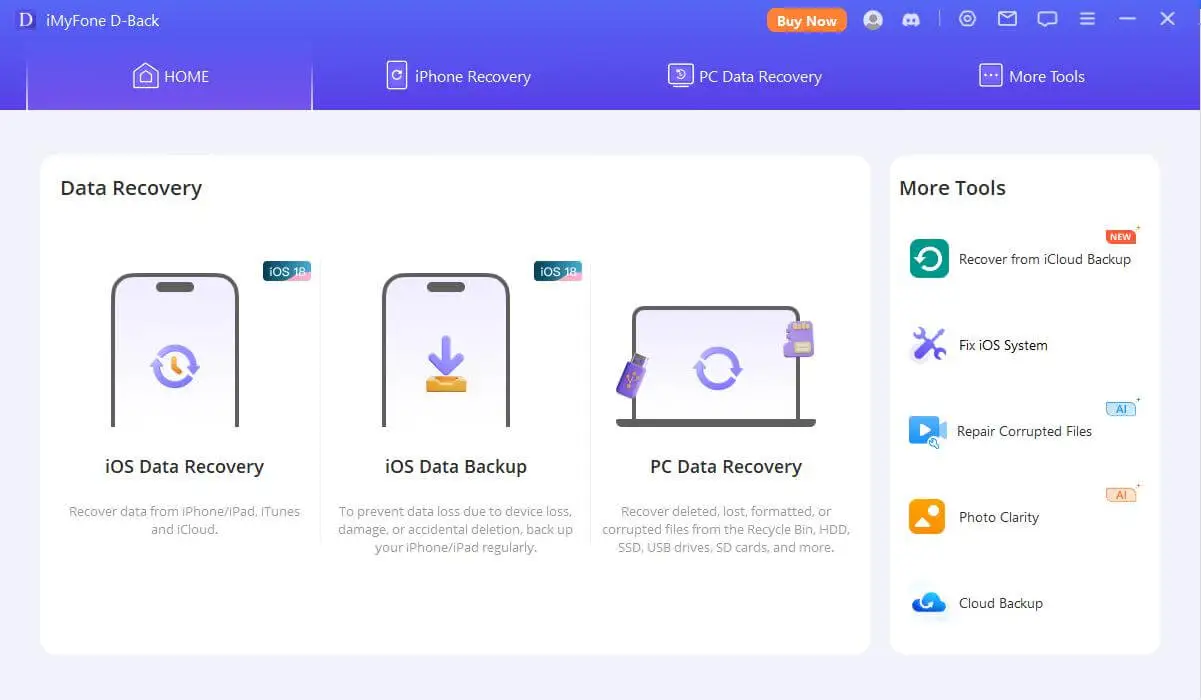
Step 1. Connect your iOS device and select data recovery mode
Open the iOS data recovery program after you install it on your computer, click "Start" from the iPhone Recovery tab. And you will see the file types that the iOS data recovery software can recover. Select what you need. And then the iOS recovery tool will prompt you to connect your iOS device to the computer.
Step 2. Scan iOS device to find the lost iPhone data
Click "Scan" and the iOS data recovery tool will scan the file types according to your selection in the beginning. The precise scan will hugely decrease the time of hunting for lost data. And please kindly wait.

Step 3. Preview the found data and then recover
After iMyFone D-Back finds your lost data, it will show them all on the interface. And you can click each item under each category to check the specific content and then select those you need to recover. Just click on "Recover" and create one folder on your computer to restore the found data.

So, just three steps and a few minutes, you can find the lost iPhone data with iMyFone D-Back iOS data recovery! No worries anymore when you lose your data and have no backup in the future! However, to avoid your data lost next time, you should know how to backup iPhone data properly.

Note
- Please make sure that your iPhone connected with the computer during the recovery process.
- Please stop using your device as soon as data loss occurs to avoid data being overwritten.
- If you can't find the lost data in "Recover from iOS Device" mode, please try a few more times. If it still fails, then it means that your data is possibly overwritten by filling in new data, turning off iPhone, or other operations.

3 Frequently Asked Questions (FAQs)
1 Can I perform iPhone photo recovery on iOS 27 if I already emptied the "Recently Deleted" album?
Yes. When photos are deleted from the "Recently Deleted" folder, iOS removes the file pointers, but the actual photo data remains in the internal flash storage until overwritten by new usage. iMyFone D-Back scans these raw storage sectors to locate and rebuild those image files before they are permanently overwritten.
2 Is iMyFone D-Back safe to use for iOS 27 data recovery?
Yes. The software operates in a strict read-only mode during device scanning. It reads the raw storage without modifying, rewriting, or deleting existing files or system configurations on your iPhone.
3 Do I need to jailbreak my iPhone to recover iOS 27 data with iMyFone D-Back?
No. iMyFone D-Back functions completely within standard, non-jailbroken iOS software environments. You do not need to compromise system security or invalidate your warranty to perform deep data scans.
Final Verdict & Call to Action
Losing valuable memories or vital documents after an iOS 27 update can be stressful, but native restores with high data-overwrite risks are not your only option. With specialized iOS 27 data recovery tools like iMyFone D-Back, you gain the ability to scan, preview, and selectively restore your files without wiping your current device data.
Don't let software glitches permanently claim your files. Download the free trial of iMyFone D-Back today to scan your device and preview your recoverable photos and data in minutes.


(Click to rate this post)
Generally rated 4.9 (256 participated)

Rated successfully!

You have already rated this article, please do not repeat scoring!