Losing an important conversation is stressful—especially if your chat history vanished after upgrading to iOS 27 on your iPhone or you accidentally tapped "Delete" on Android. While restoring from a recent cloud backup is usually the easiest route, a missing or corrupted backup doesn't mean your data is gone forever. As long as the raw files haven't been overwritten on your internal storage, you can still recover deleted WhatsApp messages without a backup.
Whether you're dealing with a failed system update or an accidental swipe, here is a complete guide on how to recover deleted WhatsApp messages on iPhone and Android when you don't have a backup to rely on.
Deleted WhatsApp messages can sometimes be recovered, but deletion does not work the same way in every situation.
If you selected Delete for me, the message was removed from your own chat view. It might still exist in a backup created before the deletion. If you selected Delete for everyone, WhatsApp attempts to remove the message from all participants' chats. There is no official method that guarantees recovery of a message deleted for everyone.
Note: Chances of recovery are generally better when
WhatsApp created a backup before the messages were deleted.
The older backup has not been replaced by a newer one.
You still have access to the original phone and account.
You stopped using the device soon after the data loss.
The backup password or encryption key is still available.
Recover Deleted WhatsApp Messages Without a Usable Backup
1Use ChatsBack for Dedicated WhatsApp Recovery
iMyFone ChatsBack is designed specifically for WhatsApp and WhatsApp Business recovery. It may be appropriate when your main goal is to locate deleted chats, photos, videos, audio, contacts, or attachments.
Depending on the device and available data sources, ChatsBack can scan and recover deleted WhatsApp message from:
Supported iPhone or Android device storage
Google Account/Google Drive WhatsApp backups
iTunes backups
Previous ChatsBack scan records
Note
Note: The software lets users preview detected WhatsApp data before choosing what to recover. Supported results can be restored to a compatible device or exported to a computer in formats such as HTML, PDF, Excel, or CSV.
iMyFone ChatsBack
Retrieve deleted WhatsApp messages and attachments directly from iOS/Android device
How to Retrieve Deleted WhatsApp Messages Without Backup
Don't have a backup? No worries! Recovery tools like iMyFone ChatsBack offer a reliable solution to retrieve deleted WhatsApp messages. Whether you're using an Android or iPhone, these tools can help you restore messages that seem lost forever.
Step 1 Connect Your Device to the Computer
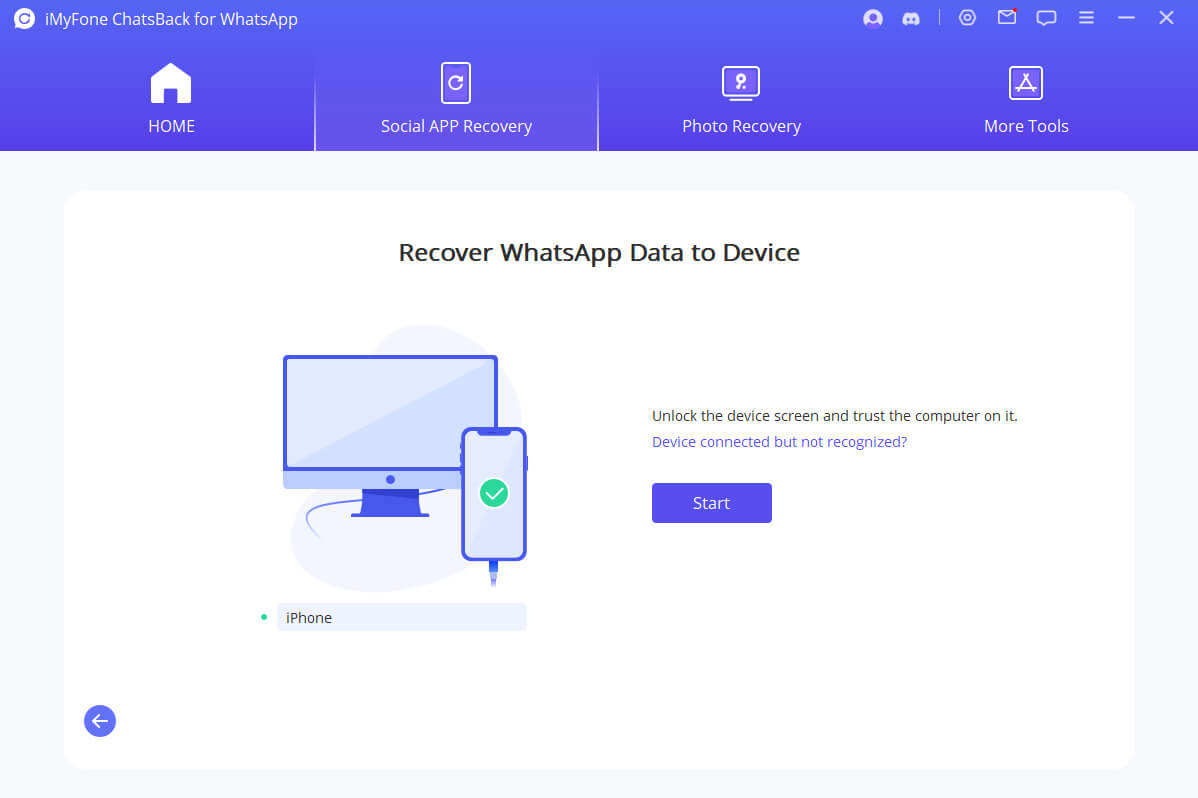
Begin by selecting the "Recover WhatsApp Data from Device Storage" option. This mode helps you locate all local data and recover the most recent records. Next, connect your device to the computer using a USB cable. For Android, enable "USB debugging," or for iPhone/iPad, select "Trust this computer" when prompted. Before proceeding, you can choose a location to save your device data before clicking the "Start" button.
Step 2 Scan Device Data
The scanning process varies depending on your device type (iOS or Android).
For Android Devices:
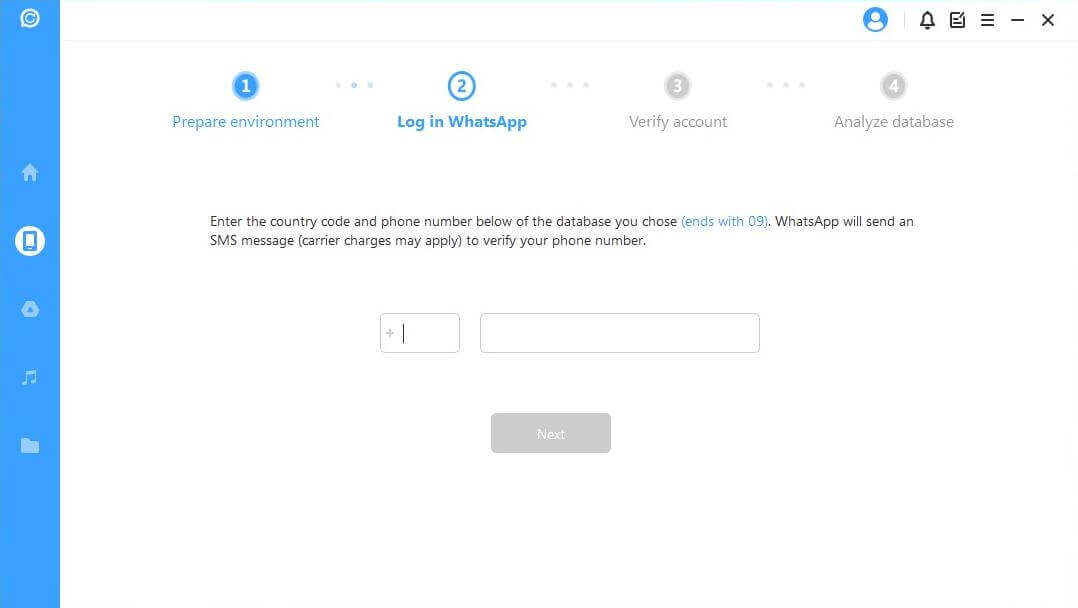
ChatsBack begins scanning and collects your data, storing it in History Records for future retrieval, even if the device is reset. After the scan, click "Next." Grant permission for database analysis, then enter your phone's country code and number for SMS verification. Once verified, ChatsBack analyzes the database and proceeds to preview and recover the data.
For iOS Devices:
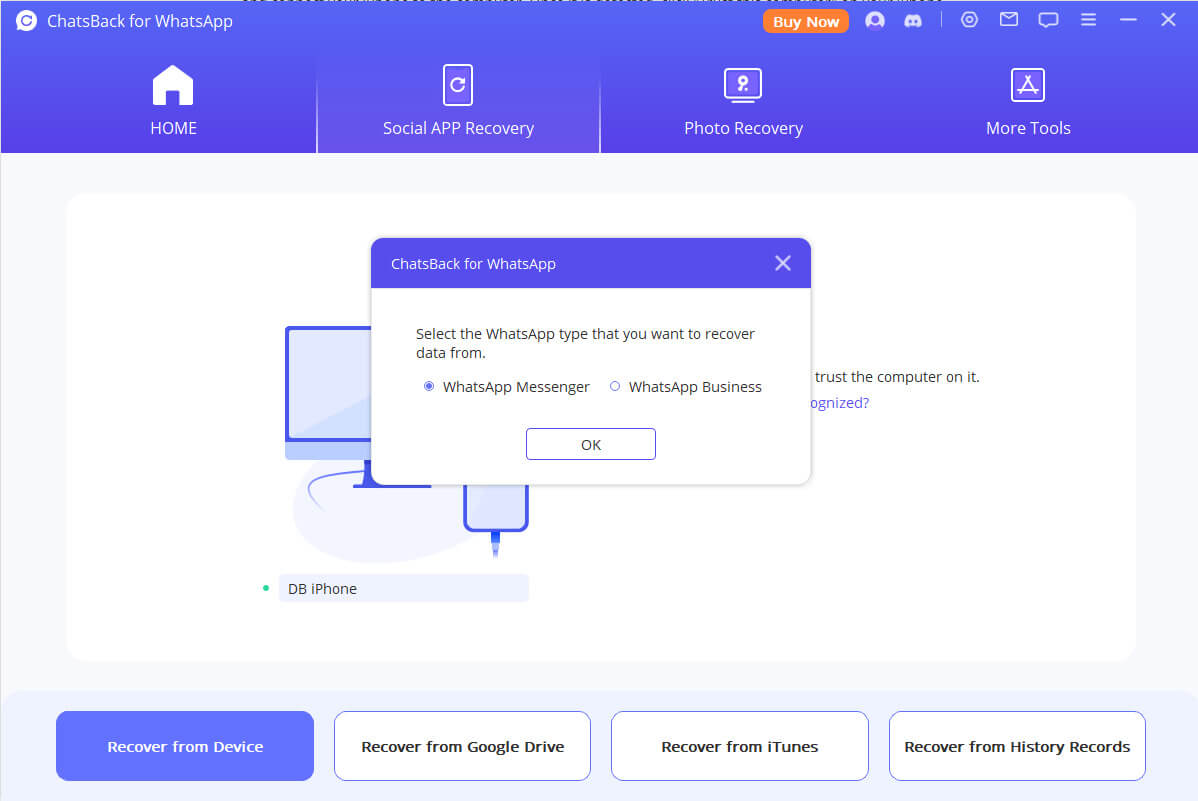
Select the WhatsApp data you wish to recover and hit "OK." ChatsBack will access and analyze your device's data.
Step 3 Preview and Recover Data
Once the scan is complete, all recoverable data will be displayed. You can choose to recover the data to your device or export it to your computer.
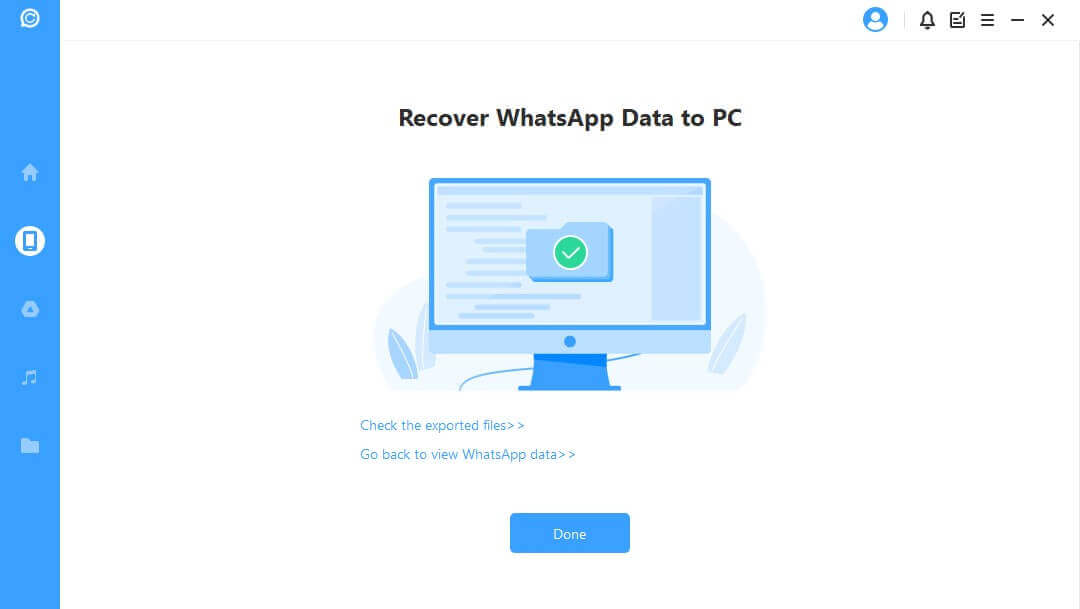
1 Recover to PC
Click "Recover to PC".
Choose the file format and select the location where you want to save the data.
Click "OK", and ChatsBack will begin exporting your files.
The time needed depends on the file size and your network speed.
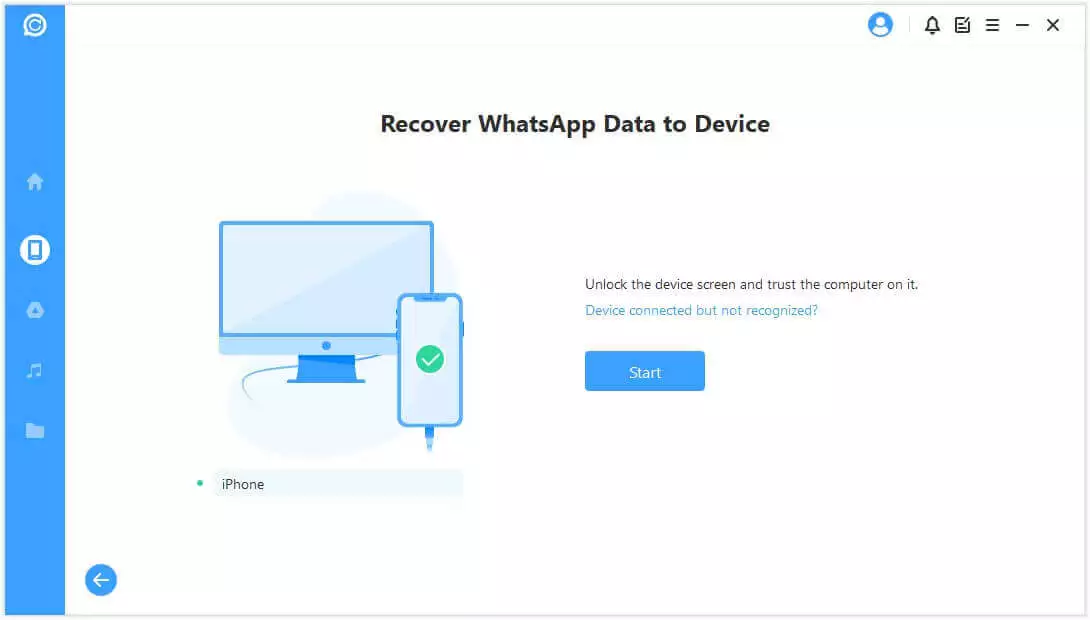
2 Recover to Device
Before proceeding, ensure your iOS or Android device is connected and recognized by the computer. Then click "Start" to begin the recovery process.
For Android Devices:
ChatsBack will install an older version of WhatsApp to facilitate the data recovery.
Unlock your phone if prompted, and follow on-screen instructions during installation.
ChatsBack will process the backup files and restore your data.
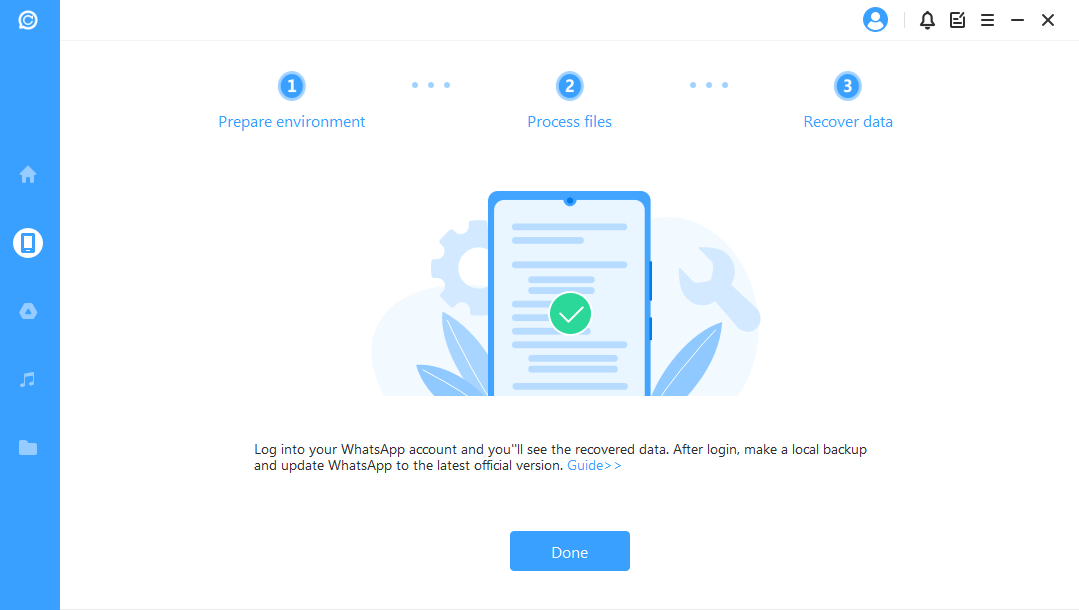
Once completed, open WhatsApp and log into your account to view the recovered messages.
Be sure to create a local backup and then update WhatsApp to the latest version from the Play Store.
For iOS Devices:
Turn off "Find My iPhone" before starting. ChatsBack will guide you through this step.
Download the official WhatsApp app from the App Store.
ChatsBack will begin processing your backup. Your iPhone may restart during this process.
After the reboot, your recovered WhatsApp data will appear on the device.
If you have lost more than WhatsApp messages, iMyFone D-Back provides a broader data recovery toolkit. Depending on the selected platform and current compatibility, D-Back can be used to look for categories such as:
Messages and contacts
Photos and videos
Documents and archives
Data from WhatsApp and other supported social applications
D-Back is therefore more relevant after a wider data-loss event, such as an operating-system problem, accidental deletion involving several apps, or lost files on a computer or external drive.
Key Features:
Recover deleted/lost videos, photos, contacts, messages, WhatsApp/Kik/WeChat/Viber messages and more
Preview and selectively extract data from iTunes or iCloud backup files
Compatible with various iOS devices including iPhone, iPad, and iPod touch
Supports recovery from computers, hard drives, memory cards, and external drives
A recent official WhatsApp backup contains the messages
Use WhatsApp's official restore process first
Data may be required as legal evidence
Consult a digital forensics professional
The distinction is straightforward: ChatsBack is a dedicated WhatsApp recovery product, while D-Back addresses a wider range of devices and file types.
How to Back Up WhatsApp on Android
Regular backups are more reliable than attempting to recover deleted data after the fact.
To configure WhatsApp backups on Android:
Step 1: Open WhatsApp. Tap the three-dot menu. Select Settings > Chats > Chat backup.
Step 2: Choose the Google Account used to store the backup.
Step 3: Select a backup frequency. And Decide whether videos should be included.
Step 4: Choose whether backups can run over mobile data or Wi-Fi only.
Step 5: Tap Back up to create a current backup.
How to Back Up WhatsApp on iPhone
To enable automatic WhatsApp backups on an iPhone:
Step 1: Open the iPhone's settings and make sure iCloud Drive is enabled. Confirm that WhatsApp is allowed to use iCloud.
Step 2: Open WhatsApp. Go to Settings > Chats > Chat Backup.
Step 3: Tap Auto Backup. Select a daily, weekly, or monthly schedule. Choose whether to include videos.
Step 4: Tap Back Up Now to create an immediate backup.
Secure Your WhatsApp Data Today
Recovering deleted WhatsApp messages comes down to two critical factors: acting quickly and maintaining a solid backup routine. If you suspect you've lost important chats, stop using your phone immediately and check your last backup timestamp before a new auto-backup overwrites your older data.
Need to recover lost messages right now? Follow the official restore steps above, or run a free preview scan using ChatsBack to check if your deleted data is still sitting in your device storage.
Want to find more lost data from deleted WhatsApp? Try D-Back! Bookmark this guide so you're always prepared!

















 Shop
Shop