
















 Shop
Shop
5 Best Free Ways to Recover Data from A Dead/Broken Android Phone
Category: Android Recovery Tips

4 mins read

Question
Help! My Samsung Galaxy S9 completely died and won't turn on at all. Is there any way to recover my photos, videos, and important files from it? Any advice would be greatly appreciated!
Most of us rely heavily on our Android phones to store irreplaceable memories, contact lists, text messages, and critical files. But what happens when your device suddenly dies without a recent backup? Is it still possible to extract data from a dead or unresponsive Android phone? Fortunately, the answer is yes. Even if the device won't boot up, the internal storage often remains intact.
In this comprehensive guide, we will walk you through 5 proven methods to recover data from a dead Android phone safely and effectively.
In this article:
- Part 1. Essential Things to Know Before Recovering Data
- Part 2. How to Recover Internal Data from a Dead Android Phone
- Option 1: Easiest Way to Retrieve Data from a Dead Phone

- Option 2: Recover Data from a Dead Android Phone via Google Drive
- Option 3: Retrieve Data from a Broken Screen/Dead Phone Using OTG
- Option 4: Extract Data from a Dead Phone via SD Card
- Option 5: Restore Data from Dead Phone via Samsung Cloud (Samsung Devices Only)
Part 1. Essential Things to Know Before Recovering Data
Q1. What Is Defined as a "Dead Android Phone"?
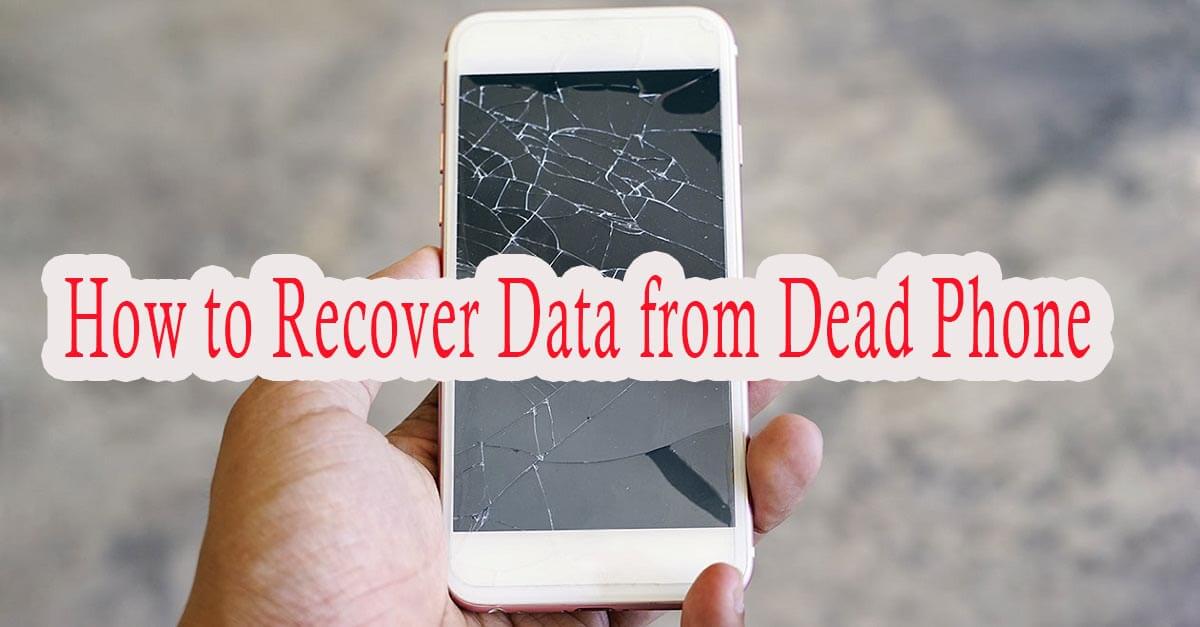
A dead Android phone refers to a device that is completely unresponsive, fails to boot up, displays a black screen, or shows no physical signs of life even when plugged into a working charger. While the device appears completely powered down or unresponsive, in many cases the internal physical storage (flash memory) remains fully functional.
Q2. Can You Recover Photos and Files from a Dead Android Phone?
Yes, retrieving photos and personal files from a dead phone is entirely feasible. As long as the internal memory chip isn't physically damaged, specialized data extraction tools can interface with the device's storage. Using an automated utility like D-Back (Android) simplifies this technical process, allowing you to scan and recover files safely. Watch the video above for a complete visual walkthrough.
Q3. How to Prevent Further Data Loss on a Dead Android Phone?
To maximize your chances of successful recovery, stop repeatedly attempting to force restart or charge an unresponsive phone, especially if physical or liquid damage is suspected. Overheating or short-circuiting can cause permanent damage to the internal motherboard and memory chip. Keep the device powered off until you are ready to perform data extraction.
Part 2. How to Recover Internal Data from a Dead Android Phone
1 Easiest Way to Retrieve Data from a Dead Phone
If you need a reliable method to recover internal storage without existing backups, professional desktop software offers the highest success rate. iMyFone D-Back (Android) is specifically designed for such recovery scenarios.
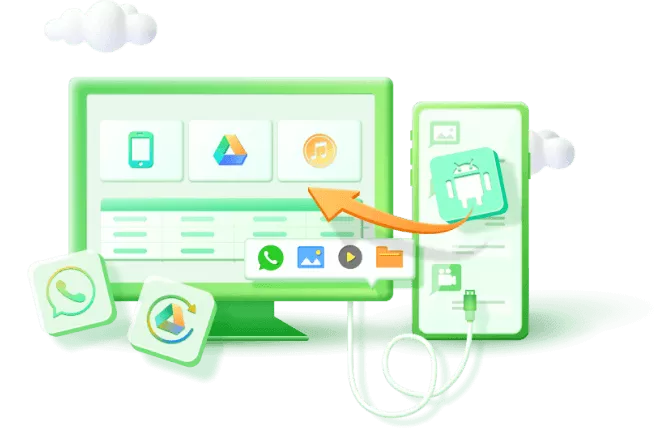
This software allows you to bypass screen unresponsiveness and extract files directly from broken or unbootable devices. Whether your device suffered system crashes or you need to recover data from a dead motherboard, D-Back provides a controlled extraction environment to safeguard your information.
Download the free trial to scan and preview your recoverable files before proceeding.
Key Features:
- Fast & Direct Extraction: Scans internal storage quickly and restores photos, contacts, messages, and documents directly to your PC.
- Selective Preview: Preview recoverable files in detail before performing the actual recovery to ensure you only save what you need.
- Comprehensive Scenario Coverage: Works across various data loss situations, including system crashes, water damage, black screens, or accidental factory resets.
- User-Friendly Interface: Simple step-by-step wizard requiring no technical skills or rooting knowledge.
Step-by-Step Guide: How to Recover Data Directly from a Dead Android Phone using D-Back (Android):
Step 1: Launch D-Back (Android) and Select Mode
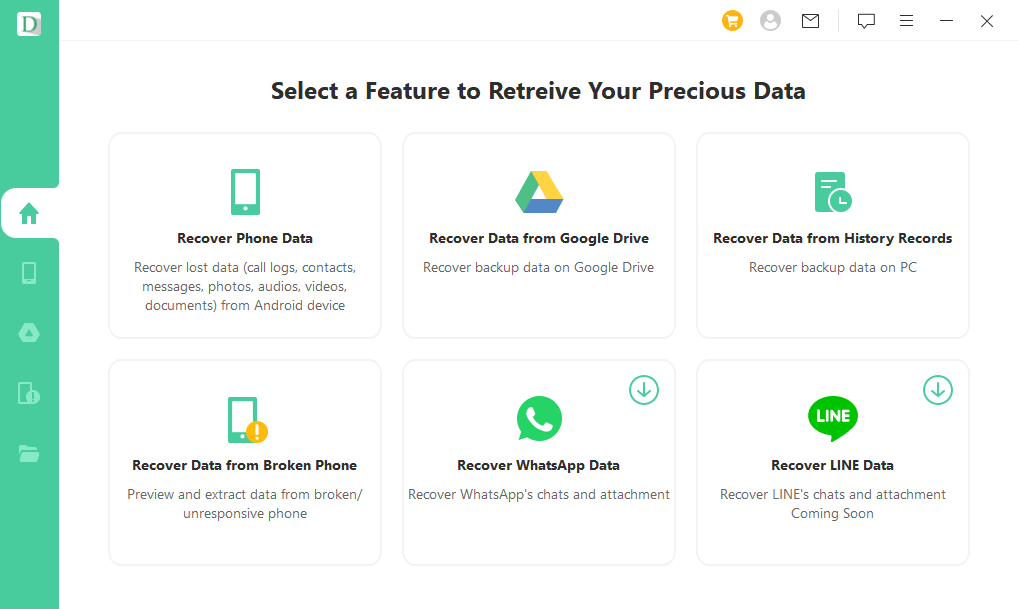
Download, install, and open the application on your PC. Select the "Broken Android Data Extractor" mode from the main dashboard to begin.
Step 2: Select Device Information and Connect Phone to PC
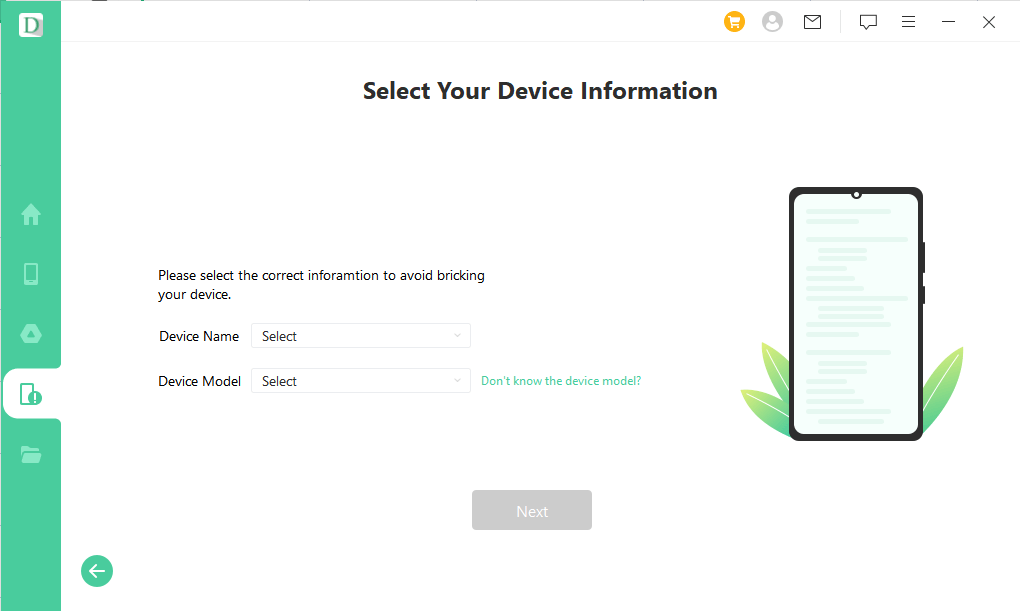
Choose your exact device name and model from the drop-down menu. Confirm the information, connect your phone to the computer using a USB cable, and follow the on-screen instructions to enter Download Mode.
Step 3: Scan, Preview, and Recover Your Data
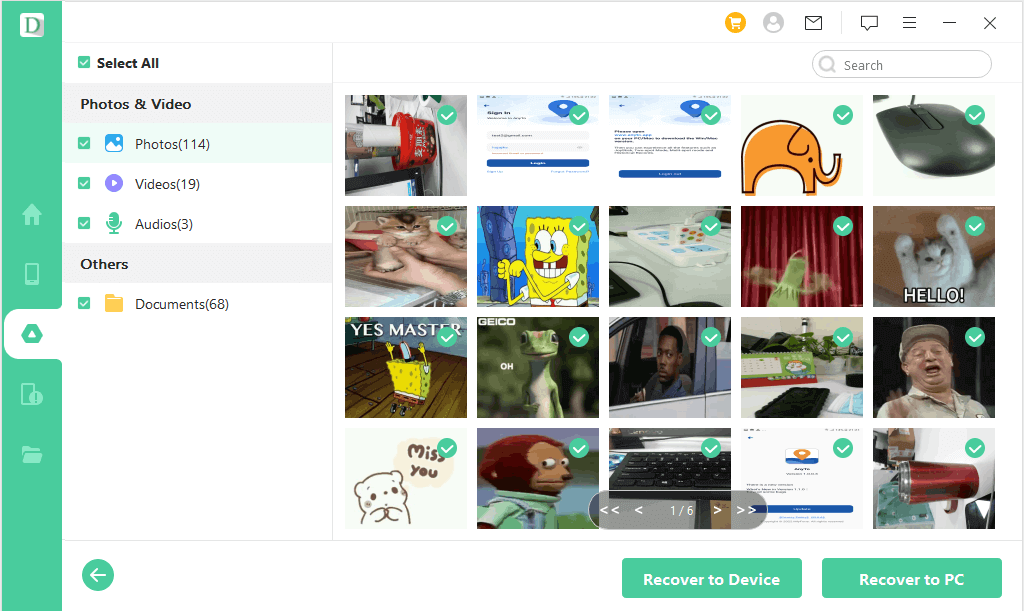
Select the specific file types you wish to recover (e.g., Photos, Contacts). The software will scan your device's memory. Once complete, browse through the previewable items, select the files you need, and click "Recover" to export them to your PC.
2 Option 2: Recover Data from a Dead Android Phone Using Google Drive
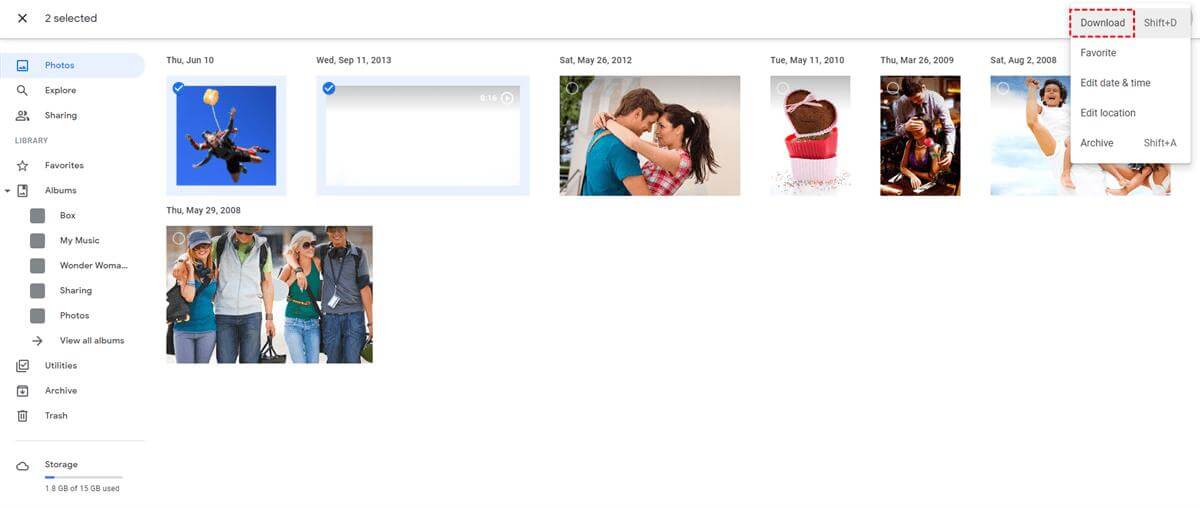
If you previously enabled automatic cloud sync or manual backups to your Google Account prior to the device dying, you can restore your data onto another working phone. Here is how to access your Google Drive backup:
Step 1. Sign in with the same Google Account during the initial setup of a new or factory-reset Android device.
Step 2. When prompted with available backups, select the backup corresponding to your old dead phone and tap "Restore" to sync your apps, contacts, and settings.

Note
Key Limitations:
- Requires a prior backup to have been performed before the phone became unresponsive.
- Restoring full system backups typically requires a separate working Android device or factory reset.
3 Option 3: Recover Data from Dead Phone Using OTG
If your phone turns on but the touch screen is completely unresponsive, you can use an On-The-Go (OTG) adapter to control the device with a standard USB mouse.
Follow these steps to access data via OTG:
1. Connect a USB mouse to your Android phone using an OTG cable adapter.
2. Use the mouse cursor on screen to enter your passcode and unlock the device.
3. Transfer important files to cloud storage or connect to a PC to back up your internal storage.
4 Option 4: Recover Data from Dead Phone Using an SD Card
If your dead phone stored photos, videos, or documents on an external microSD card, those files remain unaffected by system failure on the phone itself. You can easily access them using a PC:
1. Safely remove the microSD card from your dead phone's SIM/SD tray.
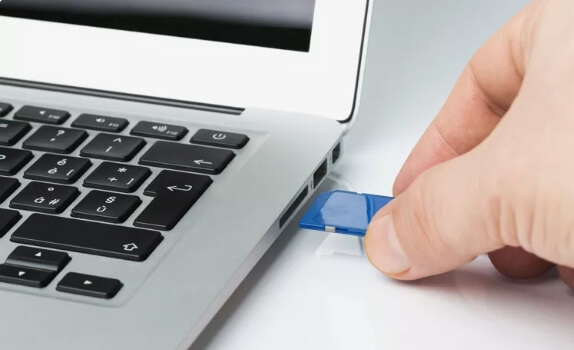
2. Insert the SD card into a card reader and plug it into your computer.
3. Open File Explorer (Windows) or Finder (Mac), locate the external drive under "This PC", and open it to view your files.
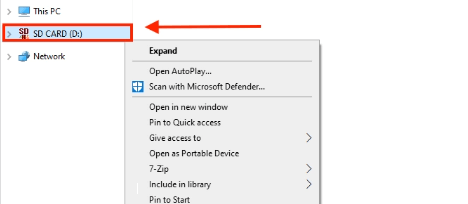
4. Copy and paste your desired files to your computer's local hard drive.
5 Option 5: Retrieve Data from Dead Phone via Samsung Cloud (Samsung Devices Only)
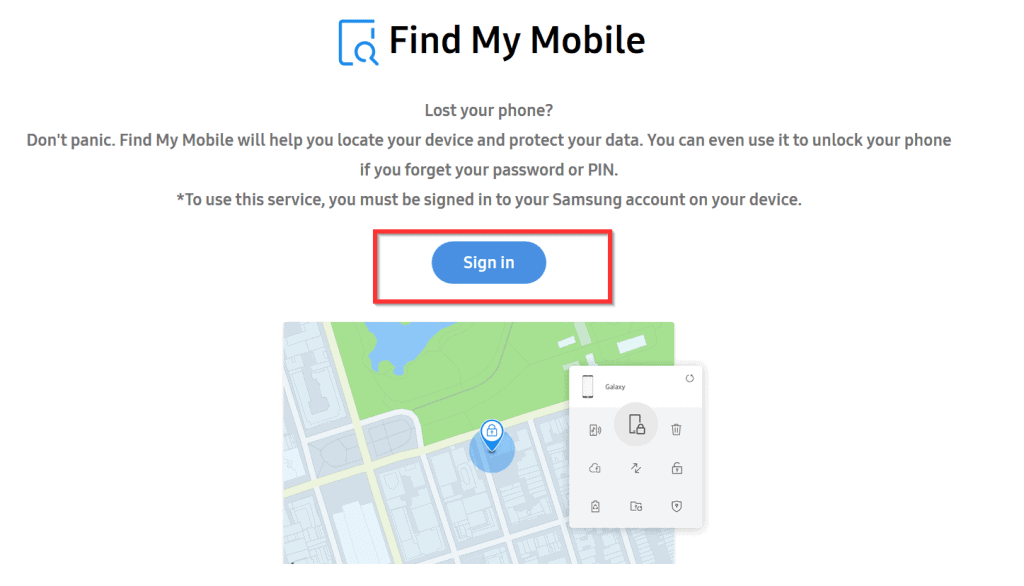
Samsung users who previously configured a Samsung Account and activated Find My Mobile / SmartThings Find can back up data remotely, even if the phone's screen or hardware is non-functional.
1. Go to the official Samsung SmartThings Find website in any web browser and log in with your Samsung credentials.
2. Select your registered inactive phone from the device sidebar.
3. Click the "Back up" option from the menu. Select the data types you want to back up to Samsung Cloud, then download or restore them onto another Samsung device.
Conclusion
Dealing with a dead Android phone can be frustrating, but your personal files aren't necessarily gone forever. If you don't have a recent Google Drive or Samsung Cloud backup, professional recovery software like iMyFone D-Back (Android) provides a straightforward solution to extract and protect your data directly from internal storage.
Download the free trial version today to scan and verify your recoverable data!

iMyFone D-Back for Android
Extract and recover lost or existing data from broken and unresponsive Android phones with one click.


(Click to rate this post)
Generally rated 4.9 (256 participated)

Rated successfully!

You have already rated this article, please do not repeat scoring!