

















 Shop
Shop

[2026] 9 Ways to Fix iPhone Green Tint/Green Screen/Green Lines
Category: iPhone Issues

6 mins read
If your iPhone screen turns green, shows green lines, or has a green tint after an iOS 27 update, do not assume the cause is the same in every case. A full green screen after an update may be an iOS display-driver or system issue, while a single bright vertical green line often points to OLED panel or impact damage.
This guide separates software checks from hardware warning signs, then walks through the safest order: cool down and inspect the screen, try system-level repair for update-related display glitches, and use erase-based restore or Apple service only when the earlier steps do not fit.


Quick answer
If the iPhone green screen appeared right after an iOS update, force restart first, then try iOS system repair before a full restore. If the screen has a fixed green line after a drop, pressure damage, or water exposure, software repair may not help; Apple or a repair provider needs to inspect the display.
In this article:

5 Advanced Ways to Fix iPhone Green Screen
Use the advanced fixes when the iPhone green screen started after an iOS update, restore, app crash, overheating event, or failed restart. These are the cases where software can realistically be involved.
1 Repair iOS Display Glitches with Fixppo
If the green screen began after installing iOS 27, updating apps, restoring from backup, or getting stuck during a restart, iMyFone Fixppo is the best first software path. It repairs common iOS system issues that can affect screen rendering, boot behavior, and display response without making you jump straight to a repair store.
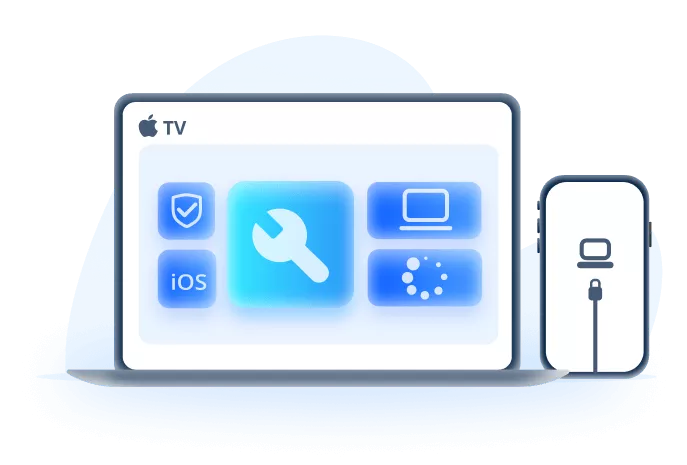
Fix iPhone Green Screen After iOS Update:
- Display-related iOS repair: Fix 150+ iOS/iPadOS problems including software glitches behind green screen, green tint, Apple logo, boot loop, and black screen cases.
- Standard Mode first: Start with a lower-data-risk repair path before full restore or DFU restore.
- Firmware matching: Download suitable firmware inside the workflow.
- Useful after update failure: Helps when the green screen appears after an interrupted iOS 27 update or restore.
- Hardware-aware expectation: It can repair iOS issues, but a fixed green line caused by panel damage still needs screen service.
Step 1. Download and launch Fixppo. Connect the iPhone to the computer with a stable cable.
Step 2. Choose Standard Mode when the iPhone can still be detected by the computer.

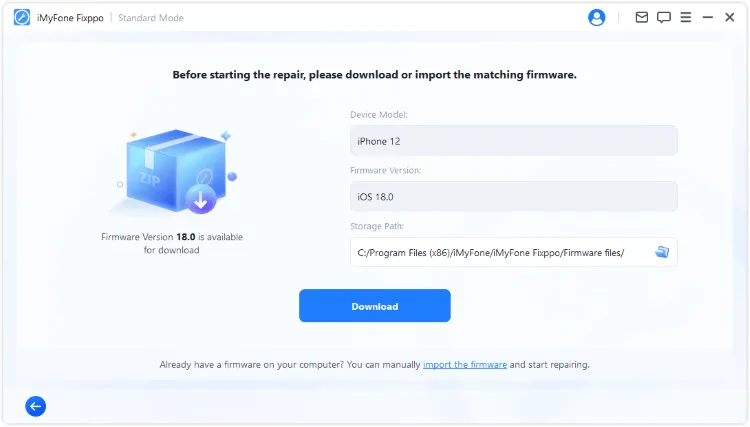
Step 3. Download the firmware package shown for your device. Do not disconnect the iPhone while the firmware downloads or verifies.
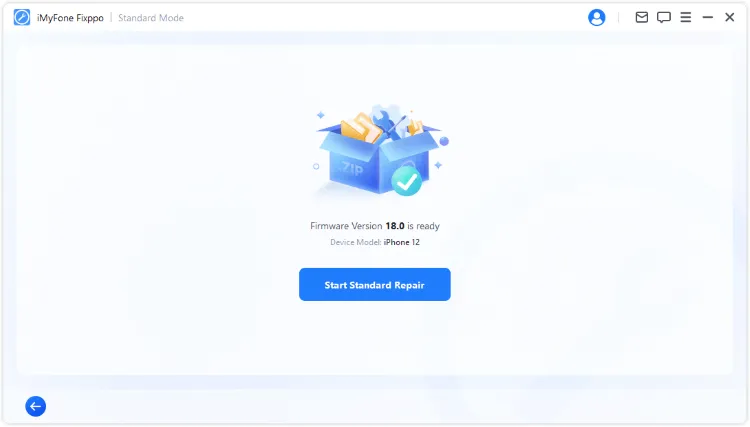
Step 4. Click Start Standard Repair and wait for the iPhone to restart. If the screen turns normal after restart, check display brightness, True Tone, and Night Shift settings before heavy use.

2 Force Restart iPhone
A force restart is worth trying when the green screen appears suddenly, the iPhone is still vibrating or ringing, or the display became green during an app crash. It refreshes the system without changing settings or erasing data.
For iPhone 8 or later, quickly press Volume Up, quickly press Volume Down, then hold the Side button until the Apple logo appears. If the green line remains in exactly the same place after restart, suspect screen hardware.

- For iPhone 7/7 Plus: Press and hold the Volume Down button and the Side buttons together. Release them when the Apple logo appears.
- For iPhone 6s or earlier versions: Tap and hold the Home and Sleep/Wake/Side buttons at the same time. Let them go when you see the Apple logo shows up normally.
3 Update iOS
If the iPhone still works well enough to use Settings, check for a newer iOS update. Apple often fixes display, rendering, and stability issues in follow-up releases. Do this only after charging the phone and connecting to reliable Wi-Fi.


Tips
If the screen is so green that you cannot read Settings, do not guess where to tap. Use a computer repair route or Apple service instead.
4 Reset All Settings
Reset All Settings can help when color filters, display accommodations, Night Shift, or other settings are causing a strange tint. It does not erase photos or apps, but it does reset Wi-Fi, privacy, display, and system preferences.

5 Restore with Finder, Apple Devices, or iTunes
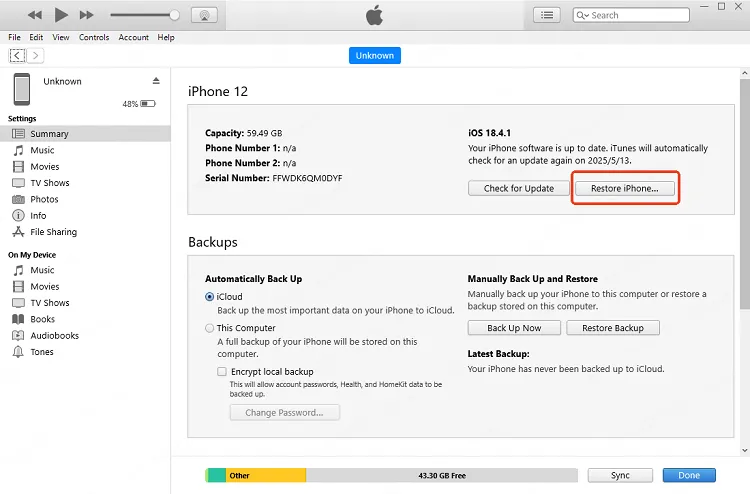
A full restore is the last software option because it can erase the iPhone. Use it when the green screen started after a serious update failure and Standard Mode repair did not solve it. Back up first if the device is usable.
On current computers, use Finder on macOS, Apple Devices on Windows where available, or iTunes on older Windows/macOS. Choose Update first when offered; choose Restore only when you accept the erase risk.

Basic Display Checks for Green Lines or Tint
These checks are useful when the iPhone is still usable and the symptom looks like tint, color shift, or intermittent display oddness rather than a full system failure.
1 Lock and Unlock the iPhone
Lock the iPhone, wait a few seconds, and unlock it again. If the green tint disappears briefly and returns only in certain apps, the issue may be app rendering or display settings rather than hardware.
2 Turn Off Night Shift and True Tone
Open Settings > Display & Brightness and turn off Night Shift and True Tone temporarily. If the color improves, adjust display settings instead of restoring the iPhone.
3 Disable Dark Mode or Color Filters
Dark Mode, Color Filters, and display accommodations can make a tint look worse. Check Settings > Accessibility > Display & Text Size.
4 Increase Display Brightness
Low brightness can make OLED tint more visible. Raise brightness and check the screen on a white background. A permanent vertical green line that stays in the same place is usually not a software setting.
FAQs about iPhone Green Screen
Is iPhone green screen after iOS 27 update a software issue?
It can be, especially if it started immediately after an update, restore, or reboot loop. A fixed green line after impact or pressure is more likely hardware.
Can Fixppo fix green lines on an iPhone screen?
Fixppo can help when green lines are caused by iOS system glitches or update failure. It cannot repair a physically damaged OLED panel.
When should I contact Apple Support?
Contact Apple when the green line is permanent, the screen was dropped or exposed to liquid, touch response is failing, or software repair does not change the symptom.
Conclusion
An iPhone green screen after an update deserves a software repair path first, while a fixed green line or damaged OLED panel points more toward hardware. Start with a force restart, check display settings, try Fixppo for iOS-related green screen cases, and move to restore or Apple service only when the symptom points beyond normal software repair.


(Click to rate this post)
Generally rated 4.9 (256 participated)

Rated successfully!

You have already rated this article, please do not repeat scoring!