

















 Shop
Shop

5 Ways to Fix iPhone Stuck on Connect to iTunes for Free
Category: iPhone Issues

3 mins read
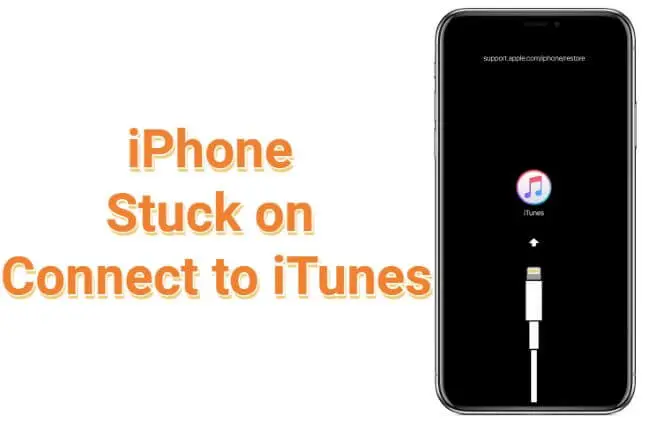
If your iPhone is stuck on the Connect to iTunes screen, which is also known as the Recovery Mode, the device is asking for computer help. On newer systems, that help may come from Finder or the Apple Devices app, not only iTunes.
The safest order is to force restart once, try exiting Recovery Mode, repair iOS if the restore screen keeps returning, and use full restore or DFU only when you accept the data risk.

Quick answer
If your iPhone is stuck on the Connect to iTunes or restore screen, force restart first. If it returns to the same screen, try a one-click exit or iOS system repair. Use Finder, Apple Devices, or iTunes restore only after backing up where possible, because restore can erase the iPhone.
In this article:

Why My iPhone Says Connect to iTunes?
The screen appears when the iPhone cannot boot normally and needs recovery through a computer. It can happen after:
- interrupted iOS update
- failed restore
- firmware error
- storage crash
- downgrade attempt
- repeated boot failure
How to Fix iPhone Stuck on Restore Screen?
| Solutions | Best for | Data Risk | Ease of Use | Time |
|---|---|---|---|---|
| Force Restart | Temporary recovery screen | Low | Easy | 2-5 min |
| Fixppo Repair | Restore screen keeps returning after update/restore failure | Lower risk with Standard Mode first | Easy | 20 min+ |
| Computer Update/Restore | Official recovery through Finder, Apple Devices, or iTunes | Update may preserve; Restore can erase | Medium | 30 min+ |
| DFU Mode | Serious firmware restore failure | High | Hard | 30 min+ |
1 Force Restart iPhone
Try this first if the restore screen appeared once after a failed cable connection or update attempt. It will not erase the iPhone. If the restore screen returns immediately, move to repair or computer update.

2 Repair iOS System with Fixppo
If the first solution doesn't work, iMyFone Fixppo can be the most direct repair route. It can exit the "Connect to iTunes" screen in simple steps and repair the iOS system if there are any glitches.

iPhone Restore Screen Repair:
- Exit stuck screen quick: One-click exit for devices stuck on the "Connect to iTunes" screen or Recovery Mode.
- One-stop repair: Repair over 150 iOS system issues before erase-based restore, including camera not working, iOS downgrade, frozen screen, and failed update.
- Firmware workflow: Detect the device and download suitable firmware for repair.
- Modern restore context: Useful alternative to Finder, Apple Devices, or iTunes.
Step 1: Download and open Fixppo on your computer. Find the Recovery Mode tab and click to Quit button.

Step 2: The connect to iTunes screen will disappear when your iPhone has exit this mode successfully.

3 Update or Restore with Finder, Apple Devices, or iTunes
Connect the iPhone to a computer. Use Finder on macOS, Apple Devices on newer Windows setups, or iTunes on older systems. Choose Update first if available because it tries to reinstall iOS without erasing. Choose Restore only when Update fails or you accept data erasure.
Step 1: Connect your iPhone with computer using the USB cable, then open your iTunes.
Step 2: When your iPhone gets detected by iTunes, click the Summary then hit the Restore iPhone button.
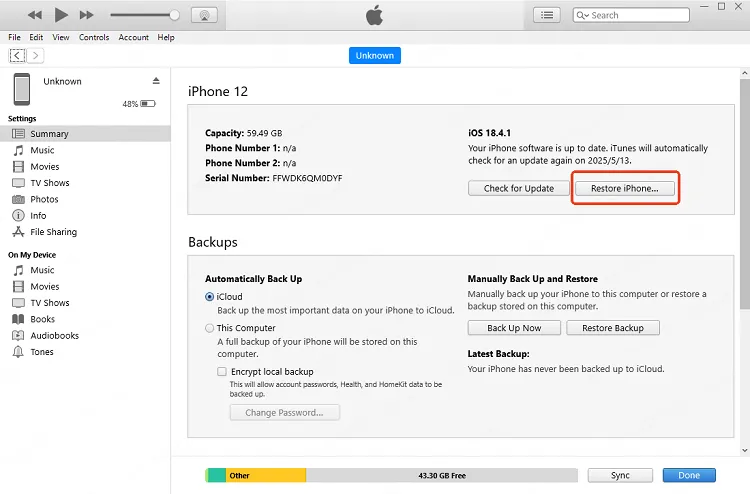
Step 3: Move on to click the Restore button for iTunes to begin restoring your iPhone that showing iTunes logo and charger.

4 Use DFU Mode

Note
Entering the DFU mode will erase all your data, please back up your data first before trying this method.
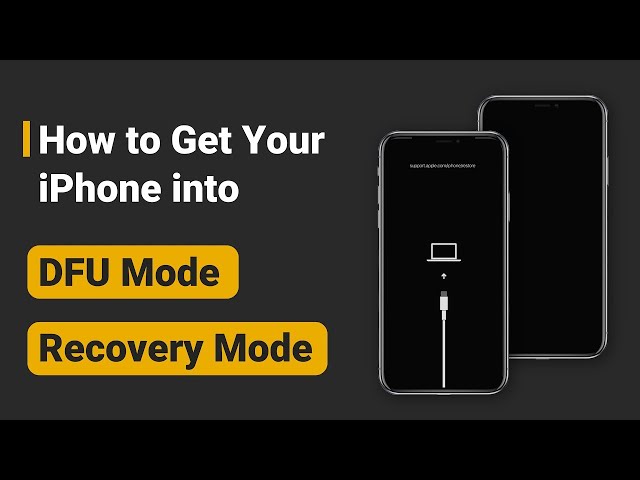
DFU restore is for serious firmware failure when normal Recovery Mode update or restore does not work. It is harder to enter and can erase the iPhone, so use it after easier repair options.
5 Ask Apple Support
If the restore screen returns after multiple cables, computers, and signed firmware attempts, there may be storage, logic-board, battery, or port damage. Contact Apple Support with the exact restore error and what you have tried.
How to Avoid the Restore Screen Again?
Check out the following tips to avoid this problem from showing up again:
- Keep enough free storage before installing iOS updates.
- Use stable Wi-Fi and battery power during updates.
- Do not disconnect the cable during restore or firmware download.
- Back up before iOS 27 update, downgrade, or restore attempts.
- Use the correct restore tool for your computer: Finder, Apple Devices, or iTunes.
Conclusion
The Connect to iTunes screen is now better understood as the iPhone restore screen. Start with force restart, then try one-click exit or Fixppo repair if the device keeps returning to recovery. Use computer restore or DFU only when you understand the erase risk or have a backup.
Next time if your phone gets stuck on recovery screen again, you'll know what to do.


(Click to rate this post)
Generally rated 4.9 (256 participated)

Rated successfully!

You have already rated this article, please do not repeat scoring!