
















 Shop
Shop
 October 13, 2026
Accidentally deleted important pictures from your Samsung Galaxy phone? Before trying a recovery app, check every recycle bin and backup account connected to the device. Photos that remain in Samsung Gallery, Google Photos, OneDrive, a Smart Switch backup, or a microSD card are usually easier to restore.
If you have already emptied the trash, recovering permanently deleted photos from a Samsung phone becomes less certain. Stop taking photos, recording videos, downloading files, or resetting the phone. New activity can reduce the chance of finding another recoverable copy.

Quick Answer
You can recover deleted Samsung photos if they are still in Gallery Recycle Bin, Google Photos Trash, My Files Recycle Bin, a synced cloud account, a Smart Switch backup, another app, or a microSD card. If every copy was permanently erased, Samsung and Google cannot restore it through their built-in tools. A recovery scan may find available data, but no tool can guarantee a result.
- Part 1: Can Permanently Deleted Photos Be Recovered from Samsung?
- Part 2: Recover Photos from Samsung Gallery Recycle Bin
- Part 3: Restore Photos from Google Photos Trash
- Part 4: Check My Files Recycle Bin
- Part 5: Recover Photos from Cloud and Smart Switch Backups
- Part 6: Recover Samsung Photos from a microSD Card
- Part 7: Scan Samsung Photos with D-Back for Android

- Part 8: FAQs about Samsung Photo Recovery

Can Permanently Deleted Photos Be Recovered from Samsung?
Sometimes, but it depends on what "permanently deleted" means in your situation. A photo that has disappeared from Gallery may still exist in a recycle bin, cloud account, backup, shared album, messaging app, old phone, computer, or removable memory card.
If the photo was removed from every trash folder and no copy exists, recovery from modern Samsung internal storage can be difficult. Device encryption and storage management can make deleted data inaccessible. A scan can test what is available, but it should not be treated as proof that the original file can be restored.
Before You Start
Stop using the Samsung phone as much as possible. Do not take new pictures, install several recovery apps on the phone, perform a factory reset, or save new files. If practical, turn on Airplane mode while you check backups. Use a computer for recovery software so that you do not install more data on the affected device.
Choose the Right Samsung Photo Recovery Method
- Deleted within 30 days: Check Samsung Gallery Recycle Bin first.
- Deleted through Google Photos: Check Google Photos Trash and verify the signed-in Google account.
- Deleted through My Files: Open the separate My Files Recycle Bin.
- Previously synced or backed up: Check OneDrive, other cloud accounts, and Smart Switch.
- Stored on a microSD card: Stop using the card and scan it on a computer.
- Trash emptied with no known backup: Test a computer-based recovery scan, with realistic expectations.
- Phone factory-reset: Search cloud, computer, and external-storage backups before trying anything else.
Method 1: Recover Photos from Samsung Gallery Recycle Bin
Samsung Gallery normally moves deleted photos and videos to its Recycle Bin before removing them permanently. According to Samsung's current recovery instructions, Gallery keeps deleted images and videos for 30 days.
- Open the Gallery app on your Samsung phone.
- Tap Menu.
- Select Recycle bin.
- Tap Edit, or press and hold the photo you want to restore.
- Select the required photos and tap Restore.
The restored items should return to their original Gallery albums. Menu names can vary slightly by Galaxy model, carrier, region, and One UI version. For additional locations and file types, see where to find the Recycle Bin on Samsung Galaxy.
Tip
If Recycle Bin is empty, confirm that you are checking the same Gallery profile and storage location used when the photos were deleted. Then continue with Google Photos and My Files, because these apps can have separate trash folders.
Method 2: Restore Samsung Photos from Google Photos Trash
If Google Photos was installed or used for backup, check its Trash even when Samsung Gallery Recycle Bin is empty. Google's current help page states that photos and videos in Trash are permanently deleted after 30 days.
- Open Google Photos on the Samsung phone.
- Tap Collections, and then tap Trash.
- Press and hold the photo or video you want to recover.
- Tap Restore.
The restored item should return to Google Photos, its previous album, and the phone Gallery when applicable. If you cannot find it, tap your profile picture and verify that you are signed in to the Google account that originally stored the photo. You can also check photos.google.com on a computer.
Google states that an item permanently removed from Trash cannot be restored through Google Photos. See the current Google Photos recovery policy before relying on retention periods quoted by older guides. You can also compare other ways to recover permanently deleted photos from the Android Gallery.
Method 3: Check My Files Recycle Bin on Samsung
If the picture was deleted through Samsung My Files instead of Gallery, it may have gone to a separate recycle bin.
- Open the My Files app.
- Tap Recycle bin.
- Select the deleted photos or folders.
- Tap Restore.
On newer One UI versions, My Files may provide a consolidated view of deleted files. The exact path can differ on older Galaxy devices, so use the My Files search or menu if Recycle Bin is not visible on the first screen. For other Android file browsers, follow this guide to recover photos deleted through File Manager.
Method 4: Recover Samsung Photos from Cloud and Smart Switch Backups
A photo may be permanently deleted from the phone but still exist as a separate copy elsewhere. Check every account and device that might have received or backed up the image.
Check OneDrive and Other Cloud Accounts
- Open OneDrive and inspect Photos, Camera Roll, and its recycle bin.
- Check Google Drive, Dropbox, Amazon Photos, or another cloud service you previously enabled.
- Search an old phone, laptop, external drive, email attachment, messaging conversation, and shared album.
- Verify that you are using the correct account in each service.
If your Samsung camera folder was synced, review the separate steps for recovering deleted Samsung camera photos through OneDrive and other backups.
Restore Photos from a Smart Switch Backup
If you created a Smart Switch backup before deleting the photos, you may be able to restore the photo category from a computer or external drive.
- Connect the Samsung phone to the computer that contains the backup.
- Open Smart Switch and choose Restore.
- Select the relevant backup by date.
- Choose the photo or image category when available.
- Follow the on-screen instructions to complete the restore.
Samsung's backup guide notes that Smart Switch backups can be stored on a computer or external storage and restored later. Confirm that the backup predates the deletion before starting.
Important
Do not factory-reset the phone merely to test a Google device backup. Some device backups can only be restored during setup, and a reset may remove newer data. Confirm the backup date and contents first.
Method 5: Recover Permanently Deleted Samsung Photos from a microSD Card
If the photos were stored on a removable microSD card, remove the card and stop using it. Continued use can write new data over the space previously occupied by the deleted images.
- Remove the microSD card safely from the Samsung phone.
- Connect it to a computer with a card reader.
- Use a compatible photo-recovery tool to scan the card.
- Preview the files that the scan finds.
- Save recovered photos to the computer or another drive, not back to the same card.
microSD card recovery is different from recovery from modern encrypted internal phone storage. Keep these paths separate when deciding which tool and instructions to use. For card-specific troubleshooting, see how to recover deleted files from an Android SD card.
Method 6: Scan Samsung Photos with D-Back for Android
When the photos are not in a recycle bin or known backup, iMyFone D-Back for Android provides a computer-based scan for recoverable Android data. It supports Samsung phones, photo recovery, rooted and unrooted devices, internal storage and SD cards, file preview, selective recovery, and export to a computer.
Recovery results depend on the Galaxy model, Android version, storage encryption, deletion method, elapsed time, and subsequent phone use. Run the scan promptly and check its preview before deciding whether the files you need are available.

iMyFone D-Back for Android
Key Features:
- Recover Samsung Photos: Scan supported Samsung phones for available photos and other Android data.
- Rooted and Unrooted Devices: Supports recovery workflows for both rooted and unrooted Android phones.
- Internal Storage and SD Cards: Provides recovery options for phone storage and removable memory cards.
- Preview and Select: Preview found files and choose specific photos before exporting them to a computer.
How to Scan Deleted Samsung Photos with D-Back
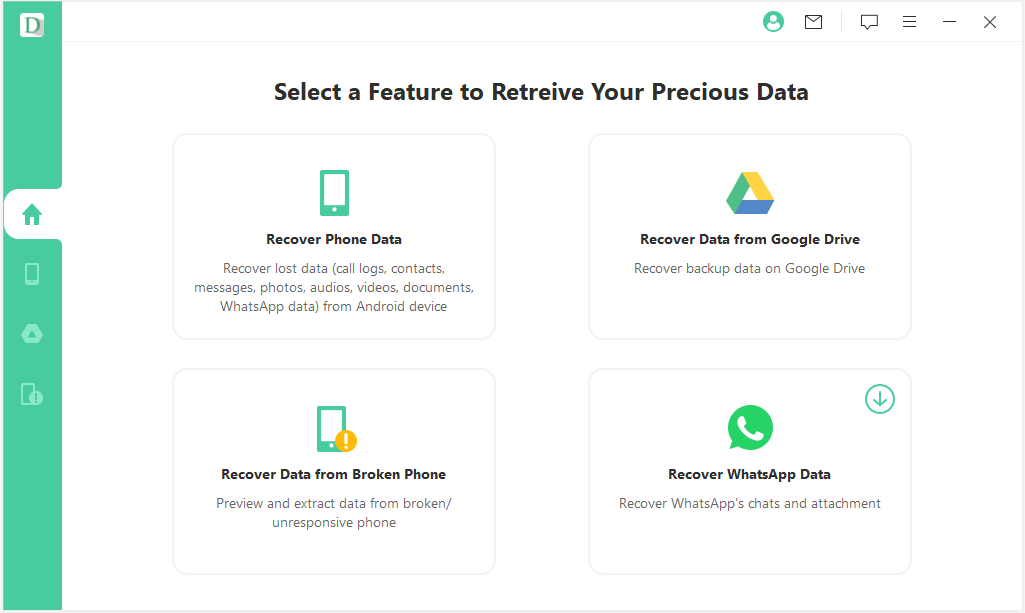
Step 1: Download and install D-Back for Android on a computer. Open the program and choose Recover Phone Data.
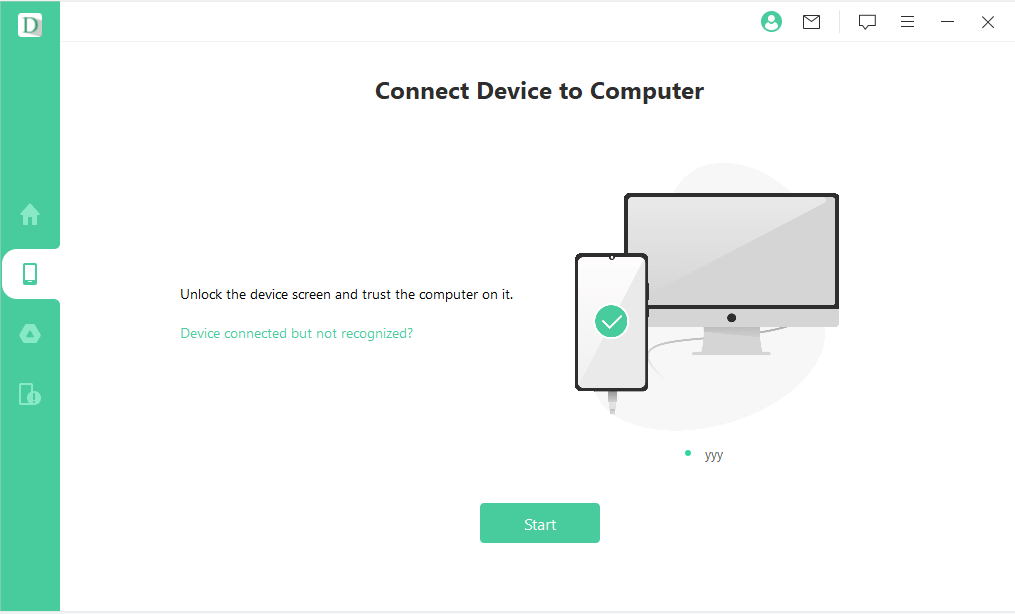
Step 2: Connect the Samsung phone with a working USB cable. Follow the on-screen instructions so that the program can recognize the device.
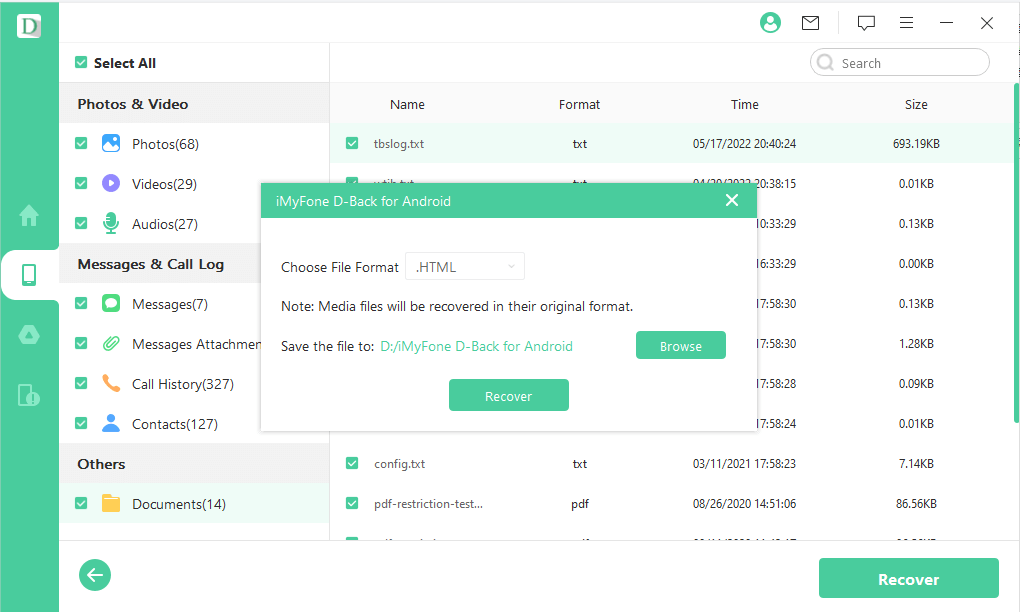
Step 3: Follow the on-screen scan instructions. When the results appear, open Photos, preview the available images, select the files you need, and export them to the computer.
FAQs about Recovering Permanently Deleted Photos from Samsung
Where Do Deleted Photos Go on a Samsung Phone?
Photos deleted through Samsung Gallery usually move to Gallery Recycle Bin before permanent deletion. Files removed through My Files may appear in the My Files Recycle Bin. A separate copy may also remain in Google Photos, OneDrive, another cloud service, a Smart Switch backup, or a microSD card.
Can I Recover Samsung Photos After 30 Days?
Check cloud accounts, Smart Switch backups, computers, old phones, messaging apps, shared albums, and removable storage. If the photo is no longer in any recycle bin or backup, a recovery scan can test for available data, but successful restoration is not guaranteed.
Can Samsung Restore Photos After the Recycle Bin Is Emptied?
Samsung's built-in Gallery process cannot restore a photo after it has been permanently removed from Recycle Bin. Search for another stored copy first. A third-party scan can test the device or SD card, but the result depends on the storage location and what happened after deletion.
Does Samsung Cloud Still Store Gallery Photos?
Samsung Gallery backup arrangements have changed over time and can vary by device and region. Open Settings > Accounts and backup and check Gallery sync settings to see which service is connected. Also inspect OneDrive and any older Smart Switch backups.
Can I Recover Samsung Photos After a Factory Reset?
Recovery from the phone itself is unlikely after a factory reset, especially on encrypted modern devices. Check Google Photos, OneDrive, Smart Switch, computers, external drives, and other cloud or shared copies instead. This guide explains the available options to recover photos after an Android factory reset.
Conclusion
To recover permanently deleted photos from a Samsung phone, start with the safest and most reliable locations: Samsung Gallery Recycle Bin, Google Photos Trash, My Files Recycle Bin, connected cloud accounts, Smart Switch backups, old devices, and microSD storage.
If those locations do not contain the photos, you can use D-Back for Android to scan supported sources and preview any available files. Keep expectations realistic: a scan can show what is currently recoverable, but no software can guarantee that a permanently erased photo still exists.


