
















 Shop
Shop


 Mirror Pokémon GO to Mac
Play Pokémon GO on your Mac with AnyTo: mirror your phone, control with a mouse, teleport, and spin PokéStops—all safe, low-risk, and fully controllable. Try AnyTo free today!
Pokémon GO is designed for mobile play, but it's also possible to enjoy the game on a bigger screen. If you’ve ever wondered whether you can play Pokémon GO on Mac, the good news is yes, you can.
While there’s no native Mac version, there are clever workarounds that let you control the game from your MacBook using mirroring tools, emulators, or cloud gaming platforms. In this guide, we’ll walk you through three working methods to play Pokémon GO on MacBook safely in 2026.

Quick Navigation
- Can you play Pokémon GO on Mac?
- How to play Pokémon GO on Mac: 2026 solutions
- Mirror Pokémon GO to Mac & play with a mouse

- Use Pokémon GO emulator for Mac
- Play Pokémon GO on cloud gaming services
- What are the benefits of playing Pokémon GO on MacBook?
- Are there risks for playing Pokémon GO on PC/Mac?
- Final thought
Can you play Pokémon GO on Mac?
Yes, you can, but not directly. There’s no official Pokémon GO app for Mac, so you’ll need workarounds such as screen mirroring tools or Android emulators.
- Screen mirroring is the safer option, but your Mac alone can’t generate GPS location data. For the full Pokémon GO experience, especially if you want to move in-game without physically walking, you’ll need a tool that supports both screen mirroring and GPS spoofing.
- Emulators, on the other hand, are high-risk. Pokémon GO’s anti-cheat system can easily detect emulated environments, and modern versions of BlueStacks, NoxPlayer, and LDPlayer no longer work reliably with Pokémon GO. Using them may lead to login errors, crashes, or even account strikes.
How to play Pokémon GO on Mac: 2026 solutions
1Mirror Pokémon GO to Mac & play with a mouse
This is the safest and most reliable way. Your device runs the real Pokémon GO app, so there’s no emulation risk and fewer detection flags.
| Feature | iMyFone AnyTo | Native iPhone to Mac | scrcpy |
|---|---|---|---|
| Device Compatibility | iOS & Android | iOS | Android |
| GPS Feature | ✅ | ❌ | ❌ |
| Control via Mouse | ✅ | ✅ | ✅ |
| Ease of Setup | ✅ Very simple, PC + phone | ✅ Easy, macOS built-in | Medium, requires dev mode & setup |
| Ban Risk | Low, works with official Pokémon GO app | None for mirroring only | None for mirroring only |
| Latency | ✅ Low latency | Moderate | ✅ Low latency |
| Extra Features | Mirror, control, spoof, teleport, joystick, IV checker, PoGo map | Mirror only | Mirror only |
1 Mirror and spoof Pokémon GO on Mac with iMyFone AnyTo [iOS/Andorid]
iMyFone AnyTo combines two functions in one app:
- Mirror To—iMyFone’s screen-mirroring tool that lets you display and control your iPhone or Android device from your Mac using your mouse.
- GPS Spoofing—AnyTo’s core function for teleporting, joystick movement, auto-walk, and auto-catch.
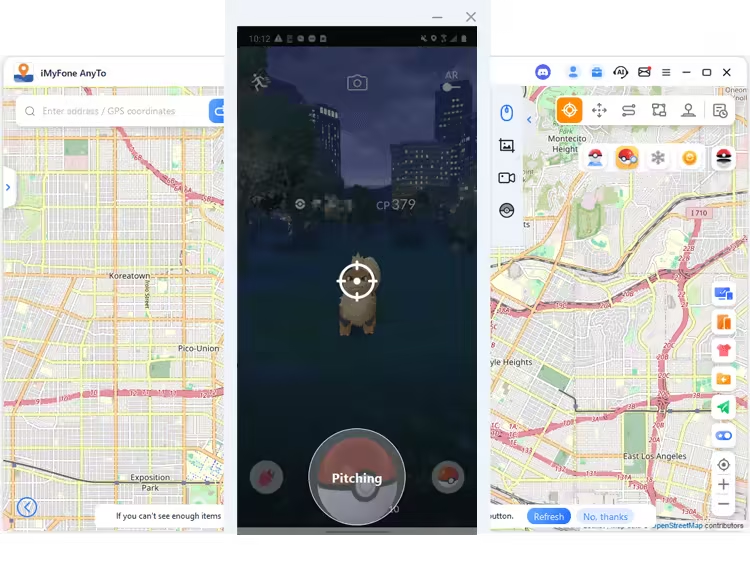
Together, these features let you play Pokémon GO directly on your Mac, tap to teleport, throw Pokéballs, spin stops, and explore the world, all without touching your phone. It uses Bluetooth spoofing, which is safe for the official Pokémon GO app.


AnyTo's Key Features
- Mirror your Pokémon GO from iPhone, iPad, or Android screen to any Mac.
- Full mouse-based control: tap, swipe, drag, and throw Pokéballs with precision.
- Teleport to any location worldwide to hunt regionals or join remote raids.
- An on-screen Pokémon GO Joystick to simulate walking naturally without real movement.
- Bluetooth-based spoofing option for iOS, compatible with the official Pokémon GO app (no mod needed).
- Built-in map to scan Pokémon, PokéStops, Gyms, and raids before teleporting.
- Remember your last faked location to lower detection risk and ensure consistency.
How to Play Pokémon GO on Mac with AnyTo
Step 1. Follow the guide to set up AnyTo. Connect your device to your computer via Bluetooth (recommended), USB, or Wi-Fi, then choose Game Mode for Pokémon GO.

Step 2. Open Pokémon GO on your phone, then click the Screen Mirroring button on the right sidebar to mirror your device's screen to your computer. In the casting window, you can use your mouse to control the game, take screenshots, record gameplay, and even perform one-click Pokéball throws.

Step 3. In the casting window, you can use your mouse to control the game, take screenshots, record gameplay, and even perform one-click Pokéball throws.
To change location in Pokémon GO, search for a place, enter the coordinate, or just tap on the map, choose Teleport or other modes, click Move, and you're good to go.

2 Use native iPhone to Mac wireless mirroring [iOS]
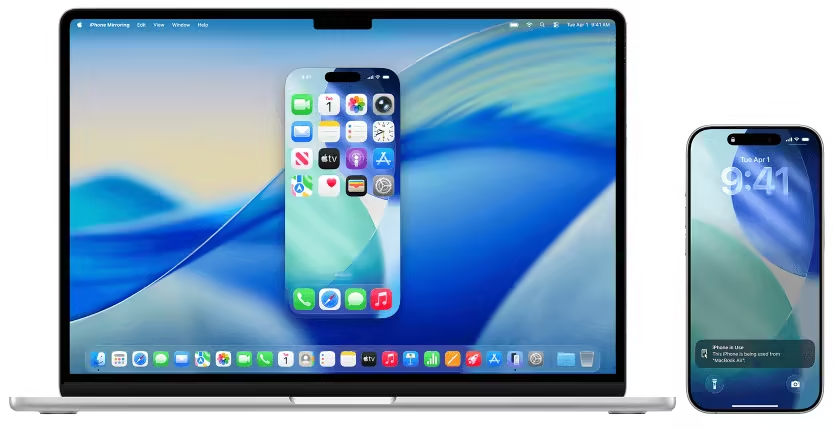
Apple’s built-in iPhone-to-Mac mirroring works surprisingly smoothly, good enough for casual viewing or light interaction.
However, for Pokémon GO specifically, the limitations are pretty noticeable. You can’t fake GPS, and throwing Pokéballs with a mouse feels awkward due to input delay. Still, you can perform basic taps like spinning nearby PokéStop and joining nearby raids. Perfect for doing casual tasks.
How to mirror iPhone to Mac
- Click iPhone Mirroring in the Dock, or open it from Applications or Spotlight.(It’s available on macOS Sequoia 15 or later.)
- Unlock your iPhone, enter your passcode on the iPhone.
- Choose whether you want to authenticate every time or allow automatic authentication.
- Once the mirroring window shows your iPhone screen, you’re connected.You can now click, swipe, and interact with your iPhone directly from your Mac.
- To stop mirroring, either close the iPhone Mirroring app or simply unlock your iPhone.
3 Mirror an Android device to a Mac [Android]
If you're using an Android phone and know some coding, one of the simplest and most lightweight ways to mirror it to your Mac is scrcpy. It’s a free, open-source tool that mirrors your Android screen to your computer and lets you control the device with your keyboard and mouse. No rooting, no paid apps, and no installations on your phone.
It mirrors your gameplay in real time with very low latency. However, it doesn't offer GPS spoofing, and you'll still need a Pokémon GO spoofer to fake movement.

Here’s what you need to know
- scrcpy works via USB or wireless (TCP/IP)
- Requires Developer Options and USB debugging enabled
- Runs on macOS, Windows, and Linux
- Reducing resolution may greatly improve performance
- Right-click triggers BACK and middle-click triggers HOME.
- Does not install anything on your phone
- Lightweight, fast, open source
- Pokémon GO interactions (tapping, menu navigation, throwing Pokéballs) can be done through your mouse
Official project page
https://github.com/Genymobile/scrcpy.git

iMyFone AnyTo
Change GPS Location on iOS/Android
168,282 people have downloaded it.
- Fake iOS/Android GPS location to anywhere in the world instantly.
- 100% Work with location-based apps such as AR games, social platforms, etc.
- Joystick to simulate GPS movement freely when playing games.
- Import / Export GPX file to save your favorite routes.
- Compatible with All iOS (26.4 included) & Android versions.
2Use Pokémon GO emulator for Mac
While the official Pokémon GO app doesn’t run on emulators, some Pokémon GO modded APK setups may still work but with major caveats. PGSharp and MuMu Player 6 are currently the closest match.
However, PGSharp isn’t officially supported on any emulator, meaning it can break at any update, fail to launch, or simply stop working without warning. Even when it boots, stability is hit-or-miss, and long-term consistency is not guaranteed.
That said, if you still want to experiment, MuMu Player 6 is one of the few emulators where PGSharp can sometimes run with the correct setup.

The general process
- Download MuMu 6 (64-bit version V2.7.23.0) and the PGSharp Android 6 package using your PC’s browser (not MuMu’s internal browser).
- Drag the PGSharp APK into MuMu Player, or use the APK Install button to load PGSharp Android 6.
- Launch the modified Pokémon GO and… hope it runs. This method is extremely fragile and may stop working at any time.
3Play Pokemon GO on cloud gaming services
Cloud gaming allows you to run a virtual Android device in your browser. However, performance depends heavily on your internet connection, and playing Pokémon GO through cloud services always carries ban risks because you’re spoofing inside a virtual device.
One popular setup shared in PGSharp’s official Discord is UGPhone + PGSharp.

How it works
- On your iPhone or iPad, visit https://pokego.me/ and tap UGPhone.
- Sign up using your Google or Facebook account.
- Select Open in a Webpage, then use your partner-link credits to get a 4-hour virtual Android device.
- Inside the cloud phone, open Chrome and download PGSharp.
- Log into Pokémon GO and begin spoofing within the cloud-based Android system.
What are the benefits of playing Pokémon GO on MacBook?
Playing Pokémon GO on a MacBook, though not as straightforward as on a phone, does offer some real perks.
- You get a bigger screen, which makes catching, raiding, and navigating the map much easier compared to a phone.
- It’s more comfortable for long sessions, especially when you’re grinding XP, hunting Hundos, or doing multiple remote raids.
- If you use mirroring tools like AnyTo or iPhone Mirroring, you can control your phone with a mouse, making throws more precise and tapping faster.
- Players who can’t go outside due to health issues or bad weather can still enjoy the game fully from the comfort of their home.
- Paired with a Pokémon GO hack like AnyTo, you can explore the best Pokémon GO locations even if you live in a suburban area with limited in-game resources.
Are there risks for playing Pokémon GO on PC/Mac?
Sadly, yes, depending on the method you choose, there are potential risks.
If you're simply mirroring your phone (no GPS spoofing), the risk is minimal because you're still running the official app on a real device.
But if you use emulators or modded APKs, things get dangerous fast. The detection system can easily flag spoofed or non-official clients. Tools like PGSharp running on emulators may work temporarily, but they’re inconsistent and can fail after updates. Using cloud gaming with mods carries similar risks, since it still runs modified Pokémon GO.
My advice: respect cooldowns, always use the official Pokémon GO app, and stick to relatively safer methods like Bluetooth spoofing used by AnyTo or the iTools Bluetooth Joystick 2.5.
Final thought
Playing Pokémon GO on Mac in 2025 is absolutely possible. You just need the right method. Screen mirroring remains the safest and most stable option, especially when paired with tools that support GPS spoofing. Emulators and cloud gaming can work, but they’re inconsistent and risky. Just choose the method that matches your risk tolerance.


Spencer Hill has over 5 years of experience specializing in mobile screen mirroring and virtual location modification. As a senior editor at iMyFone, he creates user-friendly tutorials that help mobile users maximize their device functionality.
-
Jurassic World Alive Hacks 2026: Cheats That Still Work
What does Jurassic World Alive hack mean? What are the available Jurassic World Alive cheats in 2026? Can you actually cheat in JW Alive? Find the answers here!
7 mins read -
Forever Friends & Remote Trades: What You Need to Know
Find out how Forever Friends and Remote Trades work in Pokemon GO, how to become Forever Friends, and how this new feature affects everyone.
9 mins read -
AnyTo Plus – Safely Change iPhone Location Using Android (No Jailbreak Needed)
AnyTo Plus is a location changer that lets you spoof your iPhone GPS using an Android phone. Works with official Pokémon GO and MHN – no jailbreak required.
8 mins read -
Hyper Training Guide: Best Pokémon for Silver Bottle Caps in Pokémon GO
How does Silver Bottle Cap work in Pokémon GO? Which Pokémon should you use the Silver Bottle Cap on? Check out this ultimate Hyper Training guide!
8 mins read -
Pokémon GO Urban vs Rural Challenges: Tips for Rural Players
This article explore Pokémon GO's urban vs rural challenges, Niantic's needed fixes, and smart tips to help rural trainers level up their experience.
7 mins read -
How to Get Unown in Pokemon GO? [2026 Ultimate Guide]
Discover how to get Unown in Pokemon GO! Learn Unown shiny rates, spawn tips, full alphabet list, and the 5 best ways to find this ultra-rare Pokemon in 2026.
8 mins read
Was this page helpful?
Thanks for your rating
Rated successfully!
You have already rated this article, please do not repeat scoring!