

















 Shop
Shop
Refresh Brief: How to Get Notes Off iPhone
Category: iOS Data Recovery

4 mins read
To get notes off an iPhone, export individual notes to Files, send a copy through the Share menu, access synchronized notes on iCloud.com, or export them from a Mac. For many notes or notes stored only in a backup, use a backup viewer or a selective export tool and preview the available records first.


Quick Answer
Open a note, tap Share, choose Markup, tap Done, and save the PDF to Files. For editable text, use Send Copy and choose Mail or another destination. To handle multiple notes, synchronize them to a Mac or iCloud.com, or inspect an iPhone backup with a selective export tool.
In this article:
- Part 1: Choose an Export Format
- Part 2: Save One Note as a PDF
- Part 3: Email, Copy, or Print a Note
- Part 4: Get Notes Through iCloud.com or a Mac
- Part 5: Extract Notes with D-Back
- Part 6: Handle Missing or Deleted Notes
- Part 7: FAQs
Choose How You Want to Use the Notes
| Goal | Recommended route | Output |
|---|---|---|
| Archive one note with its appearance | Markup and save to Files | |
| Edit the note elsewhere | Send Copy, copy and paste, or Mac export | Text or app-specific file |
| Read synchronized notes on a PC | iCloud.com | Browser access and manual copy |
| Export many notes or inspect a backup | Selective backup extraction | Supported readable records |
| Recover a recently deleted note | Recently Deleted | Note returned to a folder |
First open Settings > Apps > Notes > Accounts, or the corresponding Notes account settings on your iOS version, and identify where each note lives. Notes under iCloud, Gmail, Exchange, and On My iPhone do not all follow the same synchronization path.

Check Locked Notes Before Exporting
Unlock a protected note before sending or printing it. Some collaboration, attachment, scan, and locked-note features may not survive conversion to plain text, so use PDF when preserving appearance matters.
Method 1: Save an iPhone Note as a PDF
- Open the note in the Notes app.
- Tap the Share button.
- Choose Markup. If it is not visible, scroll through the actions.
- Review the generated pages and tap Done.
- Choose Save File To or Save to Files.
- Select On My iPhone, iCloud Drive, or a connected external location, then tap Save.
- Open Files and verify that the PDF renders correctly.
Apple's current Notes export and print guide documents PDF export, Markup, and printing. Long tables, embedded media, or unsupported attachments may need separate checking.
Method 2: Send, Copy, or Print a Note
Send a Copy by Mail or Messages
- Open the note and tap Share.
- Choose Send Copy rather than Collaborate.
- Select Mail, Messages, AirDrop, or another available destination.
- Send the note to an account or device you control.
- Open the received copy and confirm that text and attachments arrived.
Collaborate shares access to the live note; Send Copy creates an independent copy. Use the latter when the purpose is archiving.
Copy Editable Text
- Touch and hold within the note.
- Choose Select All and Copy where available.
- Paste into a document, email, or text editor.
- Save images, scans, and other attachments separately.
Print or Save Through the Print Preview
- Open the note, tap Share, and choose Print.
- Select a printer if you need paper output.
- To create a digital copy, expand the print preview and use Share to save or send the rendered document.
- Check page breaks before considering the export complete.
Method 3: Access iPhone Notes on iCloud.com
This works only for notes stored in the iCloud account with Notes synchronization enabled.
- On the iPhone, open Settings, tap your name, open iCloud, and confirm that Notes synchronization is enabled.
- Wait on Wi-Fi for recent changes to upload.
- On the computer, sign in to iCloud.com with the same Apple Account.
- Open Notes and confirm that the expected folders and recent edits appear.
- Open a note and copy its contents into a local document, or print it to PDF through the browser.
iCloud.com is convenient for access, but it is still synchronization rather than an independent backup. Deleting a synchronized note can remove it across devices. Keep separate exports for important records.
Method 4: Sync Notes to a Mac and Export Them
- Sign in to the same Apple Account on the Mac.
- Enable Notes in iCloud settings and open the Notes app.
- Wait until the iPhone folders and latest changes appear.
- Open a note and choose File > Export as PDF when a fixed copy is needed.
- For editable content, copy it into a document or use another export option supported by that macOS version.
- Save attachments separately and verify the final files.
If the Notes app is unavailable because the iPhone is damaged, see the specific routes to recover notes from a broken iPhone.
Method 5: Get Multiple Notes Off an iPhone with D-Back
iMyFone D-Back for iPhone can scan supported iPhone and backup sources, preview available Notes records, and export selected results to a computer. This is useful when notes are spread across a device and backups or when you need to inspect a backup without restoring the entire iPhone.

Useful for Notes Preview and Export:
- Select Notes rather than scanning every supported category.
- Inspect supported device and backup sources.
- Preview available note records before export.
- Save selected results to the computer without an immediate full-device restore.
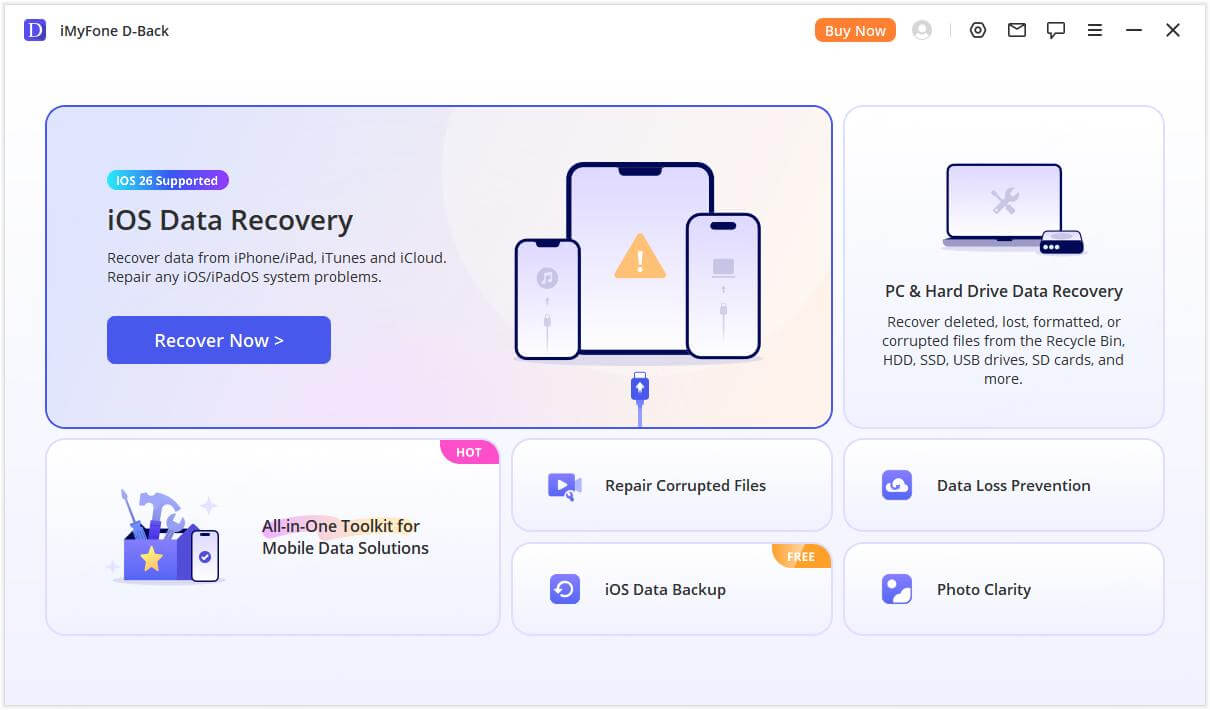
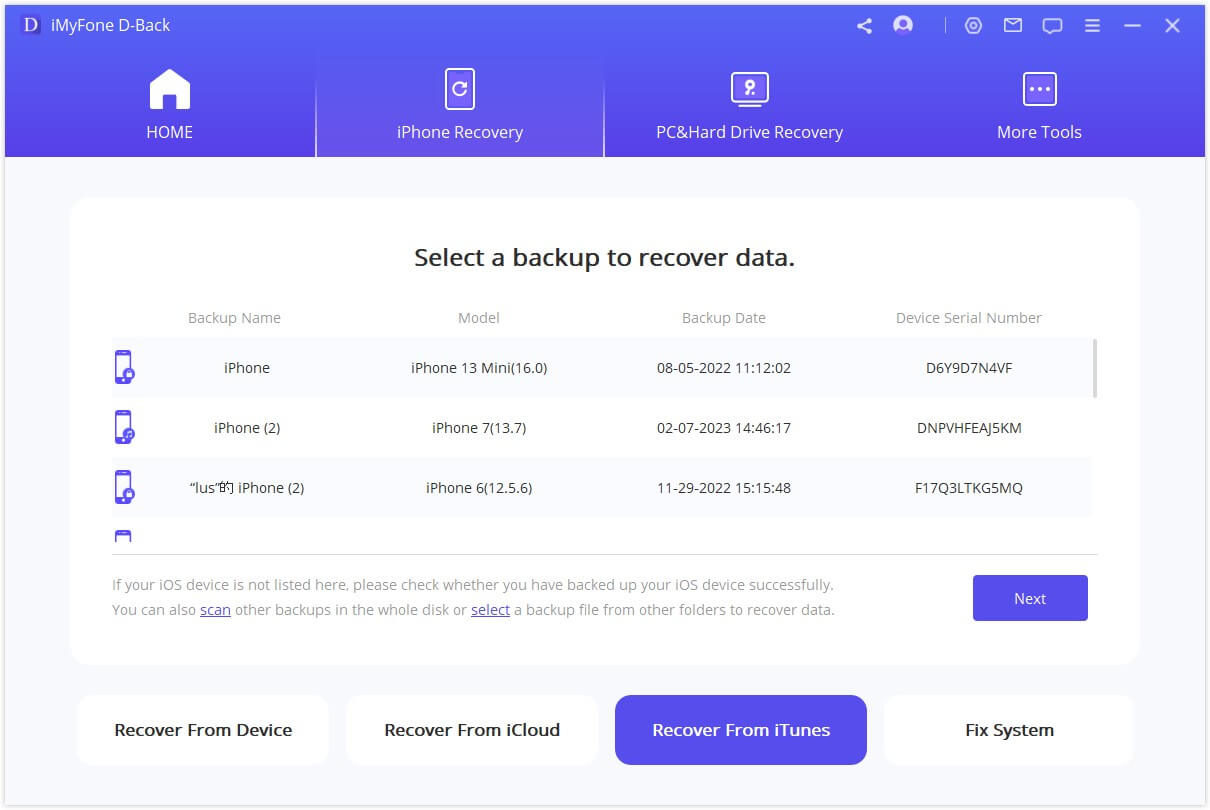
Step 1: Open D-Back and choose iPhone Recovery. Connect the iPhone or select the backup source that should contain the notes.
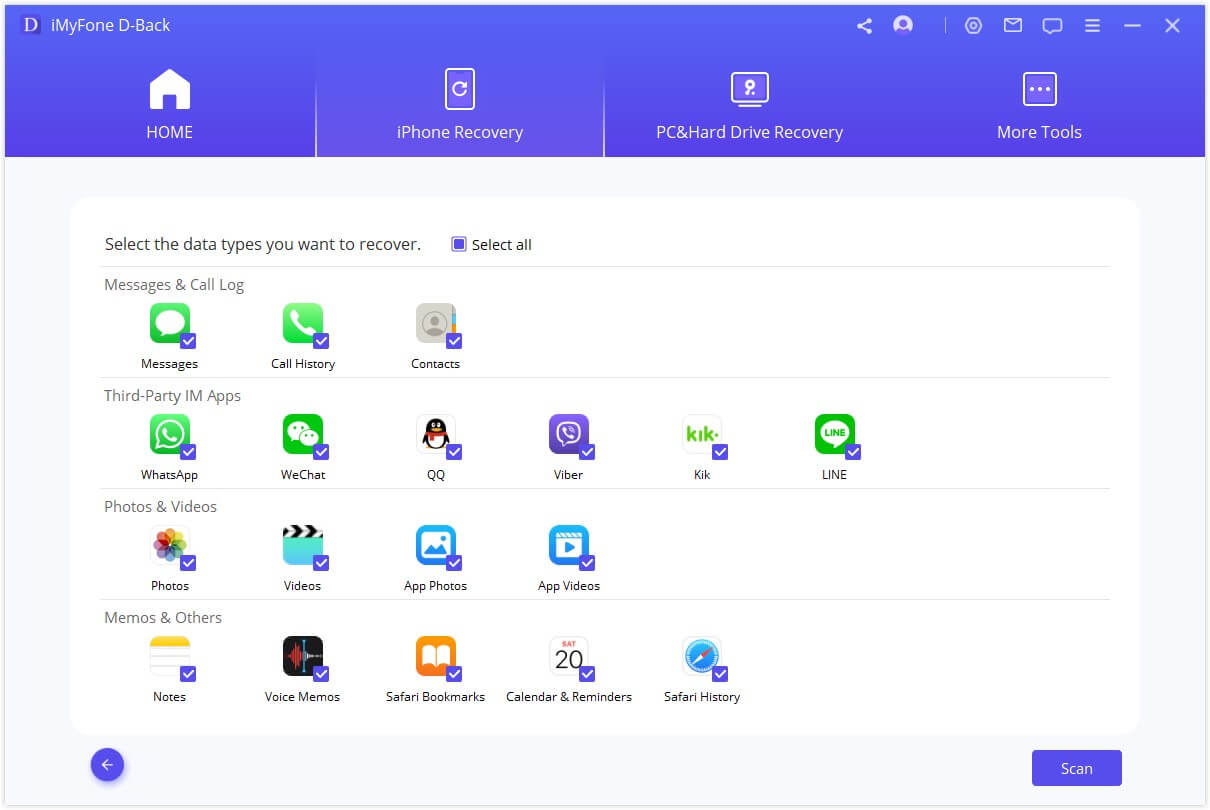
Step 2: Select Notes and attachments, then start the scan.
Step 3: Filter and preview the available notes. Select the items you need and export them to the computer.
Preview Before You Pay or Restore
Run the scan and verify that the required note is visible. A recovery tool cannot guarantee a note that has been permanently removed from every synchronized source and backup.
What to Do If the Notes Are Missing or Deleted
- Search all folders in Notes, including iCloud, Gmail, Exchange, and On My iPhone.
- Open Recently Deleted and restore any available note to a regular folder.
- Check Notes on iCloud.com and other devices signed in to the same accounts.
- Confirm that the email account holding the notes is still enabled.
- Check backup dates before considering a full restore.
- Use a preview scan to inspect supported backups without immediately replacing current data.
If the Recently Deleted folder itself is missing, work through these checks for a missing Recently Deleted Notes folder. For deleted items, compare the available methods to recover deleted iPhone notes.
FAQs about Getting Notes Off an iPhone
Can I export all Apple Notes at once from an iPhone?
The iPhone Notes app is designed mainly for sharing or exporting individual notes and does not provide a universal one-tap export of every account and folder. A synchronized Mac or a compatible backup extraction tool is more practical for many notes, but verify formats and attachments.
How do I transfer iPhone Notes to a Windows PC?
For iCloud notes, use iCloud.com in a browser and copy or print the required notes. For a small number, send a copy by email or save PDFs to a service accessible on Windows. To inspect local or backup records in bulk, use a compatible export tool.
Will turning on iCloud Notes back up my existing notes?
It can synchronize eligible notes to iCloud, but synchronization is not the same as an independent archive. Confirm that notes appear on iCloud.com, watch for account-folder changes, and export critical notes separately before deleting or moving anything.
Can I get notes off an iPhone that will not turn on?
Direct access usually requires the phone to power on, unlock, and trust the computer. If it cannot, check synchronized accounts and pre-existing backups. A physically damaged phone may need professional repair or data-recovery assessment before software can communicate with it.
Conclusion
For one note, save a PDF or use Send Copy. For synchronized notes, use iCloud.com or the Mac Notes app. When you need to inspect many notes or an existing backup, D-Back for iPhone can preview and export selected available Notes records without first rolling the whole iPhone back.


(Click to rate this post)
Generally rated 4.9 (256 participated)

Rated successfully!

You have already rated this article, please do not repeat scoring!