

















 Shop
Shop
Blank SD Card or Unsupported File System? Recover Before You Fix It
Category: iOS Data Recovery

4 mins read
An “SD card is blank or has an unsupported file system” message does not always mean the card contains no data. The phone or computer may be unable to read its file-system structure. If the files matter, do not tap Format. Remove the card, test it with a known-good reader, recover the data to another drive, and only then repair or reformat it.


Safest Order
Stop using the card, try a different reader and computer, check its reported capacity in Disk Management, and recover important files to another disk. Run repairs or format the card only after recovery is complete and verified.
In this article:
- Part 1: Understand the Error
- Part 2: Run Non-Destructive Checks
- Part 3: Recover Data with D-Back
- Part 4: Repair the File System Carefully
- Part 5: Format Only After Recovery
- Part 6: Know When the Card Is Failing
- Part 7: FAQs
What Does “Blank SD Card” Mean?
The message usually means the device cannot mount the card. Possible causes include a corrupted file system, an interrupted write, unsafe removal, an incompatible format, a damaged adapter or reader, counterfeit capacity, controller failure, or a card formatted as encrypted Android internal storage.
| What you see | Likely direction | Safe response |
|---|---|---|
| Correct capacity, RAW or unallocated | File-system or partition damage | Recover first; do not create a new volume |
| Works in one device but not another | Reader or file-system compatibility | Copy files using the working device |
| Wrong capacity, 0 bytes, or intermittent detection | Controller, card, or adapter failure | Minimize retries and consider a specialist |
| Previously used as Android internal storage | Device-bound encryption | Reconnect to the original phone if possible |
| Card immediately becomes read-only | Adapter lock or flash wear | Check the lock tab and copy data immediately |
SanDisk also lists unsupported file systems among common reasons a phone may not detect a memory card. A “blank” label is therefore not proof that photos were erased.
Step 1: Perform Non-Destructive Checks
- Power off the phone or camera before removing the card.
- Inspect the card and adapter for cracks, bent contacts, moisture, or contamination.
- If using a full-size adapter, check that its lock switch is not between positions.
- Try a known-good USB card reader and a different USB port.
- Test on a second computer, but cancel every prompt to format or initialize the card.
- In Windows, right-click Start and open Disk Management.
- Record the disk number, capacity, partition status, and file system without changing anything.

If One Device Can Still Read the Card
Use that device to copy every important file immediately. Do not spend time “fixing” compatibility while the only readable copy remains on aging flash storage.
If the card came from an Android phone and contains photos or documents, this guide to recover files from an Android SD card covers device-specific routes.
Visible cracks, unstable detection, or recurring corruption need a more cautious workflow; review the checks for recovering a corrupted or damaged SD card. The PC data recovery resource center also groups related RAW partition, USB drive, and storage-device guides.
Step 2: Recover Files Before Repairing the SD Card
When Windows detects the card at the correct capacity, iMyFone D-Back for Windows can scan it as removable storage. Install and run the software from the computer's internal drive, never from the card itself.

Useful for an Unreadable SD Card:
- Scan supported SD and microSD cards through a card reader.
- Filter results by file type and path.
- Preview supported photos, documents, audio, and video.
- Recover selected files to another drive.
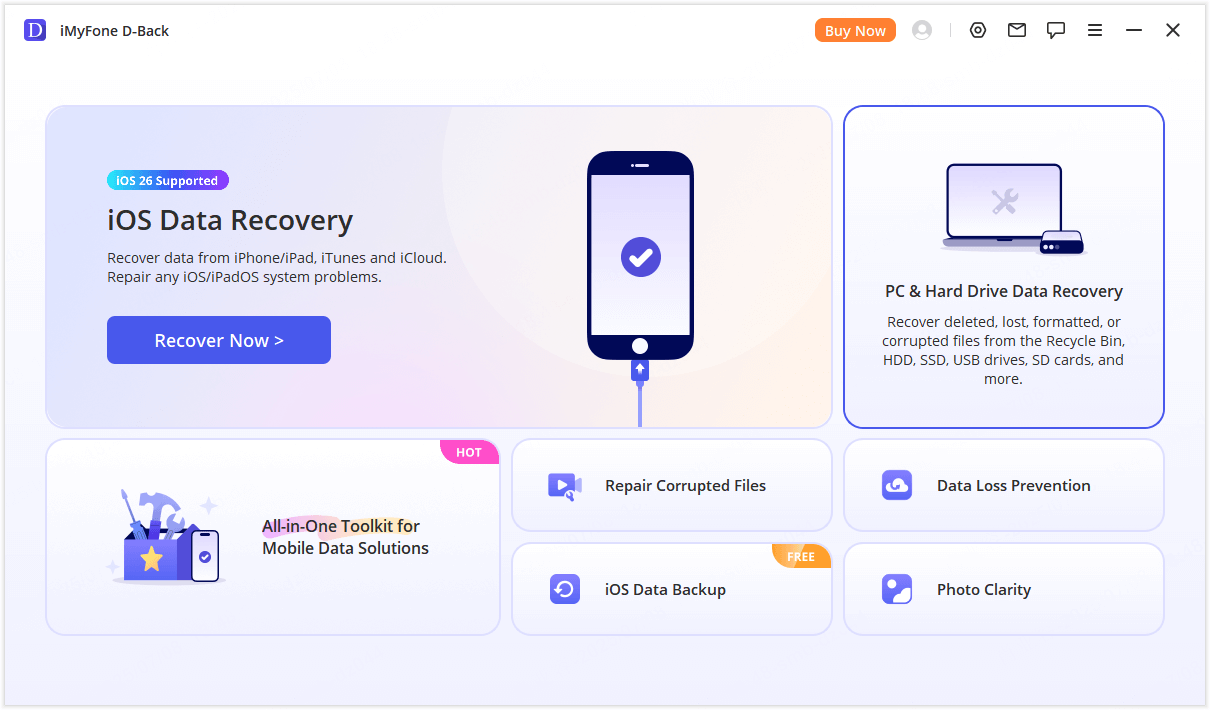
Step 1: Insert the card in a stable reader, open D-Back, and choose PC & Hard Drive Data Recovery.
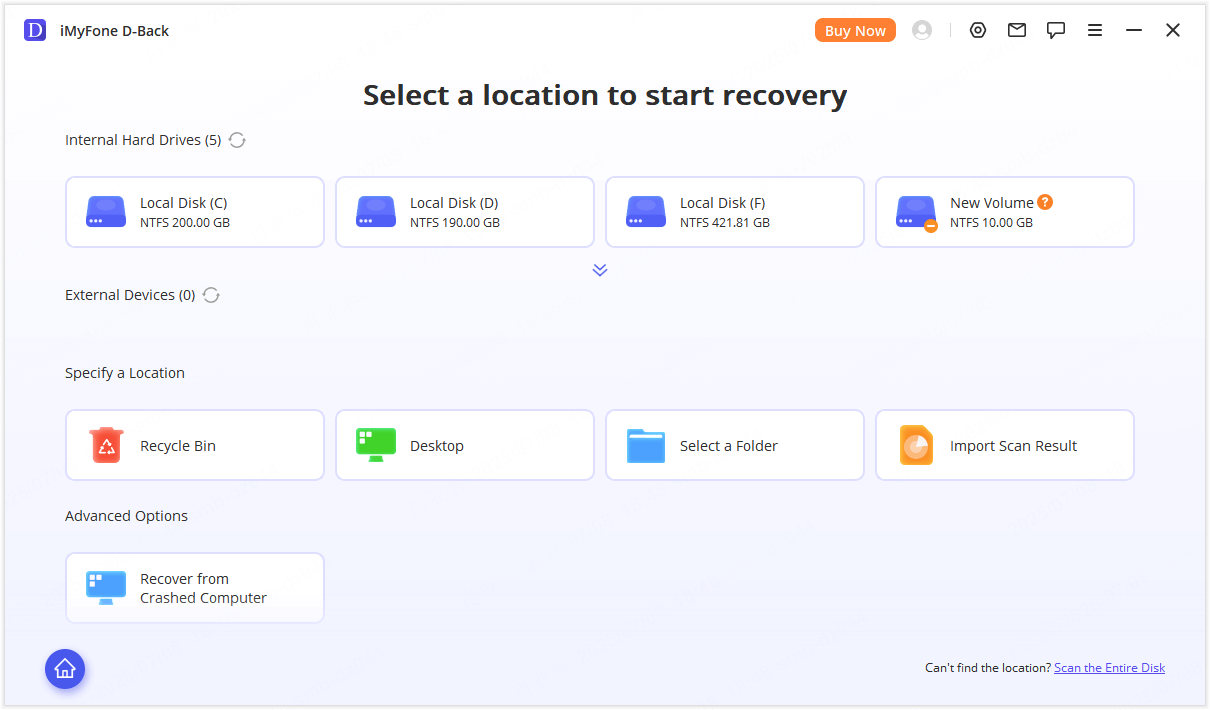
Step 2: Select the removable card by its capacity. If the old partition is missing, scan the entire physical disk.
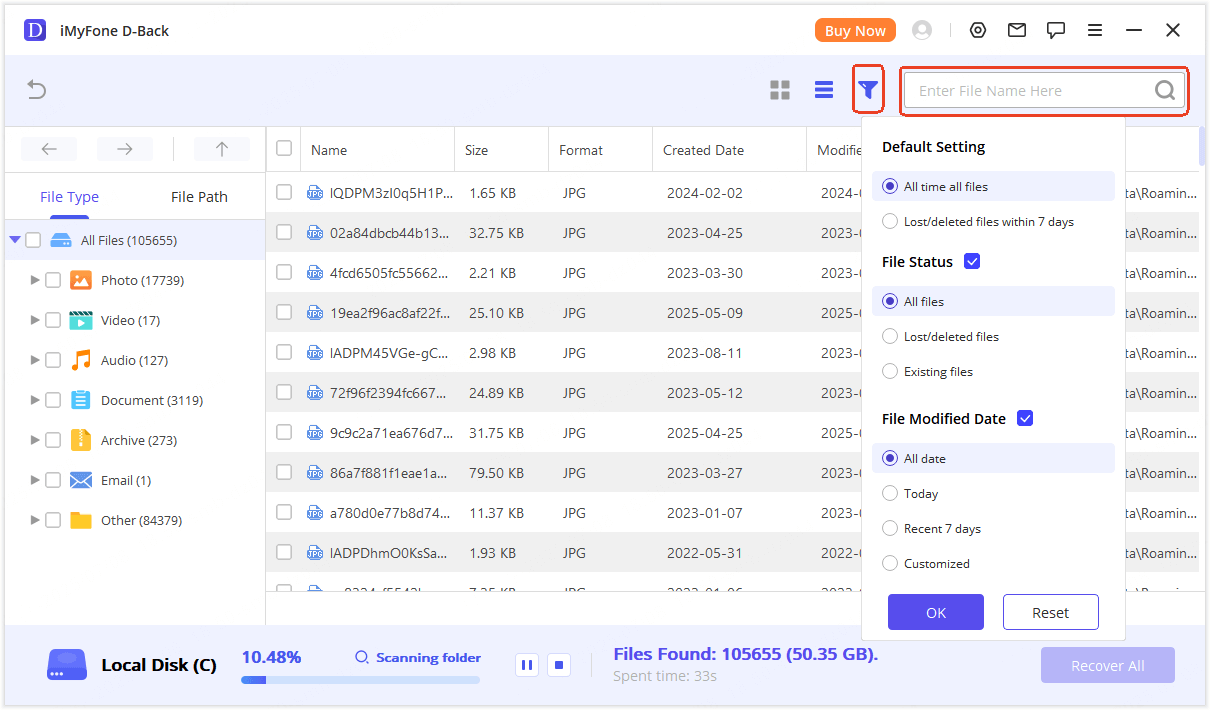
Step 3: Scan and filter for the needed file formats. Preview representative files to make sure they are usable.
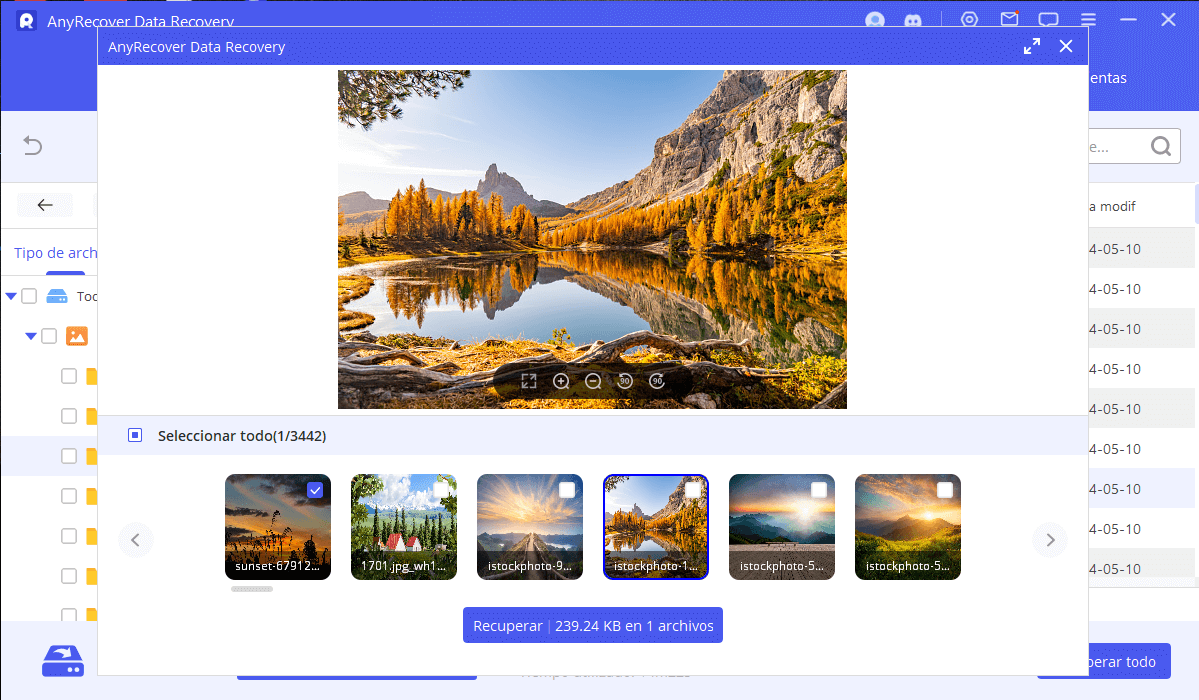
Step 4: Recover selected items to the computer or another external disk, never to the affected SD card.
Keep the card unchanged until you have opened sample files, compared expected folders, and created a second copy of the recovered data.
Step 3: Repair the File System Only After Recovery
If all important data is safe and the card is detected consistently, you can test whether Windows can repair a logical file-system error.
- Confirm that recovered files exist on another physical disk.
- Note the SD card's drive letter in File Explorer or Disk Management.
- Open Command Prompt as administrator.
- Run
chkdsk X: /f, replacing X with the SD card letter. - Read the result and reinsert the card after Windows finishes.
Why CHKDSK Comes Later
CHKDSK modifies file-system structures to make a volume consistent. It can discard damaged references or place fragments in recovery folders. That may improve mountability but complicate later file recovery, so do not run it on the only unrecovered copy.
If the volume is healthy but lacks a drive letter, Disk Management can assign one without formatting. Confirm the disk number and partition carefully before making any change.
Step 4: Reformat the SD Card After Files Are Safe
Formatting is appropriate only after recovery, or when the card contains nothing you need.
- Verify the recovered files and eject the destination drive.
- Insert the SD card into the device in which it will normally be used.
- Use that camera or phone's built-in format function when available.
- Otherwise, format through Windows with a file system supported by the target device, commonly FAT32 or exFAT depending on capacity and compatibility.
- Perform a full capacity and write/read test before trusting the card again.
- Replace the card if errors return.
A format can make the card usable again, but it does not repair worn flash memory or a failing controller. Do not return an unreliable card to important work.
When to Stop DIY Recovery
Stop if the card is not detected in any reader, reports 0 bytes or a wildly incorrect capacity, becomes too hot, repeatedly disconnects, has visible damage, or contains irreplaceable data. MicroSD cards integrate storage and controller components into a tiny package; specialist work may require chip-level techniques.
Repeated scans are not harmless when a card is unstable. For high-value data, minimize power cycles, document the symptoms, and consult a professional recovery service.
FAQs about Blank or Unsupported SD Cards
Should I format a blank SD card when Android asks?
Only if you do not need anything on it or have already recovered and verified the files. Formatting writes a new file system and can reduce later recovery chances.
Why does the SD card work in a camera but not on Windows?
The reader may not support the card capacity, Windows may not support its file system, or the camera may be compensating for a marginal connection. Copy the data through the working camera or another compatible reader first.
Can I recover an SD card formatted as Android internal storage?
Adopted storage is encrypted for the phone that created it. A computer recovery scan may find encrypted blocks but cannot turn them into usable files without the original device and keys. Reconnect it to the original phone when possible.
What if recovered photos will not open?
The file may be partially overwritten or fragmented, or the scan may have found only a thumbnail. Continue scanning the untouched card, try a file-system-aware and a signature-based result view, and preserve the source for professional recovery if the photos are important.
Conclusion
A blank SD card often means unreadable structure, not empty storage. Test the connection without writing, recover files to another drive, and repair or format only after verification. D-Back for Windows offers a guided scan and preview workflow when Windows can detect the card through a reader.


(Click to rate this post)
Generally rated 5 (256 participated)

Rated successfully!

You have already rated this article, please do not repeat scoring!