



 Shop
How to Recover Deleted Photos from iPhone (6 Tested Ways)
Category: iOS Data Recovery

7 mins read
Deleted photos are not always gone immediately. On an iPhone, the best recovery method depends on when the photos were deleted, whether iCloud Photos was enabled, and whether another copy exists in a backup, another cloud service, or a computer.
Start with the free checks below and avoid taking many new photos until you know where the missing files may still exist. New activity can reduce the chance of recovering data that is no longer protected by a backup.

Quick Answer
Open Photos > Collections > Utilities > Recently Deleted first. Apple keeps deleted photos there for 30 days. If the photo is no longer there, check iCloud.com, other Apple devices, Google Photos or another cloud service, and backups made before deletion. A recovery scan can help you inspect available device or backup data, but permanently deleted photos are not guaranteed to be recoverable.
- Part 1: Choose the Right Recovery Path
- Part 2: Recover Photos from Recently Deleted
- Part 3: Check iCloud Photos and Other Devices
- Part 4: Check Google Photos and Other Copies
- Part 5: Restore Photos from an iCloud Backup
- Part 6: Restore Photos from a Computer Backup
- Part 7: Scan the iPhone or Backup with D-Back
- Part 8: What to Do After Permanent Deletion
- Part 9: FAQs
First: Choose the Right iPhone Photo Recovery Path
The fastest method is determined by two facts: how long ago the photo was deleted and whether iCloud Photos was turned on. Use this table before changing settings or restoring the whole iPhone.
| Your situation | Best first action | Important limitation |
|---|---|---|
| Deleted less than 30 days ago | Check Recently Deleted | Items removed from that album are no longer available through this method |
| iCloud Photos is enabled | Check iCloud.com and every synced device | Deletion normally syncs across devices |
| Google Photos, OneDrive, or another app was used | Check that service and its trash | Retention periods differ by service |
| A backup predates the deletion | Verify its date and contents before restoring | A full restore can replace current device data |
| No copy or usable backup exists | Stop unnecessary use and run a preview scan | Recovery is not guaranteed, especially on modern encrypted iPhones |
Before You Restore Anything
Create a current backup if possible. A backup restore rolls the device back to an earlier state and can replace newer messages, photos, app data, and settings. If only a few photos are missing, inspect the backup or use a selective export method before erasing the iPhone.
Method 1: Recover Deleted Photos from Recently Deleted
Apple places deleted photos and videos in the Recently Deleted album for 30 days. This is the safest and quickest recovery method because it does not erase or replace anything else on the iPhone.
- Open the Photos app.
- Tap Collections, then scroll to Utilities.
- Tap Recently Deleted and unlock the album with Face ID, Touch ID, or the device passcode.
- Tap Select, choose the photos or videos, and tap Recover.
- Confirm that the restored items appear in the photo library.
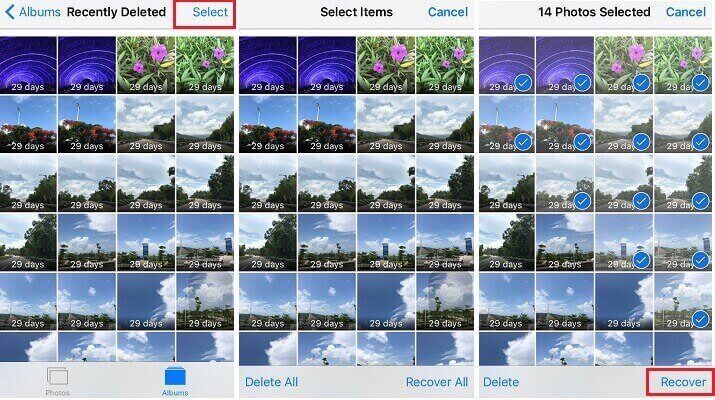
Apple's current photo recovery instructions state that items remain in Recently Deleted for 30 days. After that period, Apple removes them permanently from this album. If the photo is missing, also open Hidden under Utilities and search by date, location, person, or subject before assuming it was deleted.
If Recently Deleted was emptied manually, move to the copy and backup checks below. Repeatedly deleting files or installing several recovery apps on the iPhone will not bring the album back.
Method 2: Check iCloud Photos and Other Apple Devices
When iCloud Photos is enabled, your photo library is synchronized rather than stored as a separate snapshot on each device. A deletion made on one connected device normally appears on the others. Even so, check iCloud.com and devices that may have been offline when the deletion occurred.
Check iCloud.com
- Go to iCloud Photos and sign in with the same Apple Account.
- Search the library and check Recently Deleted.
- Select any available photos and choose Recover or download a copy to the computer.
Check an iPad, Mac, or Old iPhone
If another device has been offline since before the deletion, keep it disconnected from Wi-Fi and cellular data while you inspect its library. Export any visible photos before reconnecting it. Once the device syncs with iCloud, the deletion may be applied there too.
iCloud Photos Is Not the Same as iCloud Backup
When iCloud Photos is enabled, photos are synchronized separately and are not duplicated inside the daily iCloud device backup. Restoring an iCloud backup therefore may not recover a photo that was permanently deleted from the synchronized iCloud Photos library.
For a deeper explanation of this distinction, see how to recover deleted iPhone photos when no usable backup is available.
Method 3: Check Google Photos, OneDrive, and Computer Copies
A missing iPhone photo may still exist outside Apple's ecosystem. Think about every service or device that imported or uploaded your camera roll.
- Google Photos: Search the library, Archive, Locked Folder, and Trash under the correct Google Account.
- OneDrive or Dropbox: Check camera upload folders and each service's deleted-files area.
- Mac Photos: Open Photos and check the local library, Recently Deleted, and any older library stored on an external drive.
- Windows PC: Search folders previously used for Apple Devices, iTunes imports, DCIM copies, and photo-management apps.
- Messages and email: Look for a copy you sent, received, or attached before deletion.
Download or export an original copy as soon as you find it. Do not rely on a thumbnail in a chat or shared album until you confirm that the full-size file can be saved.
Method 4: Restore Deleted Photos from an iCloud Backup
This route is useful only when a suitable iCloud device backup contains the photos and was created before they were deleted. It is more likely to help when iCloud Photos was off and the camera roll was included in the device backup.
Check the Backup Date First
- Open Settings and tap your name.
- Tap iCloud > iCloud Backup.
- Check the date of the latest backup and confirm whether it predates the deletion.
- Make a separate current backup if you need to preserve new data.
Restore the iCloud Backup
- Go to Settings > General > Transfer or Reset iPhone.
- Tap Erase All Content and Settings and complete the prompts.
- During setup, choose From iCloud Backup.
- Sign in and select the backup created before the photos disappeared.
- Keep the iPhone connected to Wi-Fi and power while content continues downloading.
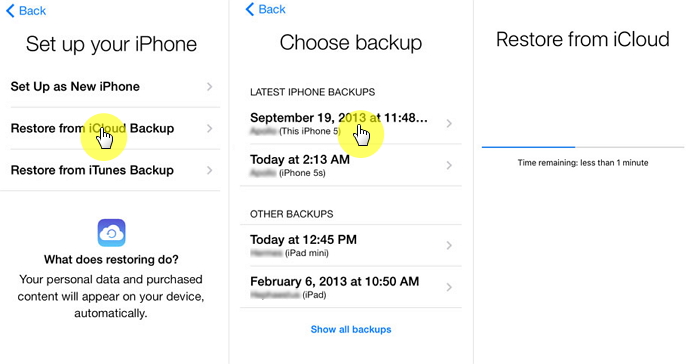
Apple explains that an iCloud backup is restored while setting up a new or erased device. Review Apple's current backup restore steps before proceeding. For a lower-risk alternative, learn how to extract data from an iCloud backup without resetting the current iPhone.
Method 5: Restore Photos from a Finder, Apple Devices, or iTunes Backup
A computer backup made before deletion may contain an earlier camera roll when the photos were not already synchronized through iCloud Photos. On current Macs, use Finder. On current Windows computers, use the Apple Devices app. iTunes remains relevant mainly on older systems.
- Connect the iPhone to the computer that holds the backup.
- Open Finder, Apple Devices, or iTunes and select the iPhone.
- Choose Restore Backup.
- Compare backup dates and select one made before deletion.
- Enter the encrypted-backup password if requested, then keep the iPhone connected until the restore finishes.
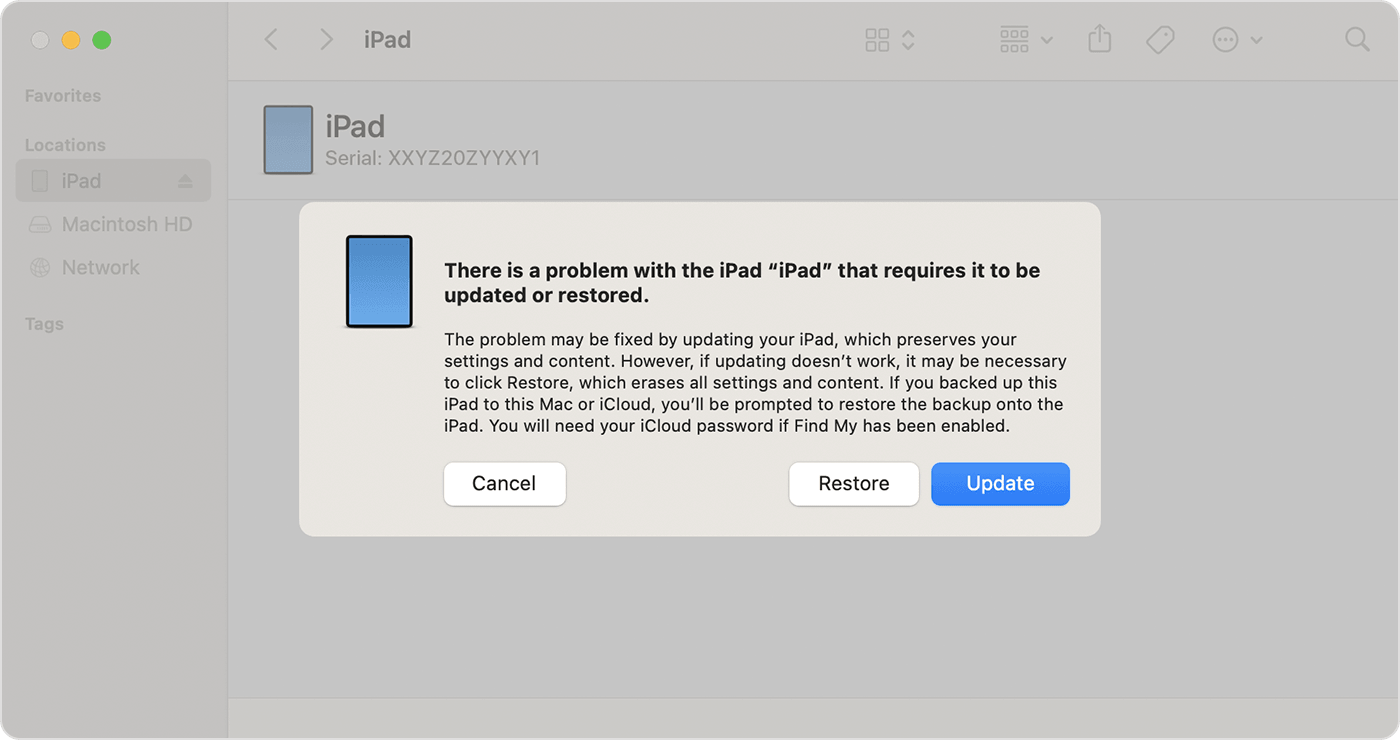
A full computer-backup restore also replaces the current device state. If you are unsure whether the backup contains the photo, inspect it first with a backup-viewing or selective-recovery tool. This avoids erasing current data merely to test an old snapshot.
Method 6: Scan the iPhone or Backup with iMyFone D-Back
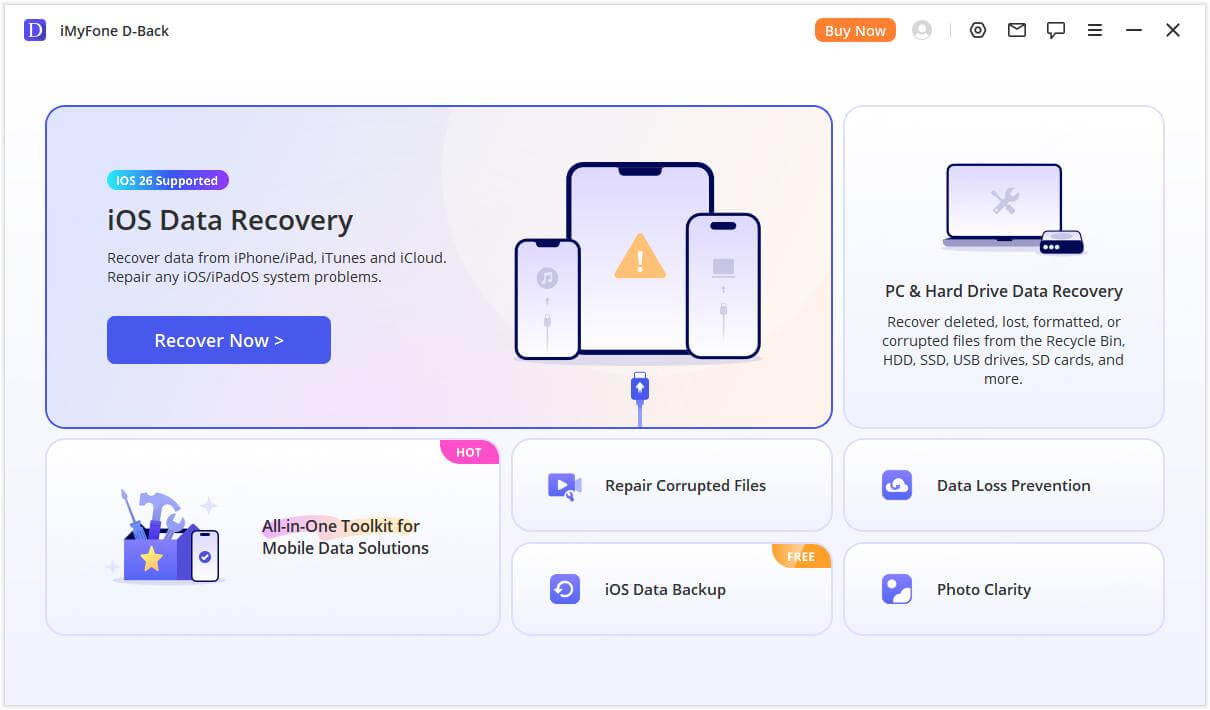
If Recently Deleted is empty and you want to inspect available device or backup data before a full restore, iMyFone D-Back for iPhone provides recovery modes for an iOS device, iCloud data, and computer backups. You can scan a selected source, preview detected files, and export chosen items to a computer.
Use the preview as the deciding test. Modern iPhones use encryption and aggressive storage management, so a file that has been permanently deleted and has no remaining copy may not be recoverable. No responsible tool can guarantee every deleted photo.

iMyFone D-Back for iPhone
Useful for Checking Available Photo Copies:
- Multiple Sources: Check the connected iPhone and supported iCloud or computer-backup data.
- Preview Before Export: Review available photos before deciding what to save.
- Selective Recovery: Export chosen files to the computer instead of replacing the whole iPhone.
- File-Type Filters: Narrow the results to photos, videos, messages, and other supported data.
How to Check for Deleted iPhone Photos
Step 1: Install D-Back on the computer and choose a source: the iOS device, an iCloud account, or a computer backup. Select the source most likely to contain a copy made before deletion.
Step 2: Select photos and any other required file types, then start the available scan. Keep the iPhone connected if you are scanning the device.

Step 3: Filter and preview the results. Select the photos you need and export them to the computer. If the preview does not show the photo, do not assume that purchasing or repeating the same scan will make it appear.

For more options, compare these free iPhone photo recovery tools and built-in methods.
What to Do If the Photos Were Permanently Deleted
A photo is effectively permanently deleted when it is gone from Recently Deleted and no synchronized copy, independent cloud upload, computer copy, shared copy, or pre-deletion backup remains. At that point, recovery becomes uncertain.
- Stop creating large videos, installing apps, or downloading offline media until you finish checking.
- Search every account that may have used automatic camera upload.
- Ask people who received or shared the photo to send back the original file.
- Check old Macs, PCs, external drives, memory cards, and exported photo libraries.
- Run one reputable preview scan and judge the result before paying.
- For irreplaceable evidence or business data, consult a professional and preserve the device as-is.
For the narrow case where no backup exists, this guide explains the realistic limits of recovering permanently deleted iPhone photos without a backup.
FAQs about Recovering Deleted Photos from iPhone
Can I recover permanently deleted photos from my iPhone?
Sometimes a separate copy still exists in iCloud, another cloud service, a computer, a message, or an older backup. If the photo is gone from Recently Deleted and no copy remains, recovery is not guaranteed. Check every source before erasing, restoring, or heavily using the iPhone.
Where do permanently deleted iPhone photos go?
Photos stay in Recently Deleted for 30 days unless you remove them sooner. After permanent deletion, they are no longer available through that album. Whether any residual data can be found depends on backups, synchronized copies, encryption, storage reuse, and the state of the device.
Can Apple recover photos after 30 days?
Apple's normal recovery route is the Recently Deleted album, where items remain for 30 days. After that, search independent copies and backups. Apple Support may help diagnose an account or sync issue, but it should not be treated as a guaranteed permanent-deletion recovery service.
Will restoring an iCloud backup bring back deleted photos?
Only if a suitable backup actually contains them. When iCloud Photos was enabled, the synchronized photo library was generally not duplicated in the iCloud device backup. Check the backup date and iCloud Photos status before resetting the phone.
Can I recover only photos without restoring the entire iPhone?
Yes, if the photos are in Recently Deleted, iCloud Photos, another cloud service, or an accessible computer copy. A selective backup-recovery tool may also let you preview and export available photos to a computer without replacing the current device state.
Conclusion
To recover deleted photos from an iPhone, begin with Recently Deleted, then check iCloud Photos, offline Apple devices, other cloud services, computers, and pre-deletion backups. Use a full backup restore only after protecting current data. When you need to inspect an iPhone or backup without immediately overwriting the device, D-Back for iPhone can scan supported sources and preview available photos before export.


(Click to rate this post)
Generally rated 5 (256 participated)

Rated successfully!

You have already rated this article, please do not repeat scoring!