
















 Shop
Shop
The Ultimate iOS 27 Update Guide
Everything You Need to Know About iOS 27 - From Updating and Downgrading to Apple Intelligence and Migration Tips!


Save 10% on Fixppo
for iOS 27
Fix iOS 27 problems, upgrade or downgrade safely, and get your iPhone working again with Fixppo.

1.Copy code

2.Choose any iMyFone tool

3.Paste it at check out

Limited Offer
Ends on Oct 9, 2026
iOS 27 Update Information
What’s New in iOS 27
-
1. Siri AI, the Main Apple Intelligence Upgrade
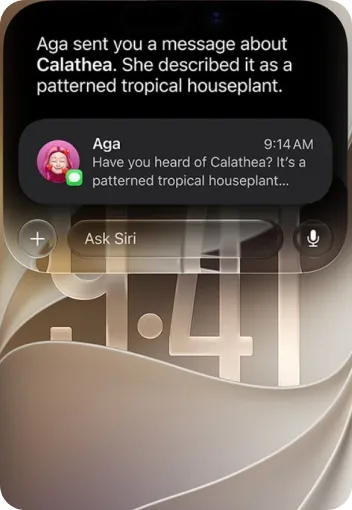
iOS 27 introduces Siri AI powered by Apple Intelligence, with more natural conversations, richer answers, personal context, and a new dedicated Siri app. Apple says Siri AI is coming in English later this year.
-
2. Apple Intelligence Adds Smarter Photo Editing
New AI photo tools make editing easier with features like Spatial Reframing, Extend, and an upgraded Clean Up tool, helping you adjust photos after shooting and remove larger unwanted objects from the photos.
-
3. Siri Mode in Camera Expands Visual Intelligence
Siri mode in Camera works with Visual Intelligence so you can search, ask questions, and take action based on what the camera sees or what is already on the iPhone screen.
-
4. Child Safety Features Get More Practical Controls
iOS 27 adds new child safety tools such as Ask to Browse, safer communication protections, app setup controls, and easier Screen Time settings for parents and guardians.
-
5. OS Improvements Refine Performance and Liquid Glass
iOS 27 also highlights broader system improvements across performance, search, memory usage, display rendering, network transitions, and Liquid Glass design, including better readability and more visual customization.
Supported Devices for iOS 27 and iPadOS 27
- iPhone
- iPad
 iPhones Compatible with iOS 27:
- iPhone 17 Pro Max
- iPhone 17 Pro
- iPhone Air
- iPhone 17
- iPhone 17e
- iPhone 16 / 16 Plus / 16 Pro / 16 Pro Max / 16e
- iPhone 15 / 15 Plus / 15 Pro / 15 Pro Max
- iPhone 14 / 14 Plus / 14 Pro / 14 Pro Max
- iPhone 13 / 13 mini / 13 Pro / 13 Pro Max
- iPhone 12 / 12 mini / 12 Pro / 12 Pro Max
- iPhone 11 / 11 Pro / 11 Pro Max
- iPhone SE (2nd generation and later)
 Devices No Longer Supported by iOS
27:
Devices No Longer Supported by iOS
27:
- iPhone XR
- iPhone XS / XS Max
- iPhone X
- iPhone 8 / 8 Plus
- iPhone 7 / 7 Plus
- iPhone 6s / 6s Plus
- iPhone SE (1st generation)
iPad Models That Support iPadOS 27
- iPad Pro (M4)
- iPad Pro (3rd generation and later)
- iPad Air (M2 / M3)
- iPad Air (3rd generation and later)
- iPad (A16)
- iPad (8th generation and later)
- iPad mini (A17 Pro)
- iPad mini (5th generation and later)
Devices No Longer Supported by
iPadOS 27:
- iPad (7th generation, Apple A10)
 Important Note
Some Apple Intelligence features are only available on supported devices, such as iPhone 15 Pro and later models. Availability may vary by region, language, and iOS 27 beta version.

Apple Intelligence in iOS 27
Apple Intelligence is integrated into even more places in iOS 27 to help you communicate across languages, create more personal images, and get more done. Apple also notes that Apple Intelligence is available in beta, and some features may not be available in all regions or languages.
See All Features and Availability

Apple Intelligence Features
-
1. Live Translation Across Messages, FaceTime, and Phone
Live Translation can automatically translate texts in Messages, show live translated captions in FaceTime, and provide spoken translations during calls in the Phone app.
-
2. Live Translation with AirPods
When you use compatible AirPods with a supported iPhone, responses in another language can be translated and spoken back in a natural voice.
-
3. Visual Intelligence Does More
Visual intelligence can search across your most-used apps, add events to your calendar, and help you ask questions based on what is shown on your iPhone screen.
-
4. More Ways to Express Yourself with Images
With Genmoji and Image Playground, you can combine emoji and descriptions to create something brand-new and make more personal images inspired by family and friends.
-
5. Intelligent Actions in Shortcuts
Shortcuts can now use intelligent actions to summarize text, create images, and tap directly into Apple Intelligence models for more advanced workflows.
-
6. Smarter Reminders
Apple Intelligence can suggest tasks, grocery items, and follow-ups based on emails or other text on your device, and can also automatically organize related reminders into sections.
-
7. Apple Intelligence Is Still in Beta
Apple says Apple Intelligence remains in beta, and some features may not be available in every region or language.
-
8. Availability Depends on Device, Language, and Region
Some Apple Intelligence experiences require a compatible device and supported language settings, so exact feature availability may vary from one user to another.
Apple Intelligence Availability
-
Compatibility Reminder
iPhone
- iPhone 15 Pro
- iPhone 15 Pro Max
- iPhone 16
- iPhone 16 Plus
- iPhone 16e
- iPhone 16 Pro
- iPhone 16 Pro Max
iPad
- iPad Pro (M1 or later)
- iPad Air (M1 or later)
- iPad mini (A17 Pro)
Mac
- Mac with Apple Silicon M1 chip or later
-
Supported Operating Systems
- iOS 27
- iPadOS 27
- macOS Sequoia 15.1 or later
- visionOS 2.4 or later
-
Other Requirements
- Set your device language and Siri language to the same supported language
- At least 7 GB of available storage is required
Note
Some features (such as advanced Siri AI capabilities) are still rolling out and may be released in later updates.
One Plan for Every
iOS 27 Problem
Unlock, repair, recover, transfer, clean up, and create with six iMyFone tools for one full year.
THE COMPLETE IOS 27 TOOLKIT
-
LockWiper
Unlock passcodes and remove Apple ID barriers.
-
Fixppo
Repair iOS 27 issues or downgrade safely.
-
D-Back
Recover photos, messages, and lost data.
-
iTransor
Back up and restore the data you choose.
-
Umate Pro
Free storage and erase private data.
-
Filme
Create and edit videos with less effort.

6 Tools. 1 Year.
One Smart Purchase.
Handle more than one iPhone problem without buying
tools one by one.


Preparation Before Upgrading to iOS 27
Step 1: Back Up Your iPhone
Upgrading to a new iOS version can sometimes lead to installation errors or unexpected issues, especially during a major release cycle. It's strongly recommended that you back up your iPhone or iPad before installing iOS 27. If you later want to downgrade from iOS 27 to iOS 26, having a backup will make restoring your data much easier.
-

1 Connect your device to Wi-Fi
2 Go to "Settings > [Your Name] > iCloud"
3 Tap "iCloud Backup"
4 Select "Back Up Now" and wait for the backup to complete
-

1 Download and install iMyFone D-Back
2 Connect your iPhone or iPad to your computer
3 Select data backup function
4 Click "Back Up" to start the process
-

1 Open iTunes (or Finder) on your computer
2Connect your iPhone or iPad to your computer
3Select your device in iTunes/Finder
4 Click "Back Up Now"


Step 2: Free Up iPhone Storage
Insufficient storage may prevent iOS 27 from downloading or installing properly. Before updating, make sure you free up enough space on your device for the installation and any temporary system files the update may need.
-

- Go to "Settings > General > iPhone Storage"
- Check Apple's recommendations (e.g., delete old messages and uninstall unused apps)
- Tap to enable suggestions and delete large apps
-

- Enable "Optimize iPhone Storage": Settings > Apps > Photos
- Delete duplicates, blurry images, or unwanted media
- Export large videos to your computer or cloud and remove them from your iPhone
-

- Clear Safari history: Settings > Apps > Safari > Clear History and Website Data
- Limiting the time you retain information: Settings > Apps > Messages > Keep Messages > 30 Days
- Uninstall and then reinstall apps that take up a lot of space (such as Facebook, LINE) (be careful)
-

- Open Umate Pro on your computer and connect your device
- Select "One Click to Free Up Space" and scan your device
- Select junk files, temp files, large files, etc.
- Click "Clean" to quickly free up several GB of space


 Video Tutorial | How to Clear Storage on
iPhone
Video Tutorial | How to Clear Storage on
iPhone
How to Update to iOS 27?
If you're unable to install iOS 27 over the air as usual, or if you prefer a cleaner and safer firmware installation, Fixppo. is a practical option. It offers a beginner-friendly workflow, doesn't require complicated manual steps, and can help reduce update-related problems during the installation process.


- Download and install iMyFone Fixppo on your computer, then click "iOS Upgrade/Downgrade"
- Select "Upgrade iOS" and connect your iPhone to your computer
- Choose the available iOS 27 firmware, then click "Download" to complete the upgrade

iOS Update Program without Deleting Data
Safely upgrade to iOS 27 without worrying as much about data loss or common installation interruptions. It’s a smoother option when normal update methods fail.
Pros:
- Easy to use, with no advanced technical knowledge required
- Helpful for preventing or resolving common iOS 27 update issues
- A reliable fallback when OTA or iTunes does not work smoothly
Cons:
- Requires separate installation and a computer connection
- The iOS upgrade feature is a paid service
Updating to iOS 27 over Wi-Fi is still the easiest method for most iPhone and iPad users. As long as you have a stable connection, enough battery, and enough storage, you can install the latest version directly from Settings.

- Connect your iPhone/iPad to WiFi and charge it
- Go to "Settings > General > Software Update"
- Tap "Upgrade to iOS 27", then tap "Download and Install" to complete the update
Pros:
- The easiest and fastest update method
- No extra software required
Cons:
- Errors can still occur during the iOS 27 update process
- If the network is unstable, the update may fail or get stuck
Updating to iOS 27 via iTunes or Finder is a good option for users who prefer installing through a computer or cannot update over Wi-Fi. This method can also help with backup, troubleshooting, and cleaner installation steps.


- Connect your iPhone to your computer and open iTunes (Windows) or Finder (Mac)
- Select your device in iTunes/Finder
- Click "Summary > Check for Update > Update" to install iOS 27
Pros:
- A good fallback if Wi-Fi update fails
- Completely free to use
Cons:
- iTunes or Finder errors may still occur
- The update process may still fail in some cases
Video Tutorial | How to Update iOS
Problems During iOS 27 Upgrade?
Fixppo—One Solution for All Issues
Repair iOS 27 update failure, stuck screens, recovery mode, and downgrade problems without data loss
Checking for updates is the first step in downloading the correct firmware from Apple. If you're unable to check for the iOS 27 update, it may be due to weak Wi-Fi, insufficient storage, beta availability settings, or temporary system errors.
 Video Tutorial | How to Fix iOS
Update Failure
Video Tutorial | How to Fix iOS
Update Failure
3 Ways to Fix iOS 27 Update Check Failures:
- Check Wi-Fi and Beta Access: Make sure your device is connected to a stable network and is eligible to receive the iOS 27 update.
- Free Up iPhone Storage: If storage is almost full, the device may fail to check or prepare the update properly.
- Update Using iTunes or Fixppo: Connect your iPhone to a computer and try updating with iTunes or iMyFone Fixppo.
If you're having trouble loading the iOS 27 update, the cause is often a network problem, limited storage, or a temporary software issue. Since no widespread iOS 27 update failure has been officially confirmed, it’s best to begin with standard troubleshooting.
 Video Tutorial | How to Fix iOS
Update Loading Failure
Video Tutorial | How to Fix iOS
Update Loading Failure
3 Ways to Fix iOS 27 Loading Issues:
- Check Wi-Fi: Make sure your Wi-Fi or mobile network is stable, with no disconnections or unusually slow speeds.
- Check Apple Server Status: Review Apple’s system status and release information to make sure update-related services are working normally.
- Update via iTunes or Fixppo: If the download still won’t load, try using iTunes or iMyFone Fixppo on a computer.
If the iOS 27 update downloads but refuses to install, the cause may be low storage, an incomplete update file, or temporary installation instability. In many cases, a cleaner update method can solve the problem.

3 Ways to Fix iOS 27 Installation Failure:
- Free Up Enough Space: Go to "Settings > General > iPhone Storage" and make sure you have enough free space for the update.
- Delete Faulty Update Files: Remove the downloaded update package, then download it again from Settings.
- Use a Safer Alternative: If the update still fails, try using iMyFone Fixppo or iTunes to install iOS 27.
If your iPhone gets stuck while updating to iOS 27, don’t worry. This is often caused by unstable networks, insufficient storage, or system-related installation issues during the update process.
 Video Tutorial | How to Fix iOS
Update Stuck Issues
Video Tutorial | How to Fix iOS
Update Stuck Issues
3 Methods to Fix iOS 27 Update Stuck Issues:
- Check Wi-Fi: Use a faster and more stable Wi-Fi network to prevent the update from freezing.
- Force Restart iPhone: Use the correct button combination for your iPhone model to force restart the device and try again.
- Use Other Reliable Tools to Update: If on-device updating does not work, try using iMyFone Fixppo or iTunes via computer.
iMyFone Fixppo
One-Stop Solution for iOS 27 Update Issues
Easily and quickly solve iPhone update problems during the iOS 27 installation process without deleting data. Simple to use and suitable for users facing failed updates, stuck screens, recovery mode, and other system issues.

Other Solutions for Errors When Updating to iOS 27
- iPhone Stopped Updating Halfway Through >
-
Fix iPhone Stuck on Update Requested
>
Video Tutorial
- Fix iPhone Won't Turn On After iOS 26/27 Update >
-
Fix iPhone Keeps Restarting Itself >
Video Tutorial
-
Fix iPhone Stuck on Hello Screen After
Update >
Video Tutorial
-
Fix iPhone Keeps Turning On and Off >
Video Tutorial
Can iOS 27 Be Downgraded to iOS 26?
In most cases, you can downgrade from iOS 27 to iOS 26 only if Apple is still signing the target iOS 26 firmware. If Apple has stopped signing it, standard downgrade methods will no longer work. If a signed version is available, you can try one of the following methods on a computer.
-
Method 1:
Downgrade Using Professional Tool – Fixppo - Method 2: Install iOS 26 Using IPSW File via iTunes/Finder

Method 1: Downgrade Using Professional Tool – Fixppo
- Download and install iMyFone Fixppo, and select "iOS Upgrade/Downgrade" mode
- Connect your iPhone and choose "Downgrade iOS"
- The program will automatically download the correct signed firmware
- Click "Start" to install iOS 26

Method 2: Install iOS 26 Using IPSW File via iTunes/Finder
- Visit ipsw.me and select your iPhone model
- Download the iOS 26 file that is still signed by Apple
- Open iTunes (for Windows) or Finder (for Mac)
- Connect your iPhone to the computer and enter the Recovery Mode
- Hold Shift (Windows) or Option (Mac) and click "Restore iPhone"
- Select the downloaded IPSW file and wait for installation to complete
Video Tutorial | How to Downgrade iOS 27 to iOS
26

Tips for iPhone Data Transfer
When switching to a new iPhone running iOS 27, one of the biggest concerns is moving important data from your old device to your new one, especially chat apps like LINE or WhatsApp that may contain valuable conversation history. Here are some practical transfer methods to help you migrate more smoothly.

- Transfer LINE
- Transfer WhatsApp

Method 1: Transfer LINE Chat History Using iTransor for LINE


- Download and install iMyFone iTransor for LINE
- Connect both your old and new phones to the computer, and set the source and target devices
- Select "Transfer LINE between Android and iOS" to start moving chats and data

- iOS to Android
- iOS to iOS
- Android to Android
- Android to iOS

iTransor for LINE also supports free LINE backup
Additional Guides for Transferring LINE Chat History When Switching Devices:

Method 2: Use iCloud to Back Up LINE on iPhone

- 1. Open the LINE app > go to Settings > Chats > Chat Backup, then tap “Back Up Now” to upload your chat history to iCloud.
- 2. Go to iPhone Settings > Apple ID (your account) > iCloud > LINE, and make sure LINE has access to iCloud.
- 3. Set up your new iPhone and sign in with the same Apple ID, then download the LINE app from the App Store.
- 4. Open LINE, log in using your original phone number > enter the verification code > when prompted, tap "Restore Chat History" to recover your messages from iCloud.
This method works only between iPhones. LINE chat history backed up to iCloud cannot be restored on an Android phone.

Method 3: Use Google Drive to Transfer LINE on Android

- 1. Go to Settings > Google > Backup, check if LINE has access to Google Drive, and confirm the selected Google account is the same as the one used in LINE.
- 2. Open the LINE app > go to Settings > Chats > Chat Backup, then tap “Back Up to Google Drive” to save your chat history.
- 3. Set up your new phone and log in with the same Google account used for the backup.
- 4. Install LINE on the new device > log in with the same phone number > enter the one-time password (OTP) > when prompted, tap "Restore" to retrieve your data from Google Drive.
You can only use Google Drive to move data from Android to Android. It does not support Android to iPhone or Phone to Android.

Method 1: Use iMyTrans to Transfer WhatsApp Chats


- Download and install iMyFone iMyTrans.
- Connect both your old and new phones to the computer, and set the source and target devices.
- Select "Transfer" to start moving WhatsApp chats and other media files.

More Guides on Transferring WhatsApp When Switching Phones:
Method 2: Use iCloud to Transfer WhatsApp on iPhone

- 1. Make sure your iPhone is signed in with the same Apple ID and that iCloud Drive is enabled.
- 2. On your old iPhone, open "WhatsApp > Settings > Chats > Chat Backup", then tap "Back Up Now" to upload your chat history to iCloud.
- 3. On your new iPhone, install WhatsApp and log in with the same phone number.
- 4. After logging in, you'll be prompted to restore chat history from iCloud. Tap "Restore Chat History" to complete the transfer.
If you don't have iCloud or haven't backed up your WhatsApp chats before, we recommend using iMyFone ChatsBack to restore your WhatsApp chat history. This is safer and provides more flexibility in restoring your data.
Method 3: Use Google Drive to Transfer WhatsApp on Android

- 1. Make sure your Google account is signed in on the old phone and Google Drive access is enabled.
- 2. On your old Android phone, open "WhatsApp > go to Settings > Chats > Chat Backup", then tap "Back Up to Google Drive".
- 3. On your new Android phone, install WhatsApp and log in with the same phone number.
- 4. After logging in, you'll be prompted to restore chat history. Tap "Restore" to complete the data migration.
If the data on Google Drive is incomplete or cannot be recovered, iMyFone ChatsBack can help with a deeper and more comprehensive data recovery.