

















 Shop
Shop

How to Fix the Firmware File is Not Compatible or Corrupt on iPhone/iPad
Category: iPhone Issues

3 mins read
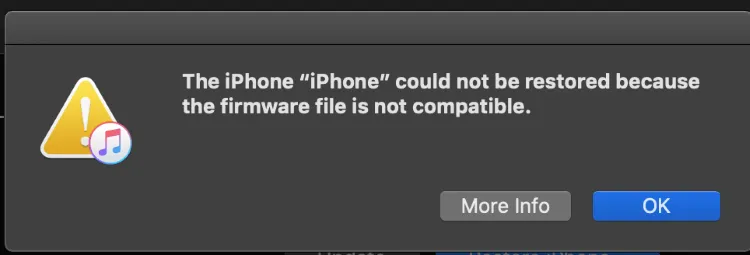
If iTunes stops a restore with The iPhone could not be restored because the firmware file is not compatible or The iPhone could not be restored because the firmware file was corrupt, the restore is usually failing before iOS can be installed. In most cases, the problem is not the cable alone. The firmware may be for the wrong iPhone model, the IPSW file may be damaged, Apple may no longer be signing that version, or the restore tool may be too old to handle the file.
Start by confirming the exact model, the firmware signing status, and the restore method. This is especially important when you are repairing an iOS 27 update issue, reinstalling iOS, or trying to move back to an earlier signed iOS version.

Quick answer
If the firmware file is corrupt, delete the old IPSW and download it again through a trusted restore tool. If the firmware file is not compatible, check that the IPSW matches your exact iPhone model and is still signed by Apple. If iTunes keeps failing after those checks, use a guided iOS system repair tool before trying erase-based DFU restore.
In this article:
- Why the iPhone Firmware File Is Not Compatible or Corrupt
-
Fix the Firmware File Error with iMyFone Fixppo

- 8 Common Ways to Fix iPhone Firmware File Errors
- Restart the Computer and Restore Tool
- Pause Security Software Temporarily
- Update iOS from Settings First
- Update iTunes
- Reinstall the Restore Tool
- Manually Install a Signed IPSW File
- Restore iPhone with DFU Mode
- Get Help from Apple Support
- FAQ about iPhone Firmware File Errors
Why the iPhone Firmware File Is Not Compatible or Corrupt
The error means iTunes cannot verify and install the firmware package for your device. A compatible firmware file must match the hardware identifier of the iPhone or iPad, pass Apple's restore checks, and finish downloading without corruption. If any one of those checks fails, the restore stops before the device can update or reinstall iOS.
The most common causes are:
- Wrong IPSW for the device model: iPhone models that look similar can use different firmware files. Downloading an IPSW for the wrong model is a common reason for the "firmware file is not compatible" message.
- Unsigned firmware: Apple only allows normal restore or downgrade to firmware versions it is still signing. A restore tool cannot bypass Apple's signing check for mainstream users.
- Corrupt or incomplete download: If the IPSW download was interrupted, cached incorrectly, or damaged by a network/security tool, the restore may say iphone could not be restored because the firmware file was corrupt.
- Outdated restore software: Older iTunes builds, outdated Apple Devices on Windows, or older macOS restore components may fail to recognize newer firmware packages.
- USB, storage, or security interruption: A weak cable, low computer storage, VPN, firewall, antivirus scan, or permission issue can interrupt firmware verification.
- Beta or downgrade mismatch: When restoring after an iOS 27 update or downgrade attempt, backup compatibility and signing status matter as much as the IPSW file itself.
| Methods | Best for | Required Time | Data Risk | Use When |
|---|---|---|---|---|
| iMyFone Fixppo | Guided firmware repair | About 20 mins |

|
Wrong firmware, corrupt download, update/restore failure |
| Restart Restore Tool | Temporary software freeze | 5 mins |
|
The error appears once after a long restore session |
| Pause Security Software | Blocked IPSW verification | 10 mins |
|
Antivirus, firewall, or VPN interrupts restore traffic |
| Update iOS in Settings | Device can still boot | 30-60 mins |
|
You only need an update, not a full restore |
| Update Restore Tool | Old Finder/iTunes component | 10-30 mins |
|
New firmware is not recognized by the computer |
| Reinstall Restore Tool | Damaged restore component | 15-30 mins |
|
Updates do not fix repeated restore errors |
| Manually Install IPSW | Advanced signed firmware restore | 30 mins+ |
Depends on update/restore choice
|
You know the exact device model and signed firmware |
| Try DFU Mode | Serious firmware failure | 30 mins+ |

|
The iPhone cannot boot or normal recovery fails |
| Apple Support | Hardware or account-side issue | 1 day+ | Depends | Restore fails on multiple computers and cables |
Fix the Firmware File Error with iMyFone Fixppo
If the restore keeps failing because the IPSW file is wrong, corrupt, or repeatedly rejected, iMyFone Fixppo is a practical next step. Instead of making you manually search for the right firmware package, it detects the connected device, lists the available firmware, downloads the package inside the repair workflow, and then uses it to repair common iOS system problems.
This fits firmware-file errors well because many failures happen during the download and verification stage. Fixppo also gives you a more guided path than a manual IPSW restore, with a backup entry and Standard Mode available before you move to erase-based recovery or DFU restore.
iPhone Firmware File is Not Compatible:
- Firmware matching workflow - Detects the connected iPhone or iPad and downloads a firmware package from inside the repair process.
- Best iTunes alternative - Repairs many update, restore, recovery mode, Apple logo, and firmware-related iOS/iPadOS issues without manually searching for IPSW files.
- Standard Mode first - Lets you try a lower-data-risk repair path before erase-based Advanced Mode, recovery restore, or DFU restore.
- Recent iOS support - Supports many current iPhone/iPad models and recent iOS versions, including iOS 27 repair scenarios on supported devices.
Fixppo is trusted by many tech sites and is most useful when the device is recognized by the computer but the firmware restore keeps failing.

Follow the steps below to download a compatible firmware file through Fixppo and repair the iOS system without manually choosing an IPSW package.
Step 1: Download and launch Fixppo on your computer. Connect your iPhone or iPad with a stable USB cable, then wait for the software to detect the device.
Step 2: Choose Standard Mode first. It is the better starting point for update, restore, and firmware errors because it is designed for common iOS system repair before you try erase-based options.

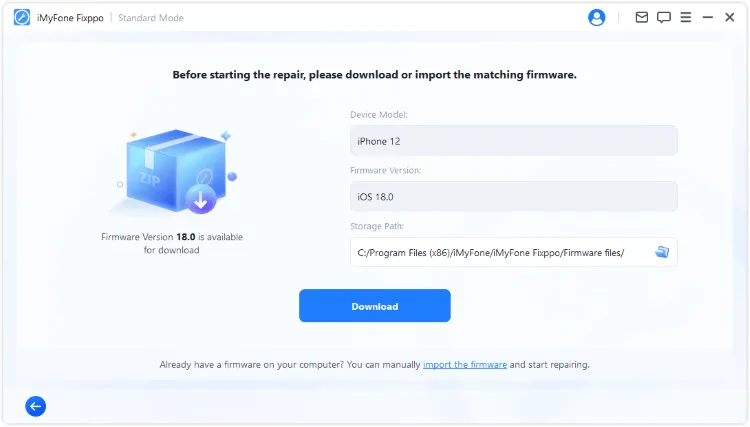
Step 3: Check the detected device information carefully. Fixppo will list the firmware available for that device. Choose the suitable package and click Download.
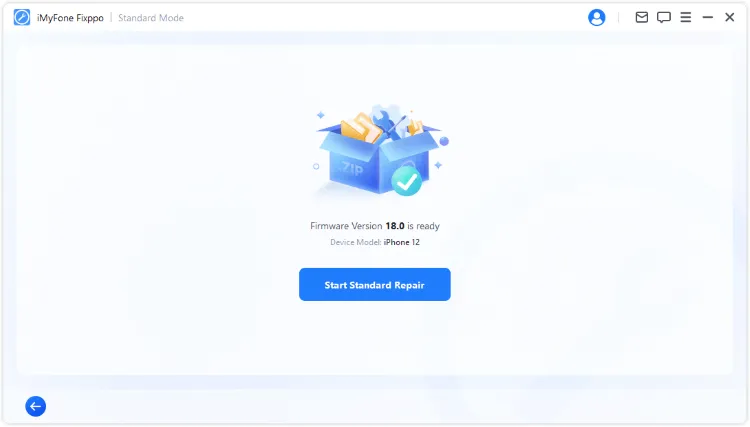
Step 4: After the firmware package is downloaded and verified, click Start Standard Repair. Keep the device connected until the repair finishes and the iPhone restarts.
After the repair, try the update or restore again only if needed. If the original problem was a damaged download, wrong firmware package, or failed iOS repair process, Fixppo can often save you from repeating the same manual IPSW mistake.

8 Common Ways to Fix iPhone Firmware File Errors
01 Restart the Computer and Restore Tool
A one-time firmware error can happen when the restore tool has been running for too long, the IPSW cache is stuck, or the USB connection is not refreshed correctly. Restarting is basic, but it is worth doing before deleting files or putting the iPhone into recovery modes.
Close iTunes. Restart the computer and the iPhone, reconnect with a reliable USB cable, then try the update or restore again. If the same message appears immediately, move to the next checks instead of repeating the same restore loop.

02 Pause Security Software Temporarily
Antivirus, firewall, VPN, proxy, and network-filtering tools can sometimes interrupt firmware download or verification. If the restore fails only on one computer or the IPSW keeps redownloading as a damaged file, security software is worth checking.
Temporarily pause the security tool, disconnect unnecessary VPN/proxy services, and download the firmware again. Turn protection back on after the restore test. If you are using a work or school computer with managed security rules, try a personal computer instead.

03 Update iOS from Settings First
If the iPhone still boots normally and you only want to update iOS, try the built-in software update route before a computer restore. This avoids manual firmware selection and lets the device request the right update package directly from Apple.
On the iPhone, go to Settings > General > Software Update. Connect to stable Wi-Fi, keep the battery charged, and make sure there is enough free storage. If the update fails, gets stuck, or the device cannot boot, return to the repair or restore methods in this guide.

04 Update iTunes
Outdated restore software can fail to recognize newer firmware, especially during an iOS 27 update or restore. The tool name depends on your computer: Finder on newer macOS, Apple Devices on many Windows setups, and iTunes on older Windows or older macOS versions.
For Windows users: Update Apple Devices or iTunes from the Microsoft Store or Apple download source. If you use iTunes, you can also check Help > Check for Updates.
For Mac users: Go to System Settings > General > Software Update and install available macOS updates that include Finder restore components.


Tips
If the restore tool is already updated but the firmware still fails, avoid downloading random IPSW files from unknown sites. Either let a guided repair workflow download the firmware for your device, or use a signed IPSW from a source you trust. You can also read this guide on installing firmware file without iTunes.
05 Reinstall the Restore Tool
If updating does not help, the restore component itself may be damaged. This is common after partial software updates, old Apple Mobile Device Support files, or repeated failed restores on Windows.
Uninstall Apple Devices or iTunes and related Apple support components if your system asks for it, restart the computer, then install the latest version again. Reconnect the iPhone directly to the computer, not through a USB hub, and test the restore one more time.

06 Manually Install a Signed IPSW File
Manual IPSW installation can work, but it is the easiest method to get wrong. Use it only when you can identify the exact iPhone model and confirm the firmware is still signed. If you pick an unsigned or wrong-model IPSW, the same compatibility error will return.
Step 1: Go to IPSW, choose the exact iPhone model, and avoid similarly named models that use different firmware.

Step 2: Download only a signed firmware file for that device. If you are trying to downgrade from iOS 27, remember that the downgrade depends on Apple's signing window and backup compatibility.

Step 3: Connect the iPhone to the computer and open iTunes. On Mac, hold Option; on Windows, hold Shift; then click Update or Restore iPhone.
Step 4: Select the IPSW file you downloaded and continue. Choose Update when you are trying to reinstall iOS without erasing, and choose Restore only when you understand that it can erase the device.
07 Restore iPhone with DFU Mode
DFU restore is a deeper firmware restore path for serious cases, such as a device that cannot boot, gets stuck during restore, or is not fixed by normal recovery mode. It can help when the iPhone needs a clean firmware reinstall, but it also has a higher data risk.
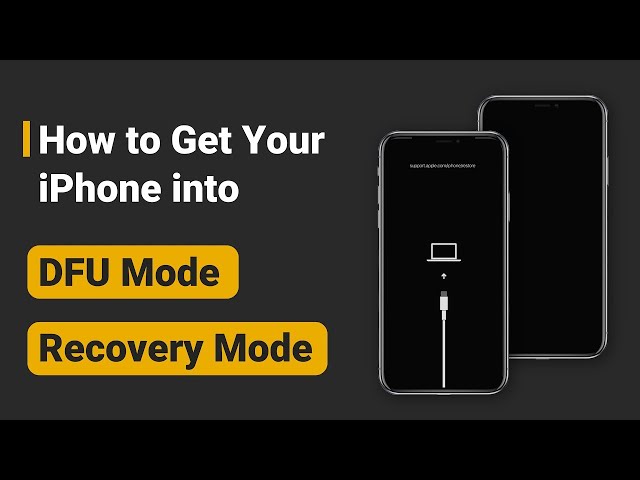
Use DFU only after you have checked the cable, computer, restore software, firmware signing status, and easier repair options. DFU does not bypass Apple's firmware signing rules, and a restore can erase the iPhone. You can follow this iPhone DFU mode guide with the video tutorial below.
08 Get Help from Apple Support
If the same firmware error appears on different computers, with different cables, and with a signed firmware package, the problem may be outside the IPSW file. Possible causes include storage failure, logic-board damage, USB port problems, battery/power instability, or account-side restore restrictions.
At that point, contact Apple Support or visit an Apple Store or authorized service provider. Bring the exact error message, the device model, the iOS version you tried to install, and the steps you have already tested. This helps avoid repeating the same restore checks.
FAQ about iPhone Firmware File Errors
Why does it say the iPhone could not be restored because the firmware file was corrupt?
It usually means the IPSW package did not download or verify correctly. Delete the cached firmware file, download it again on a stable network, check computer storage, and temporarily pause software that may interrupt large downloads.
Why is my iPhone firmware file not compatible?
The firmware may be for a different iPhone model, no longer signed by Apple, or not supported by your current restore tool. Confirm the exact model number and use updated Finder, Apple Devices, iTunes, or a guided repair tool that detects the device before downloading firmware.
Can I use an IPSW file to downgrade from iOS 27?
Only if Apple is still signing the target firmware for your exact iPhone model. Even then, backups made on a newer iOS version may not restore to an older iOS version. Check signing status and backup availability before attempting a downgrade.
Will Fixppo bypass Apple's firmware signing rules?
No. Normal iOS repair and restore workflows still depend on Apple's signing rules. Fixppo helps by detecting the device, downloading compatible firmware inside the workflow, and repairing common iOS system problems with a guided process.
Conclusion
The firmware file is not compatible or corrupt error is usually fixable once you separate the cause: wrong model IPSW, unsigned firmware, damaged download, outdated restore software, security interruption, or a deeper device problem. Do not keep retrying the same failed restore without changing one of those conditions.
For most readers, the fastest route is to restart once, update the restore tool, delete any bad IPSW download, and then use iMyFone Fixppo if the firmware error keeps blocking the repair. If the device still fails with signed firmware on multiple computers, move to DFU restore or Apple Support.


(Click to rate this post)
Generally rated 4.9 (256 participated)

Rated successfully!

You have already rated this article, please do not repeat scoring!