

















 Shop
Shop
Does iCloud Back Up Safari Bookmarks?
Category: iOS Data Recovery

6 mins read
Does iCloud back up Safari bookmarks? The precise answer is that iCloud primarily syncs Safari bookmarks across your Apple devices, while also keeping restorable archived versions of your bookmarks in iCloud Data Recovery.
That distinction matters. Sync keeps the current bookmark collection consistent, so deleting a bookmark on one connected device can remove it from the others. An archived version, by contrast, may let you roll the collection back to an earlier state.


Quick Answer
Yes, iCloud can protect Safari bookmarks, but not as a simple folder you browse like iCloud Drive. With Safari enabled in iCloud, bookmarks sync across signed-in devices. If bookmarks are deleted, go to iCloud.com/recovery and choose Restore Bookmarks to replace the current collection with an available archived version.
In this article:
- Part 1: iCloud Sync vs. Backup
- Part 2: What Safari Stores in iCloud
- Part 3: Turn On Safari Sync
- Part 4: Restore Deleted Safari Bookmarks
- Part 5: Fix Missing or Unsynced Bookmarks
- Part 6: Check an iPhone or Backup with D-Back
- Part 7: FAQs
Does iCloud Back Up Safari Bookmarks or Just Sync Them?
For everyday use, Safari bookmarks in iCloud behave as synchronized data. Add, rename, move, or delete a bookmark on one device and the change is sent to other devices using the same Apple Account with Safari enabled.
Apple also automatically archives earlier versions of the bookmark collection. These versions are available through iCloud Data Recovery for a limited period, so they function as a recovery layer even though you do not see them as ordinary files.
| Feature | What it does | Main consequence |
|---|---|---|
| Safari iCloud sync | Keeps bookmarks, Reading List, tabs, and related Safari data current across devices | A deletion can sync everywhere |
| iCloud bookmark archive | Keeps restorable earlier versions of the bookmark collection | Restoring changes the collection on synced devices |
| iCloud device backup | Stores eligible device data and settings not already synchronized to iCloud | It is not the clearest first route for recovering one bookmark |
| Mac or PC browser export | Creates an independent bookmark file | It remains available even if a sync deletion occurs later |

There Is No Safari Recently Deleted Folder
Safari does not provide a Photos-style Recently Deleted album for bookmarks. Use iCloud Data Recovery, another device that has not synchronized yet, an exported bookmark file, or an available backup instead.
What Safari Data Does iCloud Keep in Sync?
According to Apple's current Safari and iCloud guide, enabling Safari in iCloud can keep bookmarks, Reading List, open tabs, tab groups, and browsing history up to date across supported Apple devices.
- Bookmarks and bookmark folders: Saved sites and their organization.
- Reading List: Pages saved to read later.
- Open tabs and tab groups: Tabs that can be continued on another device.
- Browsing history: History shared across compatible signed-in devices.
- Start Page preferences: Some Safari preferences and shared content, depending on the system version.
Bookmarks normally do not appear as individual files at iCloud.com. That does not mean they are absent. Their live state is exposed through Safari on connected devices, while earlier versions are accessed from the Data Recovery page.
How to Turn On iCloud Sync for Safari Bookmarks
On iPhone or iPad
- Open Settings and tap your name.
- Tap iCloud.
- Under apps using iCloud, tap See All if needed.
- Turn on Safari.
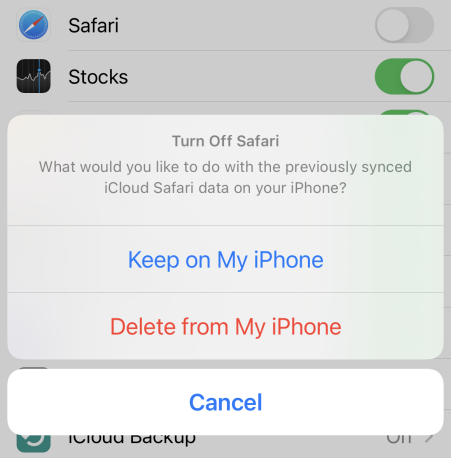
- If prompted, choose whether to merge existing local Safari data with iCloud.
On Mac
- Open System Settings and click your name.
- Click iCloud, then open the list of apps using iCloud.
- Turn on Safari.
- Open Safari and allow time for the bookmark collection to update.
Use the same Apple Account on every device. If an iPhone and Mac are signed in to different accounts, enabling Safari on both will not combine their bookmarks.
Create an Independent Copy
Sync is convenient, but it carries changes and mistakes. On a Mac, periodically export Safari bookmarks to an HTML file and store it outside the synchronized library. This gives you a separate copy that a future deletion cannot automatically remove.
How to Restore Deleted Safari Bookmarks from iCloud
Use iCloud Data Recovery when bookmarks disappeared after deletion, an incorrect merge, or a sync problem. The restore works on the bookmark collection as a version, not on one isolated bookmark.
- On a computer or tablet browser, open iCloud Data Recovery.
- Sign in with the Apple Account used for Safari sync.
- Choose Restore Bookmarks.
- Review the archived versions and select one from before the bookmarks disappeared.
- Choose Restore and wait for the process to finish before editing bookmarks.
- Open Safari on each device and allow time for the restored collection to synchronize.
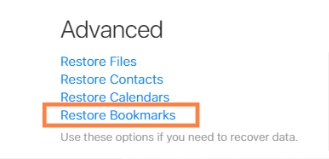
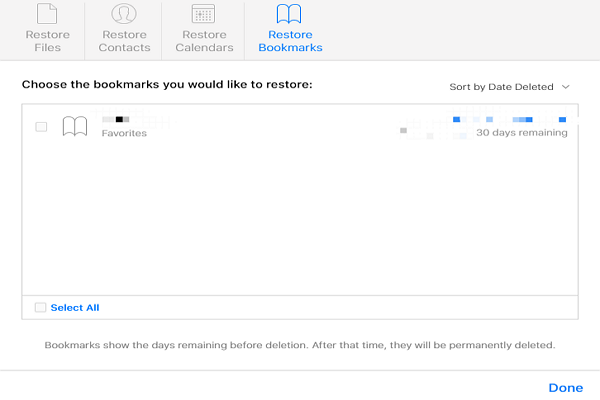
Apple's Restore your Safari bookmarks guide explains that iCloud archives the current bookmark version before replacing it. The restored collection then appears on devices with Safari enabled in iCloud.
Before Selecting Restore
Export or record important bookmarks added after the archive date. Restoring an older version can change the current bookmark collection across every synced device. Do not add, delete, or reorganize bookmarks while restoration is in progress.
If you need a more focused walkthrough, follow this guide to recover deleted Safari bookmarks on iPhone and Mac.
Safari Bookmarks Are Missing but Not Deleted: What to Check
A blank or incomplete bookmark list is often an account, profile, display, or sync issue. Work through these checks before restoring an old archive.
1. Confirm the Apple Account and Safari Setting
Check the Apple Account address on every device and verify that Safari is enabled under iCloud. If you recently signed out or changed accounts, the bookmarks may belong to the previous account.
2. Check Safari Profiles and Bookmark Folders
Open the sidebar or bookmarks menu and inspect Favorites, Bookmarks, and any custom folders. If you use Safari profiles, switch profiles and check whether the expected Favorites folder is assigned to another profile.
3. Check Screen Time and Network Status
Confirm that the device is online and that date and time are set automatically. Content restrictions can hide or limit websites, while a stalled network connection can delay synchronization.
4. Refresh Safari Sync Carefully
Close Safari, restart the device, and wait. If the problem remains, export bookmarks from any device that still shows the correct collection before toggling Safari in iCloud. When prompted about existing local data, read the merge or delete choice carefully.
5. Check a Device That Has Not Synced
If an old iPad or Mac may still have the bookmarks, disconnect it from the internet before opening Safari. Export or record the bookmarks first, then reconnect only after you have secured the copy.
For additional causes and fixes, see why iPhone bookmarks can disappear and what to do when Safari itself is missing from an iPhone.
How to Inspect Safari Data with iMyFone D-Back
If iCloud Data Recovery has no suitable archive, or you want to inspect available iPhone or backup data before a full restore, iMyFone D-Back for iPhone can scan supported sources and preview detected Safari data and other file types.
Availability depends on the iOS version, source, encryption, synchronization state, and whether the data still exists. Use the scan preview to confirm what can be exported; do not treat a deleted bookmark as guaranteed to be recoverable.

Useful When You Need to Inspect Available Data:
- Multiple Recovery Sources: Check a connected iPhone and supported iCloud or computer-backup data.
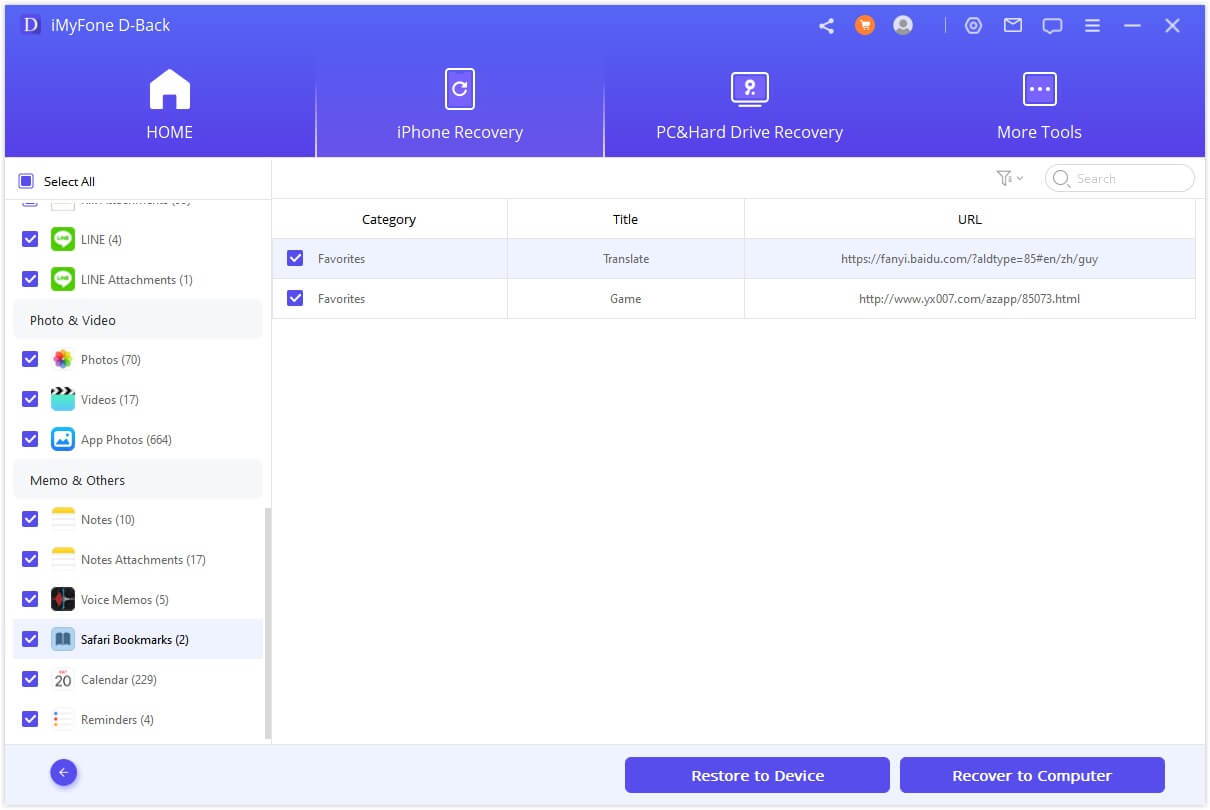
- Selective Preview: Review detected Safari data and other supported categories before export.
- No Immediate Full Restore: Inspect a backup without first replacing the current iPhone state.
- Computer Export: Save selected available data away from the phone.
How to Check an iPhone or Backup
Step 1: Open D-Back and choose the iPhone, iCloud, or computer-backup recovery route that matches where the Safari data may exist.
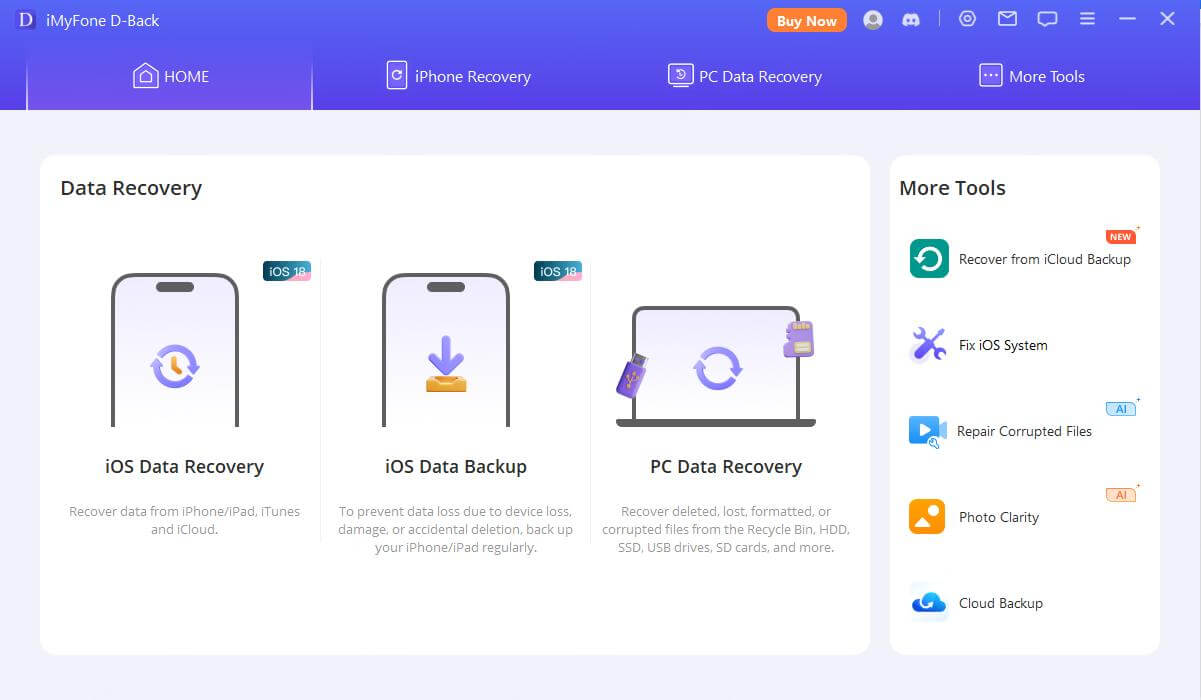
Step 2: Select Safari-related data and any other categories you need, then run the available scan.
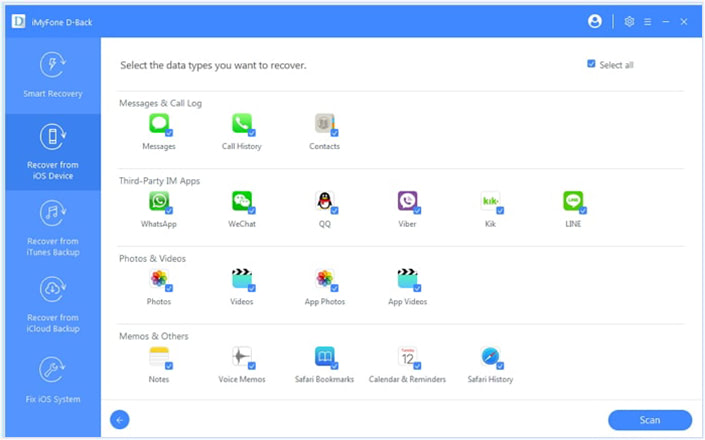
Step 3: Preview the detected items and export useful data to the computer. If the needed bookmark does not appear, return to iCloud Data Recovery or an independent exported bookmark file instead of repeatedly running the same scan.
FAQs about iCloud and Safari Bookmarks
Are Safari bookmarks included in an iCloud backup?
When Safari is enabled in iCloud, bookmarks are primarily synchronized through iCloud rather than treated as a static item in the device backup. Apple also keeps restorable bookmark archives. For one missing bookmark collection, check iCloud Data Recovery before restoring an entire device backup.
How long does iCloud keep deleted Safari bookmarks?
Apple presents available archived versions in iCloud Data Recovery and notes that the information shown there may be deleted after a stated number of days. Because availability changes with time, sign in promptly and use the dates displayed in your account rather than relying on a fixed universal window.
Can I restore one Safari bookmark from iCloud?
Apple's iCloud Data Recovery restores an archived bookmark collection, not one independently selected bookmark. Save newer bookmarks first, restore the suitable version, then export or reorganize the individual bookmarks you want to keep.
Why did a bookmark disappear from all my Apple devices?
Safari sync can distribute a deletion, folder change, or incorrect merge across all devices using the same Apple Account. It can also appear missing because you opened a different profile or folder. Check those possibilities before restoring an archive.
Can I view Safari bookmarks directly on iCloud.com?
Not as a normal browsable folder like Photos or Drive. You use Safari on a connected device to view the live bookmark collection and iCloud Data Recovery to see available archived versions for restoration.
Conclusion
iCloud protects Safari bookmarks through two related mechanisms: live synchronization and restorable archived versions. Keep Safari enabled on the correct Apple Account, export independent copies of important bookmarks, and use iCloud.com/recovery > Restore Bookmarks after an accidental deletion. If no suitable archive appears, D-Back for iPhone can help inspect available device or backup data before you consider a full-device restore.


(Click to rate this post)
Generally rated 5 (256 participated)

Rated successfully!

You have already rated this article, please do not repeat scoring!