

















 Shop
Shop
[2026 Full Guide] How to Recover Deleted LINE Messages on iPhone
Category: iOS Data Recovery

5 mins read
To recover deleted LINE messages on an iPhone, first check whether an iCloud LINE chat backup was created before deletion. LINE's supported restore route requires the same Apple Account, iCloud Drive, and the account-transfer or reinstall flow. If no usable LINE backup exists, preserve the phone and preview available device or computer-backup data before making changes.


Quick Answer
Open LINE and check Home > Settings > Chat history backup under Backup and transfer. If the last backup predates deletion, enable iCloud Drive for LINE, reinstall or transfer the account as instructed by LINE, and choose Restore chat history when prompted. A backup made after deletion usually preserves the already-deleted state.
In this article:
- Part 1: Choose the Right Recovery Route
- Part 2: Restore LINE from iCloud
- Part 3: Ask for a Copy or Export a Chat
- Part 4: Check an iTunes Backup
- Part 5: Preview LINE Data with ChatsBack
- Part 6: Avoid Common Data-Loss Mistakes
- Part 7: FAQs
Can Deleted LINE Messages Be Recovered on iPhone?
Recovery is possible when another copy still exists: an iCloud LINE chat backup made before deletion, a compatible computer backup, the other participant's chat, an exported text file, or data still accessible in device storage. There is no universal undo button for a permanently deleted LINE chat.
| Situation | Best first route | Main limitation |
|---|---|---|
| Pre-deletion LINE iCloud backup exists | Official LINE restore | Current chat state can be replaced |
| Other participant still has the chat | Ask for export, forward, or screenshots | Does not recreate the original live thread |
| Older computer backup exists | Preview the backup before restoring | Full Apple restore rolls back the whole iPhone |
| No backup is visible | Preserve the phone and run a preview scan | Deleted records are not guaranteed to remain |

Do Not Create a New Backup Yet
A fresh LINE backup made after deletion may update the cloud copy to the current state. First record the existing backup date and decide whether it contains the missing conversation.
Method 1: Restore Deleted LINE Messages from iCloud Backup
This is LINE's supported iPhone restore method. It works only when the backup was created while the missing messages still existed.
- In LINE, open Home > Settings > Chat history backup under Backup and transfer.
- Record the last backup date. Stop if it is newer than the deletion and no older backup is available.
- Open iPhone Settings, tap your name, choose iCloud, and turn on iCloud Drive.
- Under Apps Syncing to iCloud Drive, confirm that LINE is enabled.
- Sign in with the same Apple Account used for the backup.
- Follow LINE's account-transfer flow on the iPhone. If the account has already been transferred, LINE directs users to reinstall the app.
- When Restore chat history appears, tap it and keep the iPhone connected to power and Wi-Fi.
- After completion, inspect chats and attachments before creating a new backup.
LINE's current chat-restoration instructions require iCloud Drive to be enabled before account transfer and the same Apple Account that created the backup.
If you routinely need to move or archive app data, compare dedicated LINE backup, transfer, and restore options before the next device change.
Method 2: Ask the Other Person for a Copy
If another participant still has the messages, this is often the fastest and safest route.
- Ask them to open the conversation and confirm that the missing period remains visible.
- For a few messages, ask for forwarding or screenshots.
- For a longer conversation, open the chat menu, choose Settings, then Export chat history.
- Send the text file through an agreed secure channel.
- Request important photos, videos, and files separately because text exports may not include all media.
LINE's official text-export guide states that exported text cannot be restored into LINE. Treat it as a readable archive, not a restorable chat backup.
Method 3: Check an Older iTunes, Finder, or Apple Devices Backup
A computer backup may preserve app data from the time it was created, but restoring it through Apple replaces the entire iPhone state. Verify the date before doing anything.
- Connect the iPhone to the computer holding the backup.
- Open Finder, Apple Devices, or iTunes and select the iPhone.
- Open Manage Backups and record available dates.
- Make a separate current backup if you may need to return to today's state.
- Either preview the older backup with a compatible extraction tool or select Restore Backup.
- If restoring, keep the iPhone connected and do not open LINE until setup and synchronization finish.
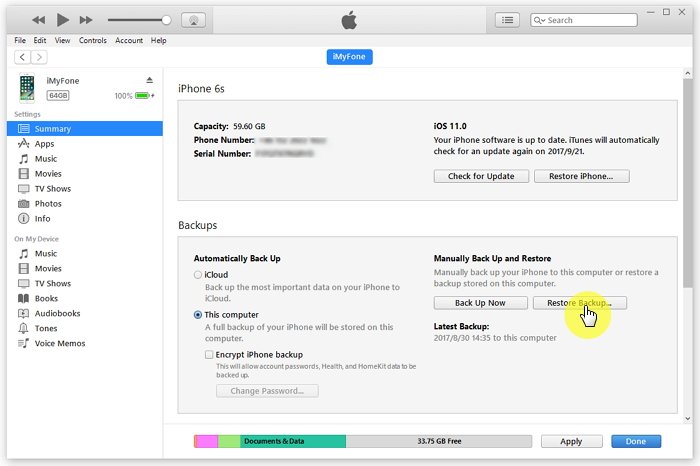
There is no guarantee that a full computer backup contains usable LINE chat history, especially if the chat was already deleted or app data is unavailable. Preview before a disruptive restore when possible.
Method 4: Preview Deleted LINE Data with ChatsBack for LINE
iMyFone ChatsBack for LINE is the current iMyFone product dedicated to LINE recovery. It can check supported device storage, computer backups, and previously saved history records, then preview available chats and export selected data to a computer.
The current ChatsBack for LINE guide documents the available source modes and the difference between Recover to PC and Recover to Device.

Useful for Checking LINE Sources:
- Scan supported iPhone storage or load compatible computer backups.
- Preview chats and attachments detected by the scan.
- Export selected available LINE data to a computer.
- Review results before choosing a device restore.
Step 1: Open ChatsBack for LINE and choose the source most likely to contain the deleted chat, such as Device Storage or iTunes Backup.
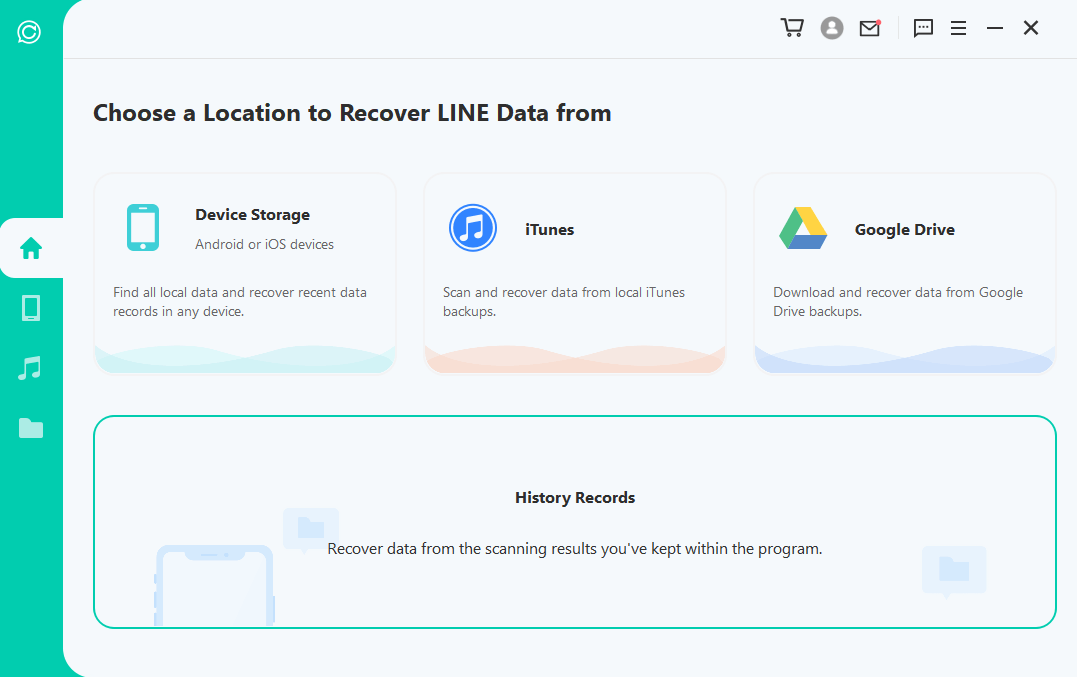
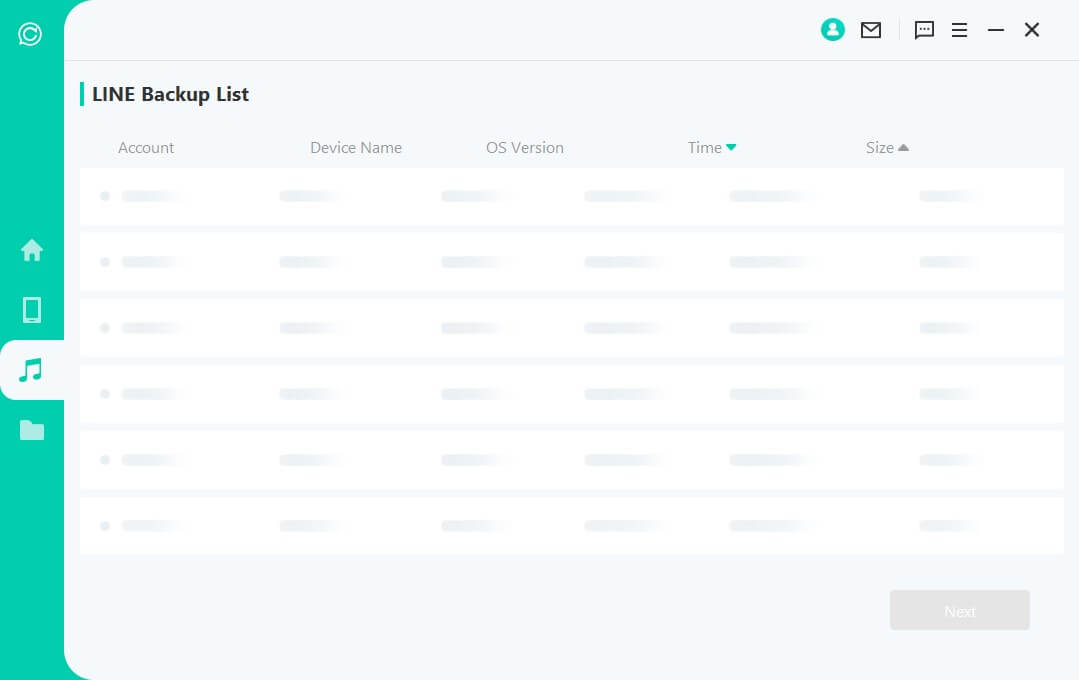
Step 2: Connect the iPhone or select the compatible backup and allow the analysis to finish.
Step 3: Preview the available LINE conversations and attachments. Select only the required records.
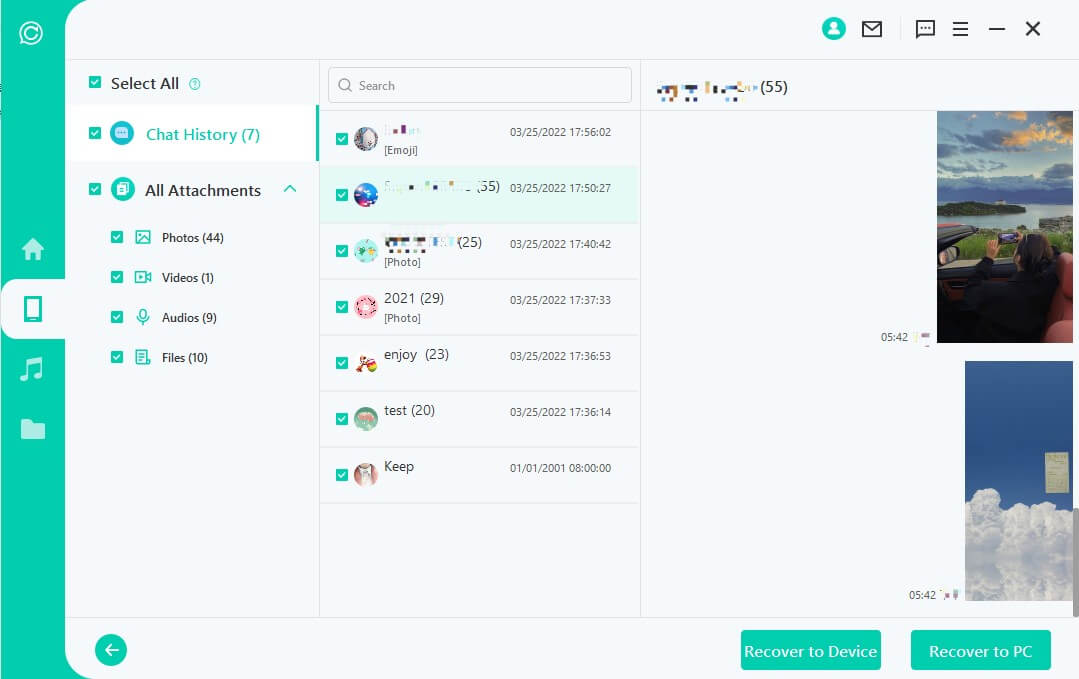
Step 4: Choose Recover to PC, select the output format and folder, and verify the exported files.
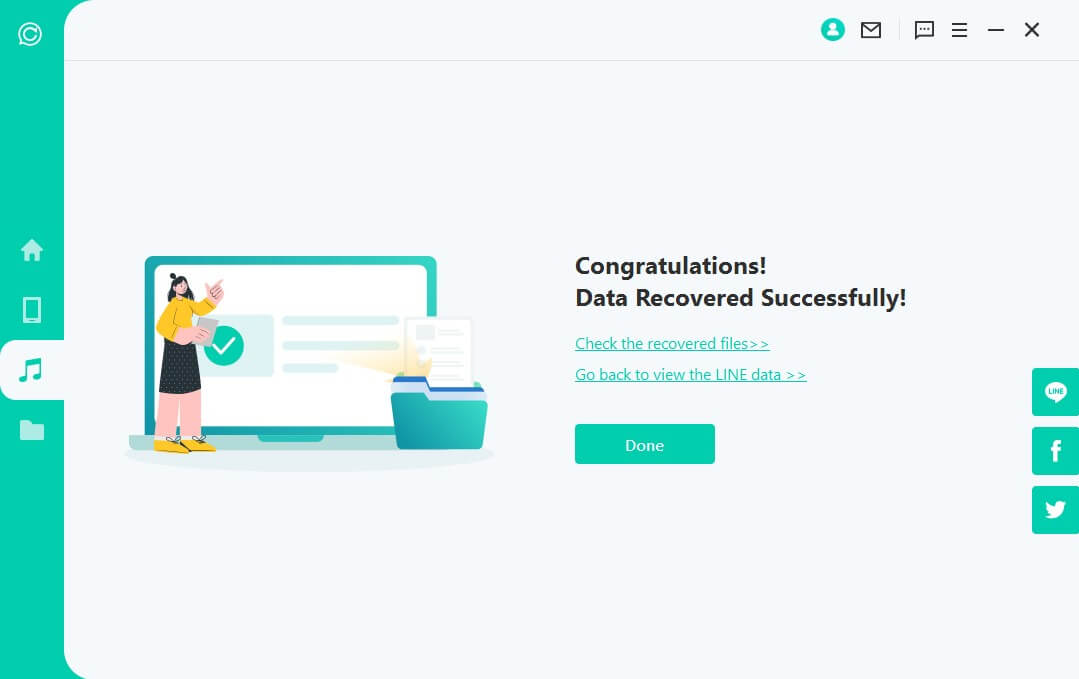
Device-Restore Warning
The current ChatsBack guide warns that Recover to Device can erase existing LINE data on the target device. Back up the current state first. Recover to PC is the lower-impact choice when you only need a readable copy.
For broader iPhone files outside LINE, D-Back for iPhone covers supported general iOS data categories.
Mistakes That Can Reduce LINE Recovery Chances
- Creating a new LINE backup before checking the old backup date.
- Reinstalling LINE without confirming account credentials and backup availability.
- Assuming an exported text file can be imported back into LINE.
- Restoring an entire iPhone without protecting newer photos, messages, and app data.
- Choosing Recover to Device without reading the data-erasure warning.
- Repeatedly using the iPhone and generating new app data before a recovery scan.
Record the phone number, Apple Account, LINE account credentials, backup timestamp, and app version before reinstalling or transferring the account.
FAQs about Recovering Deleted LINE Messages on iPhone
Can I recover deleted LINE messages without a backup?
Only if another accessible copy or residual record remains. Ask the other participant first, preserve the iPhone, and run a preview scan. No tool can guarantee permanently deleted messages that no longer exist in any readable source.
Will reinstalling LINE bring deleted messages back?
Not by itself. Reinstallation can restore chat history only when LINE finds a compatible backup and you follow the supported restore flow. Without a usable backup, reinstalling may remove local data and make the situation worse.
Can I restore an exported LINE text file to the app?
No. LINE states that a text export is for reading and cannot be restored as chat history. Keep it as an archive and save media separately.
Does an iPhone backup always contain LINE chats?
No. Availability depends on the backup date, LINE version, app and backup behavior, and whether the data was already deleted. Inspect the backup before relying on it as the only recovery source.
Conclusion
Check the LINE iCloud backup date before creating a new backup or reinstalling the app. Use LINE's official restore workflow when a suitable backup exists, and ask the other participant for an export when it does not. To inspect device or computer-backup sources first, ChatsBack for LINE can preview and export available records while clearly separating PC export from the higher-impact device restore.


(Click to rate this post)
Generally rated 5 (256 participated)

Rated successfully!

You have already rated this article, please do not repeat scoring!