

















 Shop
Shop

[2026] Fix iPhone Touch Screen Not Working After Update iOS 18/26/27
Category: iPhone Issues

3 mins read
When the iPhone touch screen is not working after update, the cause is not always the screen itself. After iOS 27, touch delay, ghost touch, frozen input, or an iPhone unresponsive after update can come from a stuck system process, app conflict, accessory pressure, or hardware damage.
This guide starts with safe physical checks, then moves into force restart, system repair, computer restore, and hardware service so you do not erase the iPhone before ruling out simpler causes.

Quick answer
If iPhone touch not working after iOS 27 update, remove the case and screen protector, disconnect cables, clean and dry the screen, then force restart. If the iPhone touch screen not working after update began during installation or the phone is stuck but detected by a computer, use system repair before restore. If there is drop, liquid, swelling, or no computer detection, treat it as hardware.

In this article:

Why iPhone Touch Screen Stops Working After Update
After an update, touch failure can come from iOS. Some users report UI and performance complaints in the early iOS 27 beta feedback, no Apple-confirmed pattern yet.
Use your symptom to choose the next step: ghost touch and delay may start with cleaning and restart; frozen touch after update may need system repair; touch failure after drop, liquid, or screen replacement needs hardware attention.
- Conflicting accessories: Cases or other accessories may make your iPhone touch screen stop working.
- Touch panel problems: Problems with the connection between the screen and the motherboard may cause the iPhone screen to be untouchable.
- Water damage: If your iPhone is exposed to water for long, the touch screen may become unresponsive.
- Software issues: A incompatible app or system crashes may lead to the iPhone touch screen not working after update.
- Physical damages: If iPhone suffers from physical damage such as impact or dropping, the touch screen will be affected as well.
Fix iPhone Touch Screen Not Working After iOS 27 Update
Work from low-risk checks to serious recovery. Start with the physical screen and accessories, then force restart, then repair iOS, and use restore only when update or repair cannot recover the iPhone.
1 Repair iOS 27 Touch Issues with Fixppo
iMyFone Fixppo can be the cure if your touch issue began after an iOS 27 update or the device is detected by a computer but touch input will not respond. Its Standard Mode repair, firmware download, recovery mode tools, and backup/restore support make it a stronger software repair option before erase-based restore.
For update-related touch freezes, it can repair the iOS system behind the screen problem instead of asking you to jump straight to restore. Cracked glass, liquid damage, swollen batteries, or disconnected screen cables still need hardware service.
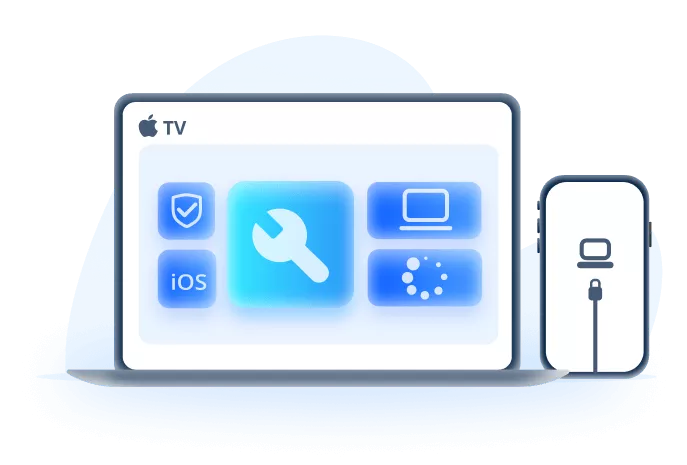
Where Fixppo Fits for iPhone Touch Problems
- Best fit for software-based touch failure after iOS 27 update, failed update, recovery mode, or startup freeze.
- Use Standard Mode before erase-based restore when the iPhone is detected and the issue looks like iOS corruption.
- Can help with 150+ related system symptoms such as frozen screen, Apple logo, recovery mode, boot loop, and update failure.
- Includes backup/restore support when the device can still be detected by the computer.
- Not a hardware solution for cracked screens, liquid damage, swollen batteries, damaged digitizers, or screen connectors.
To fix the iPhone screen freezing issue, you can download Fixppo and follow the 3 simple steps below.
Step 1: Launch Fixppo, connect your iPhone to the computer and choose Standard Mode, which can fix the iOS 27 touch screen not working after update issue Lower Data Risk.

Step 2: Once connected, your iPhone will be detected. Click the Download button to get the iOS firmware for fixing this touch screen problem.
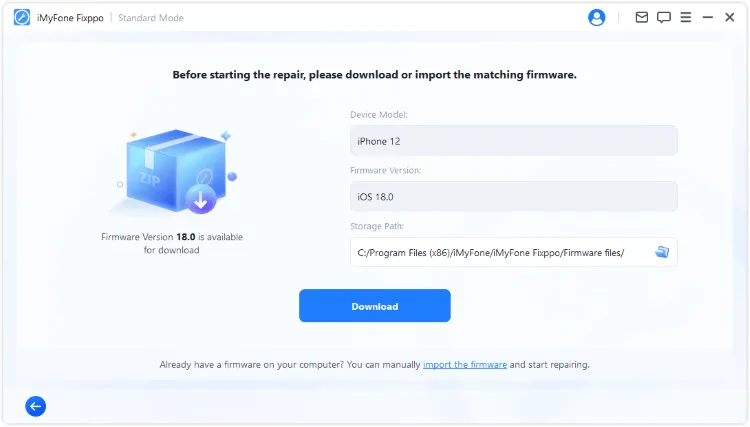
Step 3: When downloaded, please click the Start Standard Repair button for Fixppo to begin repairing your iPhone.
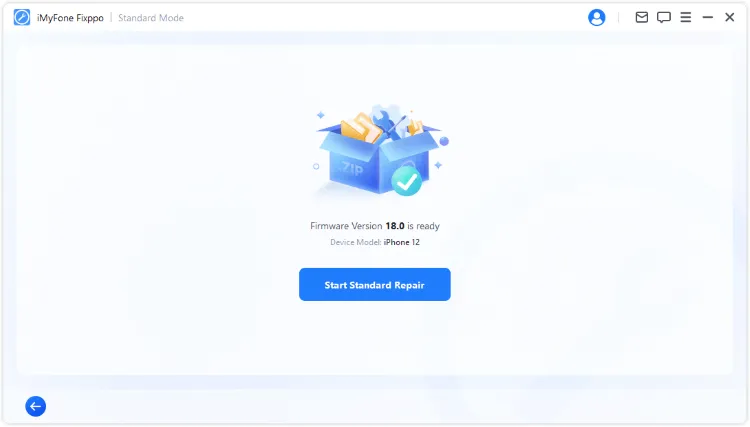
After repair, the iPhone should restart and let you test touch input again. Back up when possible and verify the screen, passcode entry, and basic gestures before using the phone normally.

2 Check and Clean the iPhone Screen
Clean the screen with a dry microfiber cloth, remove moisture, and take off any thick or lifted screen protector. A protector that shifted during heat or pressure can make the iPhone look like it has an iOS touch problem.

3 Disconnect Cable, Case, and Accessories
Disconnect charging cables, USB-C or Lightning accessories, magnetic mounts, and tight cases. Let the iPhone cool if it became warm during the iOS 27 update, then test touch again.
4 Restart Network and SIM-Related State
SIM and network state rarely cause full touch failure, but reseating the SIM or toggling network state can help if the phone is responsive enough and the issue appears after activation, setup, or carrier prompts.

5 Force Restart an Unresponsive iPhone
Force restart is the best manual step when the screen is frozen and taps do nothing. Use the correct button sequence for your iPhone model, then wait for the Apple logo before testing touch again.
- To force restart iPhone 6 or older models:
- To force restart iPhone 7/7 plus models:
- To force restart iPhone 8/X/11/12/13/14/15 models:
Press and hold the Home + Power buttons at the same time until the iPhone turns off and the Apple logo reappears on the interface.
Press and hold the Volume Down + Power buttons together until the device to turn off and display the Apple logo.
Press the Volume Up button, then the Volume Down button, and finally press and hold the Power button until the iPhone to go black and Apple logo to show up.

6 Use Finder / Apple Devices / iTunes Restore
Use Finder, Apple Devices, or iTunes only after backup attempts and repair options. Choose Update first if offered; Restore can erase the iPhone and should be the fallback when update or repair cannot fix the device.

Note
As this method will wipe all your iPhone data, including photos, videos, messages and others, please back up important data before trying this method.
Step 1: Open iTunes and connect your iPhone to the computer so as to be detected by iTunes.
Step 2: On the interface, click the iPhone icon and switch to Summary option.
Step 3: From the right side, you can see your iPhone model along with other information. To update iPhone iOS, please click the Restore iPhone button.
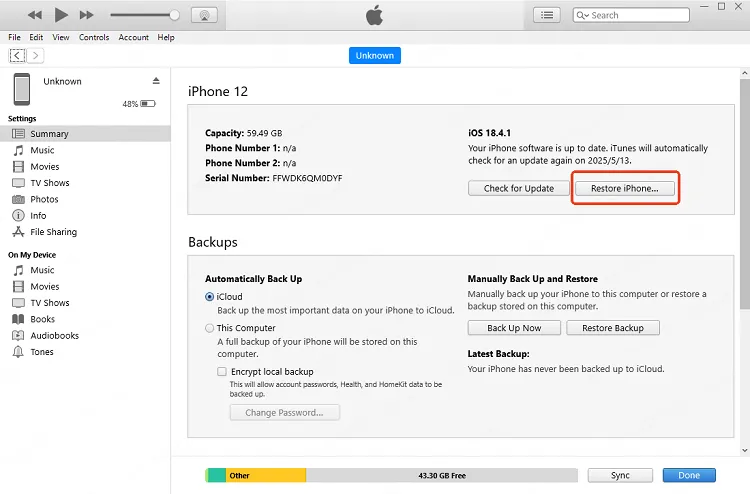
Step 4: When prompted, click to confirm and proceed to the next step for iTunes to begin update the iOS system.

Tips
If you have never connected the iPhone to the computer or used iTunes, this method may fail to work as you have to click the "Trust" button on your iPhone screen for the first time. In this case, you can try to fix the iOS system with Fixppo, which can detect and fix your iPhone easily Lower Data Risk.
7 Check Hardware or Screen Damage
If the iPhone was dropped, exposed to liquid, has a swollen battery, shows lines, or is not detected by a computer, stop software troubleshooting and contact Apple or a repair provider.
FAQs
Why is my iPhone touch screen not working after update?
It may be a stuck iOS process, app conflict, accessory pressure, screen protector issue, moisture, or hardware damage. Start with physical checks before restore.
What should I do if iPhone touch not working after iOS 27 update?
Remove the case and protector, disconnect accessories, clean the screen, force restart, then use system repair if the phone is detected but still unresponsive.
Why is my iPhone 11 not working after update?
If iPhone 11 not working after update means the touch screen is frozen or delayed, start with cleaning, accessory removal, and force restart. If the iPhone touch not working after update continues and the device is detected by a computer, treat it as a possible iOS repair case before restore.
Conclusion
Experiencing iPhone touch screen not working after iOS 27 update issue can be frustrating. When the touch screen is not responding, it's essential to address this problem promptly.
The above 7 solutions can fix both the software and hardware problems. If you need a time-saving solution, please try iMyFone Fixppo to get your iPhone touch screen work again.


(Click to rate this post)
Generally rated 4.9 (256 participated)

Rated successfully!

You have already rated this article, please do not repeat scoring!