

















 Shop
Shop


Your iPhone screen black but it's still on? Fixppo repairs iOS system issues behind black screens, update failures, and boot problems, helping restore your device without complicated troubleshooting.
I know the frustration when your iPhone screen is black but the phone is still on. This is often called the iPhone Black Screen of Death. The name sounds dramatic, but the cause is not always fatal. It can be a drained battery, overheating, a frozen iOS process, a failed update, or a damaged display.
This guide helps you fix the dead screen problem, starting with check for signs of life.

In this article:


Quick answer
If the iPhone is black but still on, charge it, check whether the computer detects it, and force restart. If the black screen began after iOS 27 update or restore and the device is detected, iMyFone Fixppo can repair iOS before you try erase-based restore. If the screen is cracked, water-damaged, or never detected, service is more likely needed.
Why iPhone Screen Is Black but Phone Is On
When the iPhone is on but the screen is black, the failure usually sits in one of two places: the display cannot show the interface, or iOS is running but frozen before it can draw the interface. The difference matters because software fixes help only when the device is still detectable and the screen hardware is not physically broken.
- The battery is extremely low or the iPhone overheated and dimmed or shut off the display.
- iOS is frozen after an update, restore, app crash, or display process failure.
- The screen or touch digitizer is damaged even though the logic board is still running.
- A failed iOS 27 update left the iPhone powered but unable to draw the normal interface.
Fix iPhone Black Screen but Still Running
| Method | Best For | Difficulty | Data Risk | Success Rate |
|---|---|---|---|---|
| Charge and Cool Down the iPhone | Black screen caused by low battery, overheating, or temporary power issues | Easy | None | Low-Medium |
| Force Restart iPhone | Frozen system, temporary software glitches, or black screen after an update | Easy | None | Medium |
| Repair iOS with Fixppo | iOS system issues causing a black screen while the device is still running | 👍 Easy | 👍 Low | 👍 High |
| Restore iPhone | Persistent software issues that cannot be fixed by basic troubleshooting | Medium | High | High |
| Try DFU Restore | Severe iOS corruption, failed updates, or devices stuck in recovery mode | Hard | Very High | High |
| Contact Apple | Physical screen damage, display failure, or hardware-related black screen issues | Easy | Depends on Service | High |
1 Charge and Cool Down the iPhone
Connect the iPhone to a trusted charger for at least 20 minutes. If it is hot, unplug it and let it cool before restarting. A hot iPhone can dim or shut off the display to protect itself, and pushing it while it is hot rarely helps.
If the charging sound or vibration works but the screen stays black, move to force restart.


Fix iPhone on but screen black tool
3 easy steps to fix when your iPhone screen not working but phone is on without losing data. You don't have to wait until the battery is drained.
2 Force Restart iPhone
Force restart is the first software step I would try for an iPhone screen that is black but the phone is on. It clears a frozen iOS state without choosing an erase path.
For iPhone 6S, iPhone SE 1st generation, or older:
Hold the Home and Sleep/Wake buttons together until the Apple logo appears, then release both buttons.
For iPhone 6S, SE or older version:Step 1. Hold down the Home and Sleep/Wake keys concurrently unless you see the Apple logo start appearing on the screen.
Step 2. Un-hold the buttons and let your iPhone start.

Step 1. Hold down the Power/Lock and the Volume Down keys till the Apple logo surfaces on the screen.
Step 2. Let the iPhone restart.

Step 1. Tap and immediately release the Volume Up key, and repeat the same for the Volume Down key.
Step 2. Hold down the Power key until the Apple logo shows up. Restart your iPhone.

3 Repair iOS with Fixppo
If the iPhone is detected by the computer and the black screen started after iOS 27 update, restore, or firmware failure, iMyFone Fixppo is worth trying before erase-based restore. It is for software-side black screen cases where iOS is running badly or cannot show the interface.
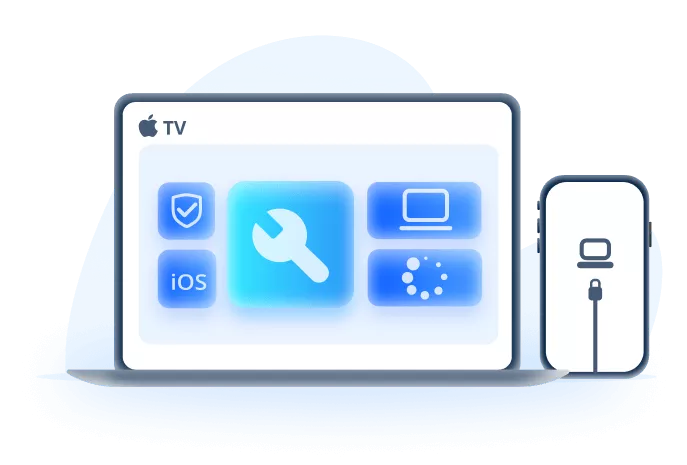
Fixppo for iPhone Black Screen but On:
- Display-State Repair: Useful when iOS is running but the screen stays black after update, crash, or recovery-mode failure.
- Standard Mode First: Designed for lower-data-risk repair when the device is detected.
- Related iOS Issues: Also fits Apple logo loop, recovery mode, boot loop, stuck update, and black-screen update failures.
- Compatible with all running iOS versions, including iOS 26/27.
Step 1: Install Fixppo, connect the iPhone with a reliable USB cable, and choose Apple System Repair.

Step 2: Choose Standard Mode when the device can be detected and the issue looks like an iOS software problem.
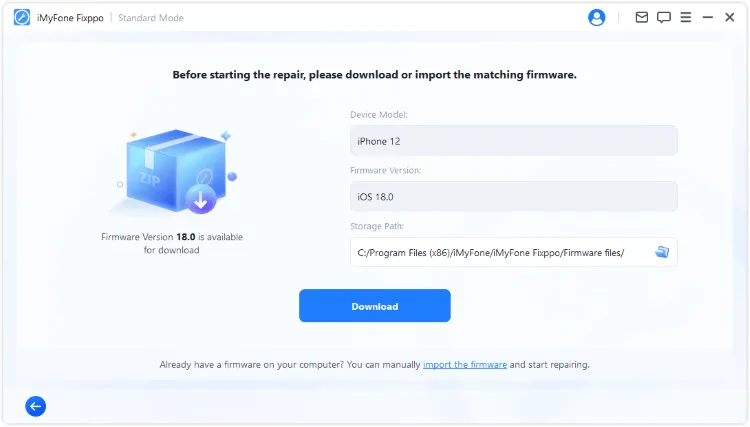
Step 3: Download the firmware shown for your exact model, then start the repair and keep the cable connected until the iPhone restarts.
4 Restore with Finder, Apple Devices, or iTunes
If repair does not work, restore the iPhone from a computer. This can erase current data, so use it when you have a backup or the device cannot be recovered another way.
Step 1: Download and launch iTunes from your computer.
Step 2: Connect your iPhone with a USB cable, then wait for iTunes to detect your device.
If iTunes can't detected your iPhone, you may have to put it into recovery mode first. And you can read on this article to learn how to put your iPhone into recovery mode.
Step 3: If your iPhone is detected, click on the Restore iPhone button.

Step 4: Once confirmed, iTunes will begin to erase your iPhone and download the latest firmware of iOS 27/26/18/27.
Step 5: When it's done, please check whether the issue of your iPhone screen is black but the phone is on is fixed.
5 Try DFU Restore
DFU restore is the deeper firmware restore. It is appropriate when recovery mode fails, but it also erases the device.
Step 1: Connect your iPhone to the computer and launch iTunes.
Step 2: Concurrently press and hold the Sleep/Wake > Home (iPhone 6S and older)/ Sleep/Wake > Volume Down (iPhone 7 to latestiPhone 15/16/17) keys for 8 to 10 seconds.
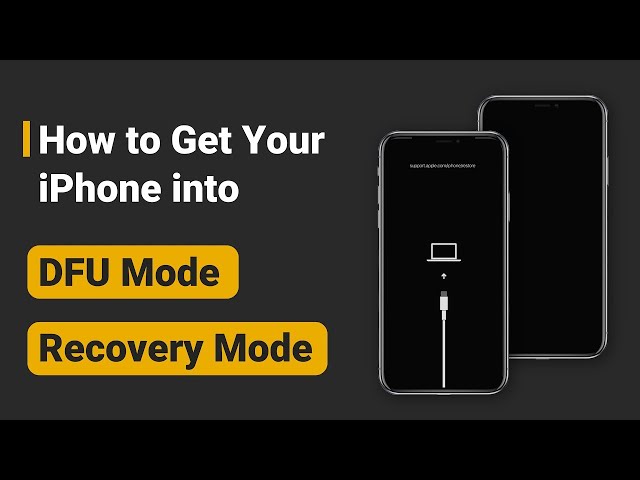
Step 3: Release the Sleep/Wake key and still hold the other button until you see the notification 'iTunes has detected an iPhone in recovery mode' on the screen. Then un-hold the Home (iPhone 6S and older)/Volume Down (iPhone 7 to latestiPhone 15/16/17) key soon after.
Step 4: Once you have entered DFU mode the iPhone screen turns black. Click on Restore iPhone and then tap Restore. Confirm your action and let your iPhone get restored to normal smoothly.
6 Contact Apple for Display or Hardware Service
If the iPhone had a drop, liquid exposure, swelling battery, or the screen never lights even during restore, the next step is hardware service.
Conclusion
An iPhone screen that is black while the phone is still on can come from a simple power issue, a frozen iOS display process, or real display damage. Charge and cool it first, then force restart. If the computer detects the iPhone and the problem followed an iOS 27 public beta update, restore, or system crash, iMyFone Fixppo gives you a guided repair path before erase-based restore. If there is physical damage or no detection at all, treat it as a hardware service case.


Melvin Cooper has over 10 years of experience in the technology industry and is an expert at providing tips and handy solutions to Apple and Android users. Dedicated to helping millions of users improve their experience with mobile devices, he has maintained an impressive record of solving problems.
-
iPhone Not Charging After iOS 27 Update? 10 Fixes [2026]
iPhone not charging after update? Diagnose charger, temperature, port, and iOS issues, then learn when Fixppo or Apple service is the right next step.
7 mins read -
How to Get iOS Beta on iPhone in 2026 (Full Guide)
Learn how to get iOS beta, install iOS 27 public or developer beta, remove it safely, and fix stuck beta update issues.
12 mins read -
Fix iPhone Stuck on Update Requested [iOS 27 Supported]
iPhone stuck on update requested? Learn why it happens and discover 8 proven solutions to get your iOS update back on normal without data loss.
3 mins read -
[2026 New] How to Stop iOS 27/26/18 Update in Progress?
How to stop iOS 27/26/18 update in progress when you feel like staying in the current iOS version? Here's how to do it via 4 methods.
3 mins read -
5 Ways for iOS 26 Beta Download [Developer & Public Beta]
How to get iOS 26 beta? Whether you want to download iOS 26 developer or public beta, you can find the suitable methods with our guide. 5 Ways here!
3 mins read -
17 Important Facebook Statistics You Should Know in 2026
Do you want to know some up-to-date Facebook statistics? We break down 17 must-know Facebook stats about demographics, engagement rate and more.
3 mins read
Was this page helpful?
Thanks for your rating
Rated successfully!
You have already rated this article, please do not repeat scoring!